

Appearance
Space Menu Manager
The Menu tab in Space Settings is where you control everything a member sees in a Space's navigation the tab bar at the top and the link row just beneath it. Reorder tabs by dragging, rename them, hide the ones you don't need, and add your own links to a URL or a Space page, all from one screen with a live preview.
Use Case: Move a Welcome page ahead of the feed so new members see it first, tuck Members at the end of the tab bar, and add a row of quick links to your Figma library and office-hours calendar underneath — without touching a single other setting.
Opening the Menu Manager
- Navigate to the Space whose navigation you want to change.
- Click the ⋮ (three-dot) menu in the top-right corner and select Space Settings.
- Click the Menu tab at the top of the settings panel.
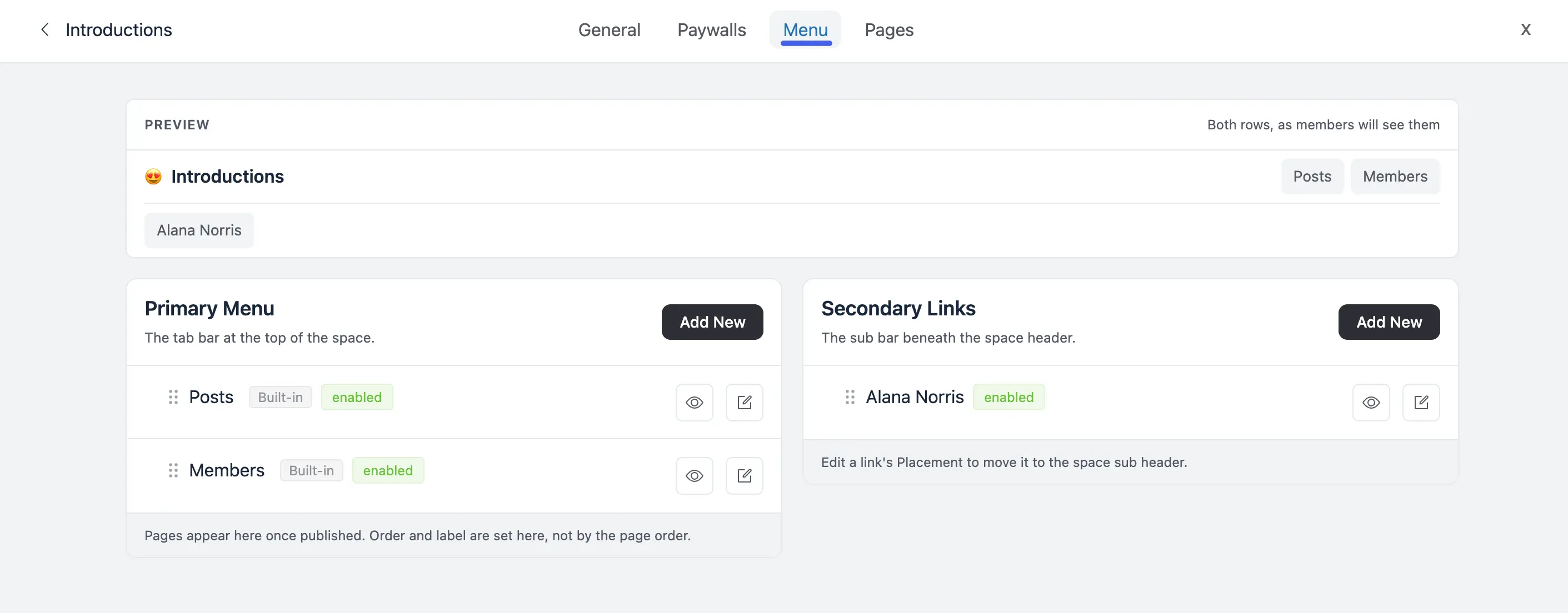
The Two Rows
A Space's navigation is made of two separate rows, each managed in its own list:
- Primary Menu: The tab bar at the top of the Space. This holds the built-in tabs (Posts, Members), the Media module tab, any Space Pages (Pro) you've published, and any custom link you add here.
- Secondary Links: The sub bar just beneath the Space header. This row is for the extra links you don't want crowding the main tab bar a resource library, a booking page, a showcase.
The PREVIEW panel at the top of the Menu tab renders both rows exactly as members will see them, and updates as you make changes.
TIP
Move a link between rows any time - see Moving a Link Between Rows below.
Managing Existing Tabs
Each row lists its tabs and links with a drag handle, a type badge (Built-in, Page, Module, or Custom), and a status badge showing whether it's enabled or disabled.
- Reorder: Grab the ⠿ grip on the left of any row and drag it to a new position. Want the Welcome page before the feed, or Members tucked at the end? Just drag it there.
- Rename: Click the edit (pencil) icon to open a tab's settings and change its label.
- Add an icon: From the same edit panel, give the tab an emoji or an SVG icon so it stands out in the tab bar.
- Hide: Click the eye icon to disable a tab without deleting it. A disabled tab drops out of the live preview and the Space's navigation but keeps its settings, so you can turn it back on later.
IMPORTANT
At least one tab always stays visible. You can never hide every tab in a Space, there's a built-in safety net so members can never be left with no way to navigate.
Adding a New Tab or Link
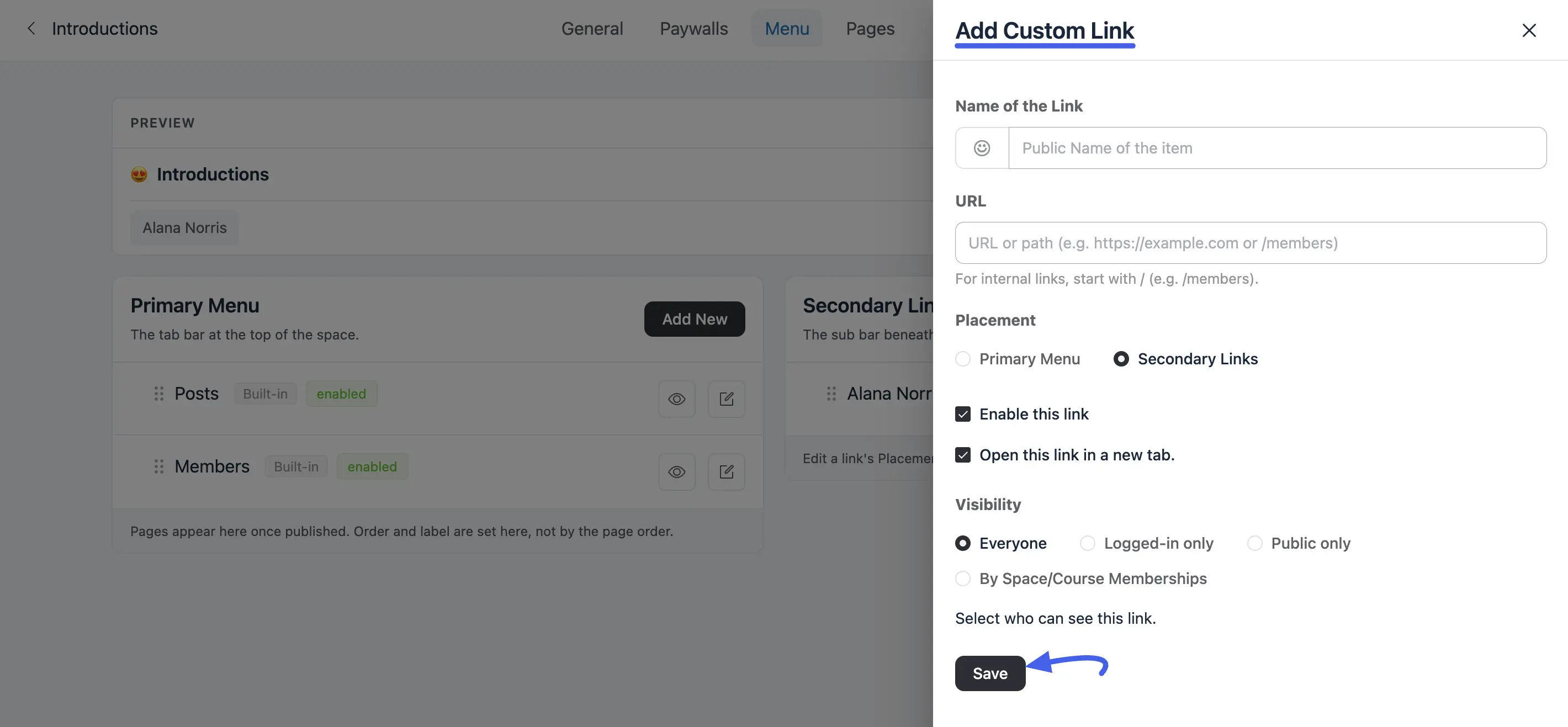
Click Add New above either row to open the Add Custom Link panel.
- Name of the Link: The label members see. You can add an emoji or icon beside it from the picker to the left of the field.
- URL: A full URL for external links (
https://example.com), or a path starting with/for internal links (/members) — including a Space Page's own URL. - Placement: Choose Primary Menu or Secondary Links right from the form. You can always move it later — see Moving a Link Between Rows.
- Enable this link: Leave it checked to make the link live immediately, or add it now and switch it on later.
- Open this link in a new tab: Checked by default, recommended for external URLs so members don't lose their place in the community.
- Visibility: Choose Everyone, Logged-in only, Public only, or By Space/Course Memberships to pick the specific Spaces or courses whose members can see the link.
Click Save and the link appears in whichever row you placed it in, ready to be dragged into position.
Moving a Link Between Rows
Open a link's edit panel and change its Placement field to move it from the Primary Menu to Secondary Links, or back again. This is the fastest way to promote a link into the main tab bar, or demote one into the sub bar to declutter.
Published Pages Join Automatically
When you publish a new Space Page, it joins the Primary Menu list automatically, added at the end. It won't jump into the middle of your carefully-ordered tab bar, drag it to wherever it belongs once it shows up.
NOTE
A page's position and label in the tab bar are now set from this Menu tab, not from the page order in the Pages tab. See Space Pages (Pro): Managing Pages for how the Pages list itself works.
How This Relates to Space Links
The Menu tab is now the single place to add and manage custom links in a Space it covers what the older Space Links feature did, plus per-link visibility rules and the choice between the tab bar and the sub bar.
If you're looking for the Space Links tab from an older FluentCommunity version, use Space Settings → Menu instead.
NOTE
Only Space Admins and Site Admins can open the Menu tab and make changes. Regular members see the resulting navigation but can't edit it.