

Appearance
Space Groups
FluentCommunity allows you to organize your spaces into groups, making it easier to manage and structure your communities. Space Groups are what appear as the headings in your community sidebar, with their Spaces nested underneath.
Create a Space Group
Go to your FluentCommunity. Then, go to Settings and select Space Group from the left sidebar.
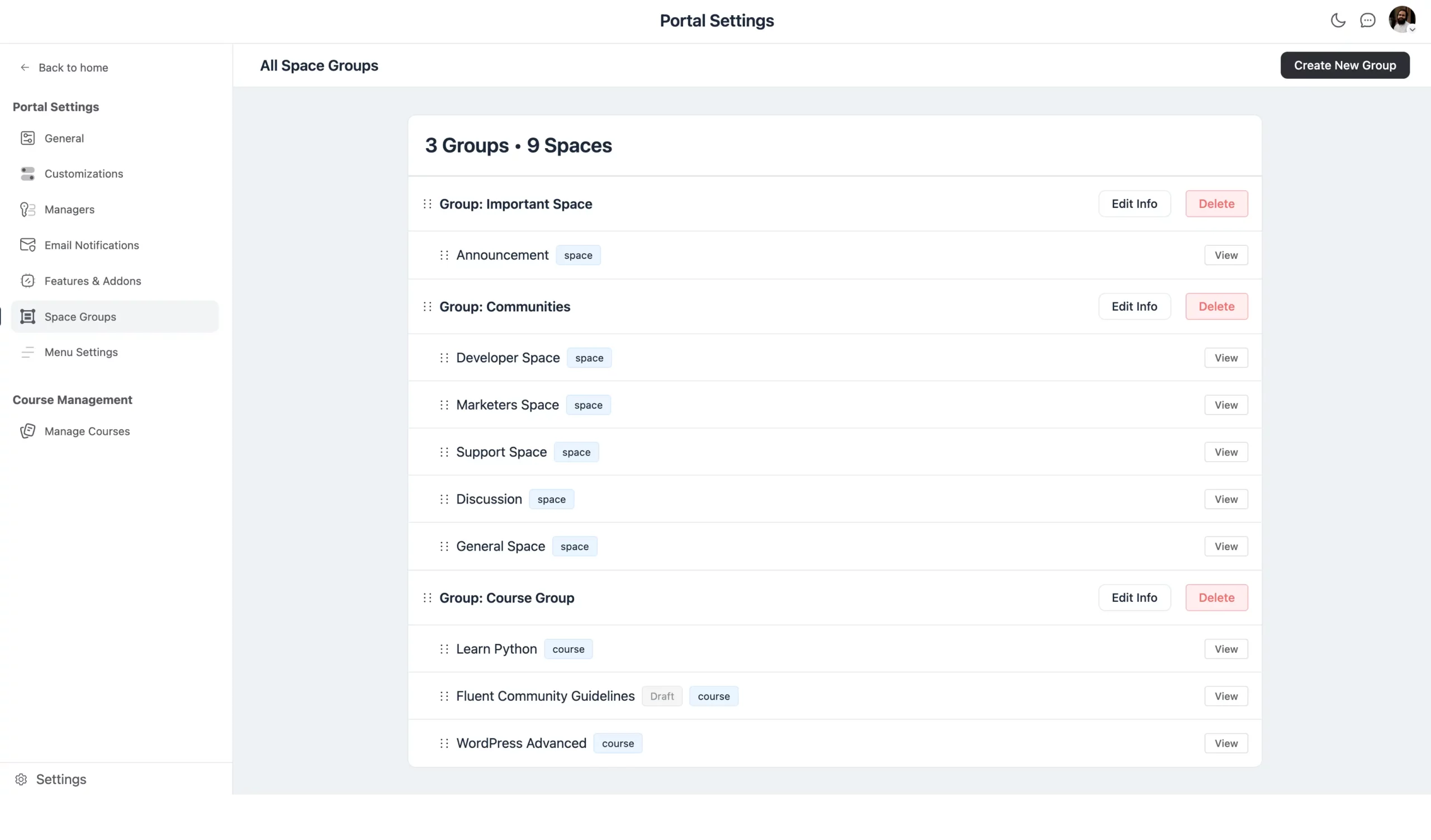
Create a New Group
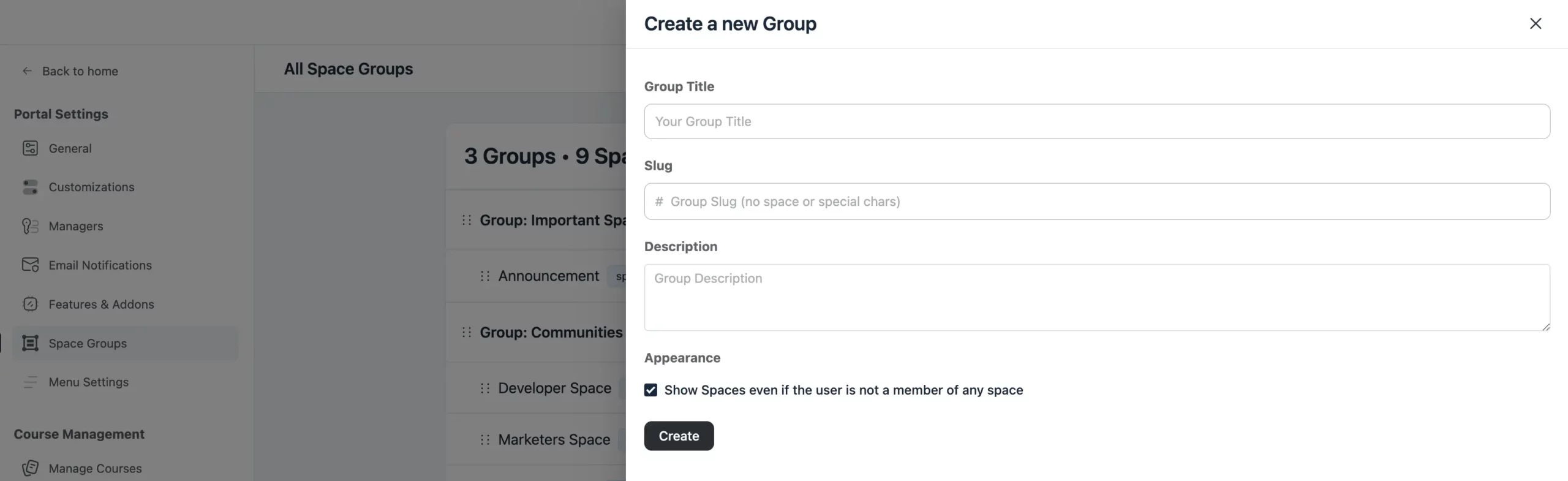
To create a new group, click the Create New Group button. A pop-up will appear asking for the following details:
Group Title: The name of the group.
Slug: A URL-friendly version of the group title.
Description: A brief description of the group's purpose.
Set Sidebar Visibility
Under Sidebar visibility, choose which spaces of this group a member sees in the sidebar:
- Show all spaces: Every space in the group is shown to every member.
- Show all spaces once a member joins one of them: Members who haven't joined any of the group's spaces don't see the group. Once they join one, they see all of its spaces.
- Show only the spaces the member has joined: Members see only the spaces they have joined, and the group stays hidden until they join one.
Admins, moderators, and course creators always see every space, whichever option you pick. This is a group-level setting, distinct from an individual Space's privacy.
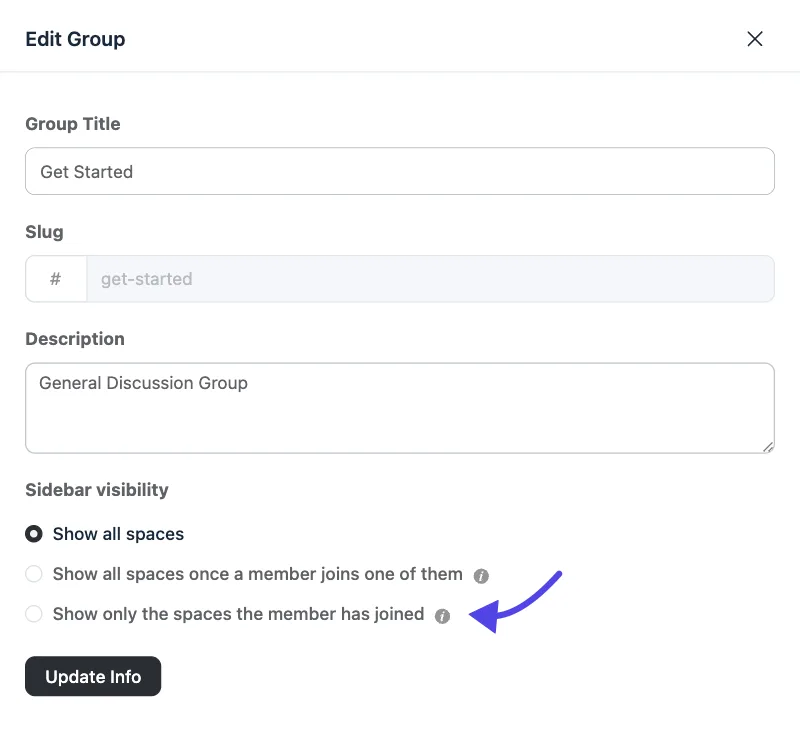
Once you've filled in the details and set the visibility, click the Create button to create the group.
Managing Space Groups
Reorganize Communities: You can easily reorganize the spaces or communities within a group by dragging and dropping them into the desired order.
Edit/Delete Group: To change the details of a group, click the Edit Info button next to the group. This will allow you to update the title, slug, description, or visibility settings.
If you want to delete the group, simply click the Delete button next to the group name.
That's how you can efficiently create and manage your Space Groups to keep your community organized.