Appearance
Course Links
FluentCommunity lets you attach custom Links to any course, giving students quick access to related resources, downloads, or external pages directly from the course navigation bar.
Use Case: You're running a photography course and want to add a link to a downloadable presets pack, a private community space, and your YouTube channel, all visible right at the top of the course.
How to Add a Link to a Course
Links are managed inside the course editor, so you'll start by opening the course you want to add them to.
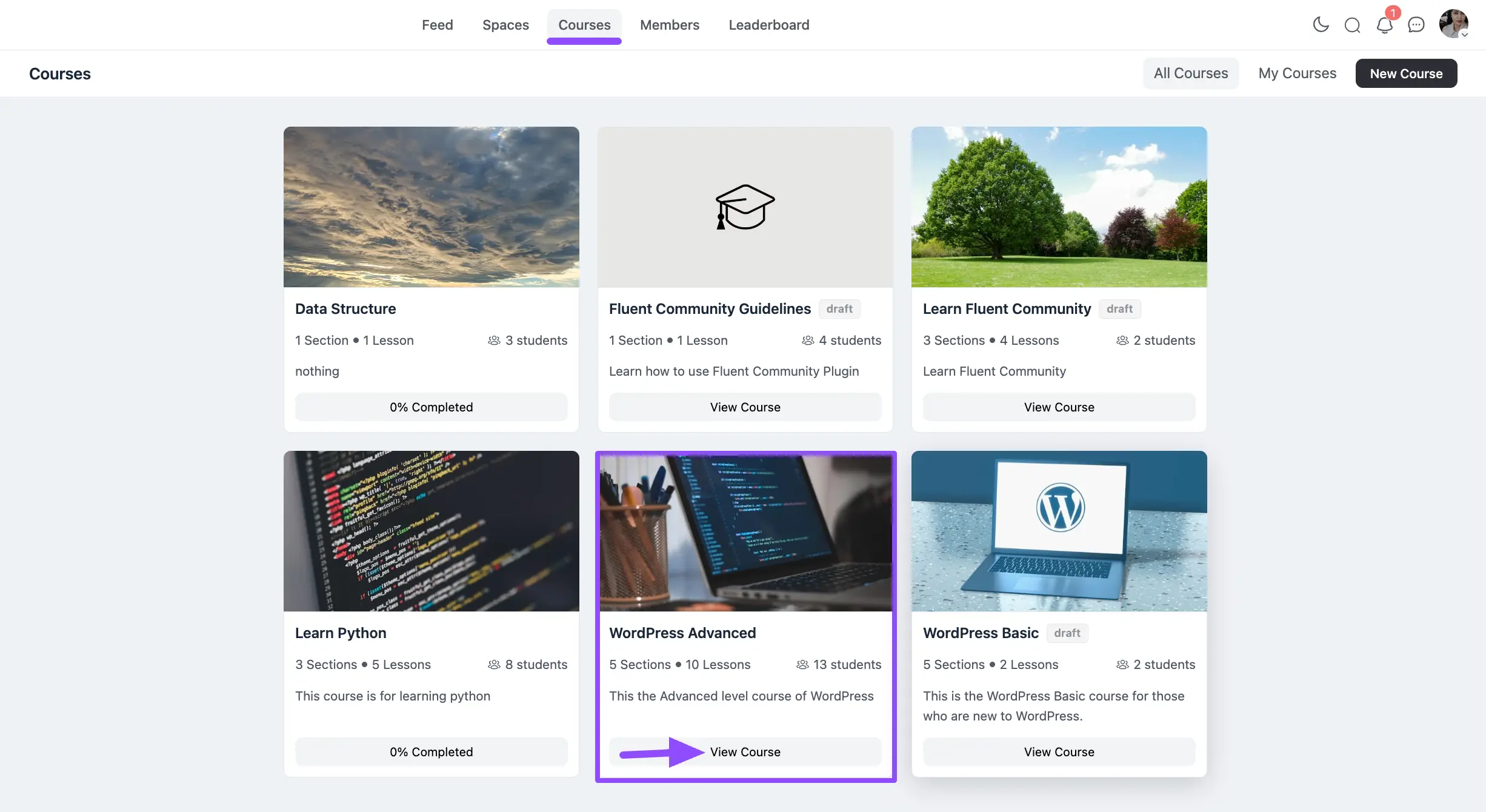
- From the FluentCommunity navbar, open the Courses section and click View Course on the course you want to edit. If you need a new course first, click New Course in the top-right corner.
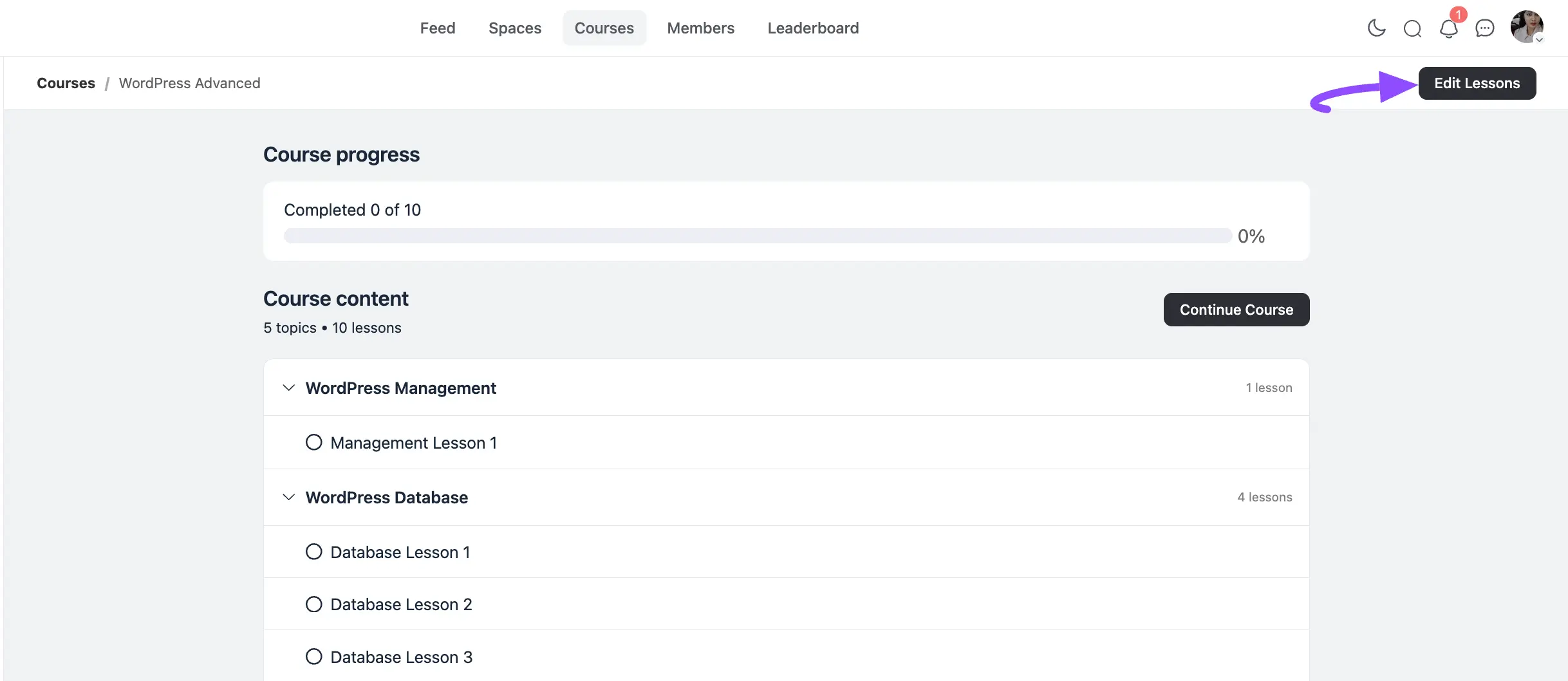
- In the top-right corner, click the Edit Lessons button.
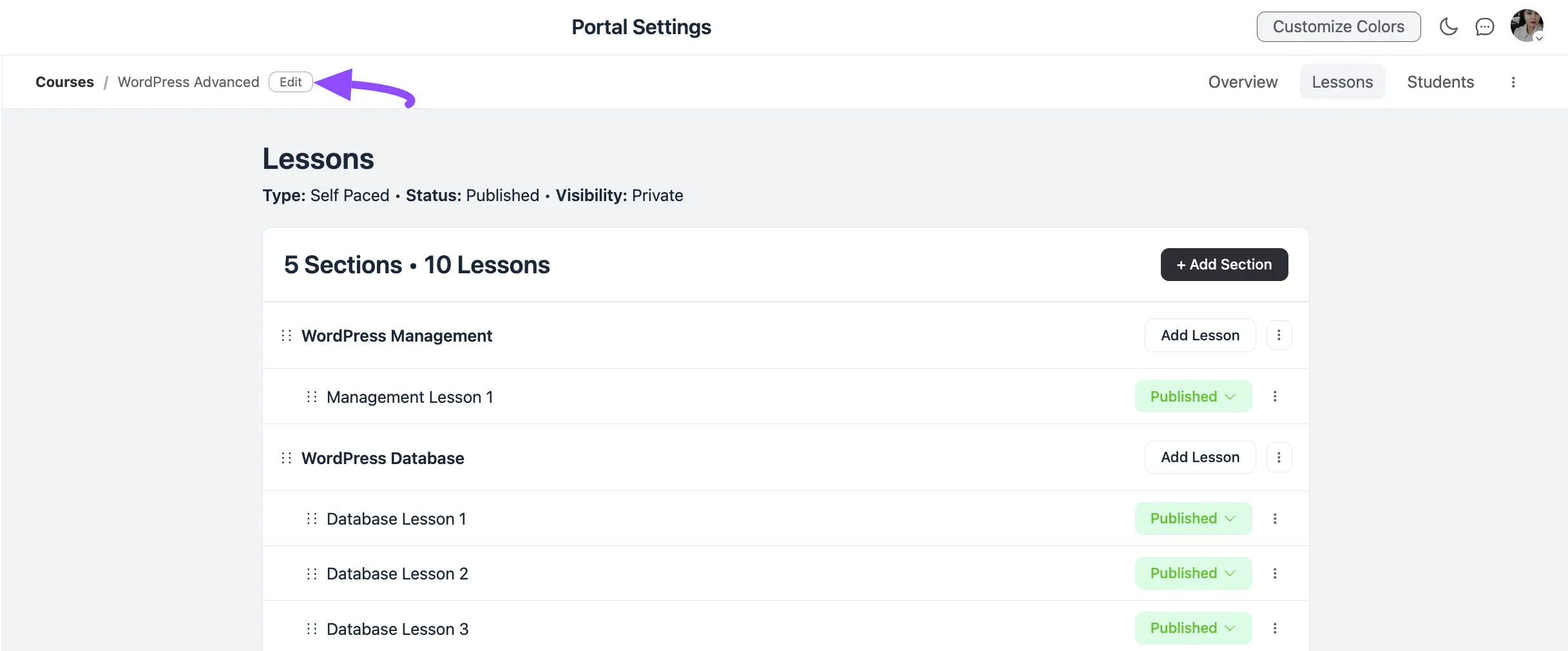
- Next, click the Edit button in the top-left corner.
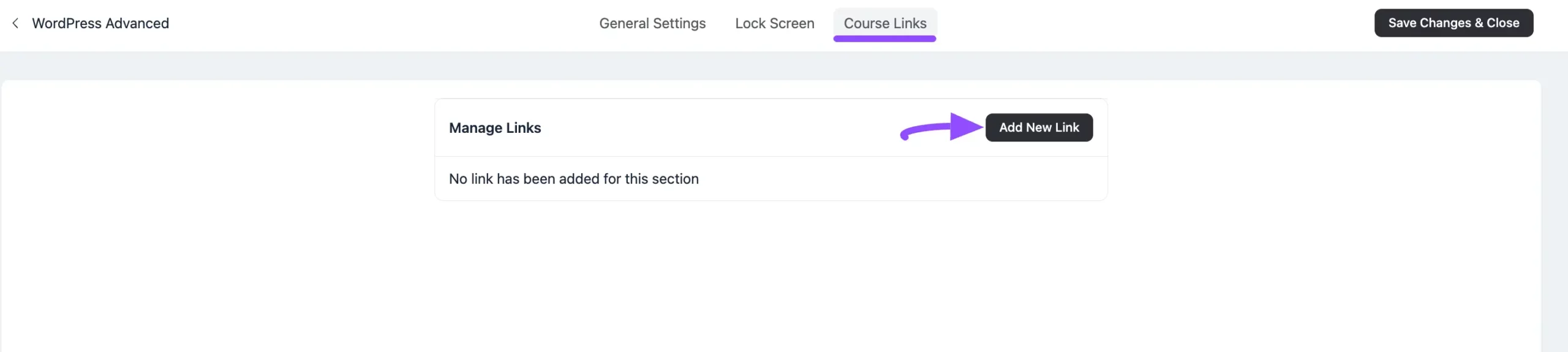
- Open the Course Links tab from the top navbar, then click the Add New Link button.
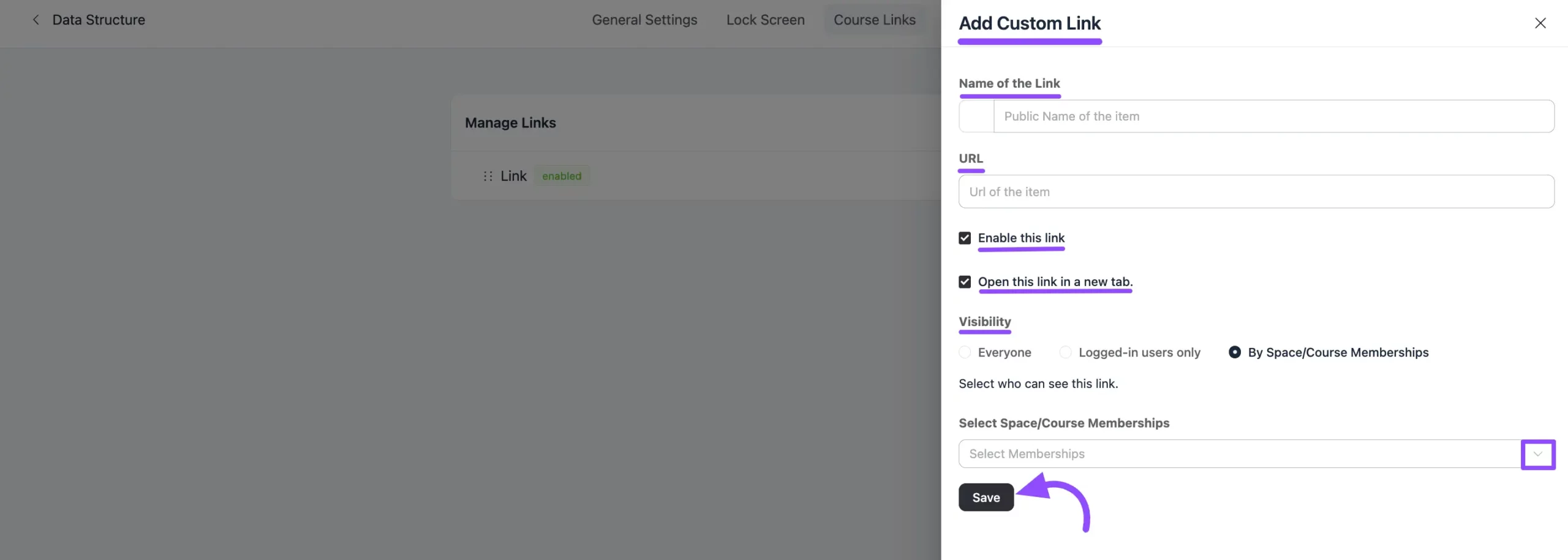
- A popup appears where you fill in the link details. Once you're done, click Save.
Link Options
Here's what each field in the popup does:
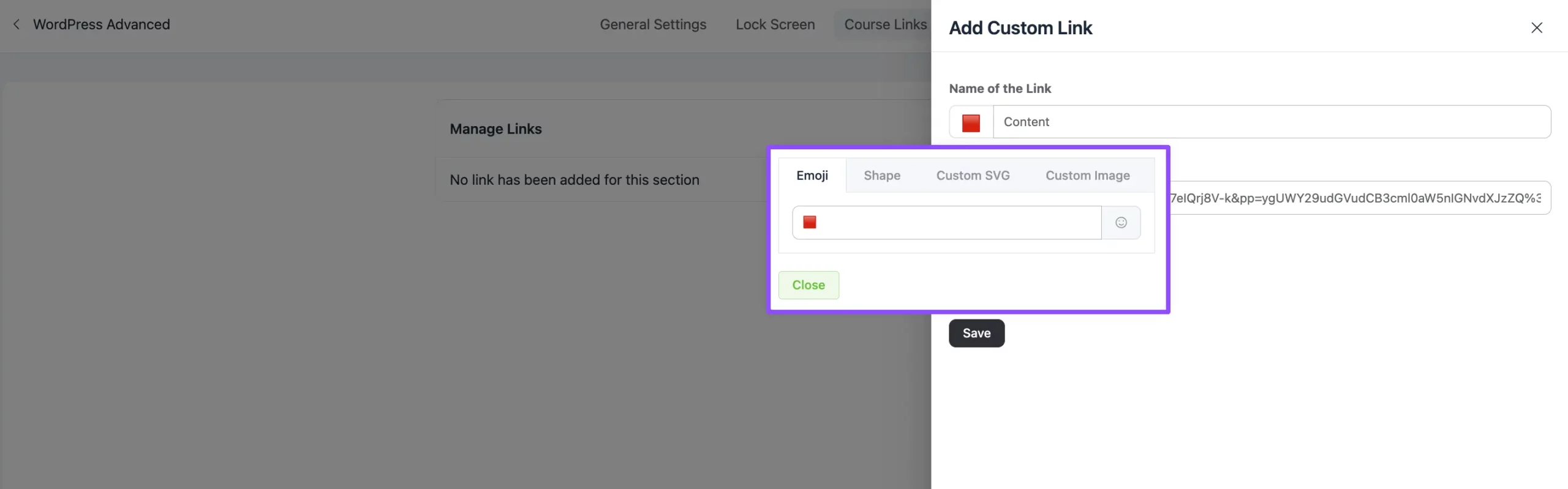
- Name of the Link: The label shown for your link. To add an icon beside the name, click the empty box next to this field. A popup lets you set an Emoji, Shape, Custom SVG, or Custom Image as the icon.
- URL: The destination address users are sent to when they click the link.
- Enable this Link: Checked by default. Uncheck it to disable the link and keep it as a draft.
- Open this link in a new tab: Also checked by default. Uncheck it if you'd rather the link open in the same tab.
- Visibility: Choose who can see the link:
- Everyone: Visible to all users.
- Logged-in Users Only: Visible only to users who are logged into the platform.
- By Space/Course Memberships: Visible only to members of the courses or spaces you select.
Once your links are added, click Save Changes & Close to apply them to the course. You can Edit or Delete any link at any time using its edit/delete controls.
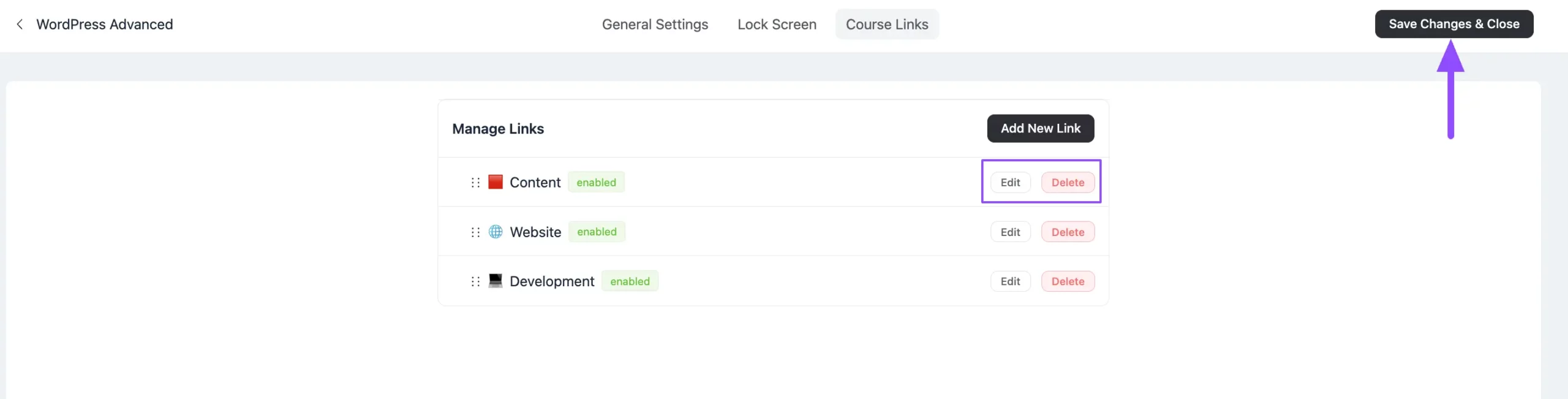
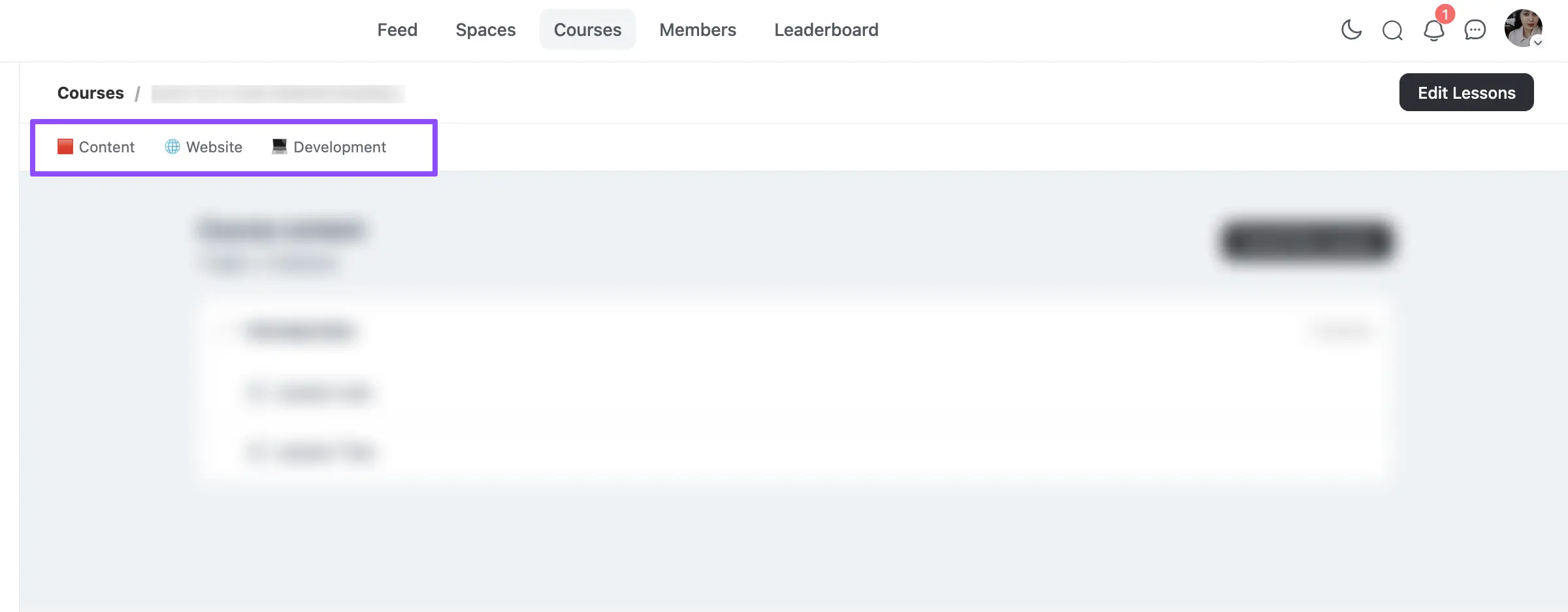
Your links now appear in the top navbar of the course, ready for students to use.