

Appearance
Space Pages (Pro)
Space Pages let you add static, evergreen pages to any Space — the kind of content that shouldn't scroll away in the feed. A page is written in the same block editor you use for course lessons, gets its own URL inside the Space, and can appear as a tab in the Space's navigation right next to Posts and Members.
Use Case: Pin the house rules as a Guidelines tab, keep an FAQ that answers the questions new members ask most, publish a Current Offers page for a promotion, or write a Start Here page that walks newcomers through the Space.
NOTE
Space Pages are part of FluentCommunity Pro. In the free plugin, the Pages tab is still visible in Space Settings but shows an upgrade prompt instead of the page manager.
Pages are available in every discussion Space — there is nothing to switch on. Any Space Admin or Moderator can create and manage pages for the Spaces they look after. Course Spaces do not support pages yet.
Opening the Pages Manager
- Navigate to the Space you want to add a page to.
- Click the ⋮ (three-dot) menu in the top-right corner and select Space Settings.
- Click the Pages tab at the top of the settings panel.
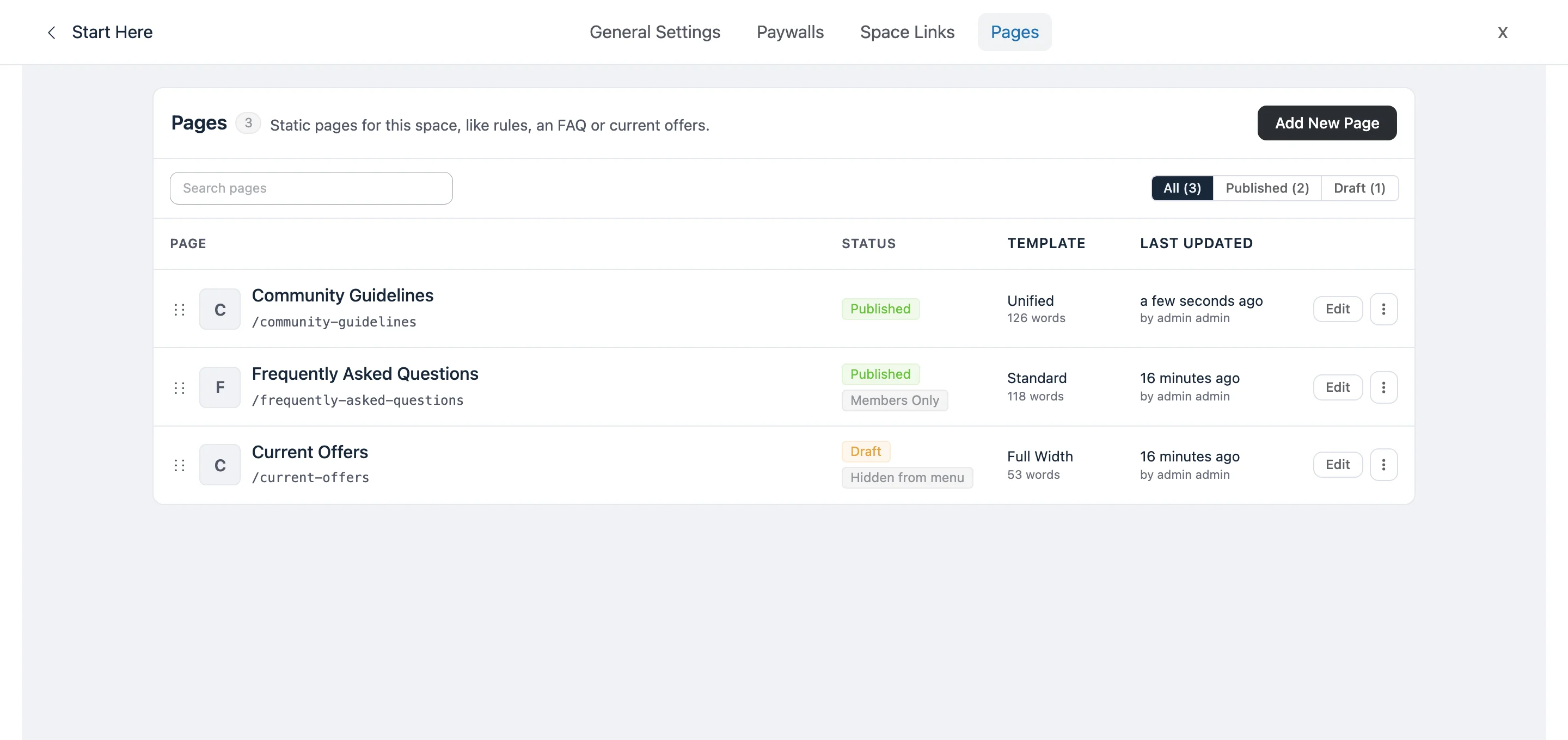
The Pages tab lists every page in the Space — published or draft — with its template, when it was last updated, and who wrote it.
TIP
Every settings tab now has its own URL, so you can bookmark the page manager directly: /space/your-space-slug/settings/pages.
Creating a Page
Step 1: Add a New Page
Click Add New Page in the top-right corner of the Pages tab. A small popup asks for a title — that's all you need to start. You can change the title any time later.
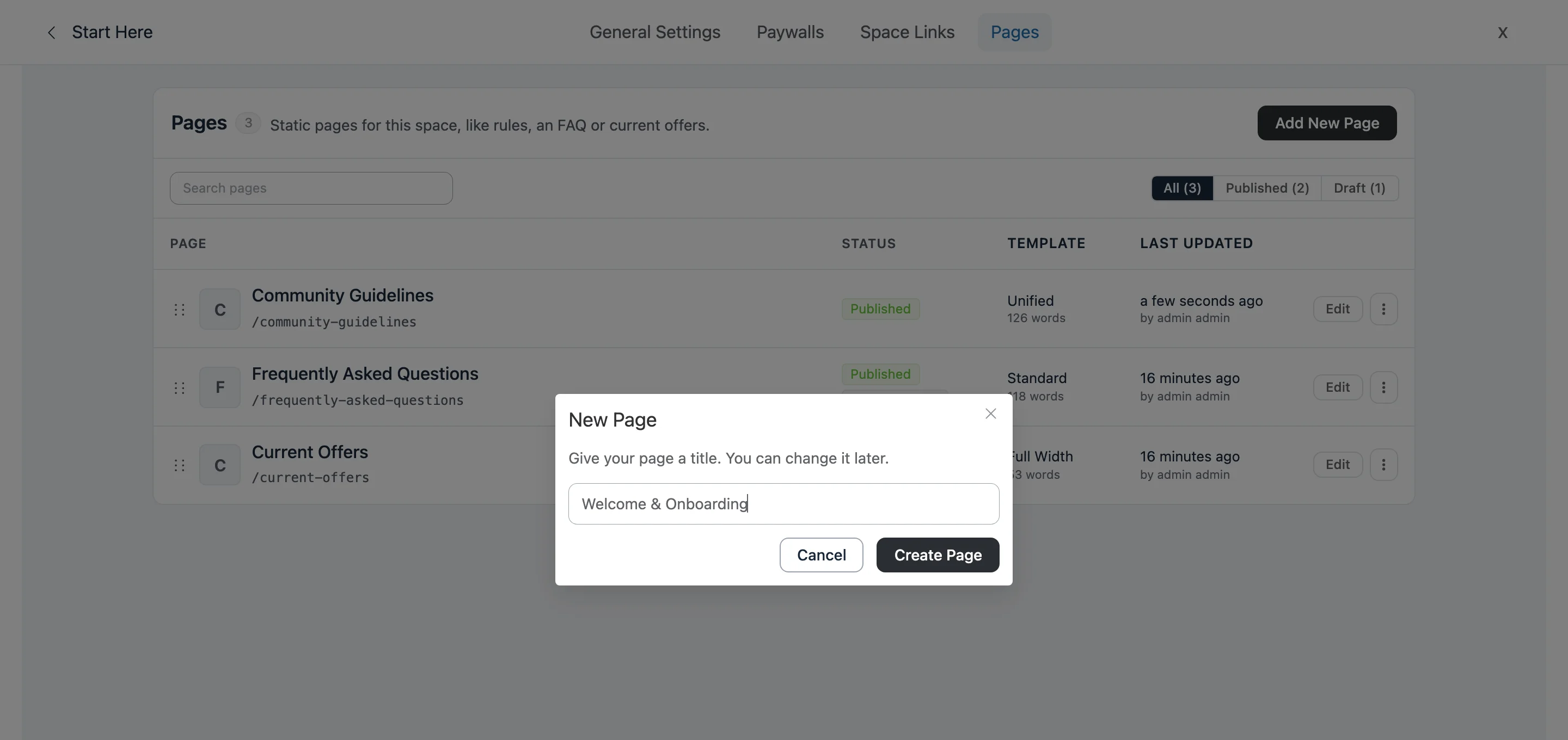
Click Create Page. The page is created as a draft and the editor opens immediately.
Step 2: Write Your Content
The page editor is the familiar WordPress block editor, so headings, lists, images, embeds, buttons and columns all work the way you expect. The controls in the top bar are:
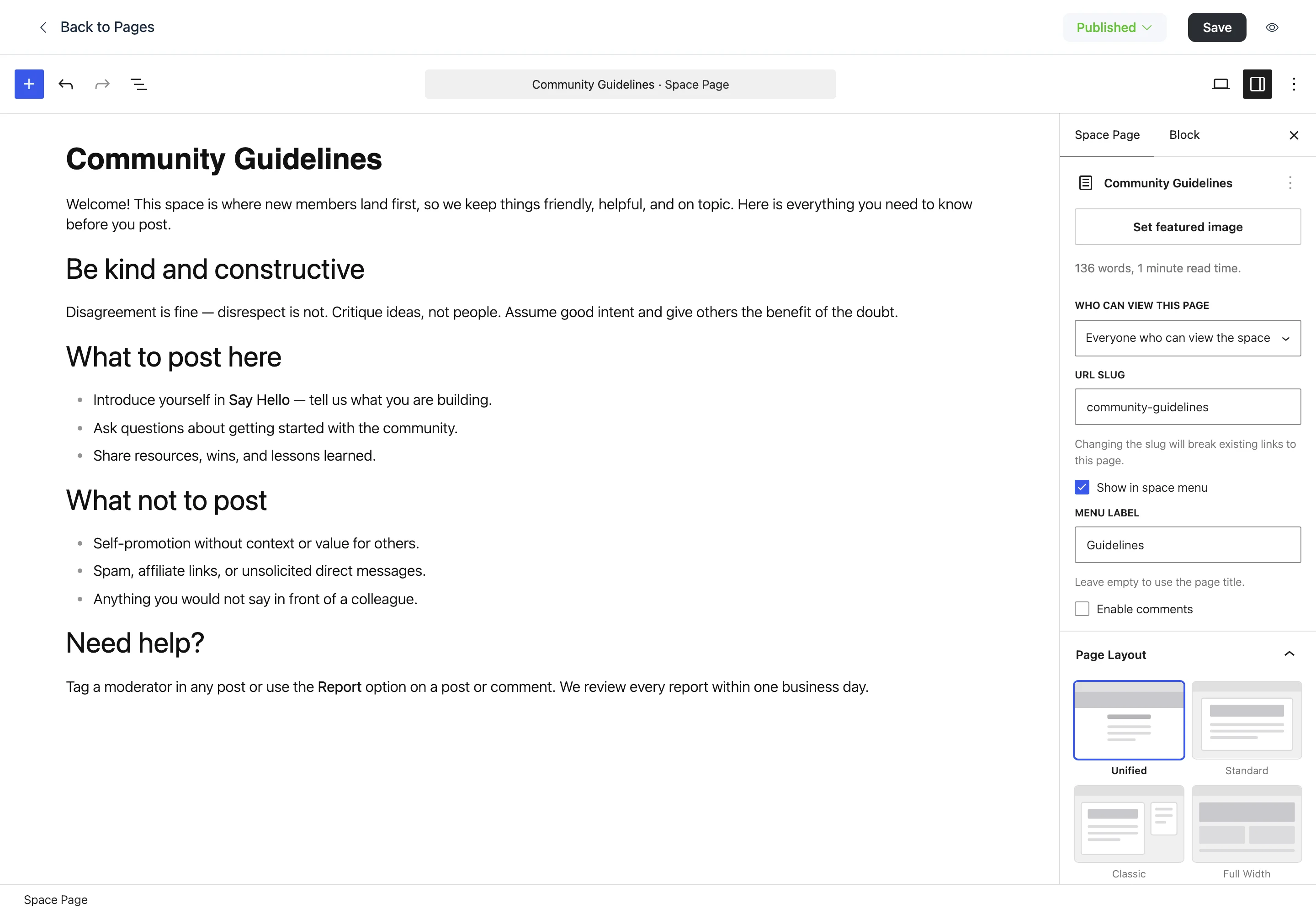
- Back to Pages — return to the page list. If you have unsaved changes, you'll be asked to confirm first.
- Draft / Published — the status switch. A draft is only visible to Space Admins and Moderators.
- Save — save your changes. Saving does not change the status, so you can keep working on a draft across several sessions.
- 👁 (Preview) — open the page at its real URL in a new tab, even while it's still a draft.
NOTE
If you try to leave with unsaved edits — the Back button, the browser's Back button, another link in the portal, or closing the tab — FluentCommunity asks you to confirm so nothing is lost silently.
Step 3: Set Who Can See It and Where It Appears
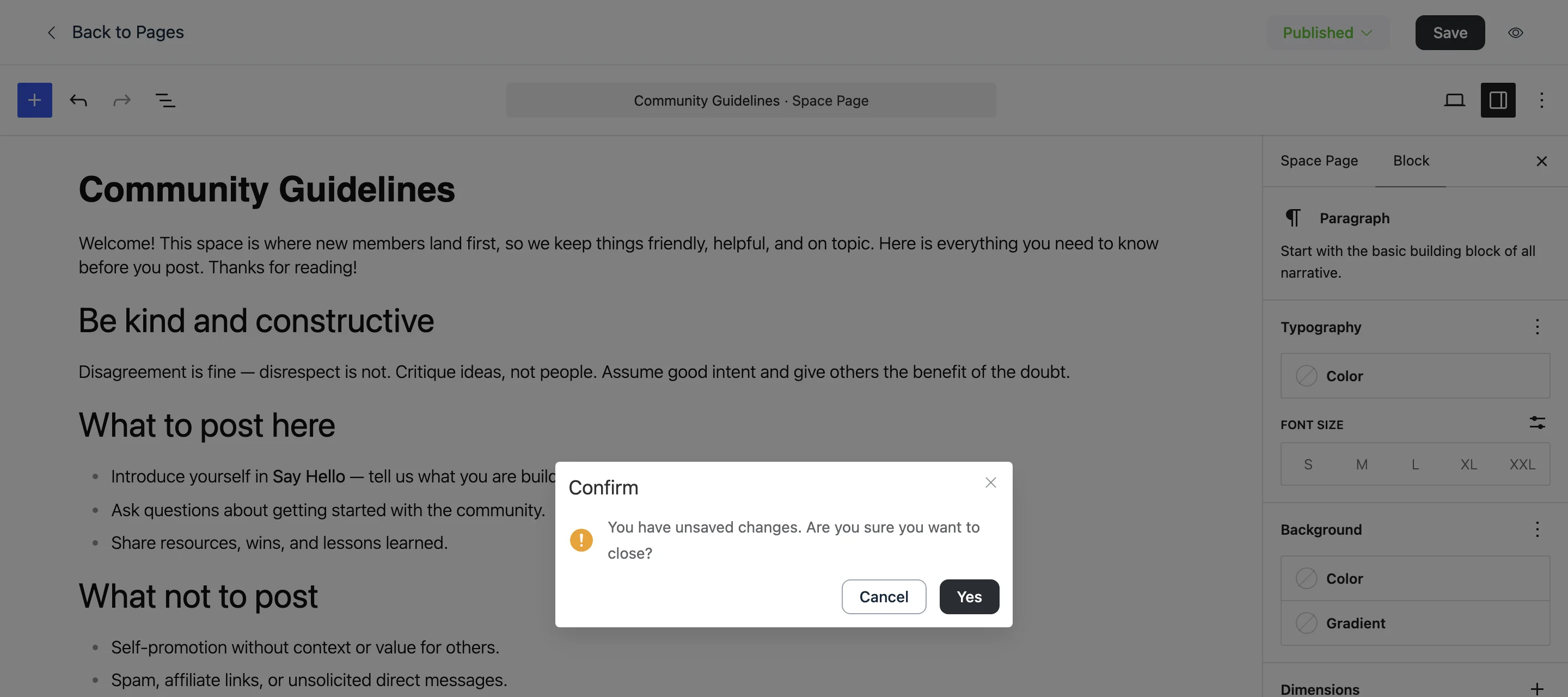
Everything a page has beyond its title and content lives in the Space Page sidebar on the right. If the sidebar is hidden, click the Settings icon (the panel icon) in the editor's top-right corner.
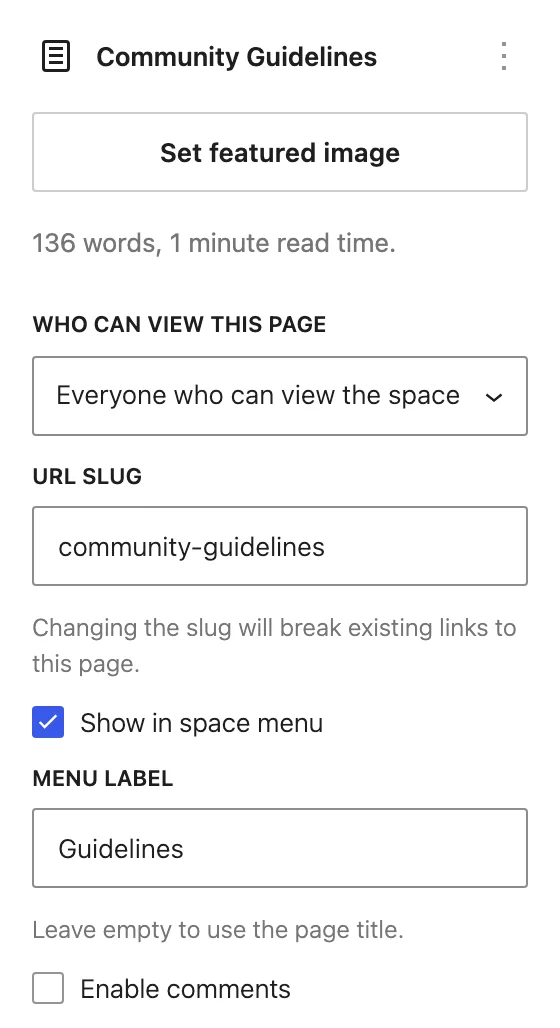
Set featured image: Pick an image for the page. It's used for the link preview when the page is shared and shows in search results. Whether it also prints across the top of the page is a separate choice — see Page Layout below.
Who can view this page:
- Everyone who can view the space — anyone who can see the Space's posts can read the page. In a public Space that includes logged-out visitors.
- Space members only — only members of the Space can read it. Everyone else is told the page is for members.
URL Slug: The last part of the page address, for example community-guidelines. It's generated from the title, and you can edit it — but changing it breaks any links you've already shared.
Show in space menu: Tick this to add the page as a tab in the Space's navigation bar, next to Posts and Members. Untick it to keep the page reachable by its URL only.
Menu Label: A shorter name for the tab. Leave it empty to use the page title. A page titled Community Guidelines reads better as Guidelines in a tab.
Enable comments: Adds a comment thread beneath the page, just like a post. It's off by default — most pages are reference material, but an FAQ or a feedback page benefits from a discussion.
Step 4: Choose a Page Layout
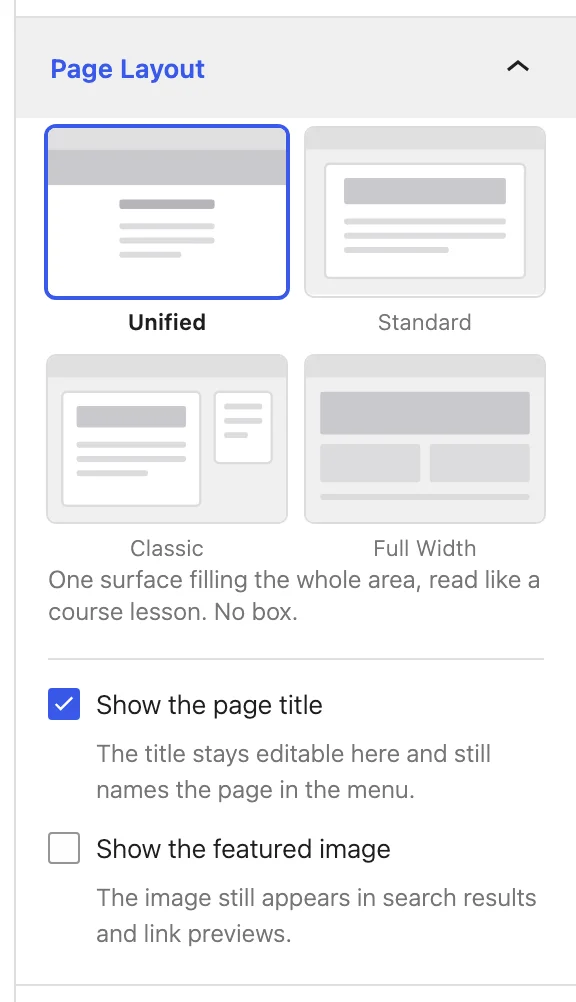
The Page Layout panel decides how the page sits inside the Space. Pick the thumbnail that suits the content; the description underneath explains each one.
| Template | What it looks like | Best for |
|---|---|---|
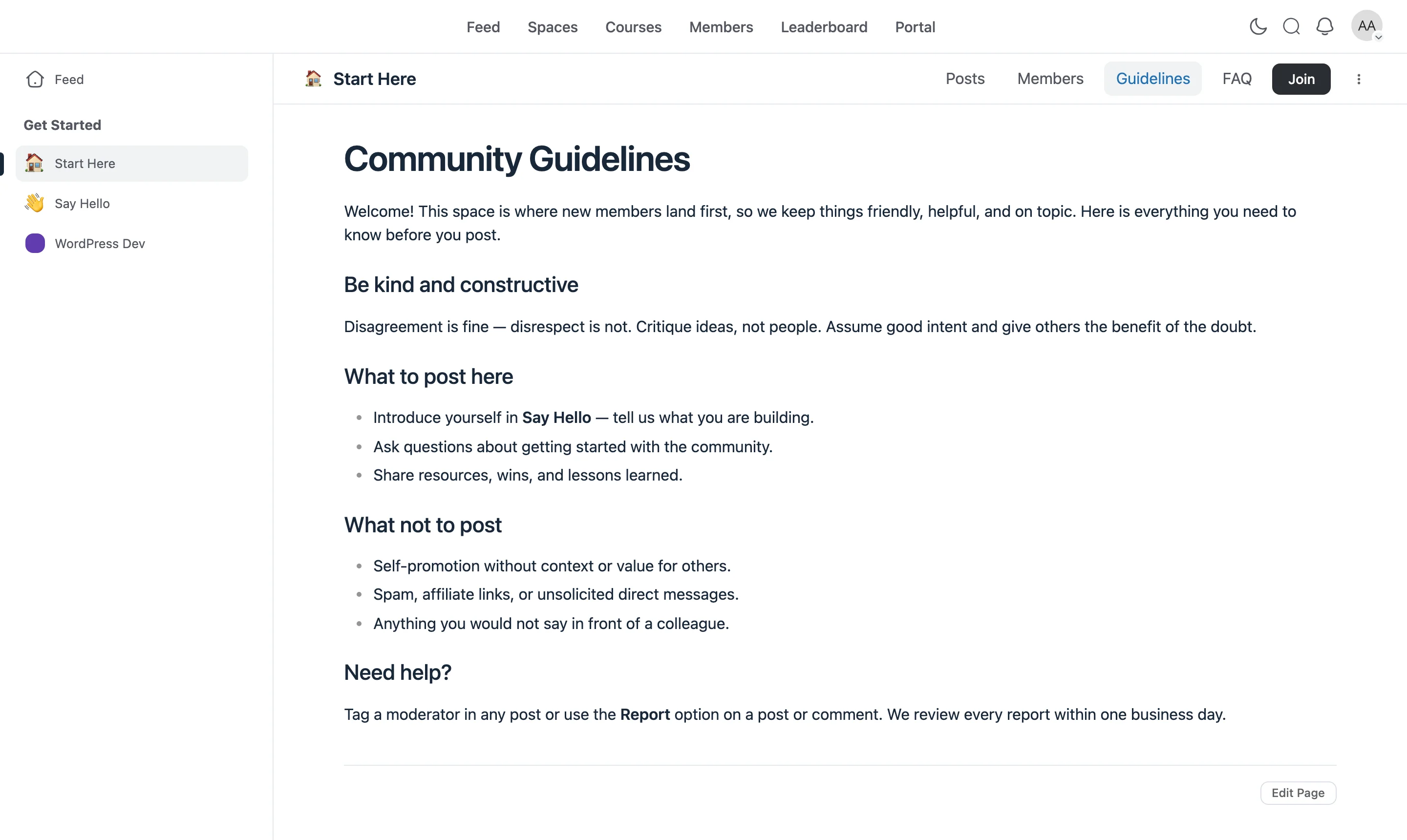
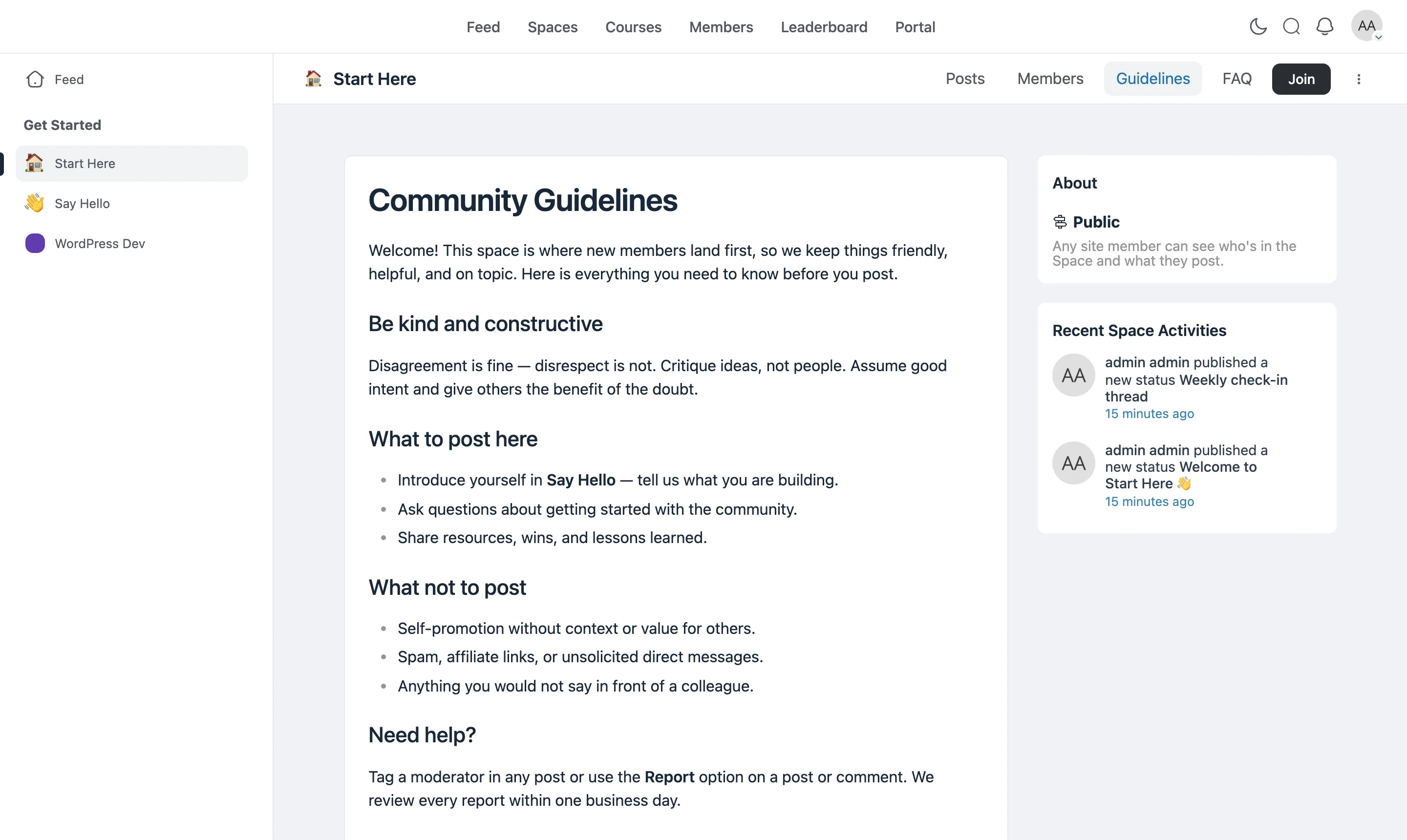
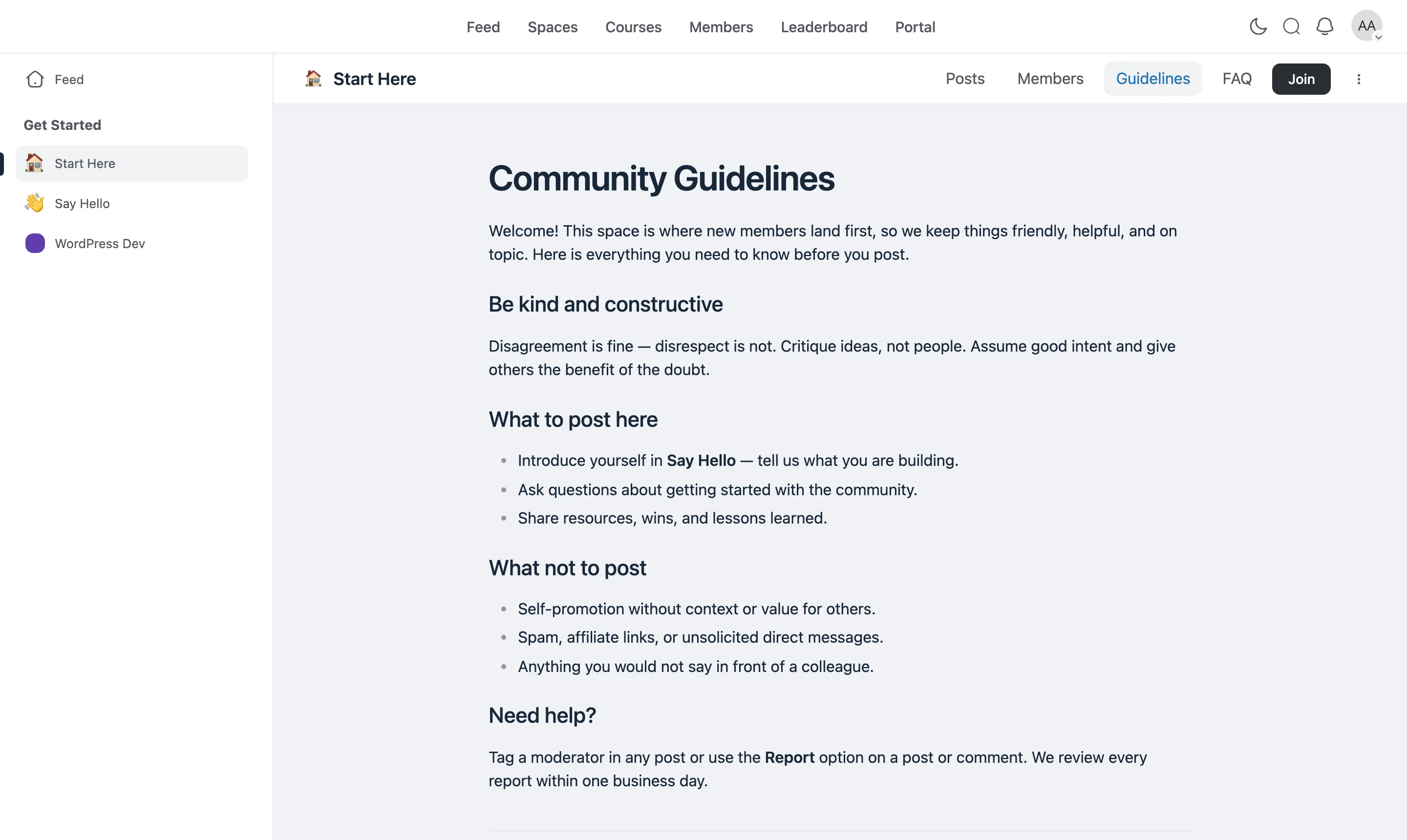
| Unified (default) | One surface filling the whole content area, flush under the Space menu, with the text in a comfortable reading column. No box. Reads like a course lesson. | Guidelines, long-form guides, anything you want to feel like "part of the Space" |
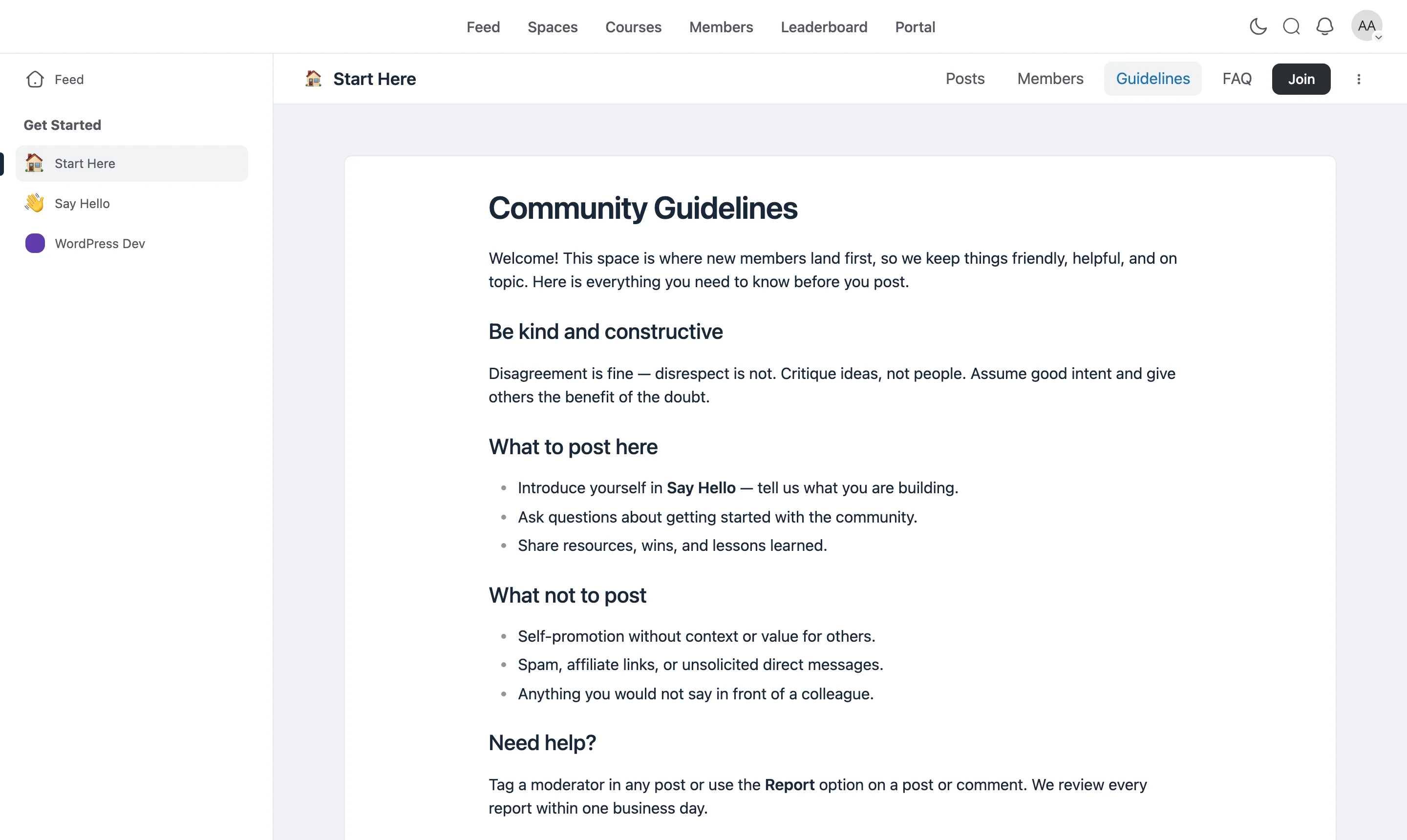
| Standard | A card across the full width of the Space, the same width as the Members and Documents tabs. | Structured reference pages, FAQs |
| Classic | A card the width of a single feed post, with the Space's About sidebar beside it. | Short announcements, pages that should feel like a pinned post |
| Full Width | No card at all. Blocks run edge to edge, so full-width cover images and columns design the page. | Landing pages, offers, visual pages |
Here is the same page in each template:
Two toggles under the templates work independently of the layout you picked:
- Show the page title — prints the title as a heading at the top of the page. Turn it off when the content starts with its own hero or cover block. The title still names the page in the menu.
- Show the featured image — prints the featured image as a banner across the top. Off by default, because most pages set an image for link previews rather than to display it. The image is still used in search results and link previews either way.
Step 5: Add an SEO Description
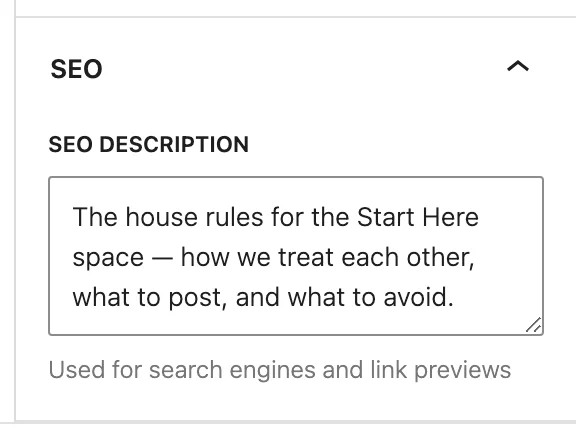
Open the SEO panel and write a one- or two-sentence SEO Description. Search engines show it under the page title in results, and messaging apps use it in the link preview when someone shares the page.
NOTE
Only pages that are published, set to Everyone who can view the space, and inside a public Space are listed for search engines. They are also included in the FluentCommunity sitemap. Members-only pages and drafts are never listed.
Step 6: Publish
Change the status switch in the top bar from Draft to Published and click Save. The page goes live at its URL, and — if Show in space menu is ticked — its tab appears in the Space navigation right away.
Where Pages Appear
A page that's shown in the menu becomes a tab in the Space header, after Posts and Members (and after Media and Documents if those are on). If there are more tabs than fit, the rest move into a More menu.
NOTE
As of FluentCommunity 2.11.0, tab order and labels are set from Space Settings → Menu, not from the page order in this Pages tab. See Space Menu Manager.
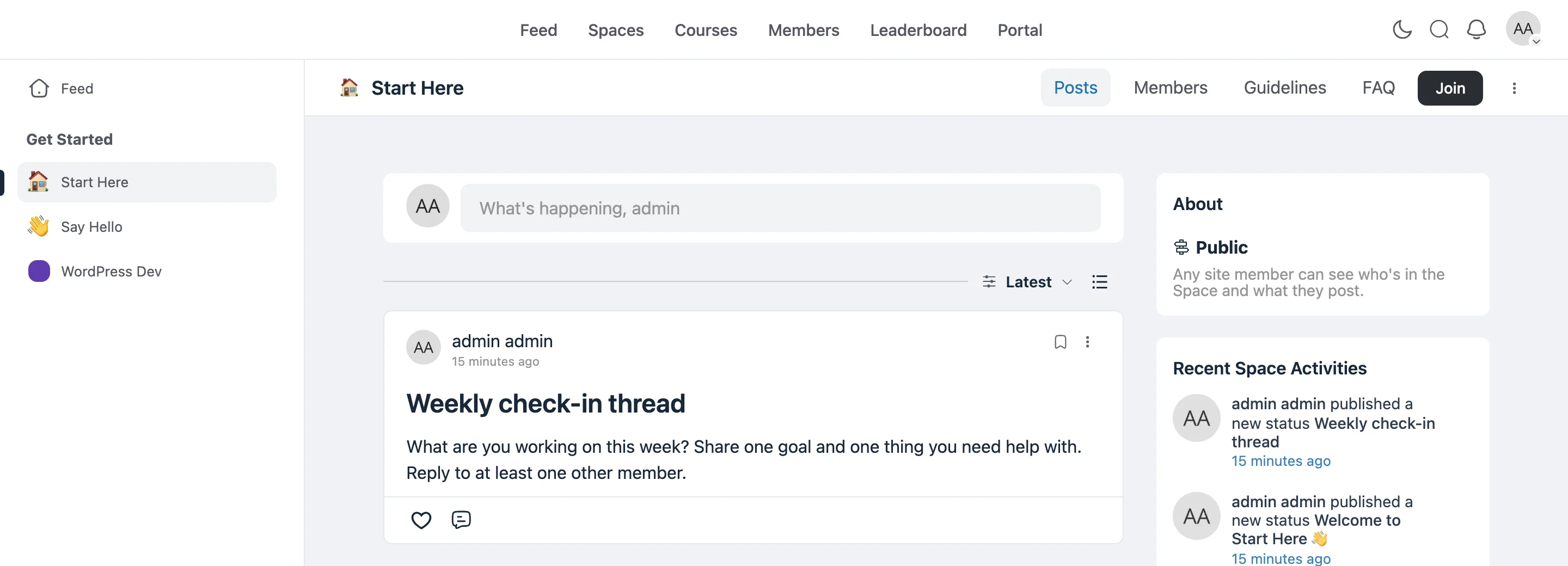
On phones and small screens the Space tabs fold into a single menu button that shows the name of the section you're on. Page tabs are listed there alongside Posts, About and Members.
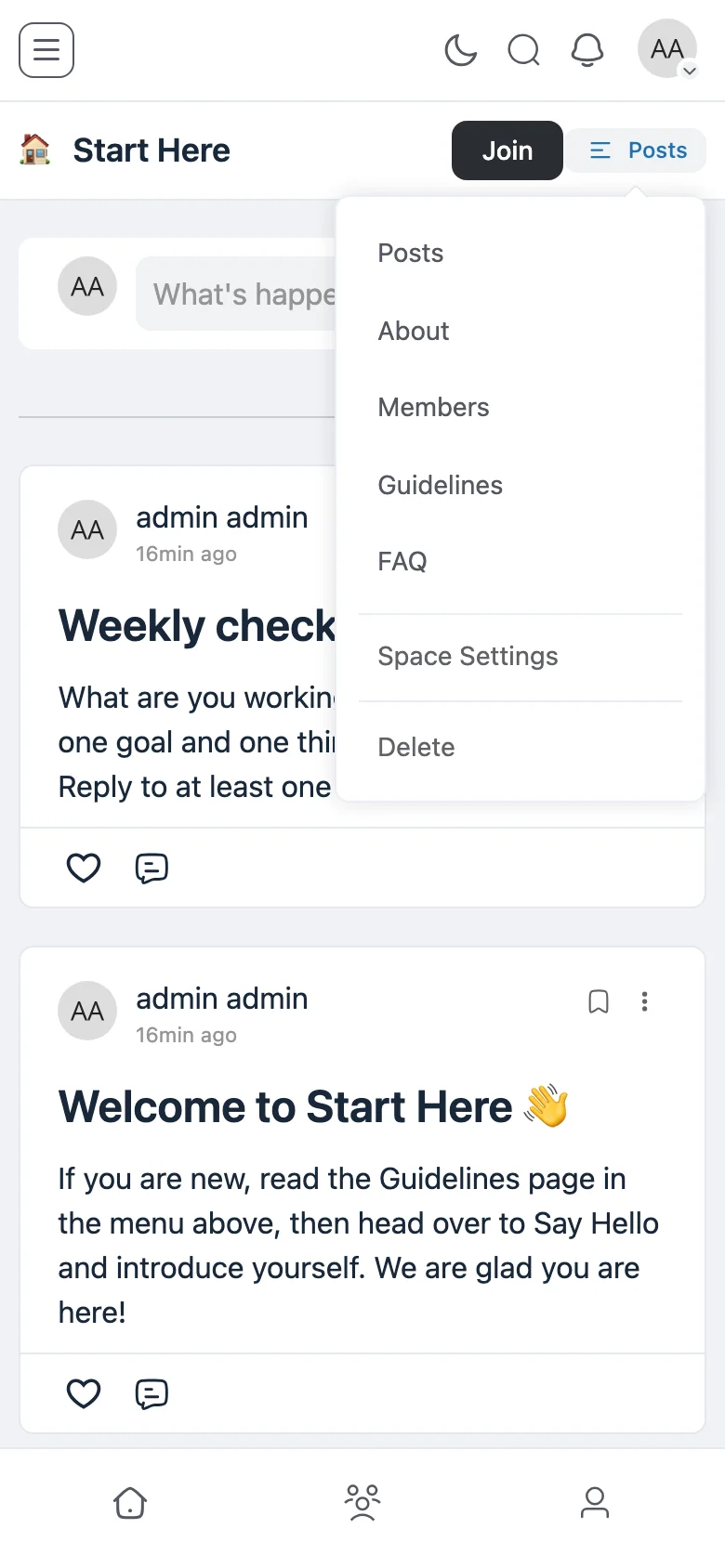
Every page also has a direct URL you can share anywhere:
https://yourdomain.com/portal/space/<space-slug>/page/<page-slug>A page slug only has to be unique inside its own Space, so two Spaces can each have a rules page.
Who Can See a Page
| Page status and visibility | Space Admins and Moderators | Space members | Non-members who can view the Space |
|---|---|---|---|
| Published · Everyone who can view the space | ✓ | ✓ | ✓ |
| Published · Space members only | ✓ | ✓ | Members-only notice |
| Draft | ✓ (with a draft banner) | — | — |
Anyone who isn't allowed to see a page gets a normal "not found" page, so a draft never gives itself away.
Previewing a Draft
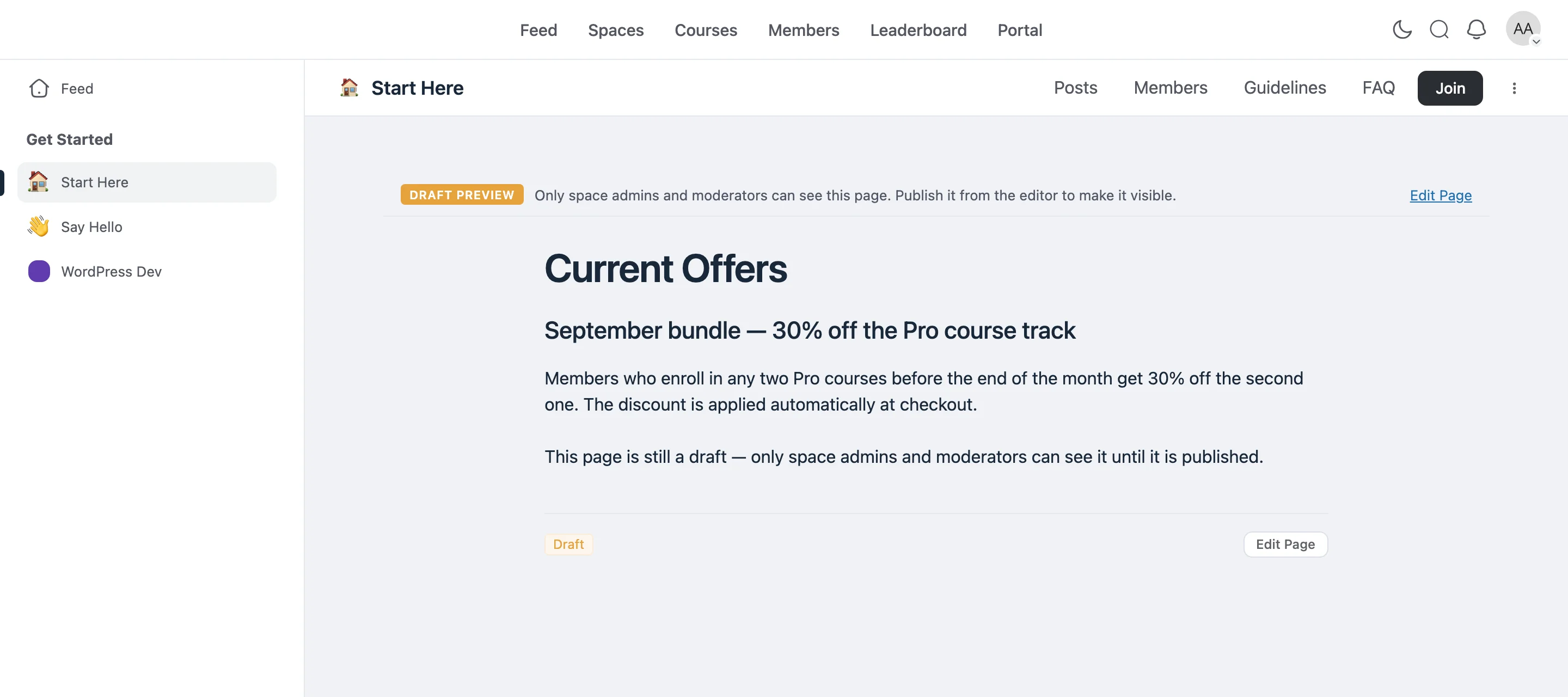
There is no separate preview mode. Because Space Admins and Moderators can open drafts at their normal URL, previewing is simply opening the page — use the 👁 icon in the editor, or click the slug under the page's title in the Pages tab (it reads Preview draft for drafts). A Draft preview banner across the top reminds you that only managers can see it, with an Edit Page shortcut on the right.
Comments on a Page
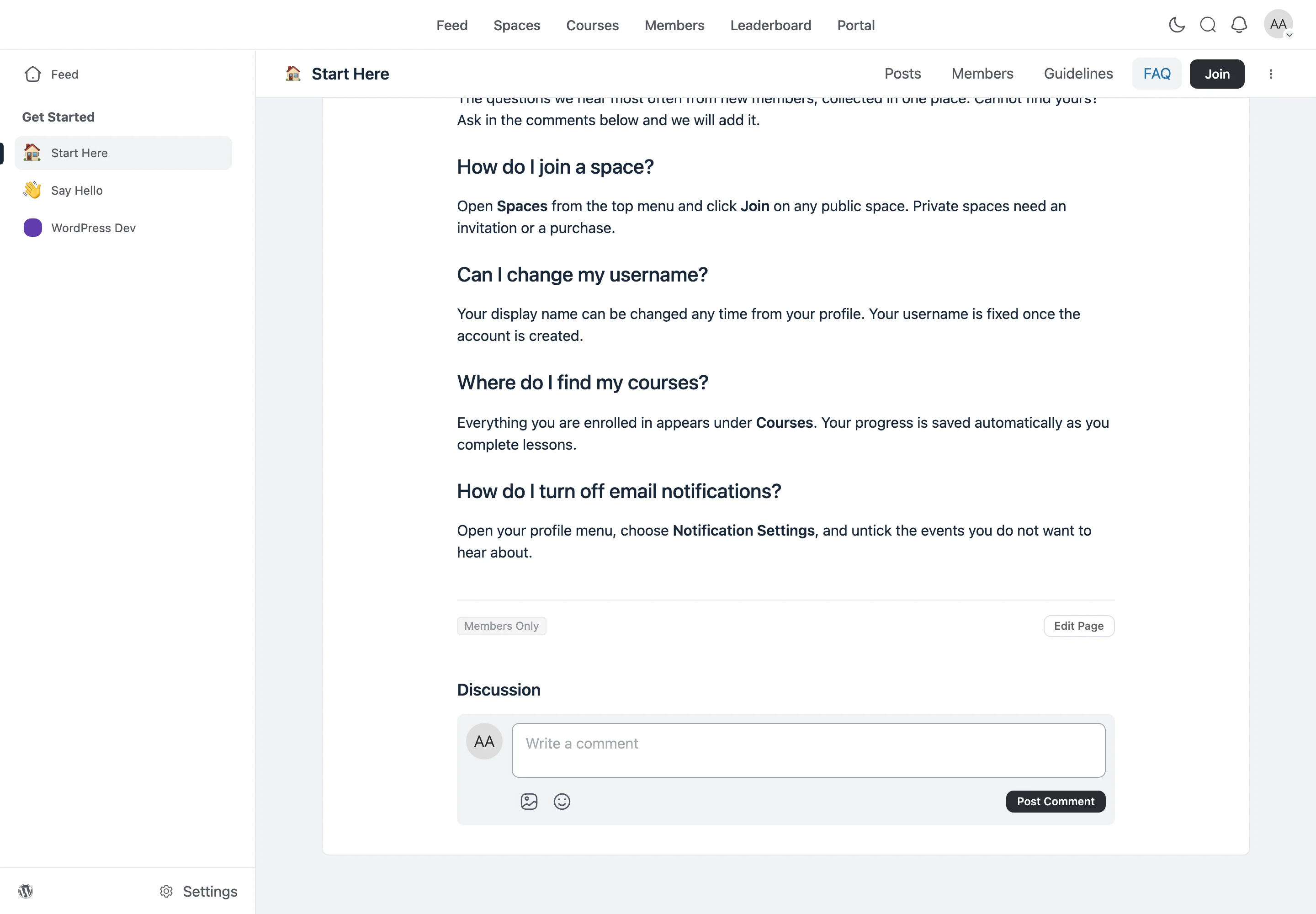
When Enable comments is on, a Discussion thread appears beneath the page content — the same comment box, reactions and replies members already use on posts. The thread only shows once the page is published and only to people who can view the page.
Managing Pages
Everything in the list on the Pages tab is live — no separate save step.
- Search and filter: Use the search box to find a page by title, or the All / Published / Draft buttons to narrow the list.
- Reorder: Drag a page by its ⠿ grip on the left to change its position in this list. Reordering is paused while a search or filter is active. This does not change the page's position in the Space menu — see the note above.
- Edit: Opens the page in the editor.
- ⋮ (three-dot) menu: Quick actions for each page, without opening the editor.
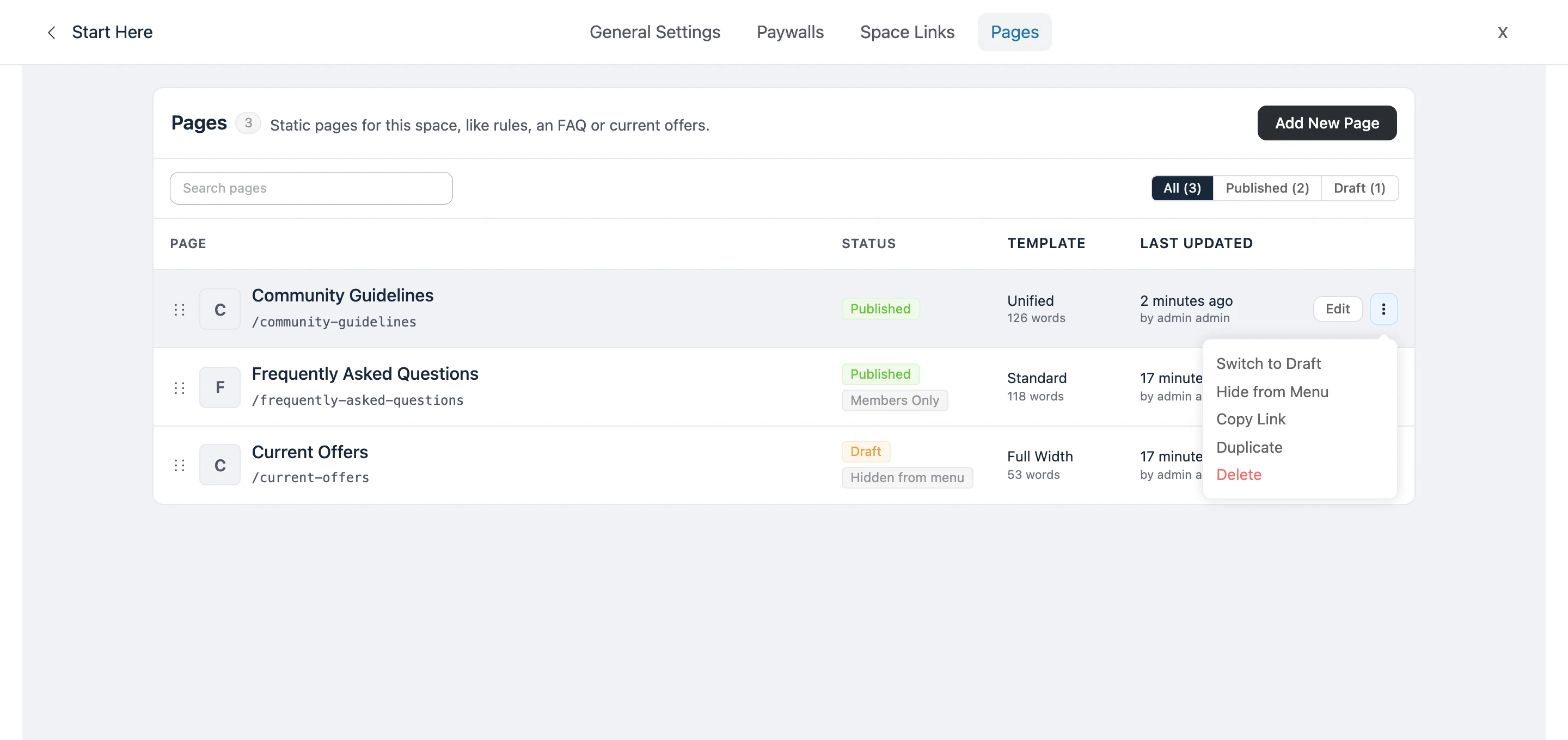
| Action | What it does |
|---|---|
| Publish / Switch to Draft | Flips the page's status instantly. Switching a live page to draft hides it from everyone but managers. |
| Show in Menu / Hide from Menu | Adds or removes the page's tab in the Space navigation. The page stays reachable by URL either way. |
| Copy Link | Copies the page's URL to your clipboard. |
| Duplicate | Creates a copy of the page as a draft — handy for reusing a layout. |
| Delete | Removes the page and its comments permanently, after a confirmation. |
IMPORTANT
Deleting a Space also deletes all of its pages. Duplicate any page you want to keep into another Space first.
Good to Know
- No extra setup. Pages work in every discussion Space as soon as FluentCommunity Pro is active — there is no feature toggle to turn on.
- Courses don't have pages yet. The Pages tab is only available for discussion Spaces.
- Pages are separate from Space Links. Space Links add a link to another URL to the Space menu; a Space Page holds its own content inside the Space. Use both together — a page for the rules, a link for the Zoom room. Both are ordered and labeled from the Space Menu Manager.
- Search engines can find public pages. A published page set to Everyone who can view the space in a public Space gets its own title, description and preview image tags, and is listed in the FluentCommunity sitemap. Members-only pages and drafts are kept out.