

Appearance
Course Certificates
Course Certificates give your students something to keep and something to show. You design the certificate once in a visual editor. FluentCommunity awards it the moment a student finishes the course, and gives every certificate a public verification page that anyone can check.
Coming soon — and we want your feedback
This feature is in development and is not in a public release yet. The screens below are from a working build, so small details may still change before launch.
Tell us what you think in the comments at the bottom of this page. What would you use certificates for? What is missing? Anything here that would not work for your community? We read every comment, and this is the point where your feedback can still change the feature.
Use Case: You run a paid course called "Build a Community People Love." A student finishes the last lesson, and a certificate with their name appears straight away. They download it as a PDF, add it to LinkedIn, and a future employer clicks the link to confirm it is real.
What You Get
- A visual editor. Drag, resize, and rotate every element on a fixed page. Start from one of six designs, or from a blank page.
- Automatic awarding. A certificate is issued the second a student completes the course. No manual step.
- Downloads. PNG, PDF, and the browser's own print dialog.
- A public verification page. Every certificate has its own URL and QR code, and shows a live status: Valid, Expired, Suspended, or Revoked.
- Full control for admins. Suspend, reinstate, revoke, or reissue any certificate.
Turn On Certificates
Certificates have two switches: one for the site, one for each course.
1. Enable the module
Go to Portal Settings → Features & Addons, find Course Module, and click Settings.
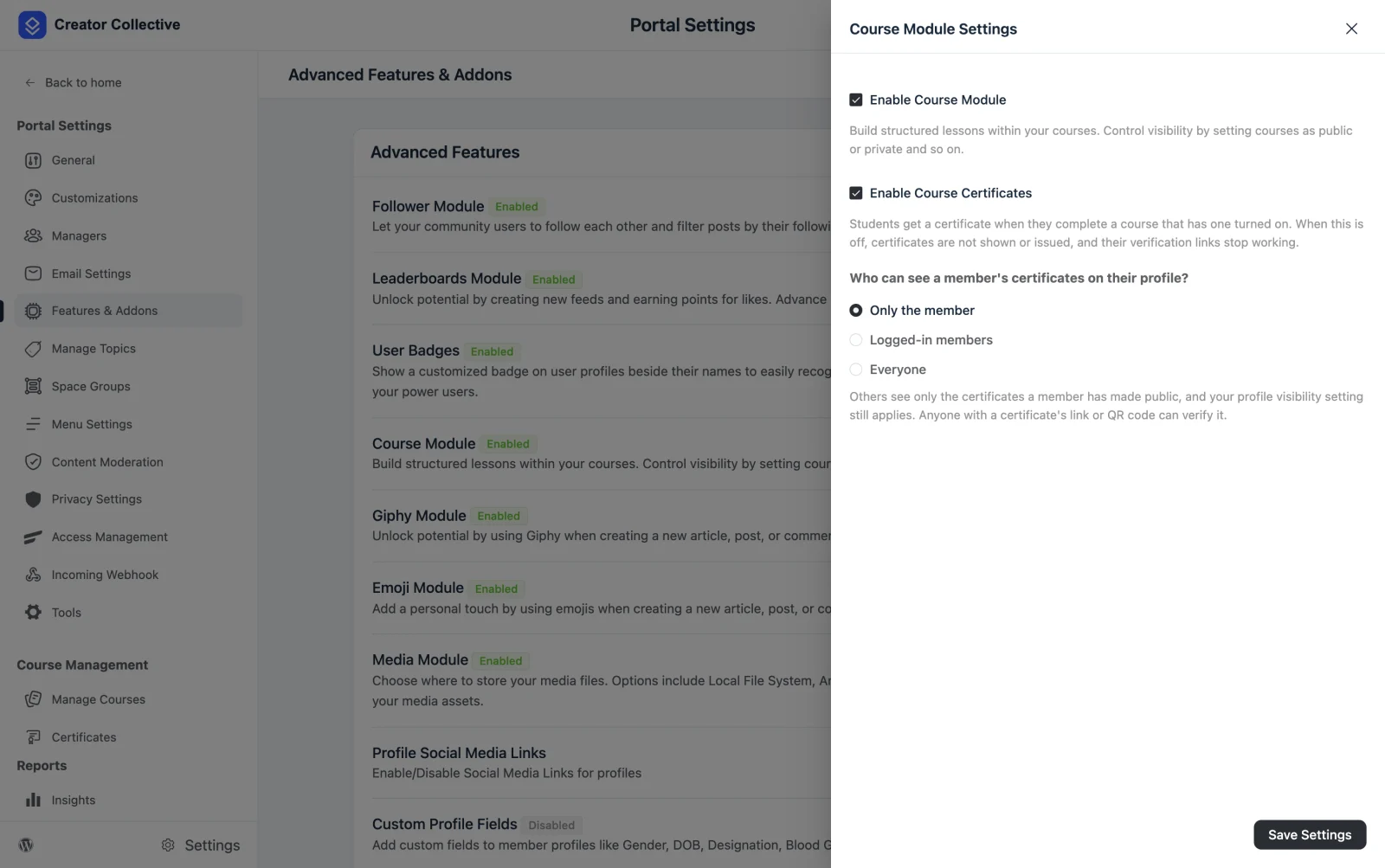
- Enable Course Certificates — turn this on. When it is off, certificates are not shown or issued, and verification links stop working.
- Who can see a member's certificates on their profile? — choose one:
- Only the member (the default)
- Logged-in members
- Everyone
Others only ever see the certificates a member has marked Public, and your normal profile privacy settings still apply on top. This setting does not affect verification: anyone holding a certificate's link or QR code can always check it.
2. Enable it for a course
Open the course, go to Settings → Certificate, and turn on Award a certificate when a student completes this course.
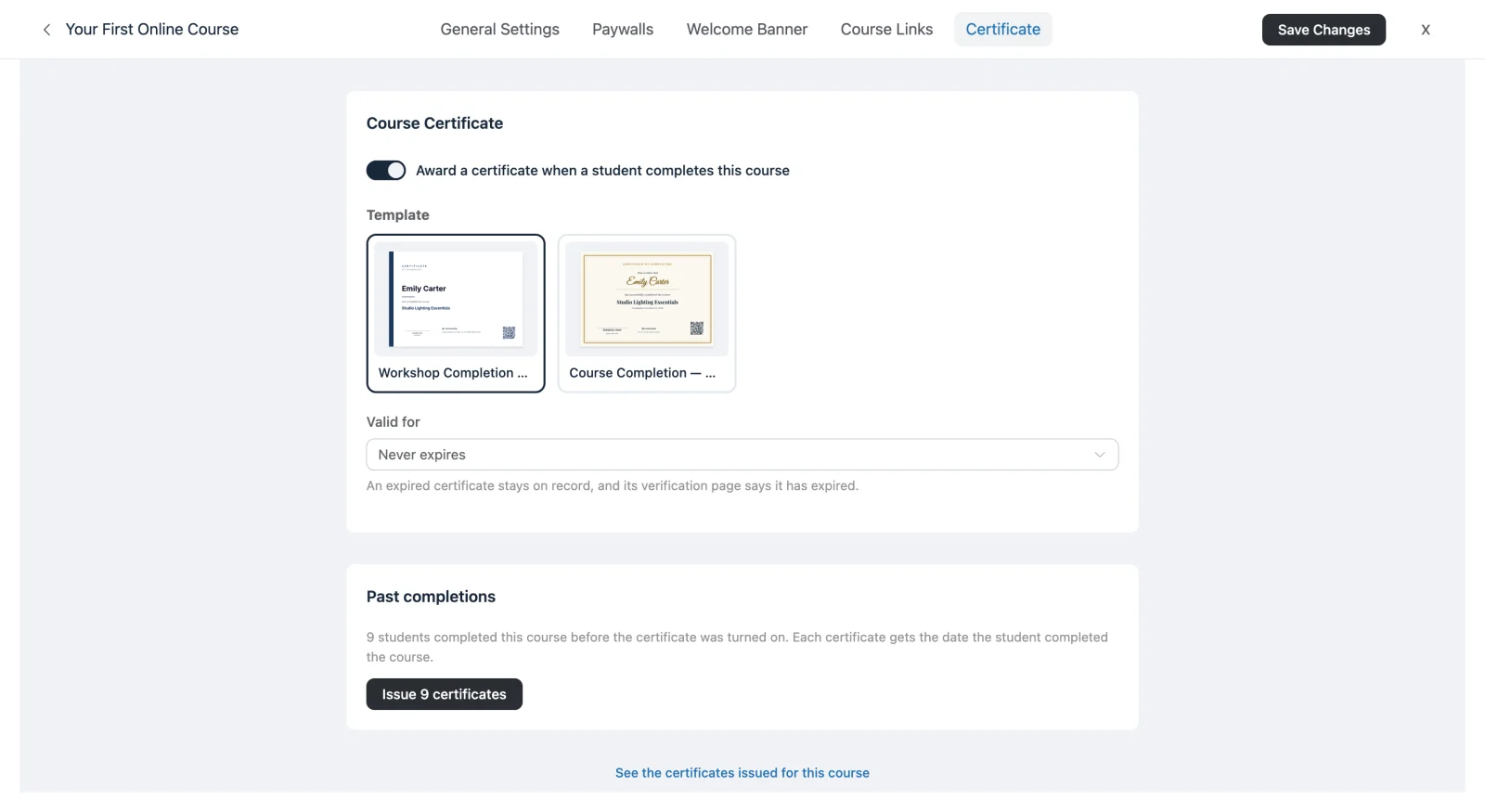
- Template — pick a published template.
- Valid for — leave it on Never expires, or choose a number of months. An expired certificate stays on record, and its verification page says it has expired.
Click Save Changes.
Catch up on past completions
If students finished the course before you turned certificates on, they are not left out. Once you save, a Past completions panel appears with a count.
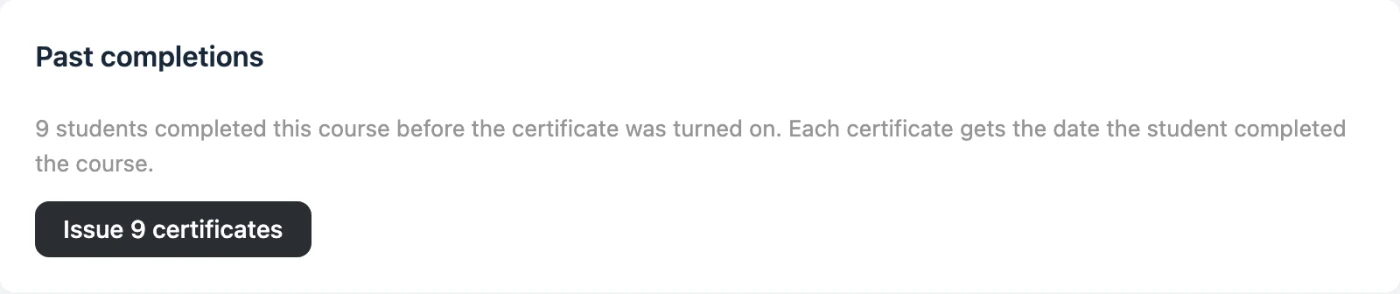
Click Issue N certificates. Each student gets the date they actually completed the course, not today's date — so if you set an expiry, it counts from the real completion, and an old one may already be expired.
Students who already hold a certificate for the course are skipped, including anyone whose certificate you revoked.
Design a Certificate
Go to Portal Settings → Certificates to see your templates.
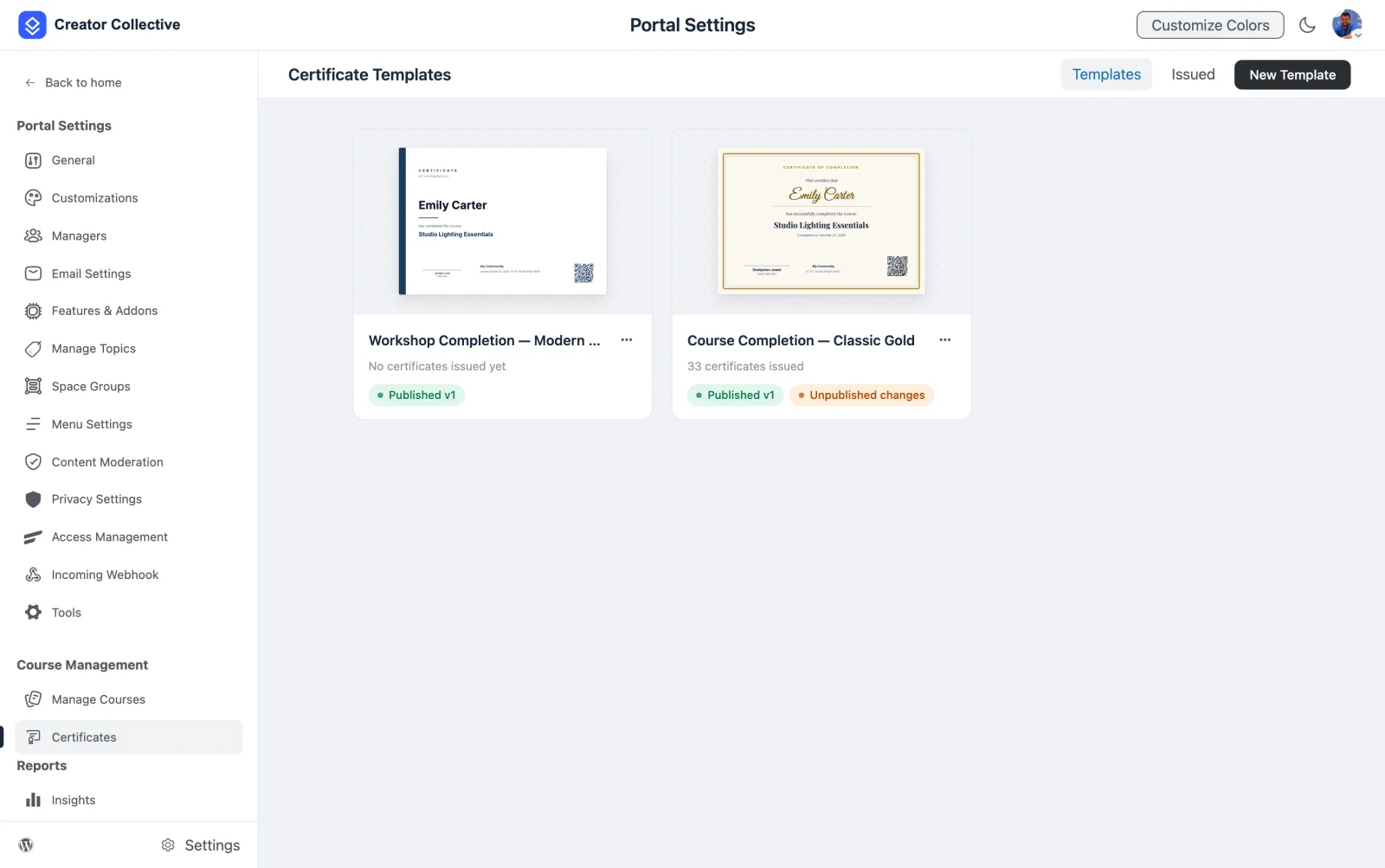
Each card shows a live preview, how many certificates use it, and which version is published.
Start a new template
Click New Template, give it a name, and choose a starting point.
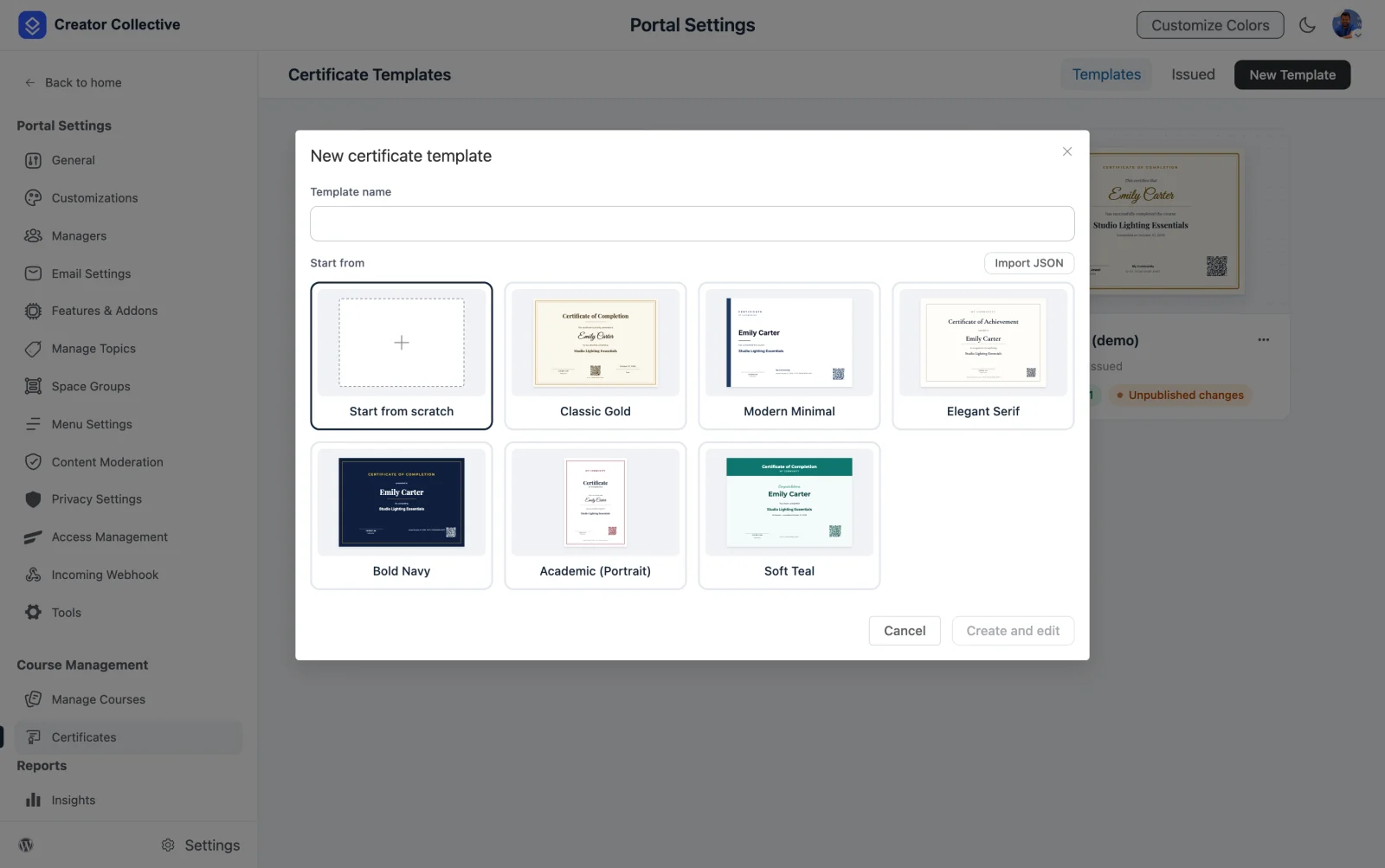
There are six ready-made designs — Classic Gold, Modern Minimal, Elegant Serif, Bold Navy, Academic (Portrait), and Soft Teal — plus Start from scratch and Import JSON for a design exported from another site.
Use the editor
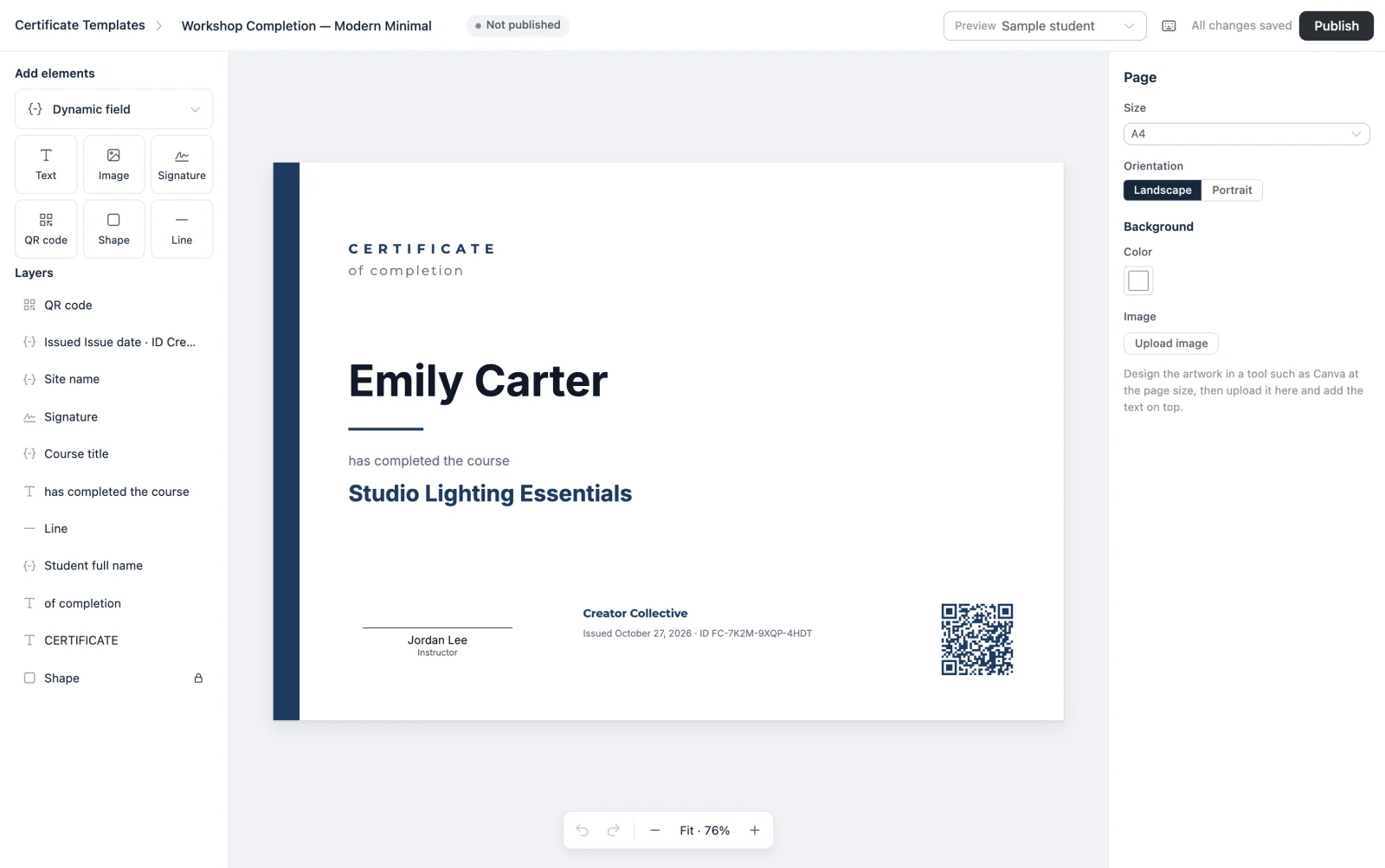
The editor has three columns:
- Left — add elements, and reorder, hide, or lock them in the layer list.
- Middle — the page itself. Drag elements anywhere, with snap guides, zoom, and undo/redo.
- Right — settings for the page, or for whatever element you have selected.
You can add these elements:
| Element | What it does |
|---|---|
| Dynamic field | A value filled in per student, such as their name or the course title |
| Text | Any fixed wording, such as "Certificate of Completion" |
| Image | A logo or any image from your media library |
| Signature | A signature image with a name and a title line under it |
| QR code | Links to this certificate's verification page |
| Shape / Line | Borders, bands, and rules |
Set the page
Under Page on the right, choose A4 or Letter, and Landscape or Portrait. For the background, pick a colour or upload an image.
Design it in Canva
Make the artwork at the page size in a tool such as Canva, upload it as the background, then place the text on top. This is the quickest route to a certificate that looks designed.
Add dynamic fields
A dynamic field is a placeholder that becomes real text when a certificate is issued.
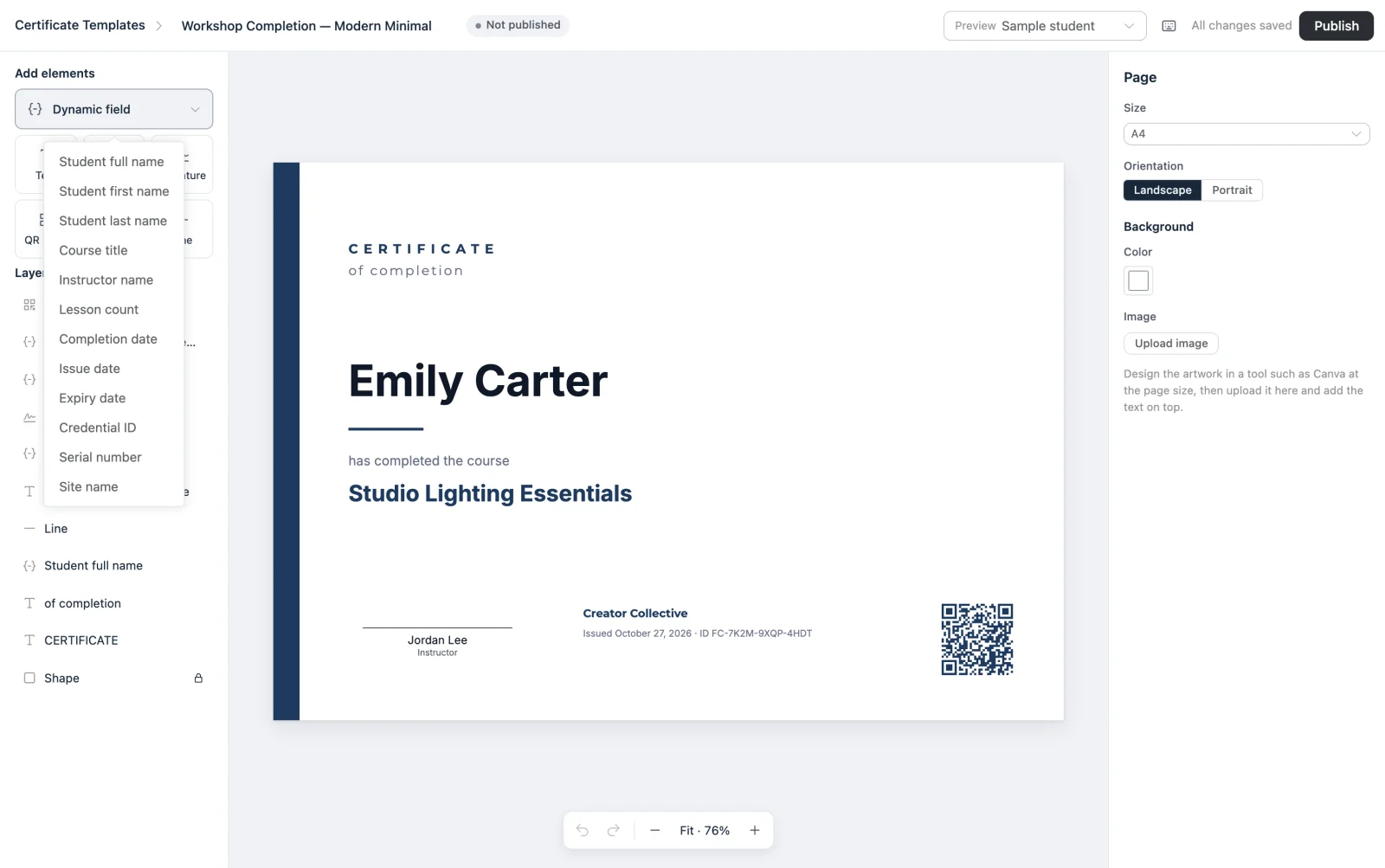
Twelve fields are available:
| Field | Value |
|---|---|
| Student full name | The member's community name, falling back to their WordPress display name |
| Student first name / last name | The separate parts of their name |
| Course title | The course they completed |
| Instructor name | The course instructor |
| Lesson count | How many lessons the course has |
| Completion date | When they finished the course |
| Issue date | When the certificate was issued |
| Expiry date | When it stops being valid, if you set an expiry |
| Credential ID | The unique ID, for example FC-QJPV-NEBZ-V4XV |
| Serial number | A running number for your own records |
| Site name | Your community name |
A student's name is never their login name.
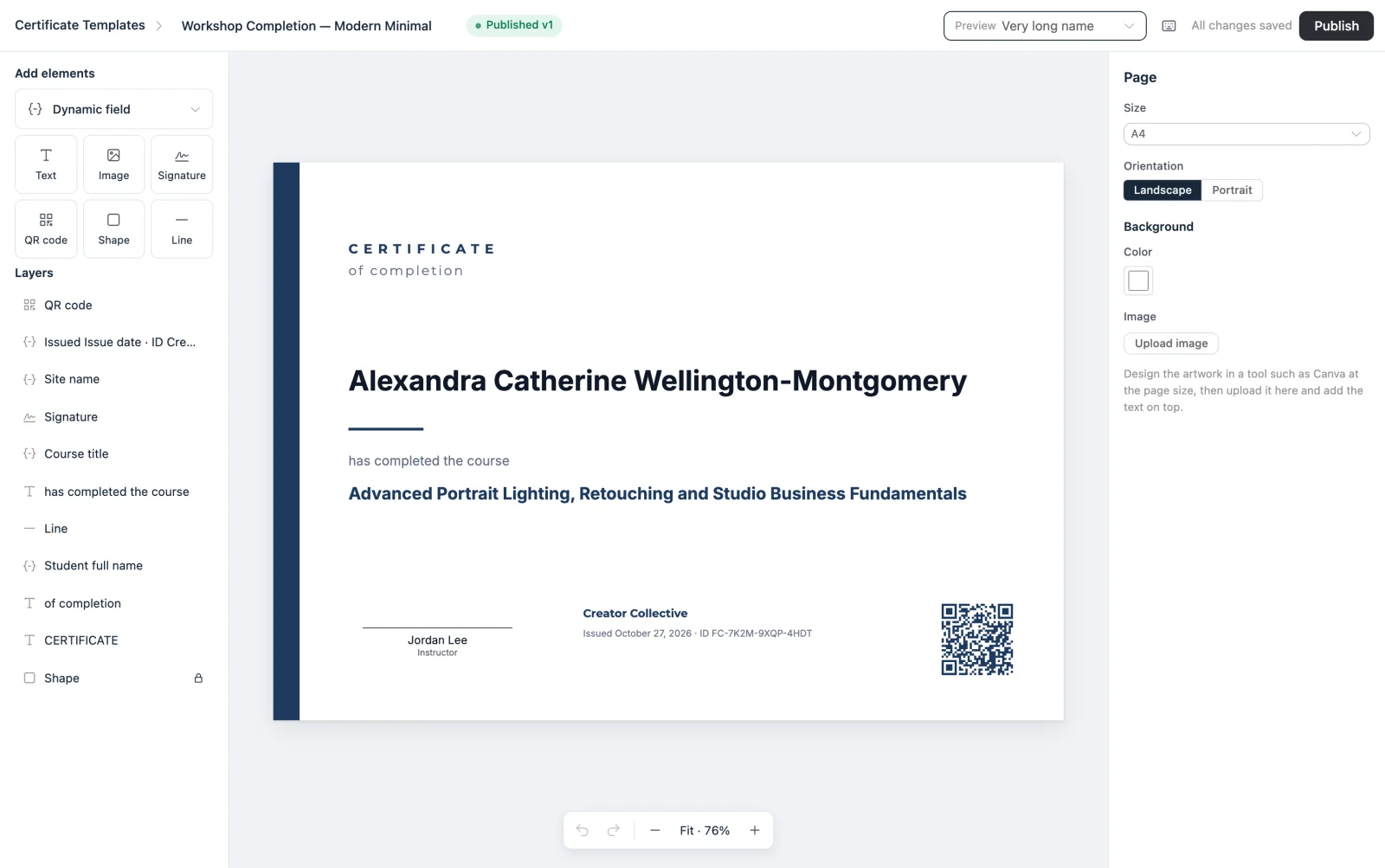
Style text and stop long names overflowing
Select any text element to open its settings.
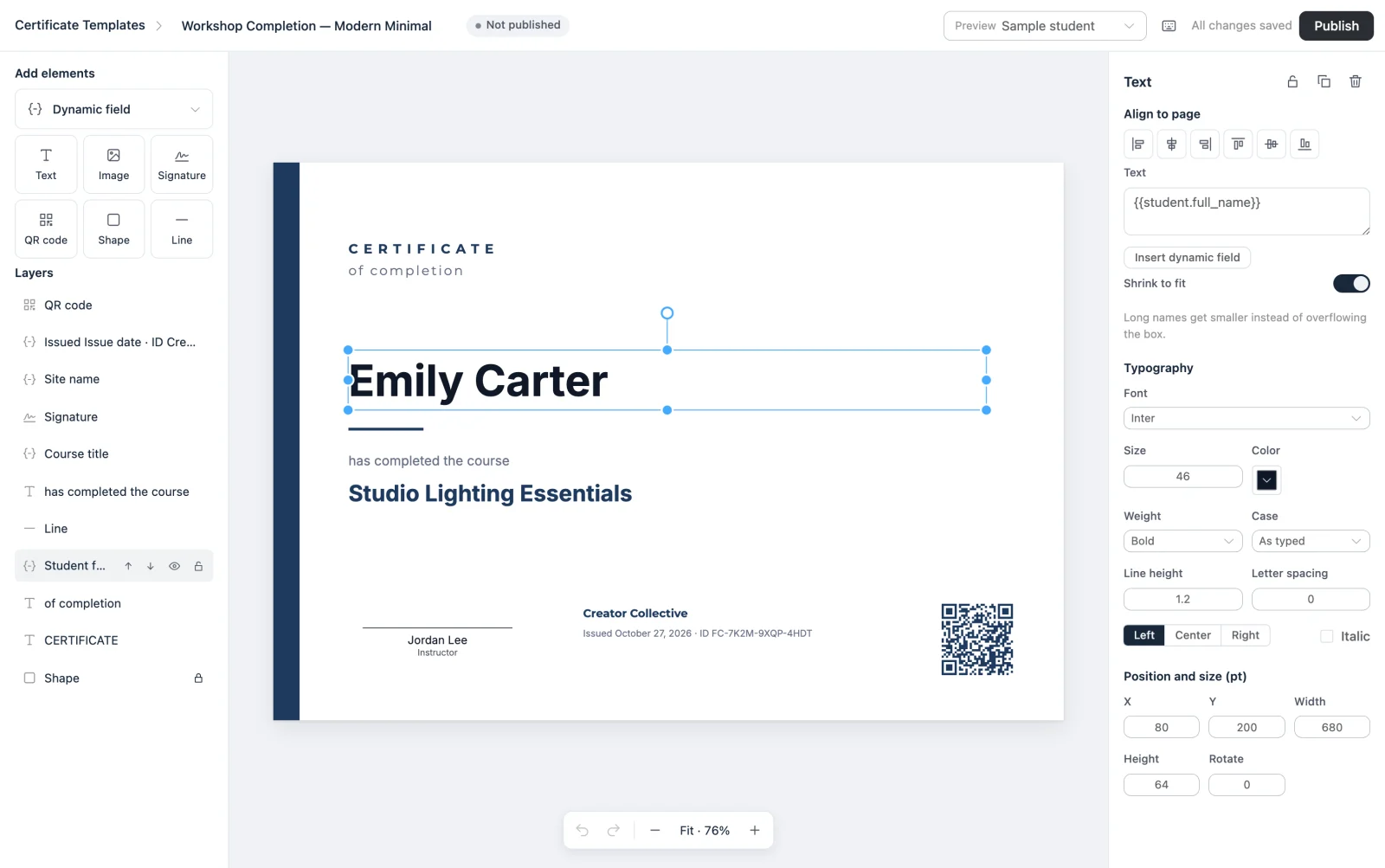
You get font, size, colour, weight, case, line height, letter spacing, alignment, and italics, plus exact X, Y, width, height, and rotation in points.
Shrink to fit is the setting worth knowing. Turn it on for the student name, and a long name gets smaller instead of spilling out of its box.
Use the Preview dropdown at the top to check your work. Very long name loads a deliberately extreme name and course title so you can see the worst case before you publish.
Publish the template
Your edits save as you work, but a course can only use a published template.
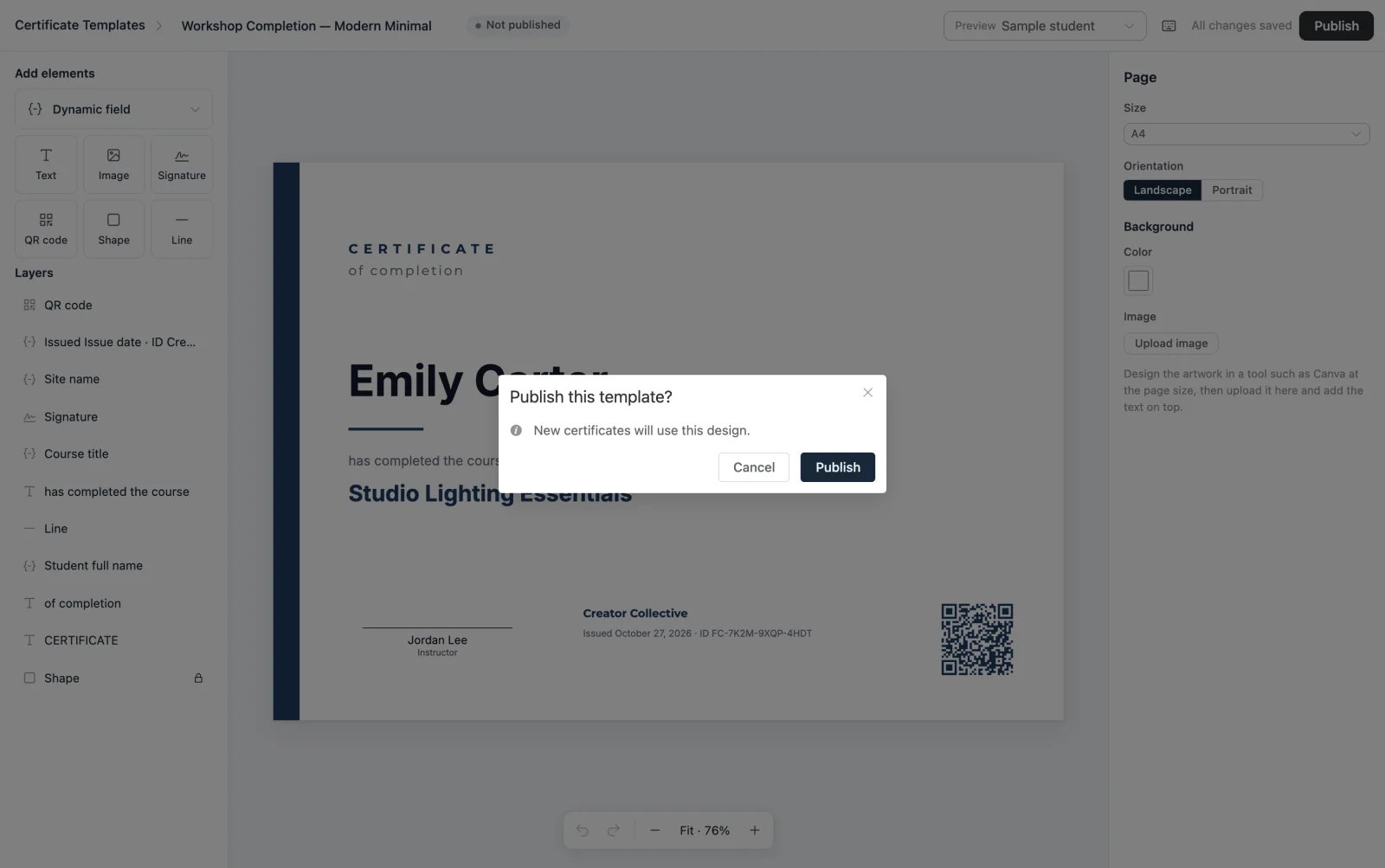
Click Publish and confirm. This writes a new version, and new certificates use it.
Edits never change certificates already issued
Each certificate keeps the template version and the student details from the day it was issued. If you redesign the template later, certificates already in students' hands stay exactly as they were. The template card shows Unpublished changes when your draft is ahead of the published version.
What the Student Sees
On finishing the course
The moment a student completes the final lesson, their certificate appears.
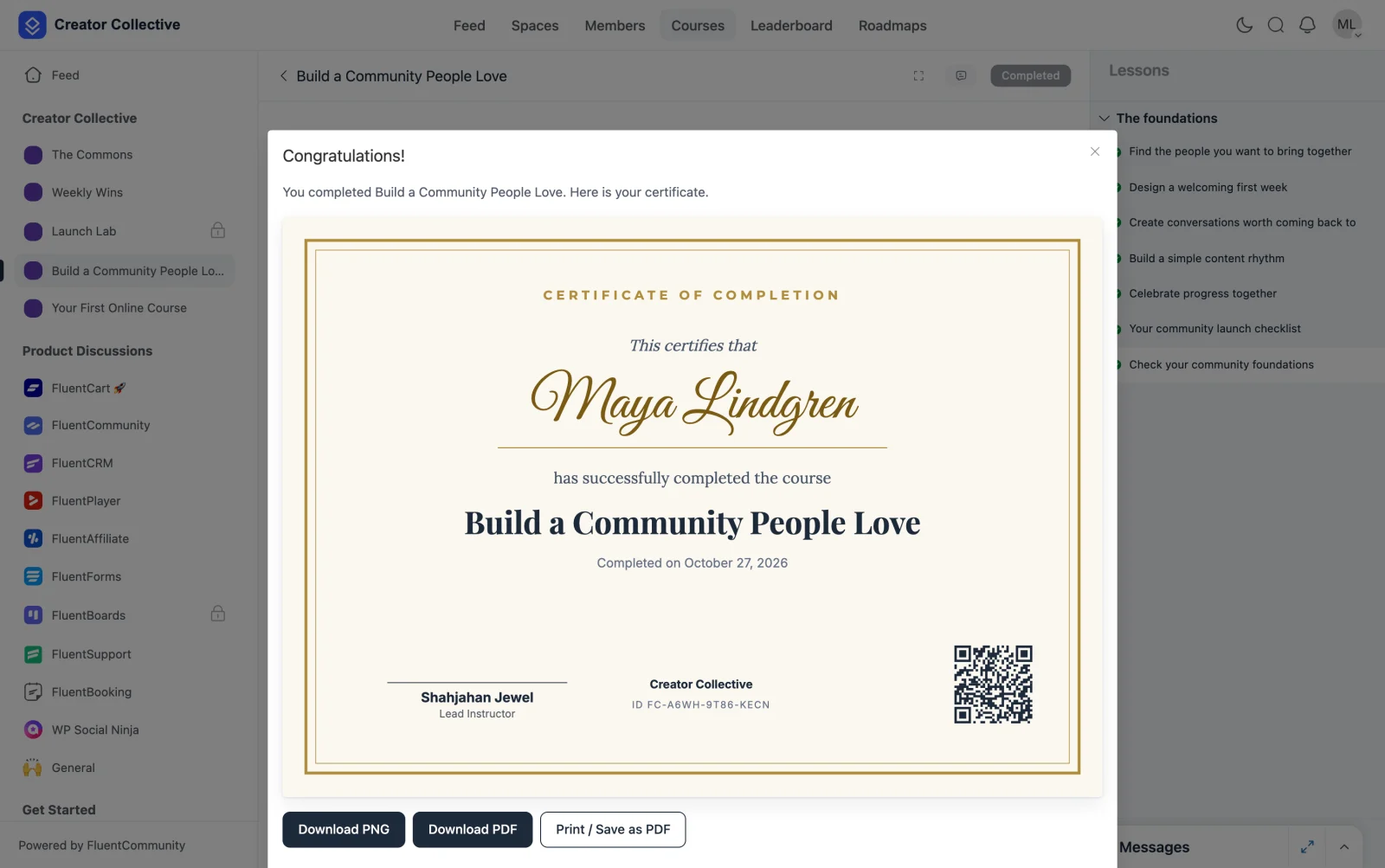
They can download it right there, as PNG, PDF, or through Print / Save as PDF.
On their profile
Every certificate is kept on a Certificates tab on the member's profile.
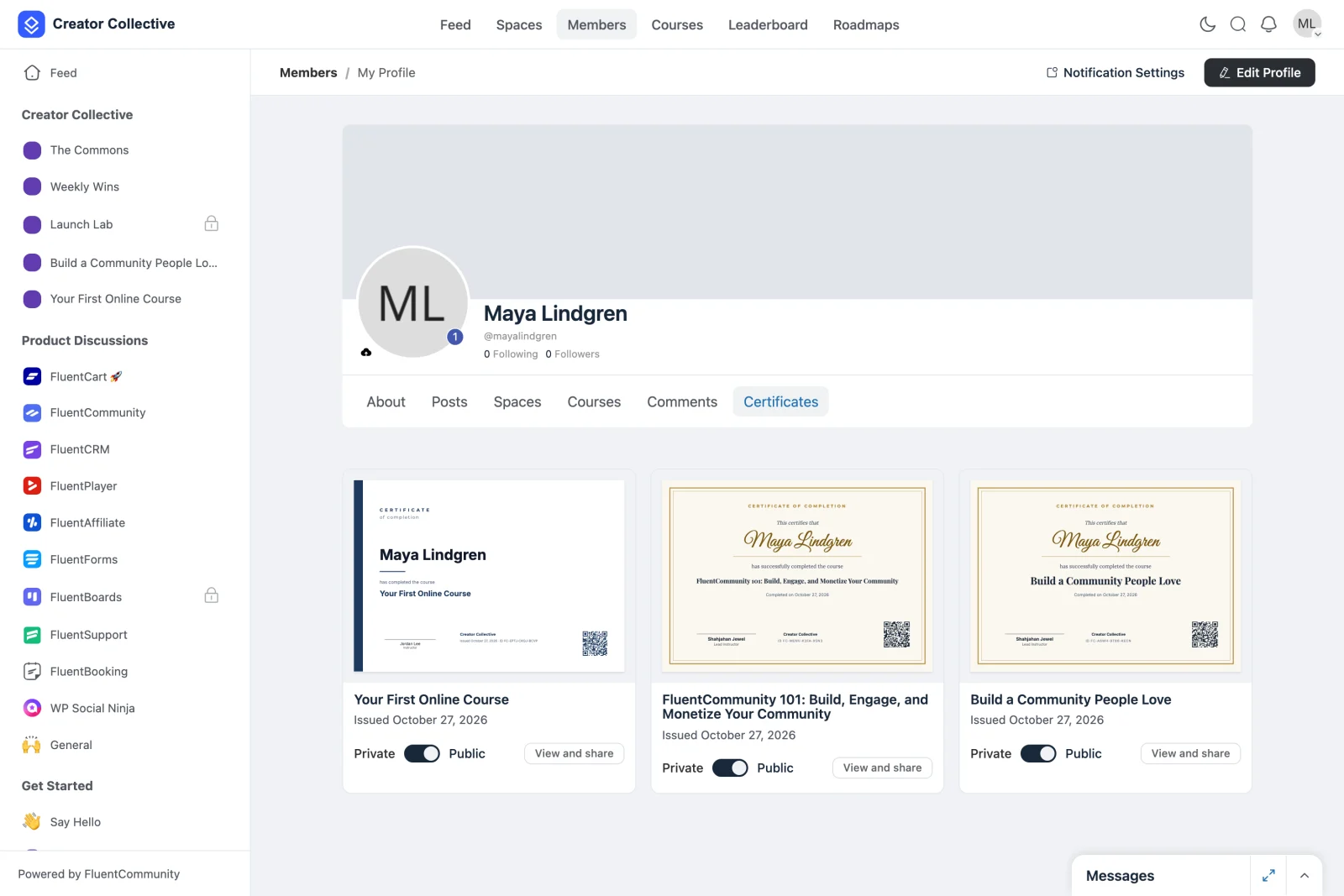
Each card has a Private / Public toggle. Private is the quiet default for the profile: others only see the certificates the member has made public.
Downloading and sharing
View and share opens the certificate full size.
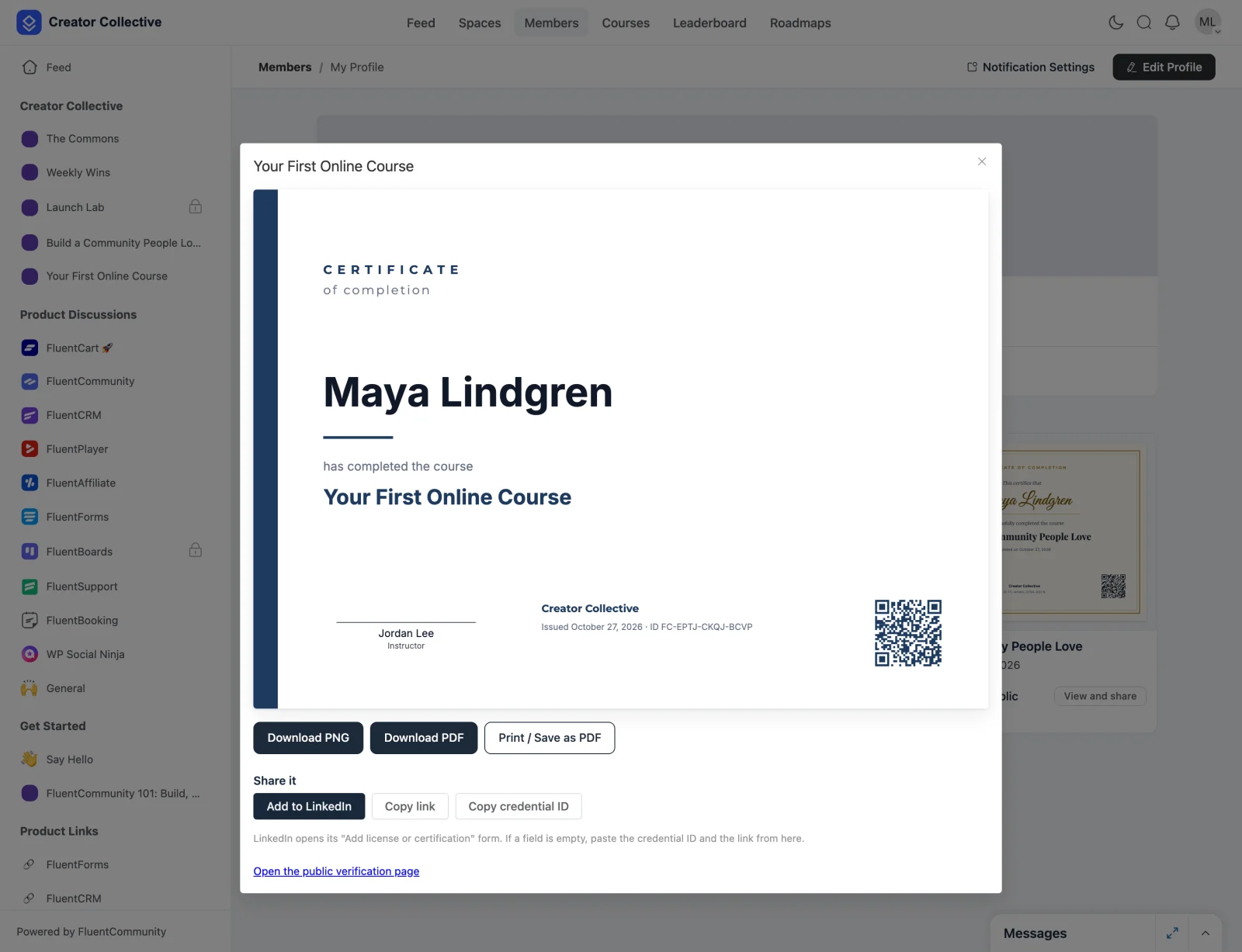
- Download PNG — a high-resolution image, 3508 × 2479 pixels for A4, which is 300 DPI print quality.
- Download PDF — a single-page PDF.
- Print / Save as PDF — opens the browser's print dialog. This route produces real, selectable text in the PDF, which matters for accessibility and for scripts such as Arabic, Bengali, and Hindi.
- Add to LinkedIn — opens LinkedIn's "Add license or certification" form.
- Copy link and Copy credential ID — for pasting into any field LinkedIn leaves empty.
Downloads are named after the credential ID, for example certificate-FC-EPTJ-CKQJ-BCVP.pdf.
The Public Verification Page
Every certificate has its own page at /portal/certificates/<credential-id>, and the QR code on the certificate points at it. Anyone can open it — no login needed.
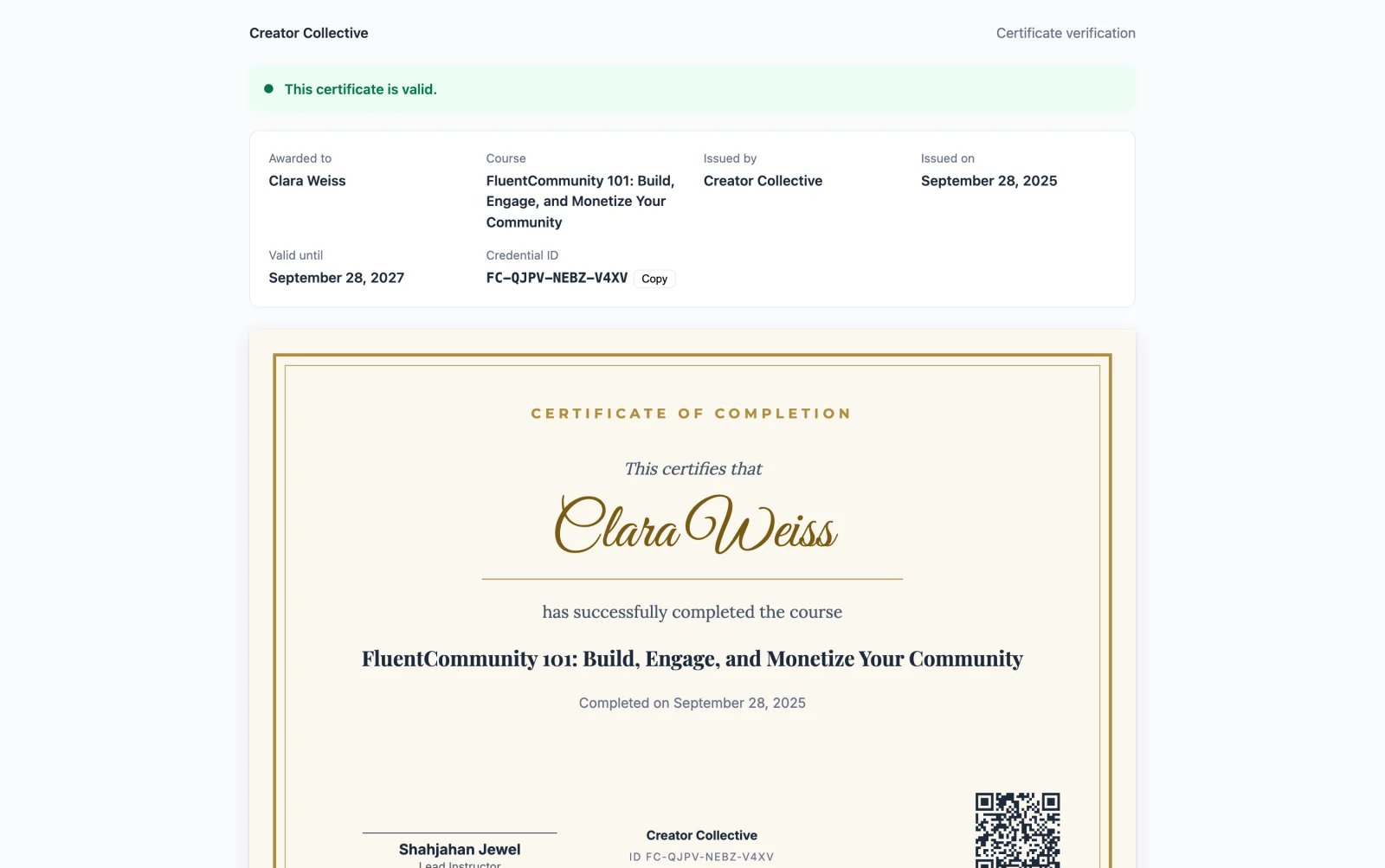
The page shows who it was awarded to, the course, the issuer, the issue and expiry dates, the credential ID with a copy button, and the certificate itself.
The status is read from your database, not from the file. Someone can edit a downloaded PDF, but they cannot change what this page says.
The four statuses
| Status | What it means |
|---|---|
| Valid | In force |
| Expired | Past its expiry date. It stays on record and stays verifiable |
| Suspended | Withdrawn for now. An admin can reinstate it |
| Revoked | Withdrawn for good. This cannot be undone |
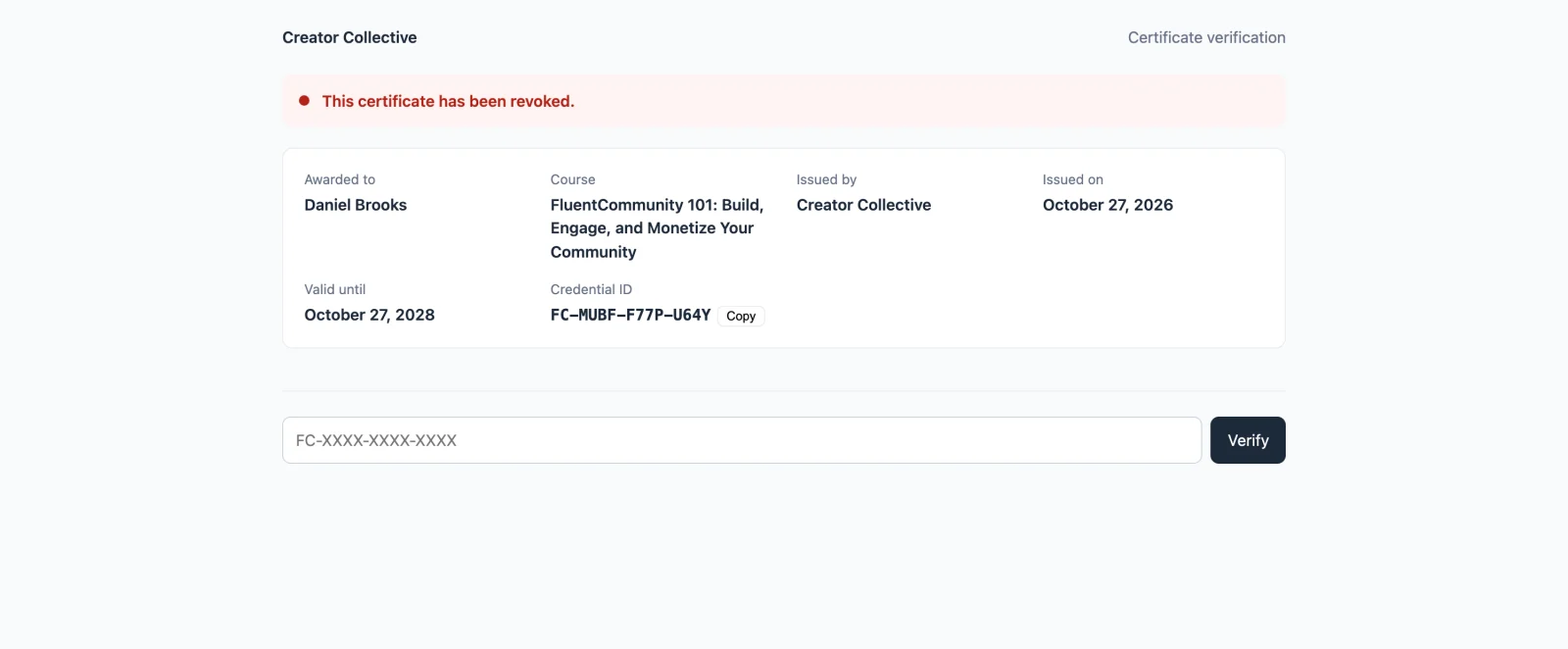
A suspended or revoked certificate still shows its details, but the certificate image and the download buttons are gone.
At the bottom of every verification page is a Verify a certificate box, where anyone can type a credential ID and check it directly.
Manage Issued Certificates
Go to Portal Settings → Certificates → Issued.
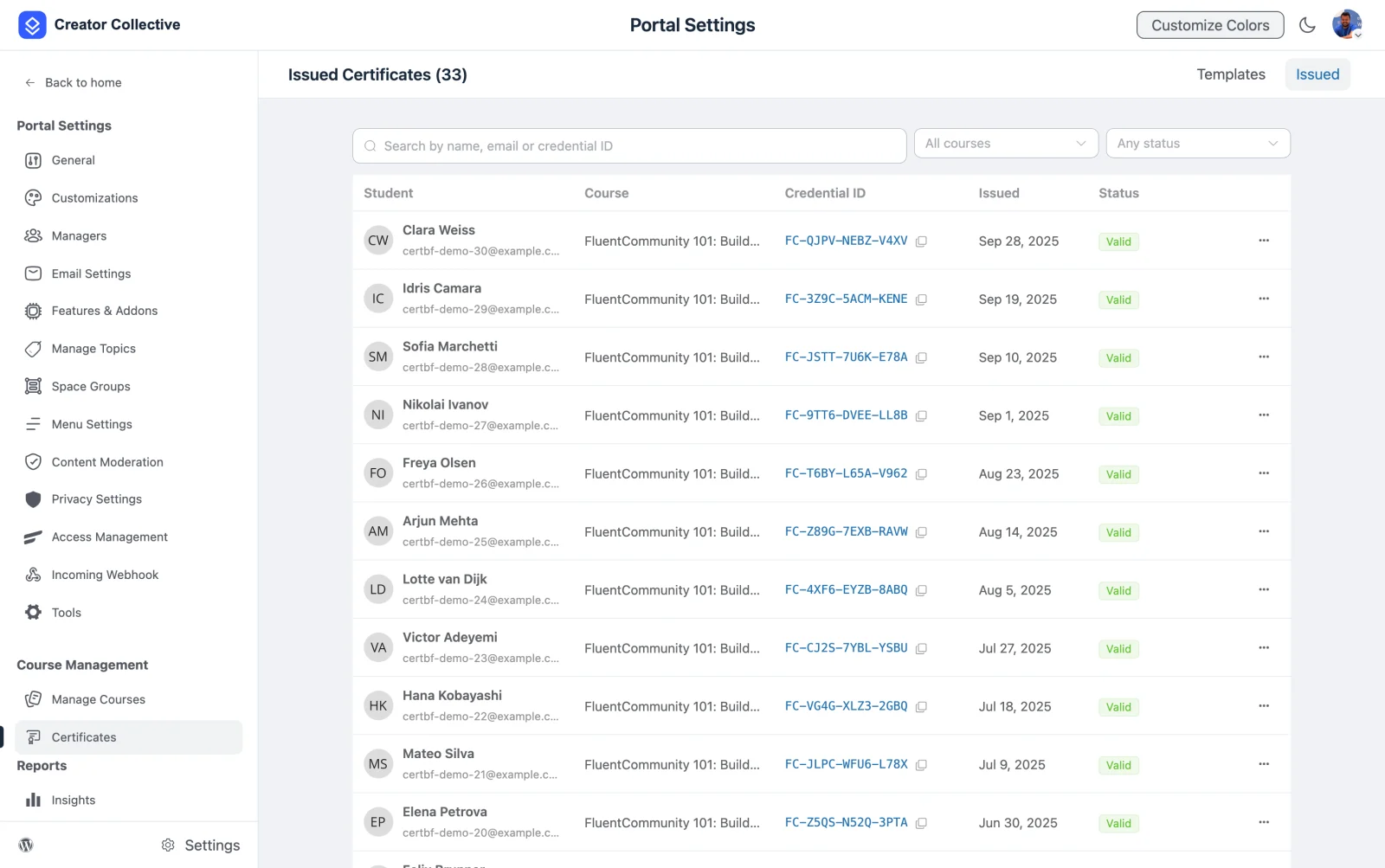
Search by name, email, or credential ID, and filter by course or status.
The … menu on each row holds the actions.
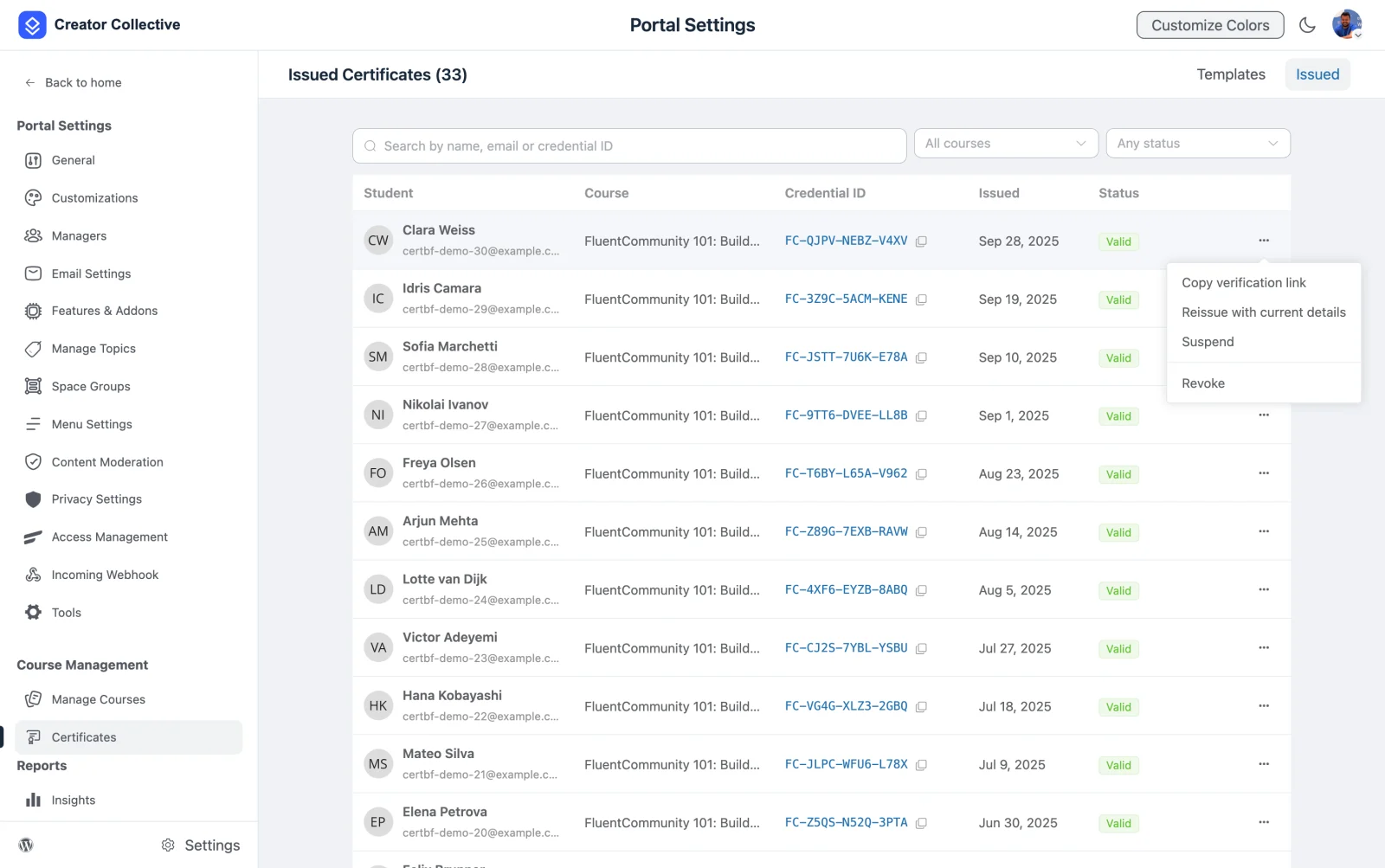
- Copy verification link — the public URL for that certificate.
- Reissue with current details — refreshes the student's name and moves the certificate to the current template version. Use it after a member changes their name. The credential ID, serial number, and issue date all stay the same, so links and LinkedIn entries keep working.
- Suspend — withdraw it for now, with a reason. You can reinstate it later.
- Revoke — withdraw it for good, with a reason.
Revoking is final
A revoked certificate cannot be reinstated, and the student is not given a new one if they complete the course again. Use Suspend if you might change your mind.
Good to Know
- A student only ever gets one certificate per course. Completing a course again, or finishing a lesson you published after they completed it, never creates a duplicate, and the original issue date is kept.
- Resetting progress or unenrolling does not withdraw a certificate. It records something they did. Suspend or revoke it by hand if you need to.
- Credential IDs are random, in the form
FC-XXXX-XXXX-XXXX. They cannot be guessed from each other, and the serial number is only printed on the certificate — it is never used to look one up. - Verification pages are not indexed by search engines by default.
- Nothing is generated on your server. The certificate is drawn in the student's browser when they view it, so there is no PDF job slowing your site down.
Tell Us What You Think
Certificates are still in development, so this is the best moment to shape them. Leave a comment below and tell us:
- What would you award a certificate for, beyond finishing a course?
- Which of the six starter designs fits your community, and what style is missing?
- Do you need certificates to expire, and on what schedule?
- Where do your members want to share them?
- Is anything here missing or awkward for the way you run your courses?