

Appearance
In-App Notification Settings
The Notification Center is what pulls members back into the conversation. Every time someone replies to their post, mentions them, reacts to their content, or follows them, an alert lands in the bell menu in real time, no email required, no page refresh needed.
This guide walks through what members see and how each part of the panel works.
Use Case: A member posts a question in the morning and closes the tab. Three people reply and one mentions them directly. When they come back, the bell shows a red 4. They open the Mentions tab, jump straight to the comment that needs them, and reply without hunting through the feed.
Opening the Notification Center
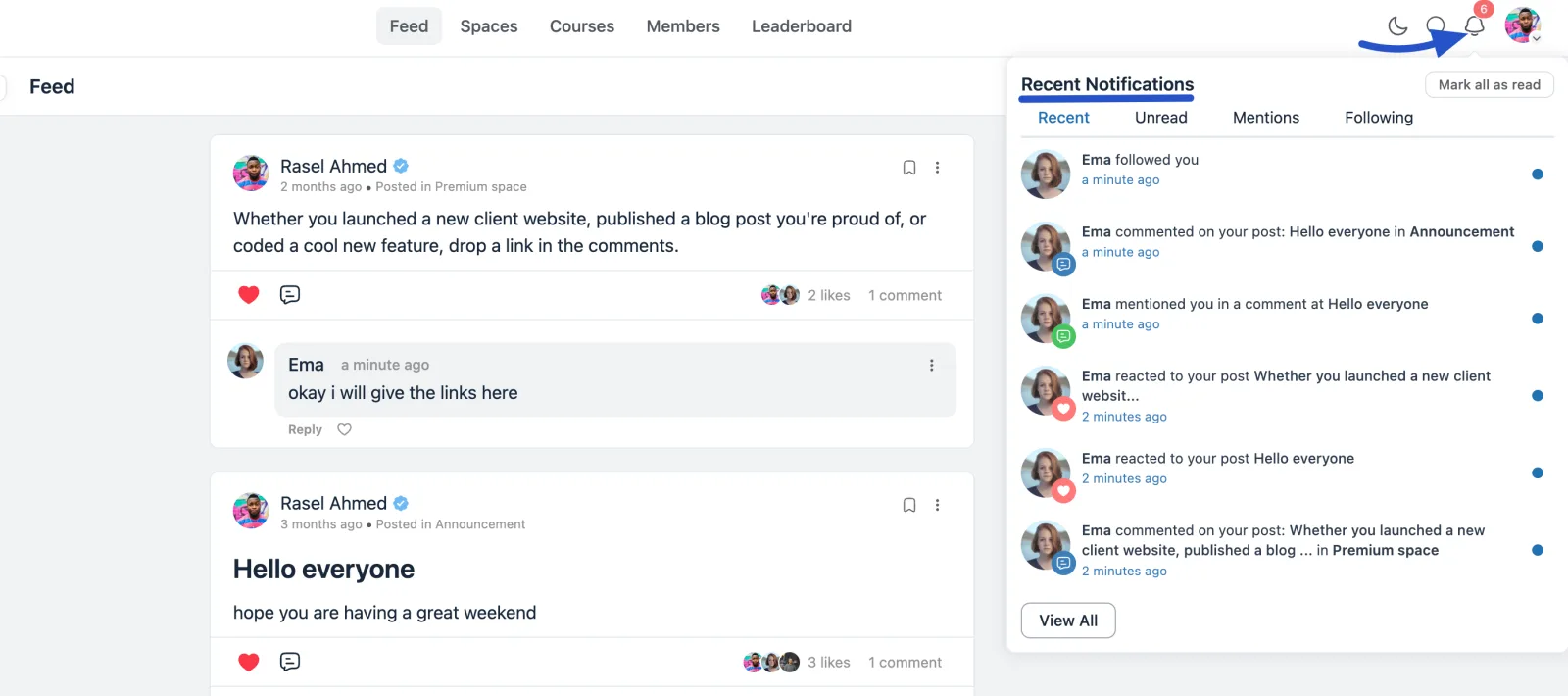
The bell icon sits in the top-right corner of the community portal, next to the search icon and the member's avatar. When there are unread alerts, a red badge appears on the bell showing the count. The badge updates instantly as new notifications arrive, without needing a page refresh.
Click the bell to open the Recent Notifications panel.
Reading a Notification
Every row in the panel packs four pieces of information:
- Avatar with a type icon: the member who triggered the alert, with a small colored badge on their photo showing what they did (a comment bubble, a heart for a reaction, and so on).
- The message: who did what, and where. Post titles and space names are highlighted, so you can tell a comment in Announcement from one in Premium space at a glance.
- Timestamp: how long ago it happened, like "a minute ago" or "2 minutes ago".
- Blue dot: shown on the right while the notification is still unread. It disappears once the notification has been read.
Clicking any row takes you directly to the post, comment, or profile it refers to, and marks it as read.
✨ Note: If you arrive from a browser push notification instead, the notifications about that same post or comment are marked read as well — the badge on the bell won't keep counting something you've already opened.
The Tabs
The panel splits alerts into Recent, Mentions, and Following, plus an Unread filter in the panel header that narrows any of them down to what's new, so members can cut through the noise.
Recent
The default view: everything, newest first, read and unread together. This is the full picture of what happened while you were away.
Unread
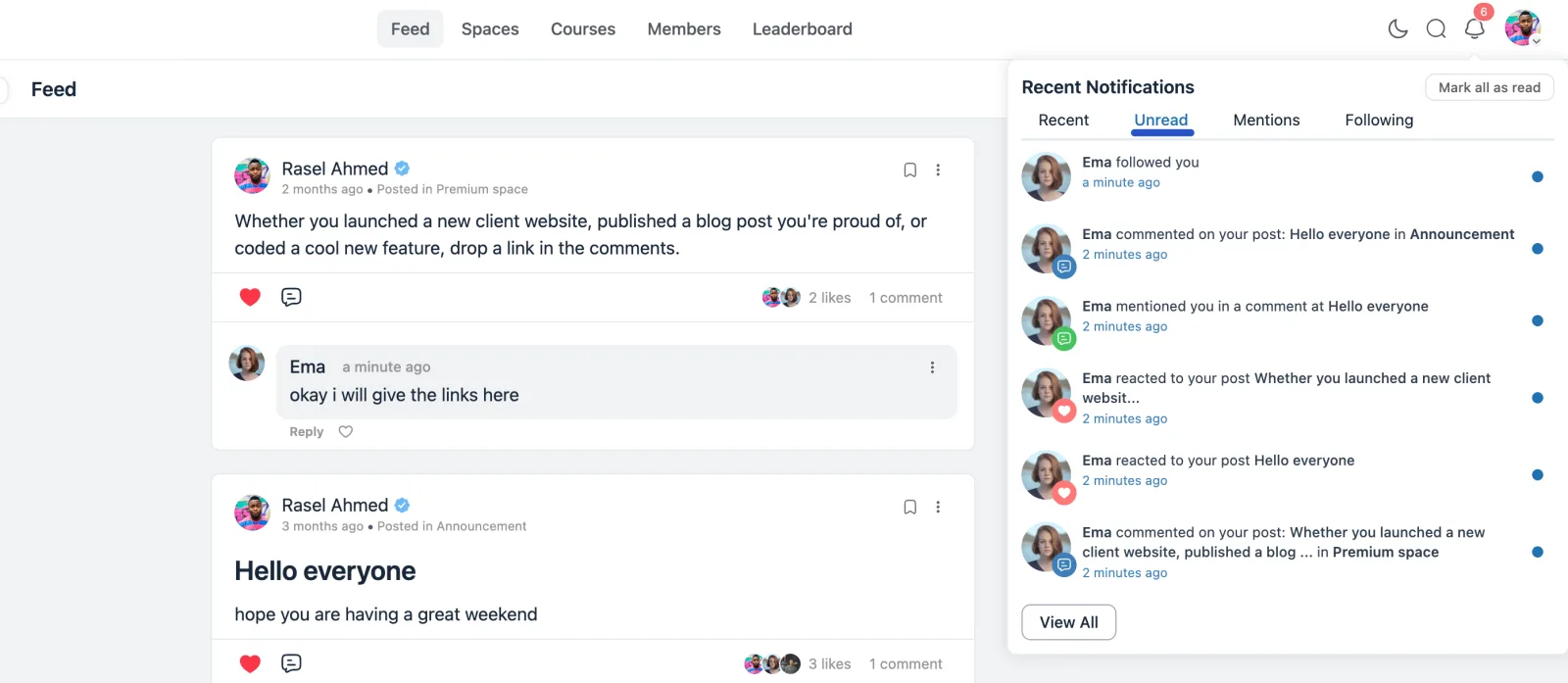
Turn on the Unread filter in the panel header to hide everything you've already opened, leaving just what's new.
Once you've caught up, this view empties out, which makes it the fastest way to work through a backlog without re-reading things you've already handled. Turn it off to bring back the full list.
Mentions
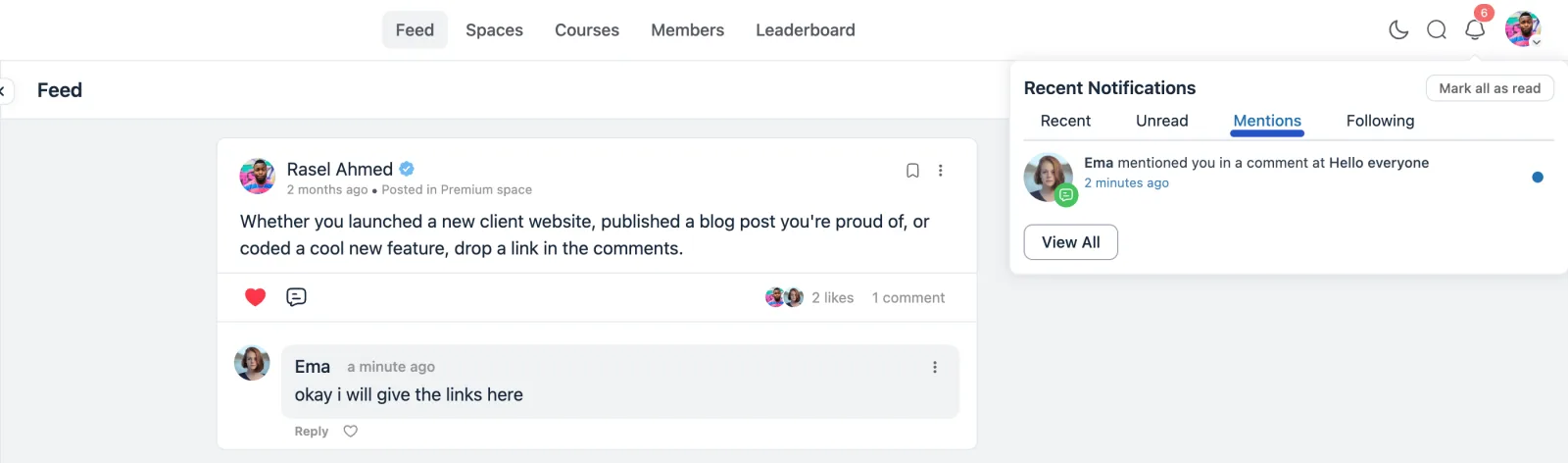
Only the alerts where someone typed your @name in a post or a comment. These are the notifications that usually need a reply, so this tab is worth checking first on a busy day.
To learn how mentions are written, see Post Reactions & Mentions.
Following
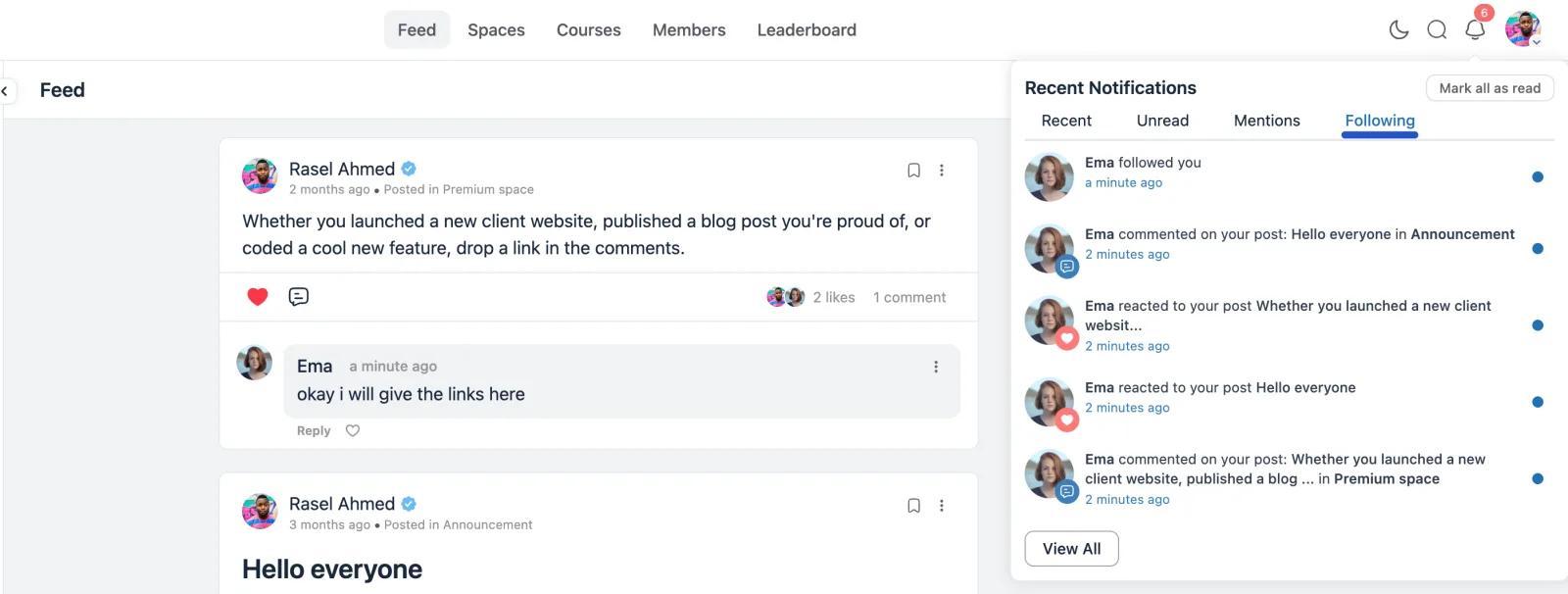
Activity connected to the people and content you follow: new followers, plus comments and reactions on the posts you're following.
This tab depends on the Follower Module, which an administrator enables under Portal Settings → Features & Addons. See Following & Blocking Members for the setup steps.
Types of Alerts Members Receive
The Notification Center covers the direct interactions that matter most:
| Alert | When it fires |
|---|---|
| Followed you | Another member starts following your profile. |
| Commented on your post | Someone replies to a post you created. The post title and the space are both shown. |
| Mentioned you | Someone tags you with @name in a post or a comment. |
| Reacted to your post | Someone likes or reacts to your content. |
TIP
Long post titles are shortened with an ellipsis so each row stays on one or two lines. Hover or click through to see the full post.
Clearing and Expanding the List
Two more controls sit in the panel header:
- Mark all as read: one click clears every blue dot and resets the red badge on the bell to zero. It does not delete the notifications; they stay available under Recent.
- View All: the button at the bottom of the panel. It opens the full notification history, which is useful when the dropdown only shows the most recent handful.
Member Notification Preferences
The Notification Center covers what happens inside the portal. Separately, every member (admins included) controls which of those events also reach their inbox, from their own profile.
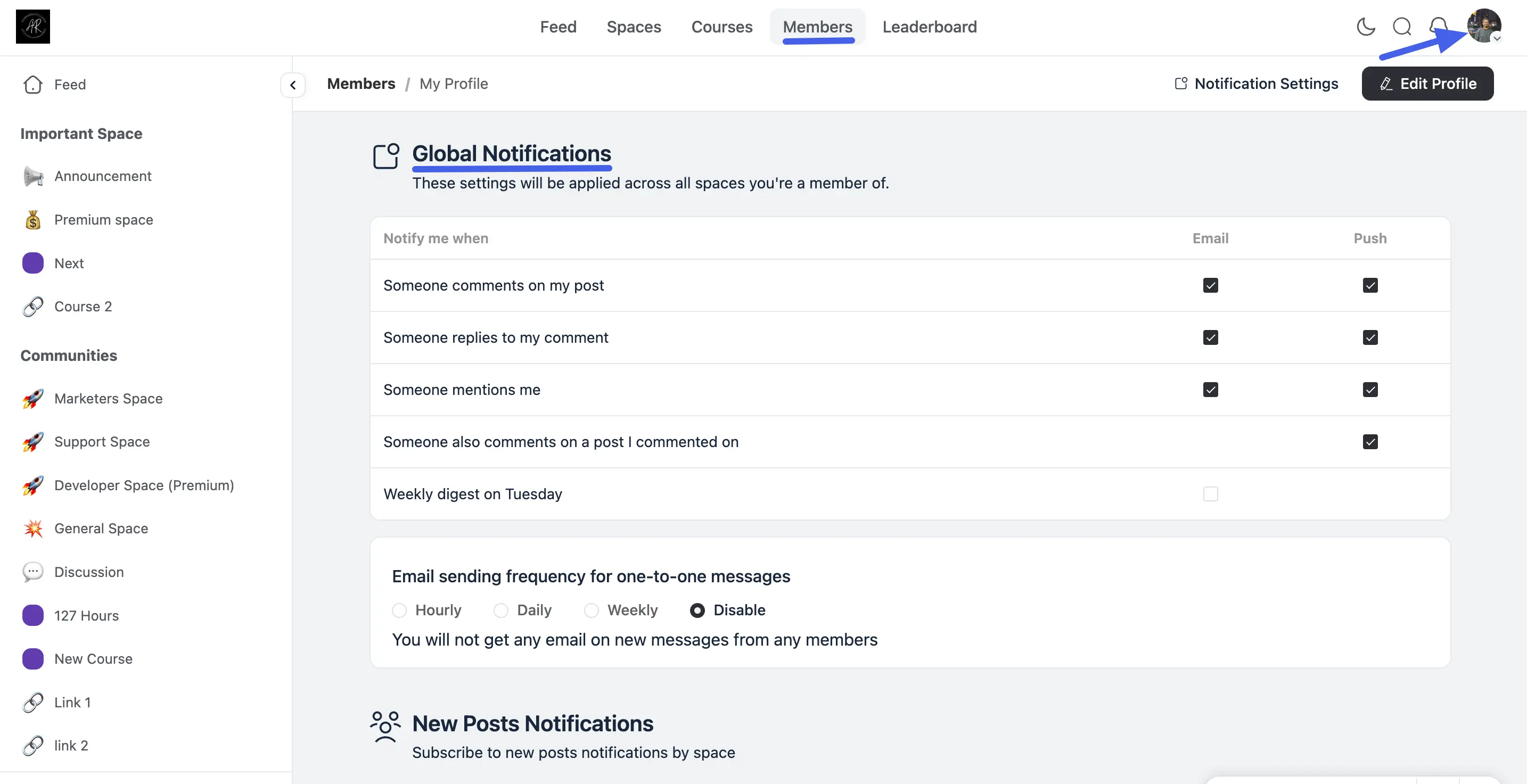
To open them, click your profile picture in the top-right corner of the community dashboard, select Your Profile, then click Notification Settings in the menu bar.
Global Notifications
These apply across every space and group the member belongs to. Each event is a row, with a separate Email and Push checkbox so members can pick exactly how they hear about it:
| Notify me when | Push | |
|---|---|---|
| Someone comments on my post | ✓ | ✓ |
| Someone replies to my comment | ✓ | ✓ |
| Someone mentions me | ✓ | ✓ |
| Someone also comments on a post I commented on | ✓ | |
| Weekly digest | ✓ |
The Push column only appears once Push Notifications with Firebase (Pro) is set up and enabled for the community — until then, members see the Email column alone. It's how members personalize their own push notifications.
An administrator sets the community-wide push defaults while configuring FluentNotify, those defaults apply to every member who hasn't made their own choice yet. The moment a member changes a Push checkbox here for themselves, their choice takes over and the community default no longer applies to that event for them.
Below the table, Email sending frequency for one-to-one messages sets how often unread direct-message emails go out: Hourly, Daily, Weekly, or Disable.
This option only appears when email notifications for one-to-one messages are enabled in the messaging settings. See Direct Messaging (Pro) documentation.
New Posts Notifications
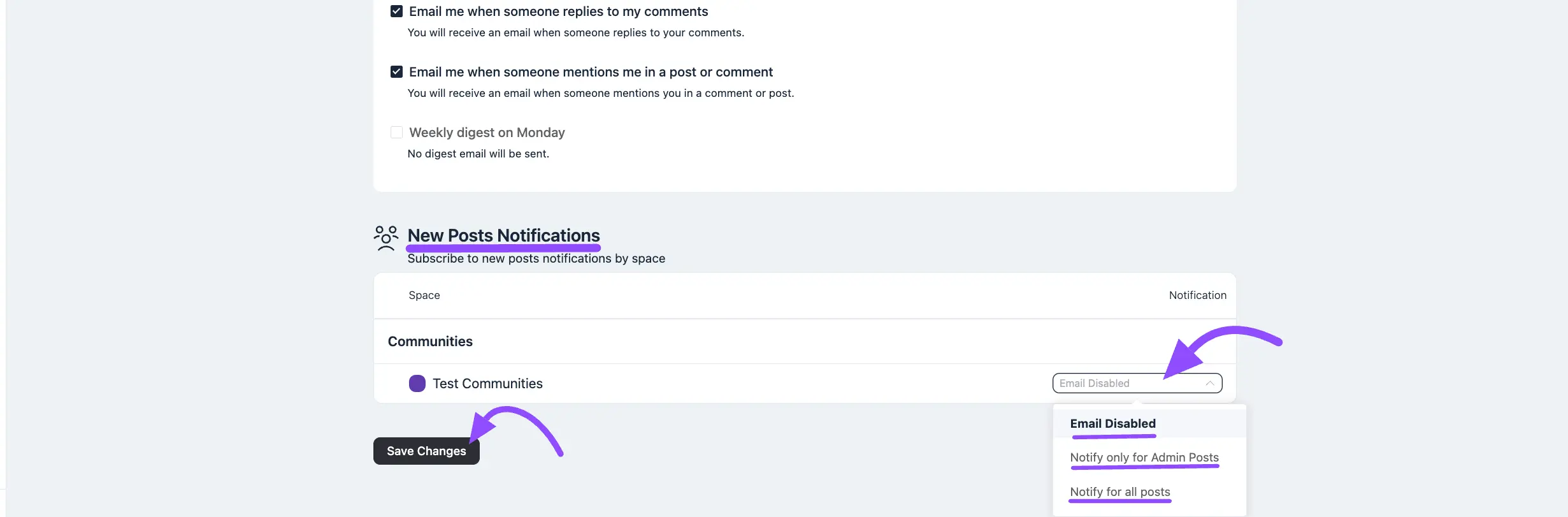
Below the global options, New Posts Notifications lets members subscribe to new posts per space, rather than all-or-nothing. Spaces are listed in a Space / Notification table, grouped by space group, with a dropdown on each row:
| Option | What the member receives |
|---|---|
| Email Disabled | No email for new posts in that space. |
| Notify only for Admin Posts | Email only when an admin posts in that space. |
| Notify for all posts | Email for every new post in that space. |
Click Save Changes to apply.
TIP
Members who find a busy space noisy don't have to mute the whole community, switching that one space to Notify only for Admin Posts keeps announcements coming while dropping the day-to-day chatter.
Email Status and Re-Confirming Your Address
If your address is connected through FluentCRM and gets marked Bounced, Complained, or Spammed, FluentCommunity pauses notification emails to that address and shows its status right here on this screen.
Click Re-confirm My Email Address to send yourself a fresh double opt-in email. Confirming it clears the flag and notification emails resume.
NOTE
These preferences are the member's own. Administrators set the community-wide defaults and choose which emails exist at all. See Connecting with FluentSMTP for the sending setup and Customizing Email Templates (Pro) for branding those messages.
Beyond the Bell: Browser Push Notifications
The Notification Center and email preferences above only reach members while they're on your site or checking their inbox.
For real, OS-level push notifications that reach members even when their browser is closed, see Push Notifications with Firebase (Pro) for the admin setup, and the Push column under Global Notifications above for how members personalize it for themselves.
When both are on, they don't double up: a member whose device receives a push for an event won't also get the pop-up toast inside the community for the same event. The notification still lands in the bell dropdown either way. On phones, the toast now slides in from the top of the screen, where it's easier to notice and dismiss.