

Appearance
BuddyPress Migration
If you have a large number of members and their data stored in BuddyPress and want to migrate them to FluentCommunity, the process is quick and straightforward. This guide walks you through every step.
Back Up Before You Start
Create a complete backup of your WordPress files and database before running the migration. This is non-negotiable — a full backup is your safety net if anything goes wrong.
What Gets Migrated
| BuddyPress Data | FluentCommunity Equivalent |
|---|---|
| Groups | Spaces |
| Group Members | Space Members |
| Group Activity / Posts | Space Feed Posts |
| Comments & Reactions | Comments & Reactions |
| Avatars (avatar-based profile pictures) | Profile Pictures |
What Does NOT Get Migrated
- Private messages between members
- Member connections (friends list)
- bbPress forum data
- Custom profile types and field data
- Uploaded profile pictures and space cover images (avatar-based images do migrate)
- BuddyPress theme settings and configurations
- Data from third-party BuddyPress add-ons
Manage Migration Settings
To migrate your BuddyPress data into FluentCommunity, start by navigating to your FluentCommunity portal on the front end. Click the Settings button in the bottom-right corner of the screen.
In the settings menu, select Manage Migration from the left sidebar. You will find the Migrate Data from Other Plugins section with the BuddyPress Module option. Click on it to initiate the migration process.
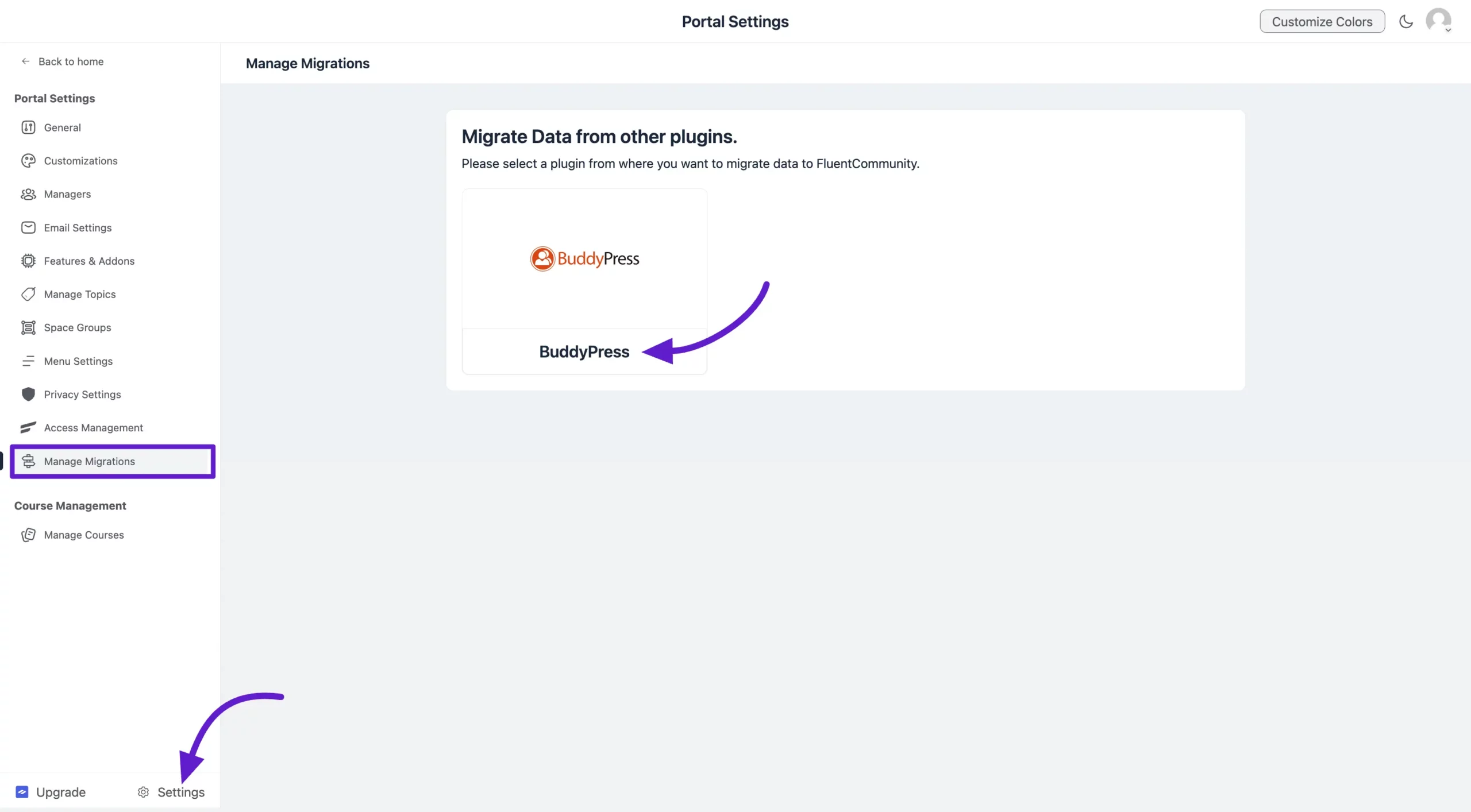
Once you access the BuddyPress Module, you will see the migration options and the following key notes.
Key Notes for Migration
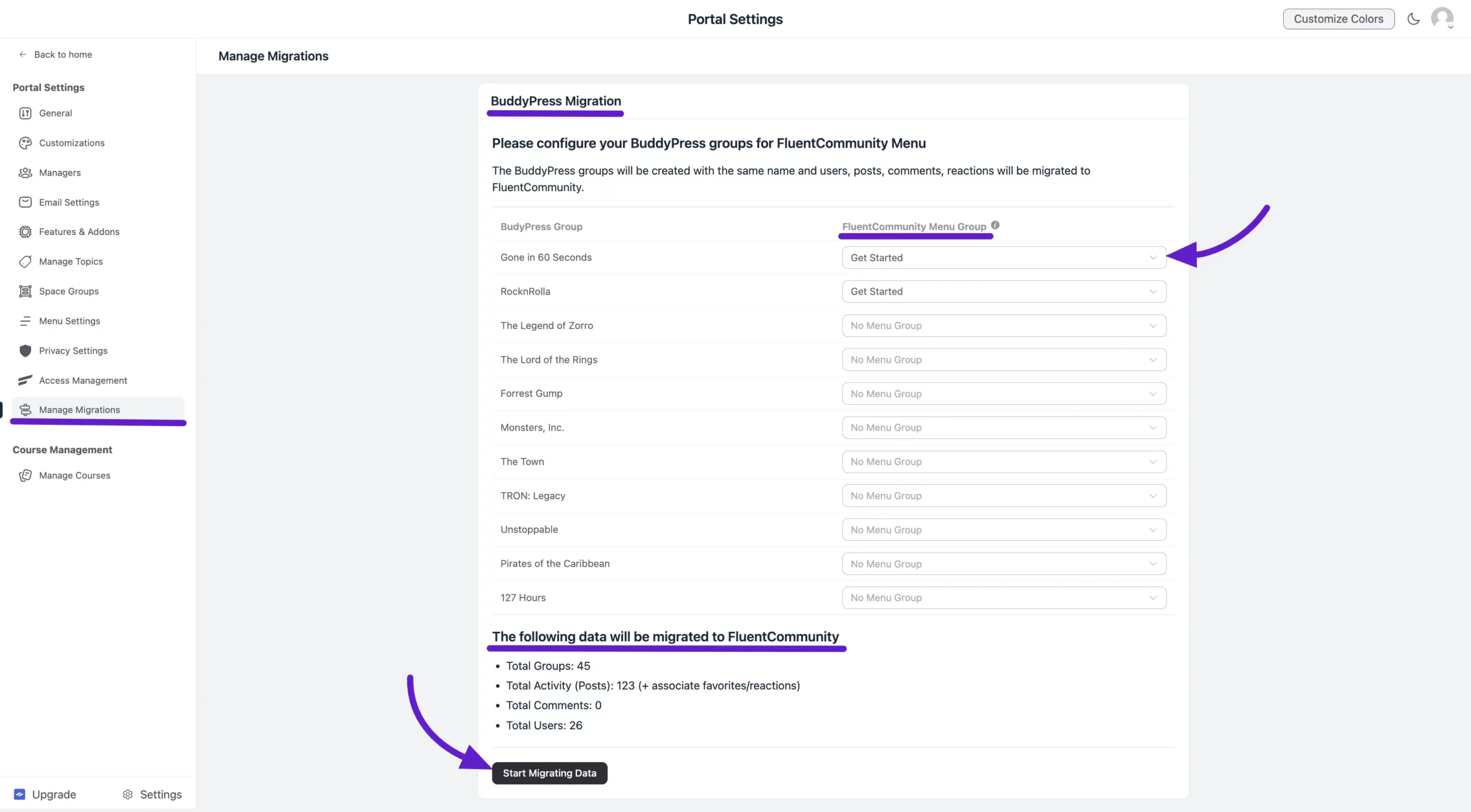
- Groups to Spaces: BuddyPress Groups will be added to FluentCommunity as Spaces.
- Members Migration: All Group Members in BuddyPress will automatically become members of the corresponding Spaces in FluentCommunity. All BuddyPress Members will be imported into FluentCommunity.
- Posts and Interactions: All Posts from BuddyPress will be migrated to FluentCommunity. Comments and reactions associated with these posts will also be migrated.
- Profile Pictures and Avatars: Uploaded profile and space pictures will not migrate. However, if a profile includes an avatar as the profile picture, it will migrate successfully.
Start the Migration
On the migration screen, you can map BuddyPress Groups to specific existing Spaces in FluentCommunity. Mapped groups will appear under the designated Space after migration.
When ready, click Start Migrating Data to begin. FluentCommunity will copy all your BuddyPress data across with just a few clicks.
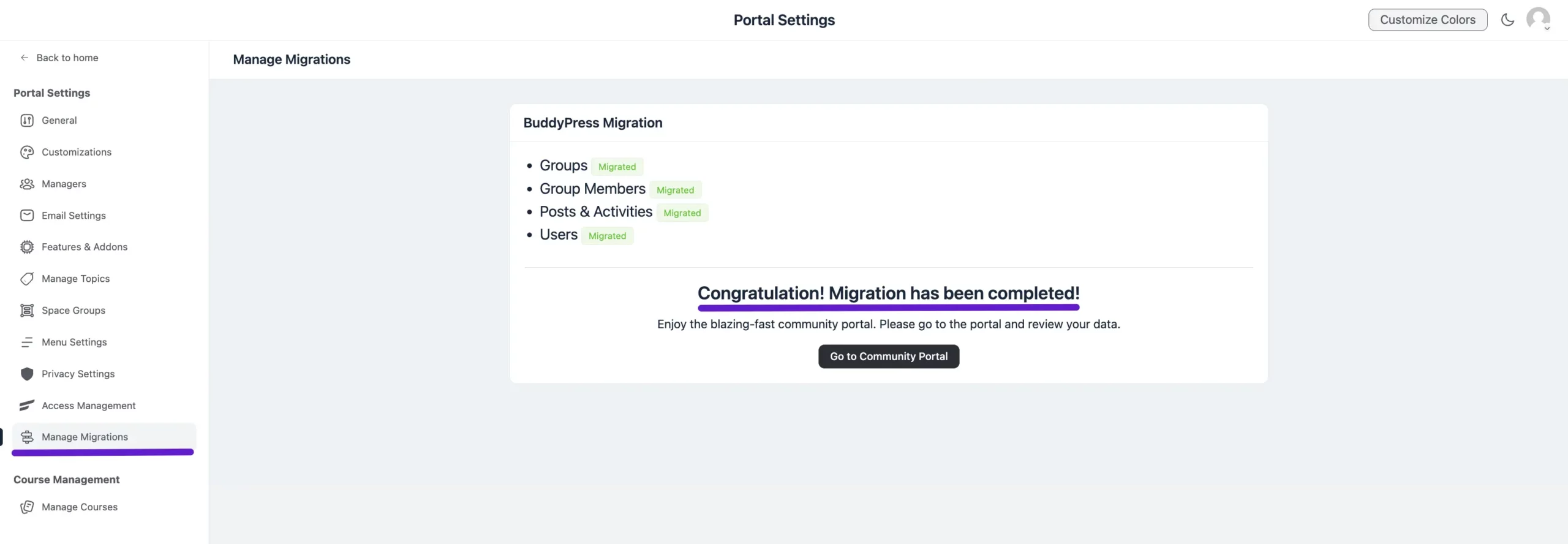
Upon migration completion, you will receive a congratulatory notification confirming the process is complete.
Verifying Your Migrated Data
Feed Preview
All posts, reactions, and comments have been successfully migrated from BuddyPress to FluentCommunity. You can view them seamlessly within your FluentCommunity setup.
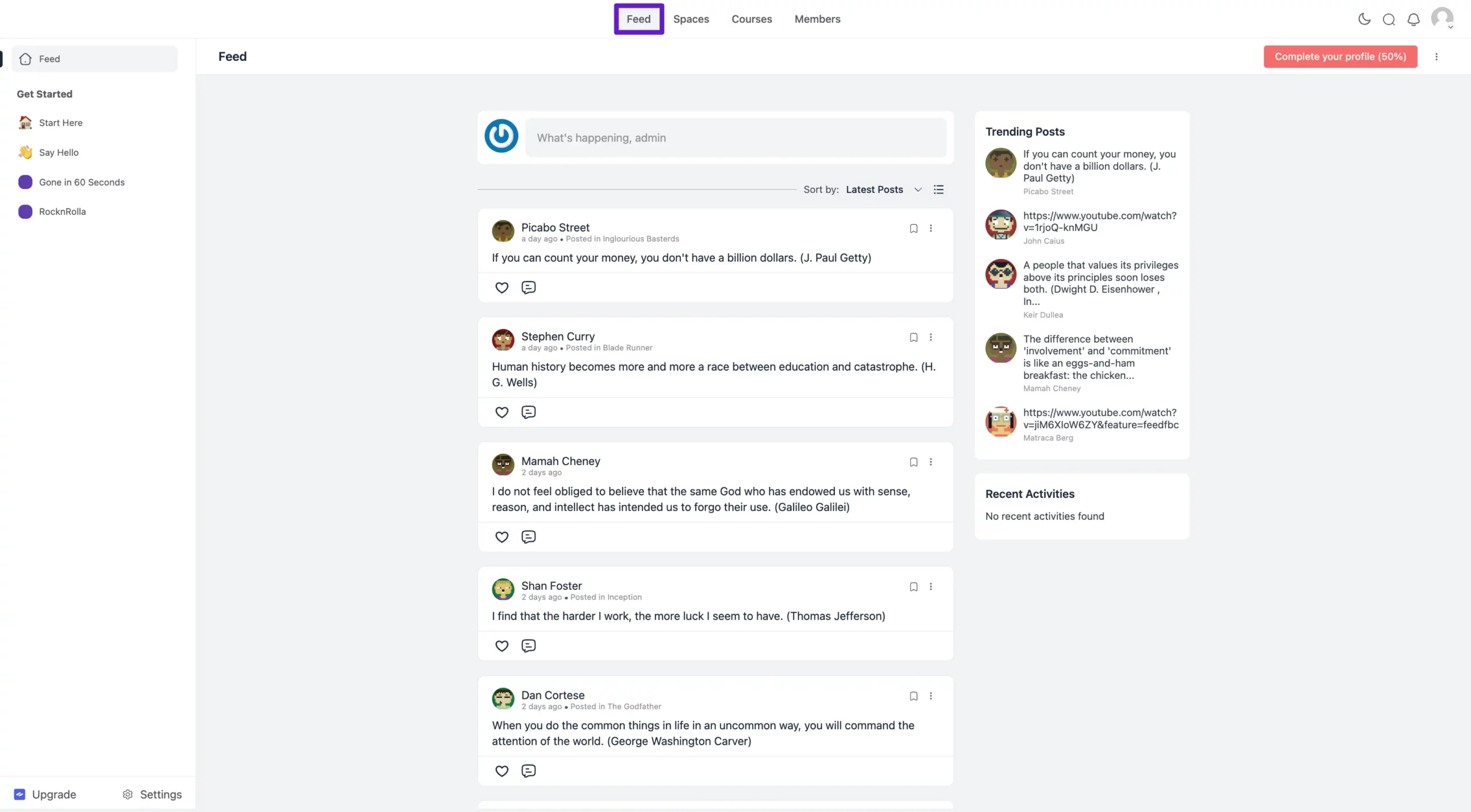
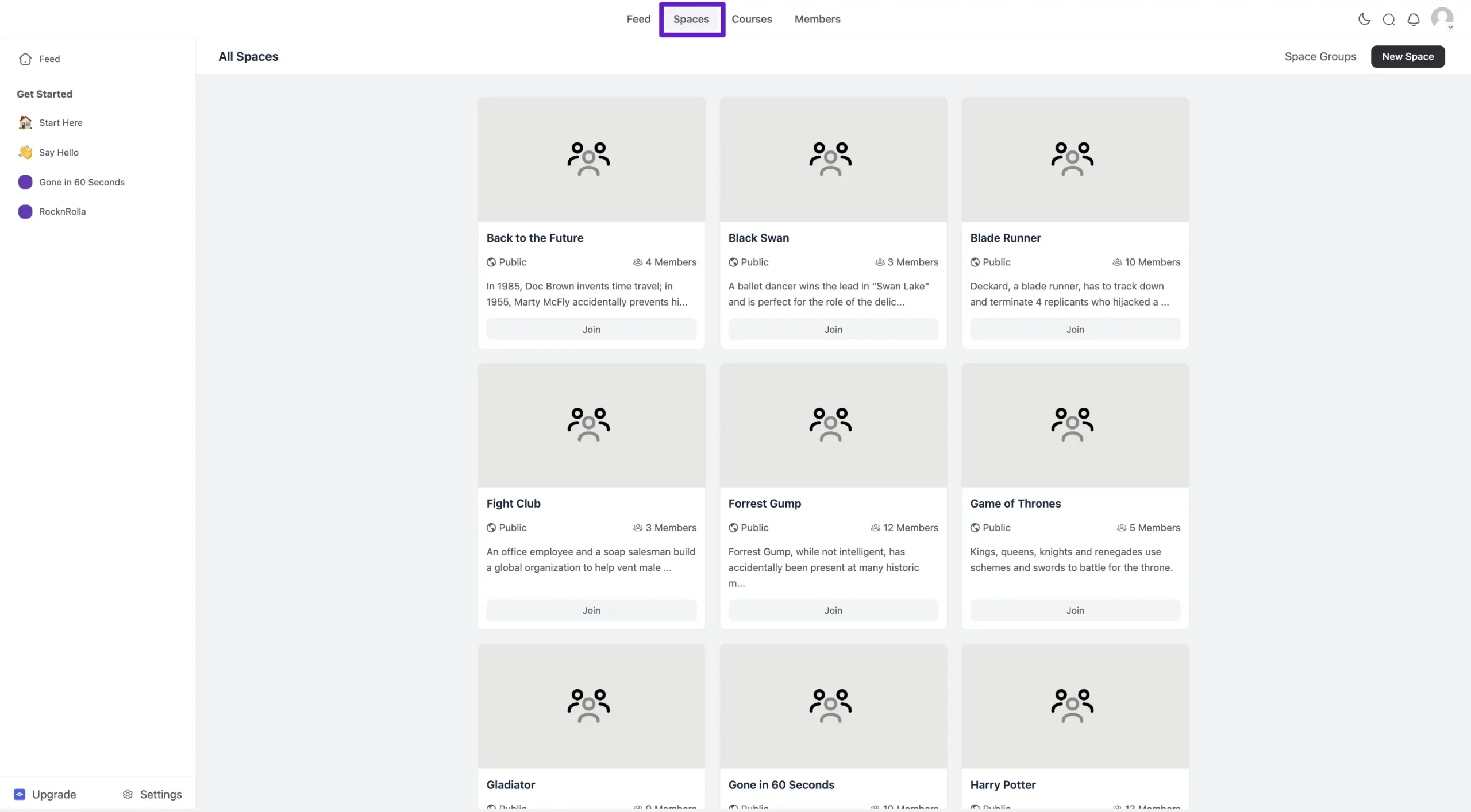
Space Preview
All BuddyPress Groups have been migrated to the Spaces section of FluentCommunity. Groups you mapped to specific Spaces during setup will appear under those designated Spaces.
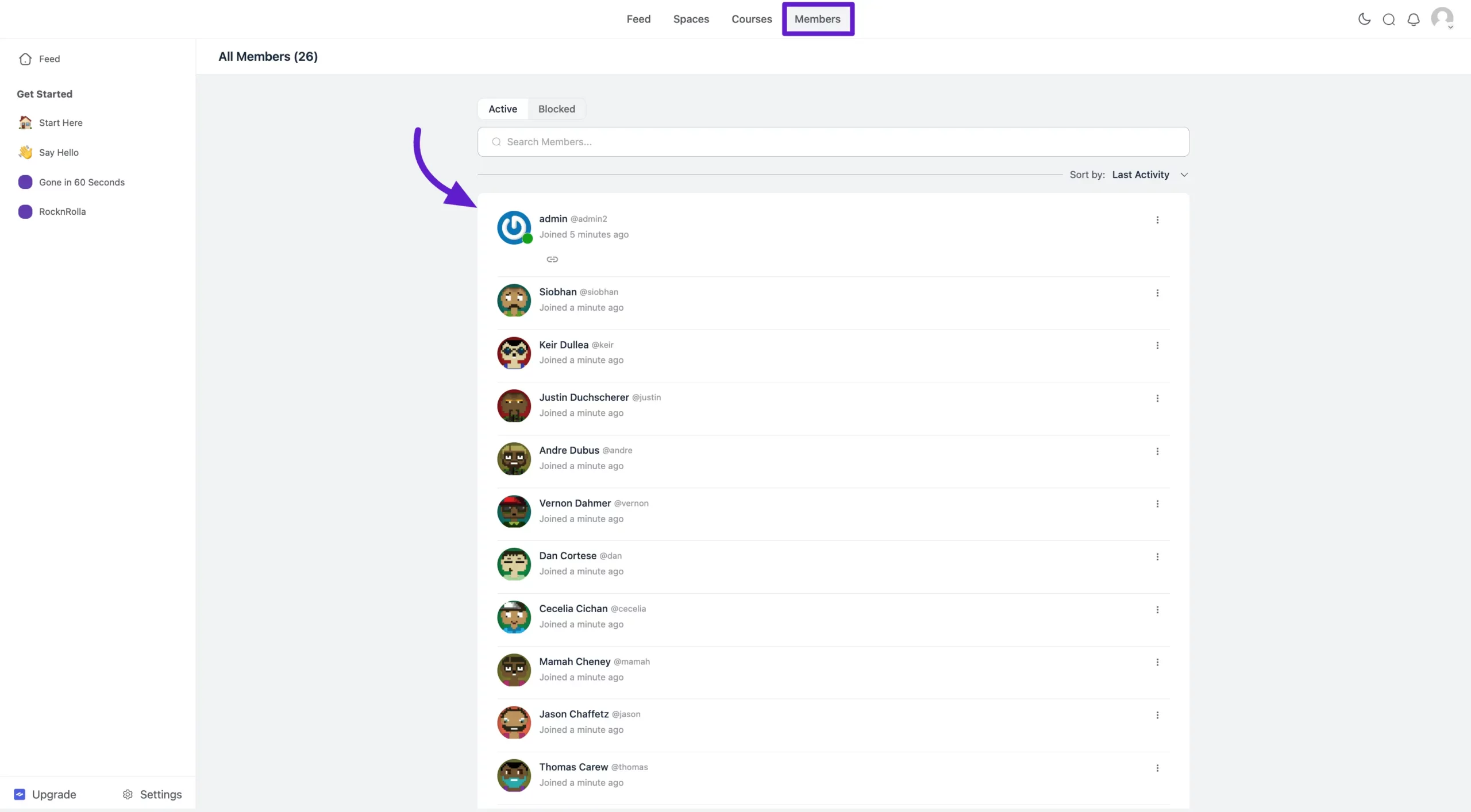
Members Preview
All BuddyPress members have been successfully migrated into FluentCommunity and are assigned to their corresponding Spaces, mirroring their previous associations in BuddyPress.
After Migration: Next Steps
- Review Space Settings: Go through each imported Space and configure privacy, member permissions, and content settings. See Space Settings & Privacy.
- Rebuild Permalinks: Go to WordPress Admin → Settings → Permalinks and click Save Changes to ensure all community URLs resolve correctly.
- Customize Your Portal: Apply your branding, colors, and layout in FluentCommunity → Portal Settings. See Menu Settings.
- Announce the Change: Let your members know the community has moved to a new platform and highlight what's improved.