

Appearance
Content Moderation
Maintaining a healthy and constructive environment is essential for any thriving community. FluentCommunity provides built-in moderation tools that allow administrators and Space moderators to review and manage user-generated content effectively.
Use Case: If a member posts something that violates your community guidelines (e.g., spam or inappropriate language), other members can report it. As a moderator, you will be notified and can then use these tools to review the report and take appropriate action, such as removing the post.
How Content Reporting Works
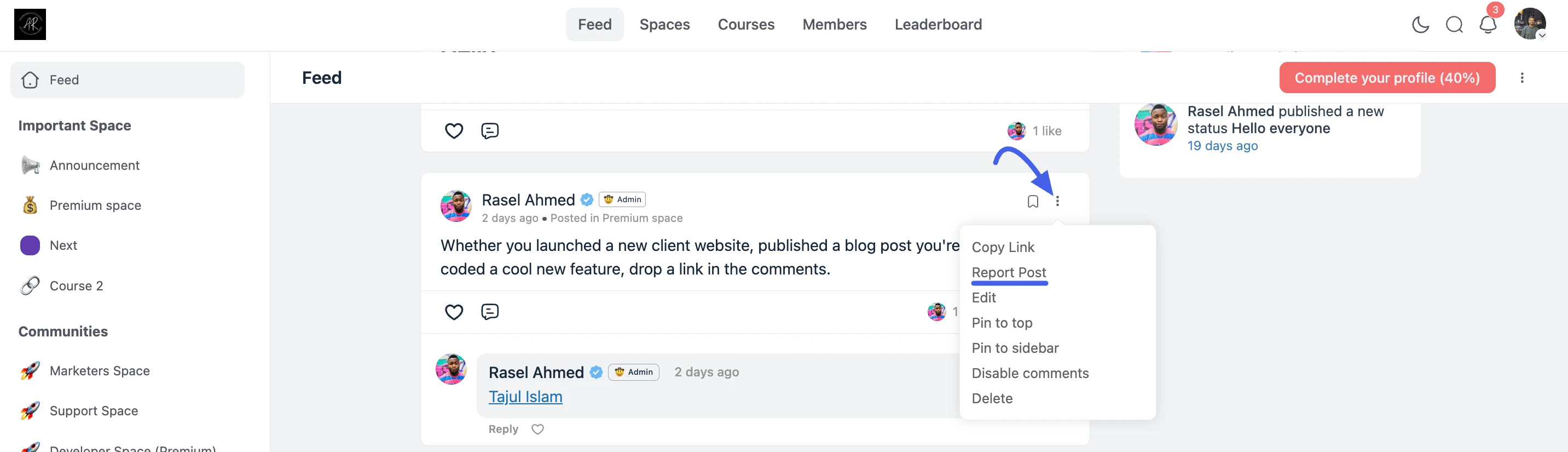
When this feature is enabled, members will see a "Report" option in the three-dot menu (...) on every post and comment.
- A member clicks the Report Post option on a piece of content they believe is inappropriate.
- A pop-up will appear, allowing them to select a reason for the report (e.g., "Spam," "Harassment") and add an optional explanation.
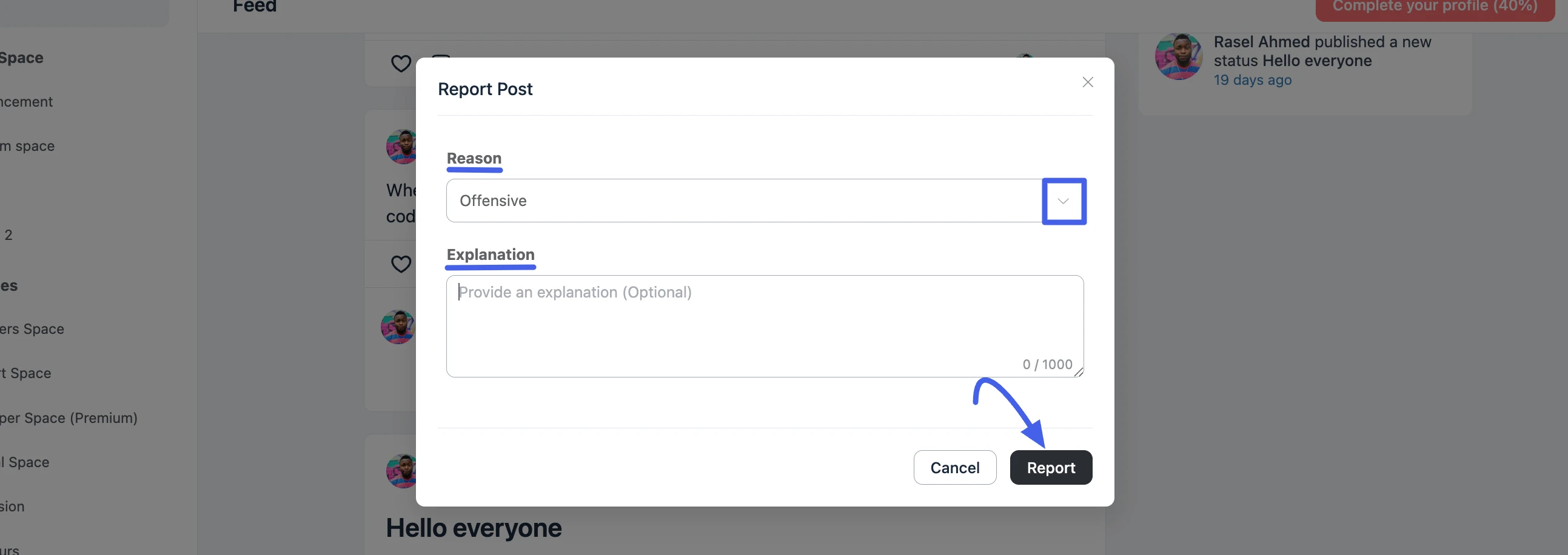
- Once submitted, the content is flagged for review by moderators.
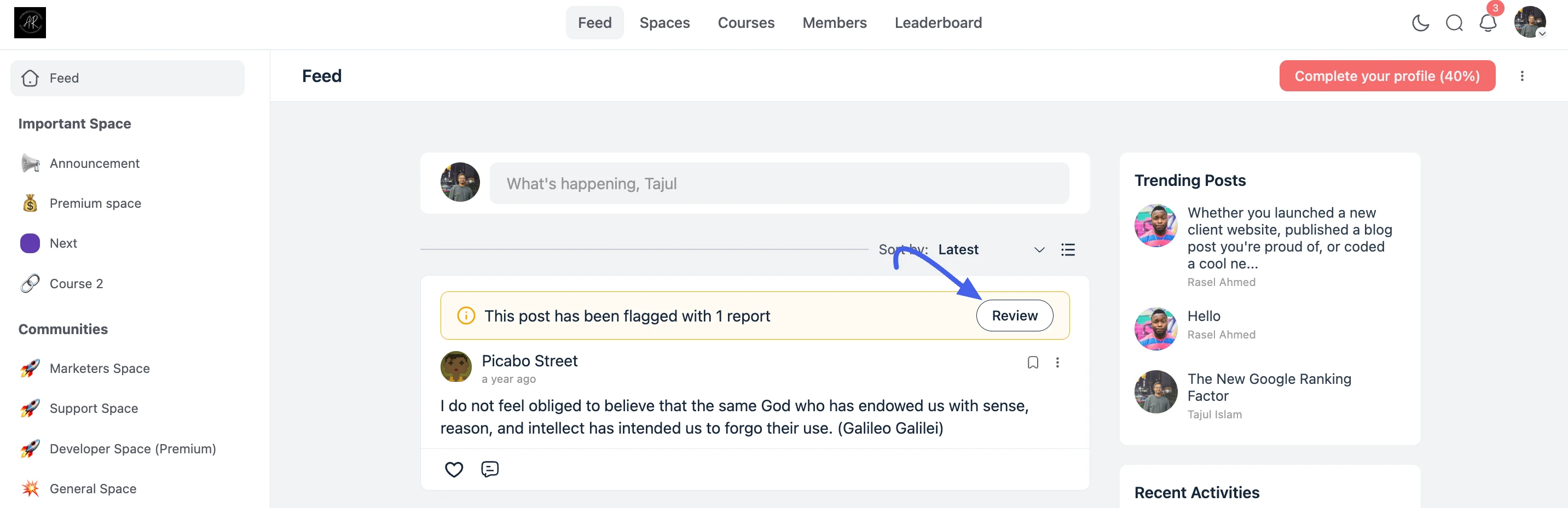
Managing Reported Content
As a moderator or administrator, you have a centralized dashboard to view and act upon all reported content.
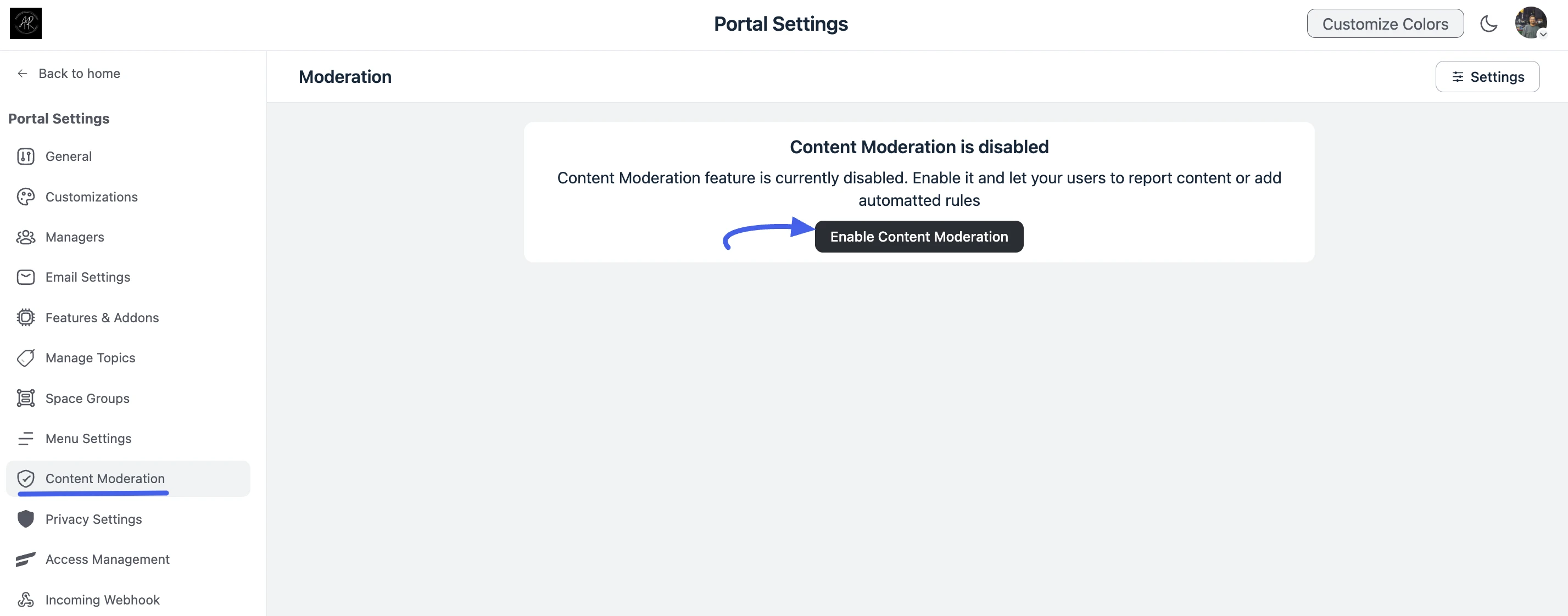
- From your WordPress dashboard, navigate to FluentCommunity → Settings.
- Click on the Content Moderation tab.
- The Moderation dashboard lists all reported content. Use the tabs to filter by status: Pending, Flagged, Dismissed, and Unpublished.
Each row displays the content Title, Type (post or comment), Reporter, Date, and Reports count.
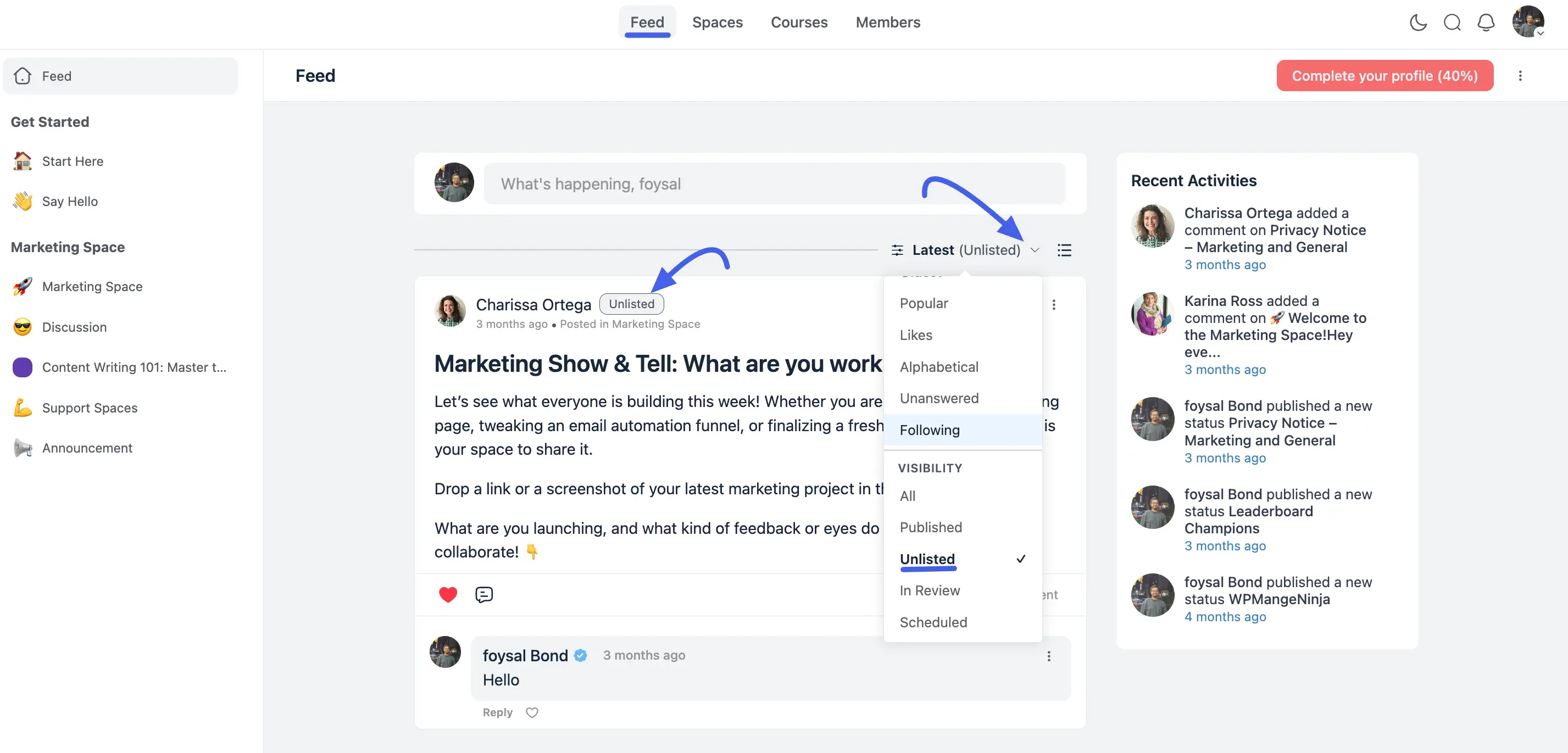
Reviewing Unlisted Posts (Pro)
Unlisted posts stay off every feed and listing by design, but moderators still need a way to see them all in one place.
Open any feed's Sort by dropdown and switch on the Unlisted visibility filter to list every unlisted post together, FluentCommunity marks the active sort with an "(Unlisted)" tag next to the field name (for example, "Latest (Unlisted)") so it's obvious the filter is on.
The filter remembers your last choice, so it stays selected the next time you open that feed. See Feed Sorting for the full sort reference.
Moderation Settings
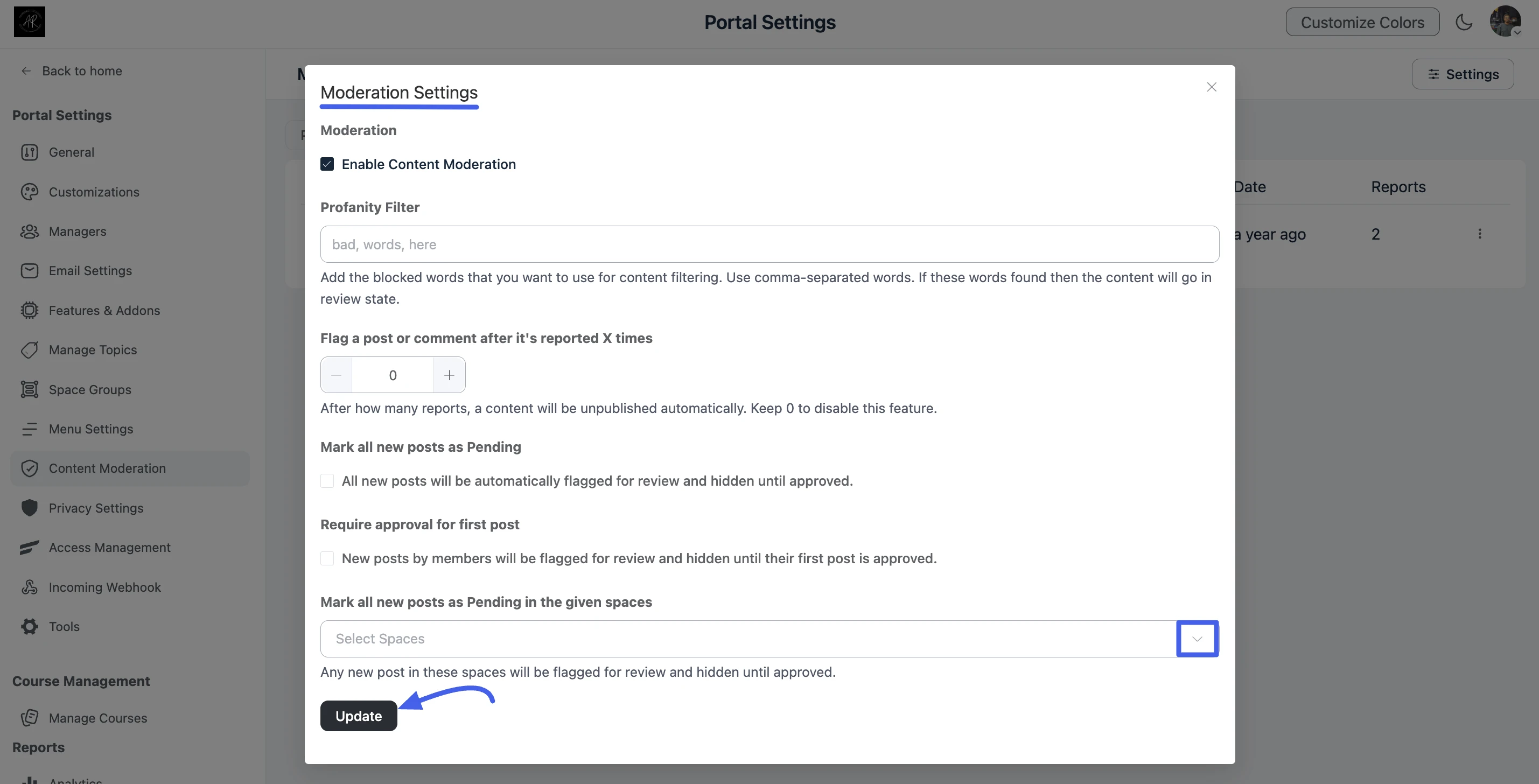
You can configure how moderation works before reviewing reported content. From your WordPress dashboard, go to FluentCommunity → Settings → Content Moderation, then click the settings (gear) icon to open the Moderation Settings modal.
In the modal, you can configure:
- Enable Content Moderation: Turn the moderation workflow on or off for your community.
- Profanity Filter: Add blocked words (comma-separated). Matching posts or comments are sent to review instead of publishing immediately.
- Flag a post or comment after it's reported X times: Set how many reports trigger automatic unpublishing. Use
0to disable this feature. - Mark all new posts as Pending: Require admin approval for every new post before it becomes visible.
- Require approval for first post: Hold only a member's first post for review; later posts publish normally after approval.
- Mark all new posts as Pending in the given spaces: Apply pending review only to selected Spaces.
Click Update to save your changes.
Moderation Actions
For each reported item, click the three-dot (...) menu on the right side of the row:
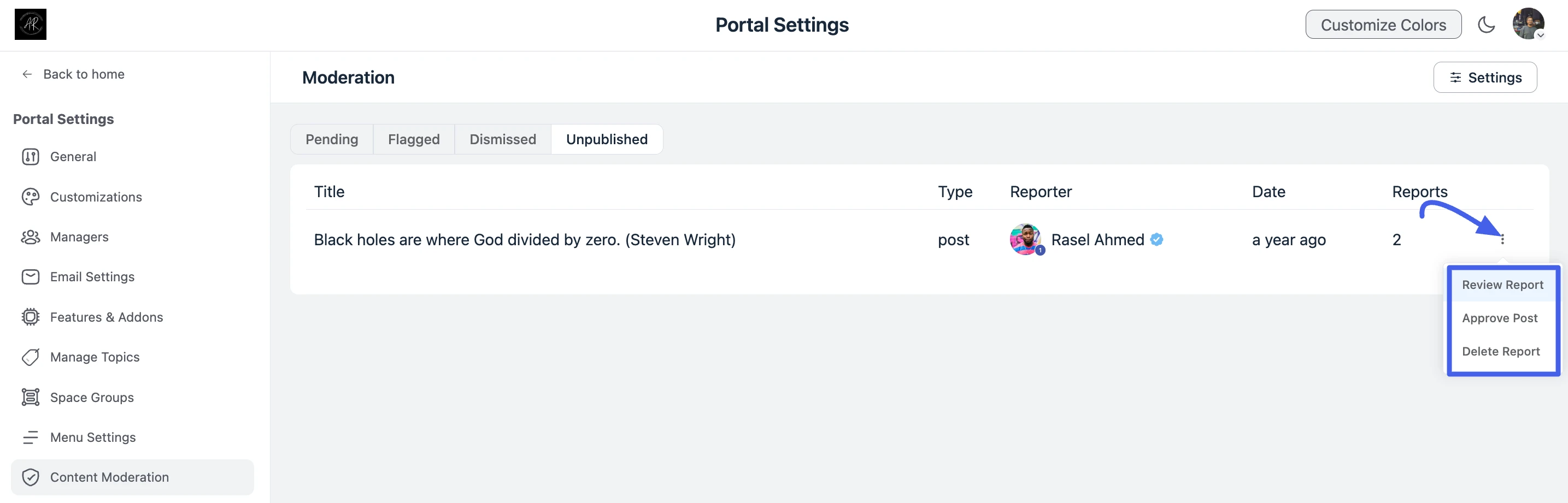
- Review Report — View full report details, including who reported the content and why.
- Approve Post — Approve the content and restore it to the feed (useful for items in Unpublished or Flagged).
- Delete Report — Remove the report from the moderation queue.
⚠️ Important: To effectively use these tools, it is crucial to have clear and accessible community guidelines. Your members need to know what is considered acceptable behavior and what is not. This will empower them to report content appropriately and will help you moderate fairly.