

Appearance
Direct Messaging (Pro)
Direct Messaging (DM) lets members have private, one-on-one conversations inside your community. It is ideal for follow-up questions, collaborations, and personal connections without posting on the public feed.
Use Case: A member sees a helpful post and wants to ask a follow-up question privately. They open Direct Messaging, start a chat with that member, and continue the conversation one-on-one.
Note: Direct Messaging is a Pro feature. An administrator must enable it in FluentCommunity settings > Features & Addons > FluentCommunity Chat. If you do not see the Messages icon, contact your site administrator.
Navigating the Chat Interface
To access chat in FluentCommunity, click the Messages (speech bubble) icon in the bottom-right corner of the community portal.
Message List
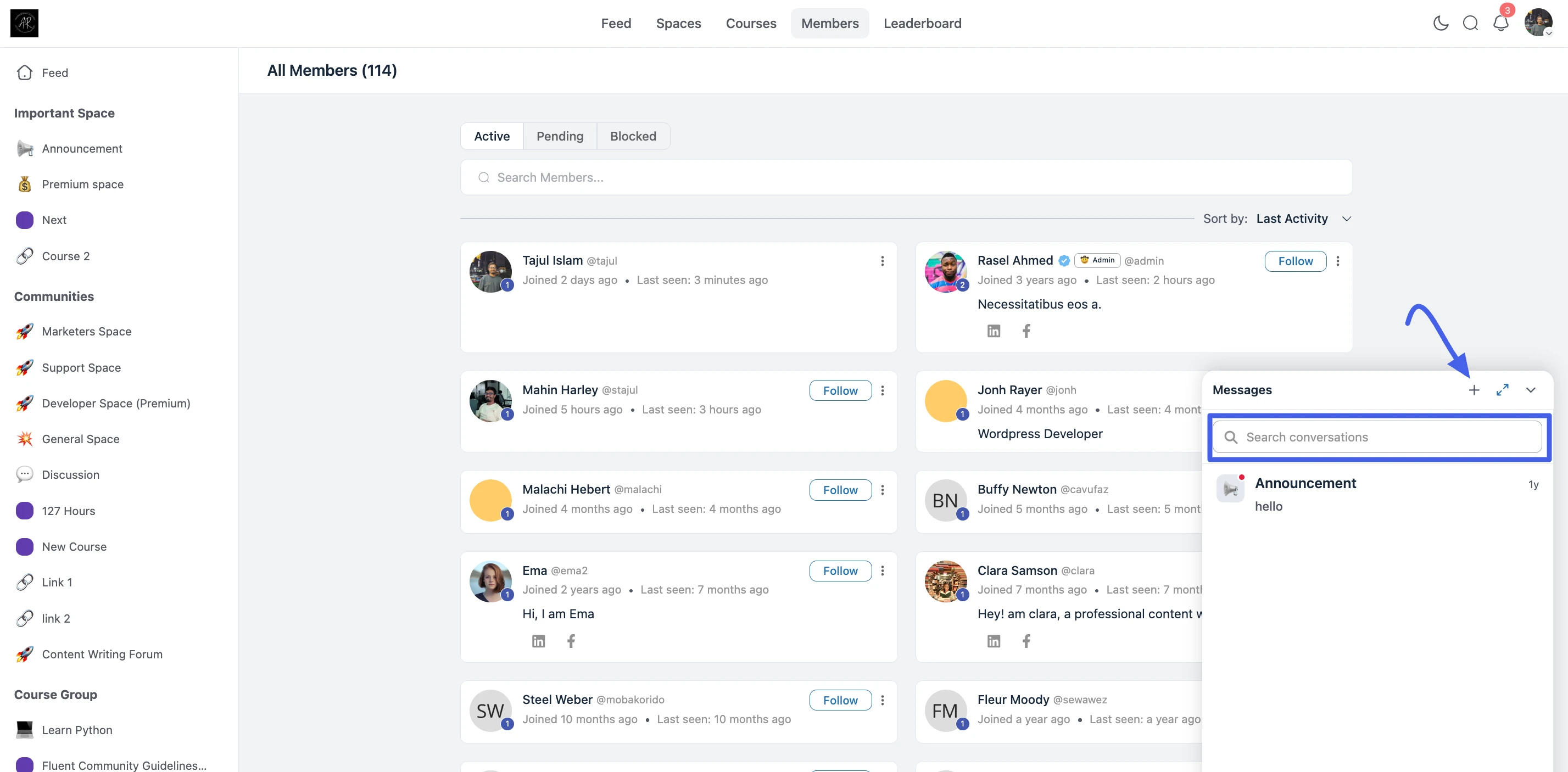
Clicking the icon opens the messaging panel, where you can see all your recent conversations.
Search Conversations
Use the search bar at the top of the message list to quickly find existing chats by typing a member's name or username.
Starting a Conversation
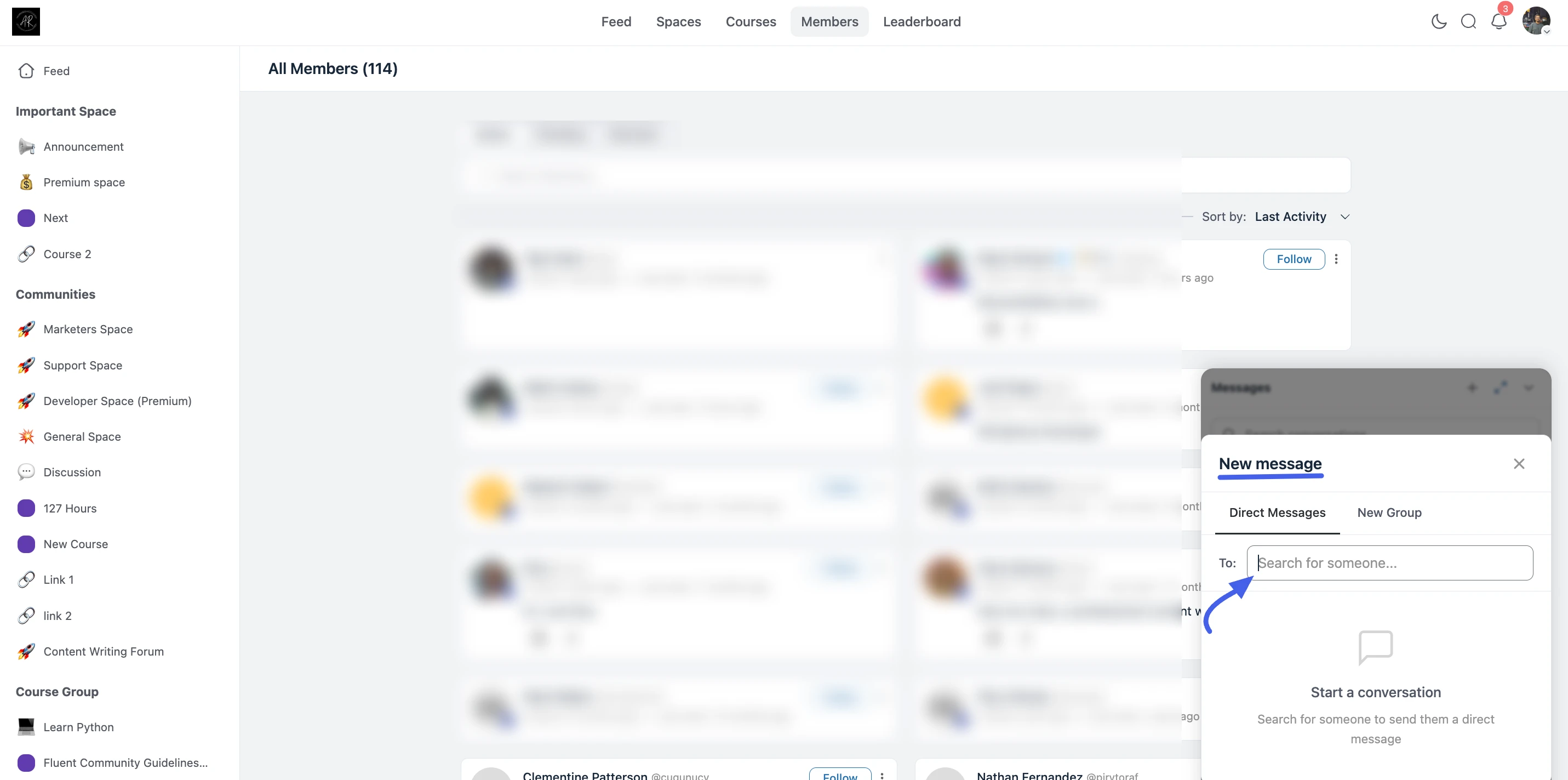
To reach out to a member, click the + (plus) icon or use the search bar inside the messaging panel to start a New message.
- Type the member's name or username in the To: field.
- Select the user from the dropdown list.
- The chat window opens and you can begin typing.
You can also start a conversation from a member's profile by clicking the Message button on their profile page.
Sending Messages and Media
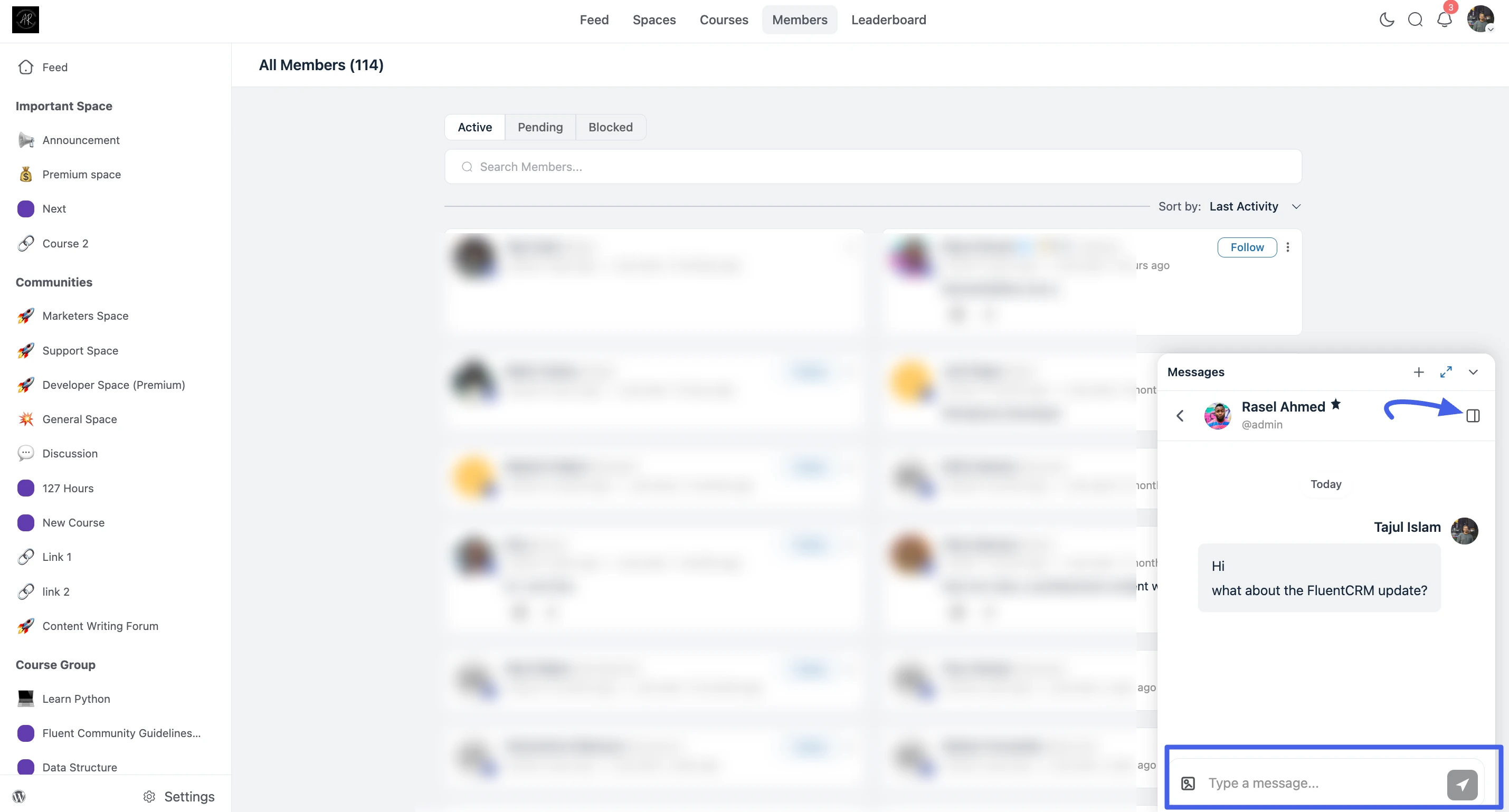
In the Type a message… box at the bottom of the chat window, you can:
- Write your message: Type text and use emojis like in posts and comments.
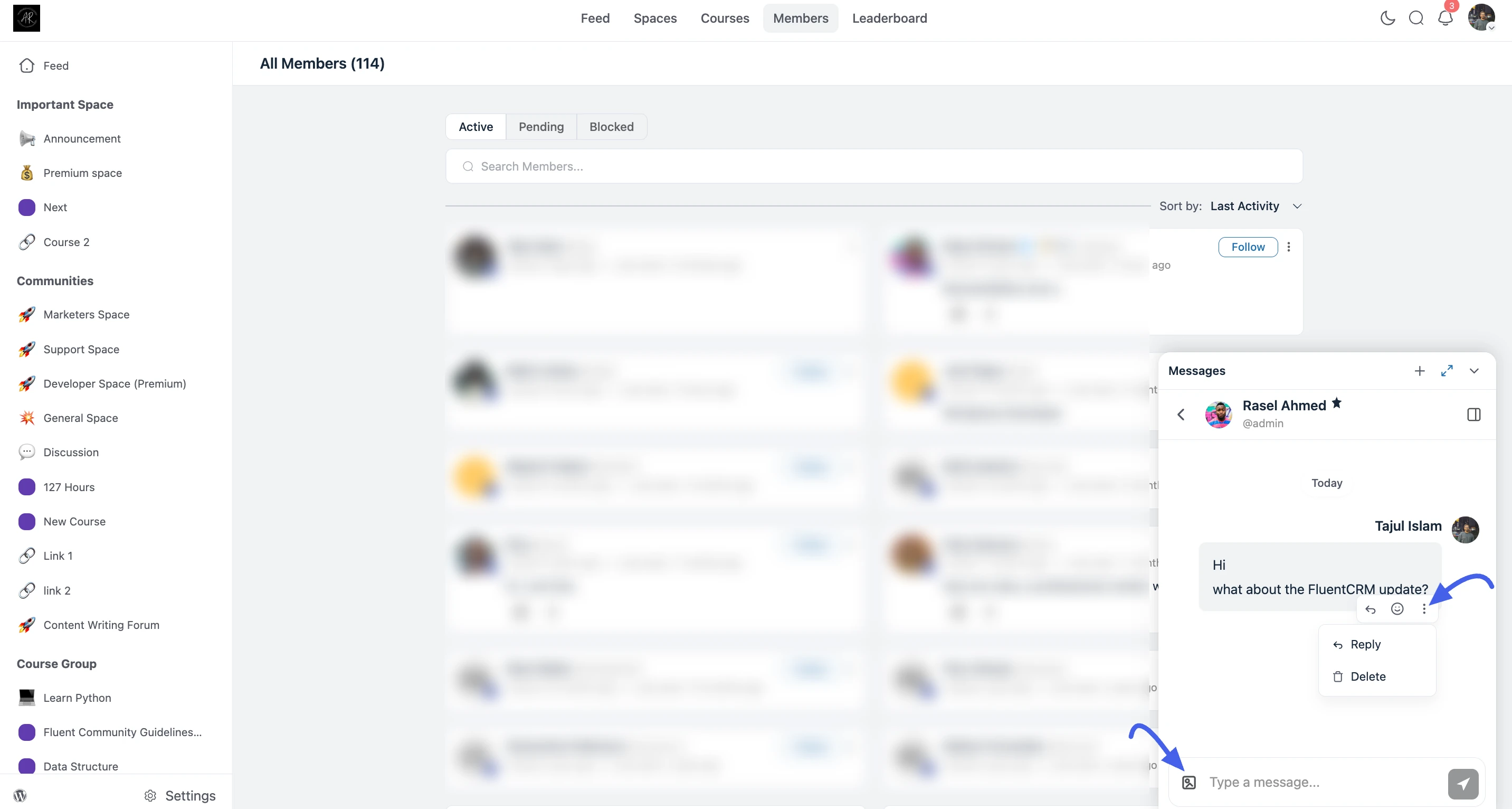
- Upload media: To the left of the Type a message… input box, click the Media icon (image card) to upload images or documents from your device.
- Send: Click the Send icon when your message is ready.
Messages appear in real time in the conversation thread.
Viewing User Profile Details & Actions
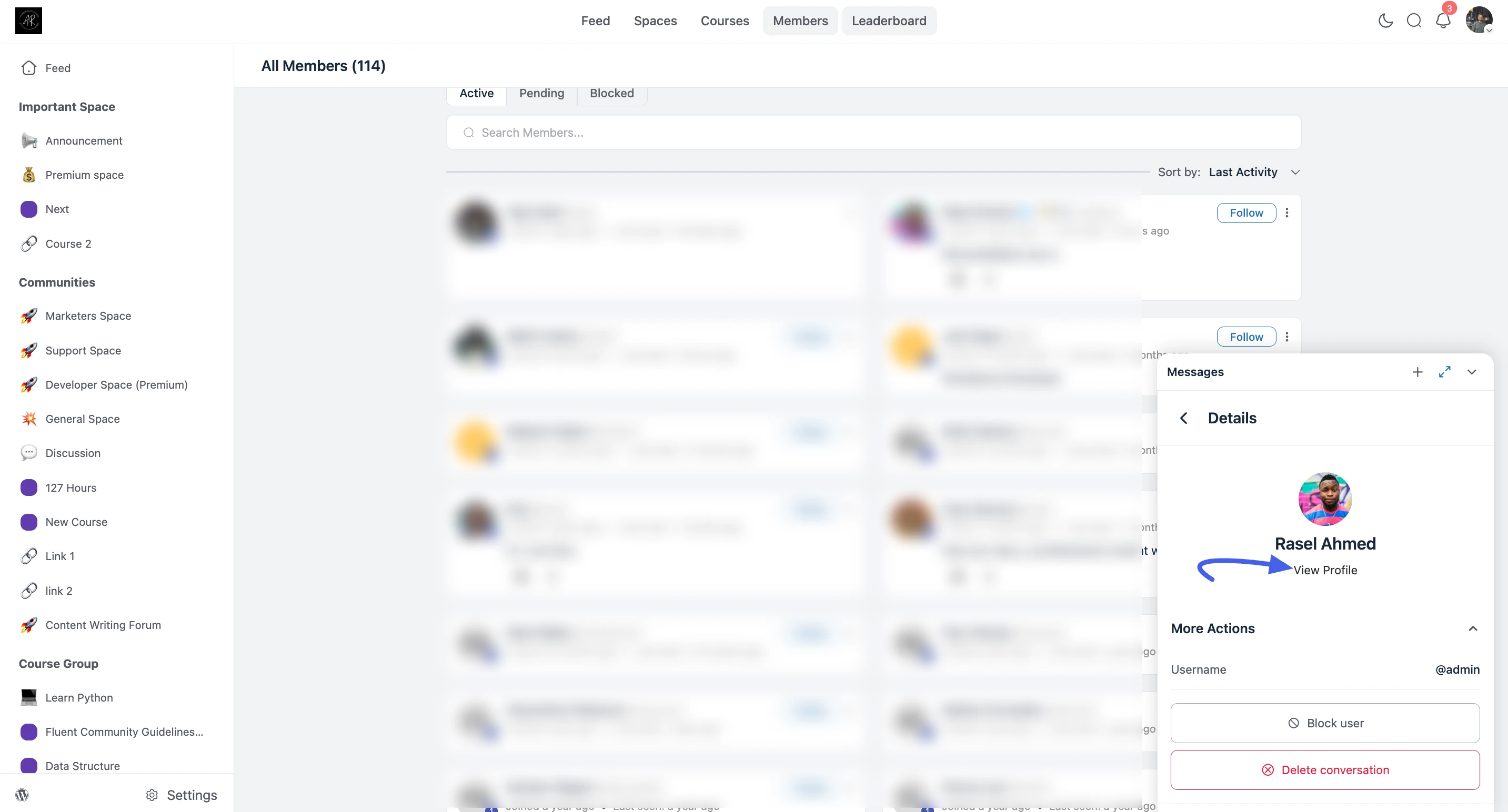
Within a conversation, click the Details (i) icon or the member's name in the chat header to open the Details panel. From there you can:
- View Profile: Open the member's full community profile page.
- Username: See the member's @username for reference.
- Block User: Under More Actions, block the member to prevent further messages from them.
- Delete Conversation: Permanently remove the chat history with that user from your message list.
Managing Messages (Reply & Delete)
When interacting within a conversation thread, hovering over or interacting with a specific message opens a quick-action menu (indicated by the three vertical dots icon) that allows you to manage that individual message.
- Reply: Click the Reply option (curved arrow icon) to quote a specific message. This helps maintain context in the conversation, especially when responding to older messages or multiple questions.
- Delete: Click the Delete option (trash can icon) to permanently remove your sent message from the conversation thread.
⚠️ Important: Blocking or deleting a conversation affects your private chat experience. Use these options when you need to maintain privacy or safety in your community.
✨ Note: Administrators can also configure Messaging Settings, such as requiring a minimum number of Points before a member can initiate a new message thread.