

Appearance
Customizing the Login/Signup Form
You can fully customize the login and signup page your members see, from the banner imagery and welcome text to the form's colors and layout. This lets you present a branded, on-message first impression instead of a generic login screen.
Use Case: You want your login page to feature your logo, a welcoming headline, and your brand colors so new members feel they're joining a polished, professional community from the very first screen.
How to Open the Login Page Customizer
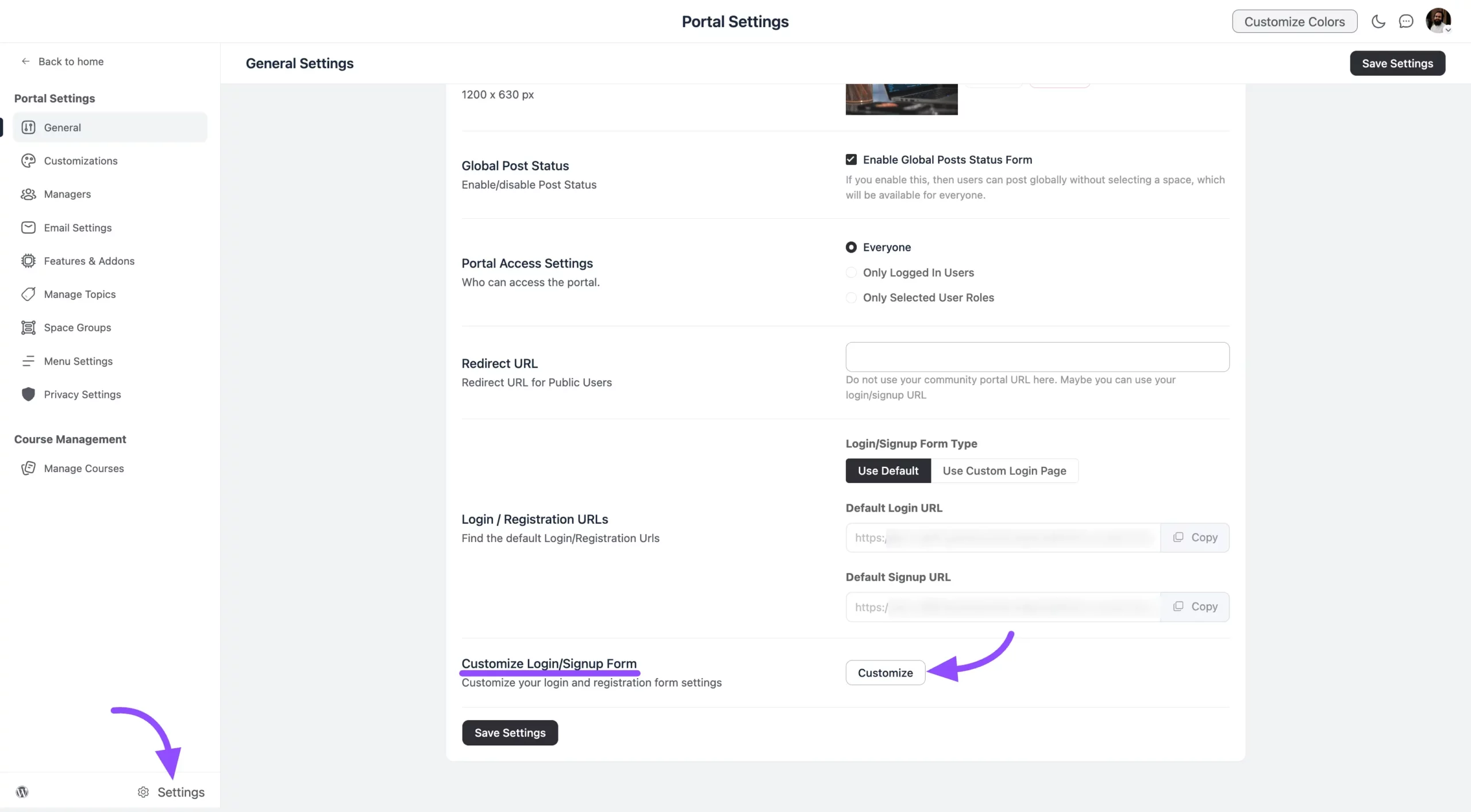
- Go to FluentCommunity and click the Settings button.
- Open the General Settings tab from the left sidebar.
- Scroll down to Customize Login/Signup Form and click the Customize button.
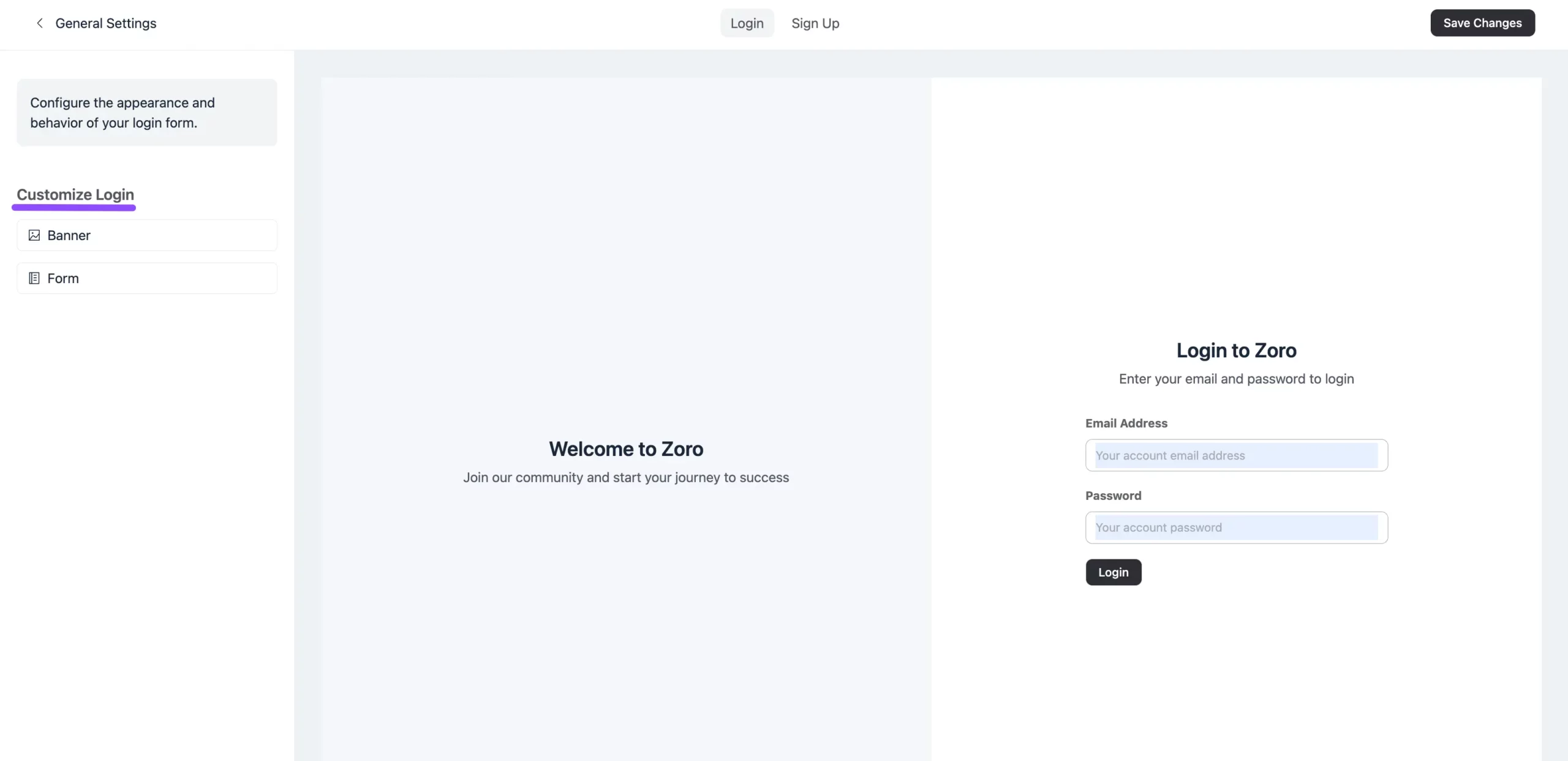
You'll now see your login page with the Customize Login settings in the left sidebar.
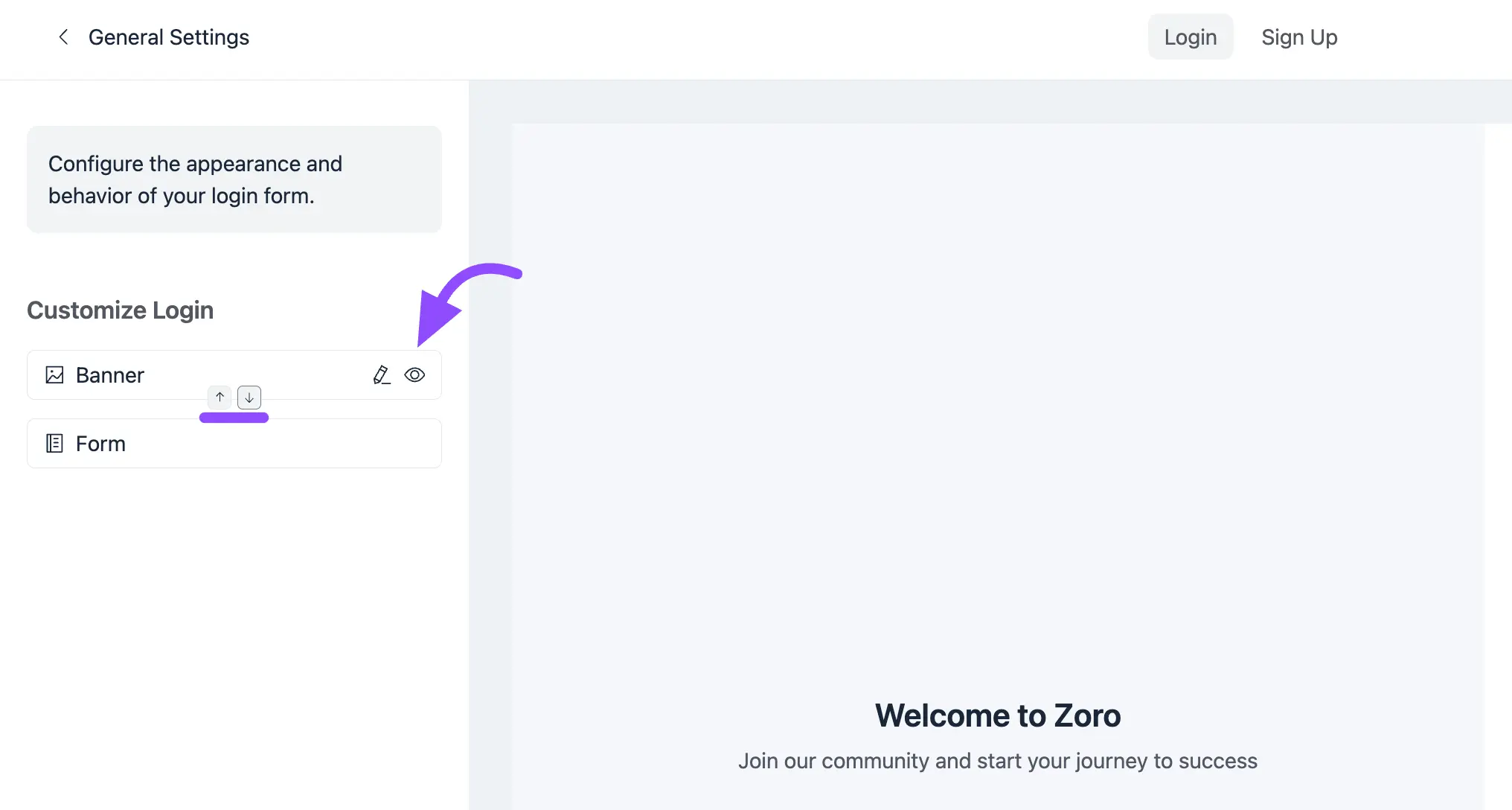
The page is made up of two editable sections: the Banner and the Login Form. To edit either one, click the Pencil icon next to it. You can hide the Banner by clicking its Eye icon, and you can swap the position of the Form and Banner using the Up/Down button next to them.
Both sections are explained below.
Banner Settings
Click the Pencil icon next to the Banner to open its options.
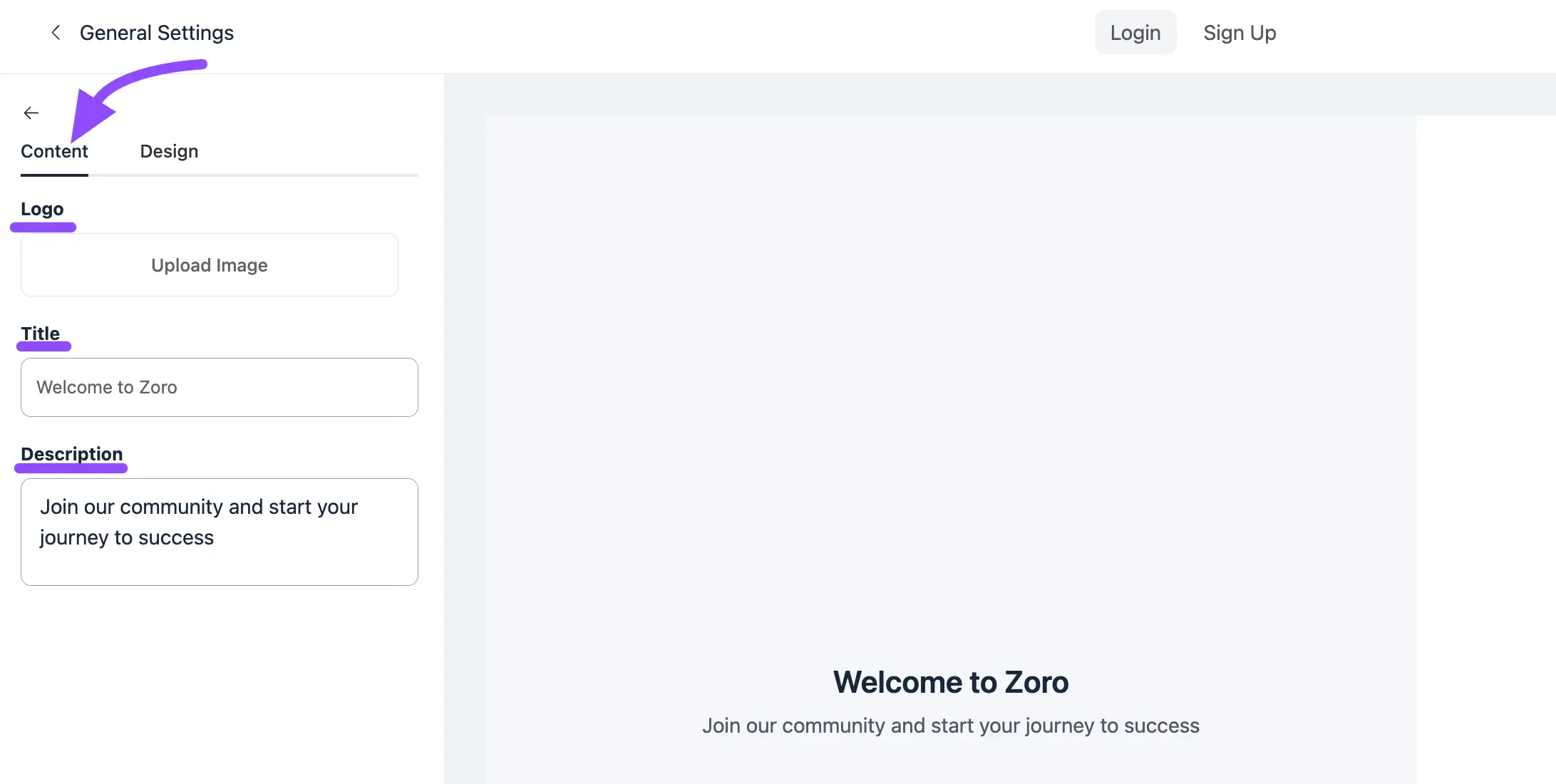
Content
- Logo: Add your logo by clicking the Upload Image button and selecting a file from your local storage.
- Title: Set the title for your banner section.
- Description: Type any description you want to show in the banner.
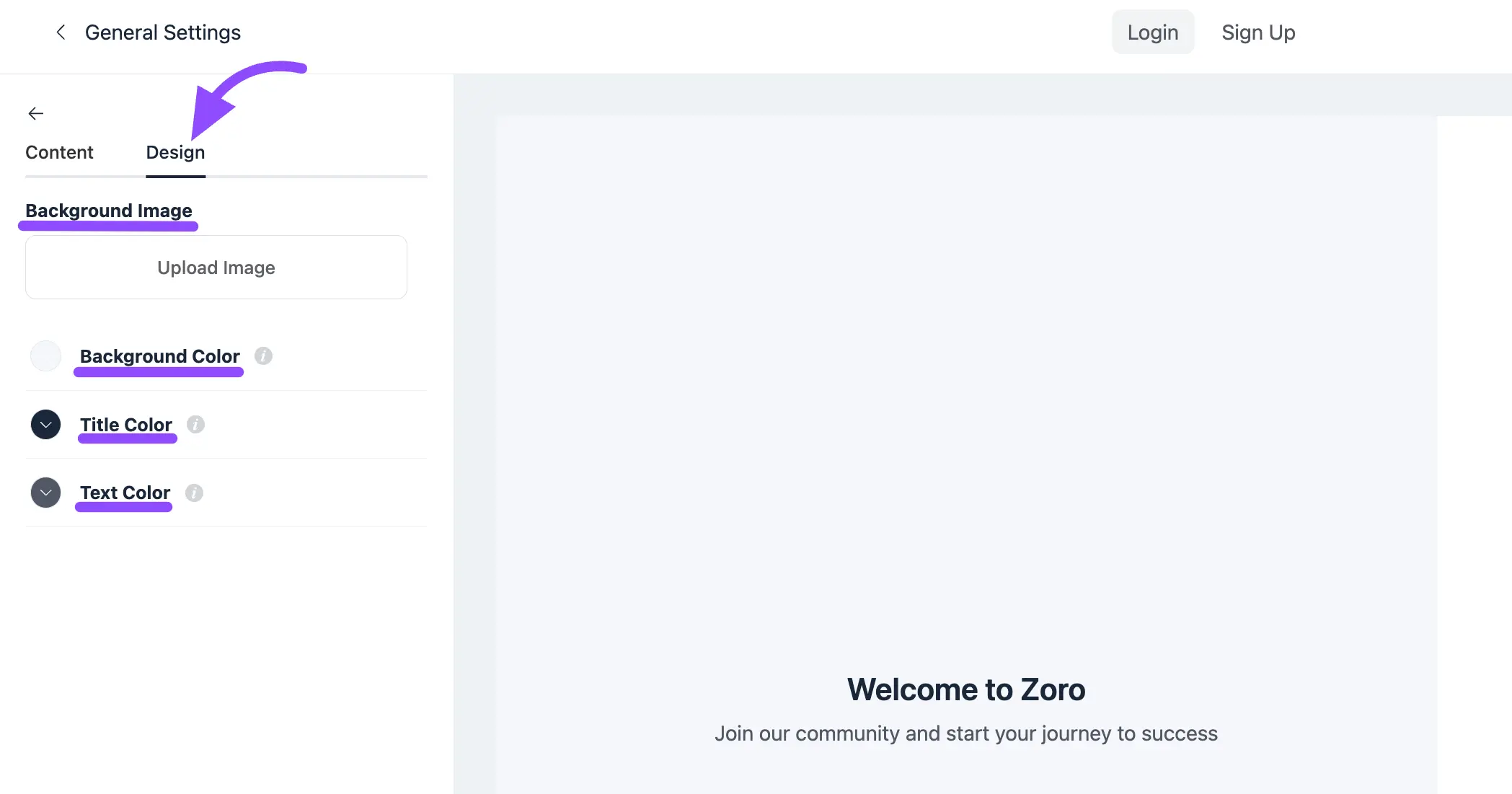
Design
- Background Image: Click Upload Image to set a background image for the banner.
- Background Color: Click the color field to choose a background color for the banner.
- Title Color: Choose the color of the banner title.
- Text Color: Choose the color of the banner text.
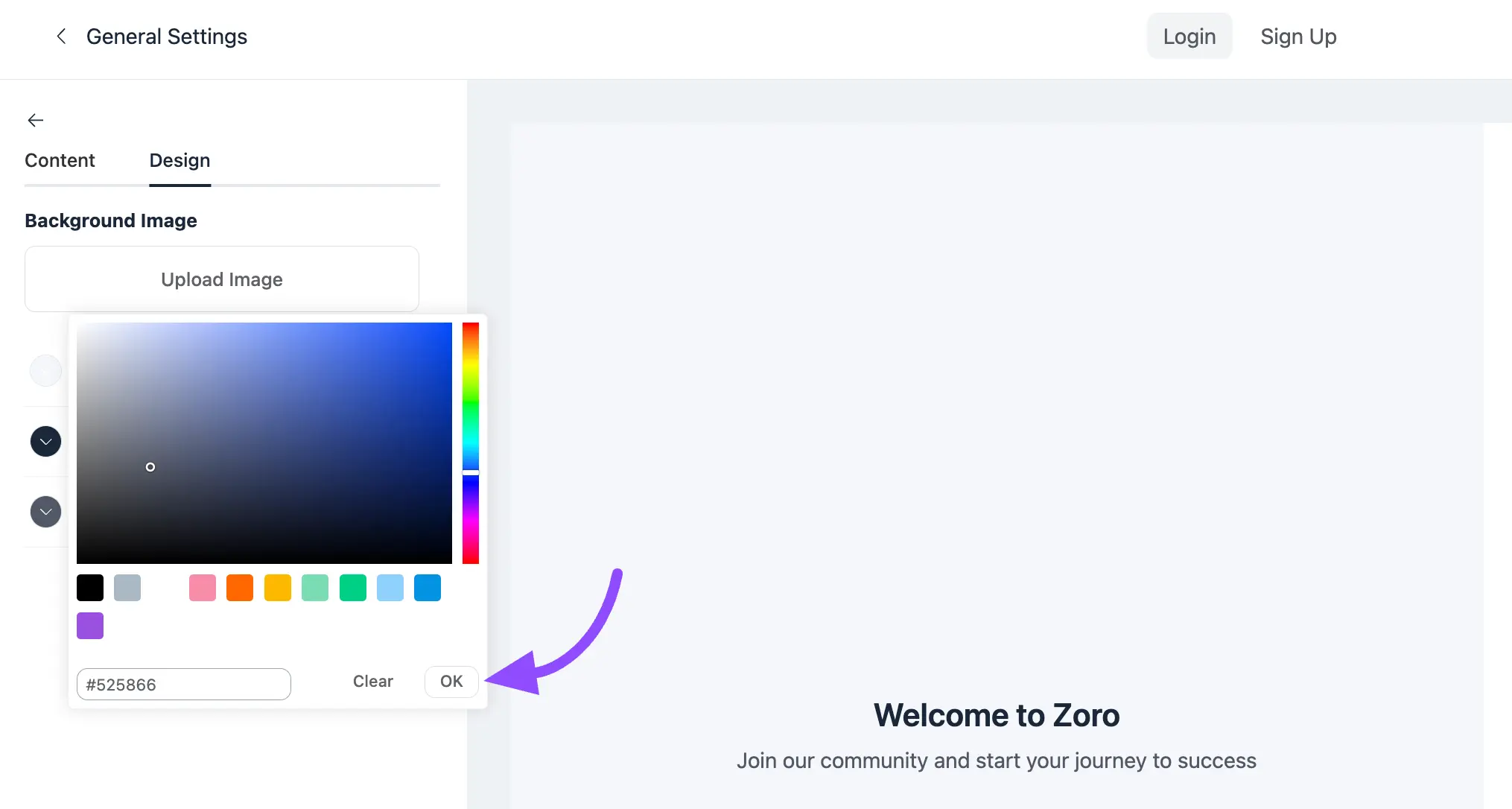
When you click a color field, the color picker opens so you can choose a color for your text, title, or background. Click Ok after choosing to save it.
Login Form Settings
Click the Pencil icon next to the Form to customize the login form section.
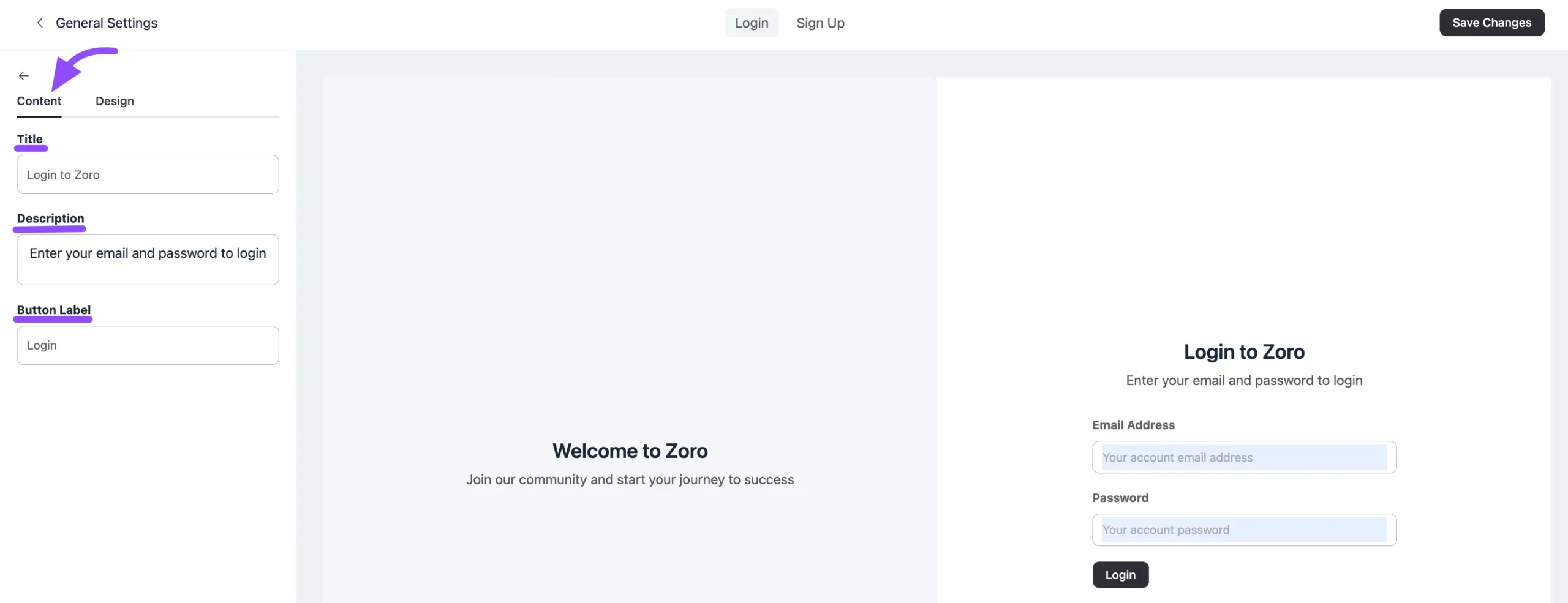
Content
- Title: Set the title for the login form.
- Description: Set the description for the login form.
- Button Label: Change the text shown on the form's button.
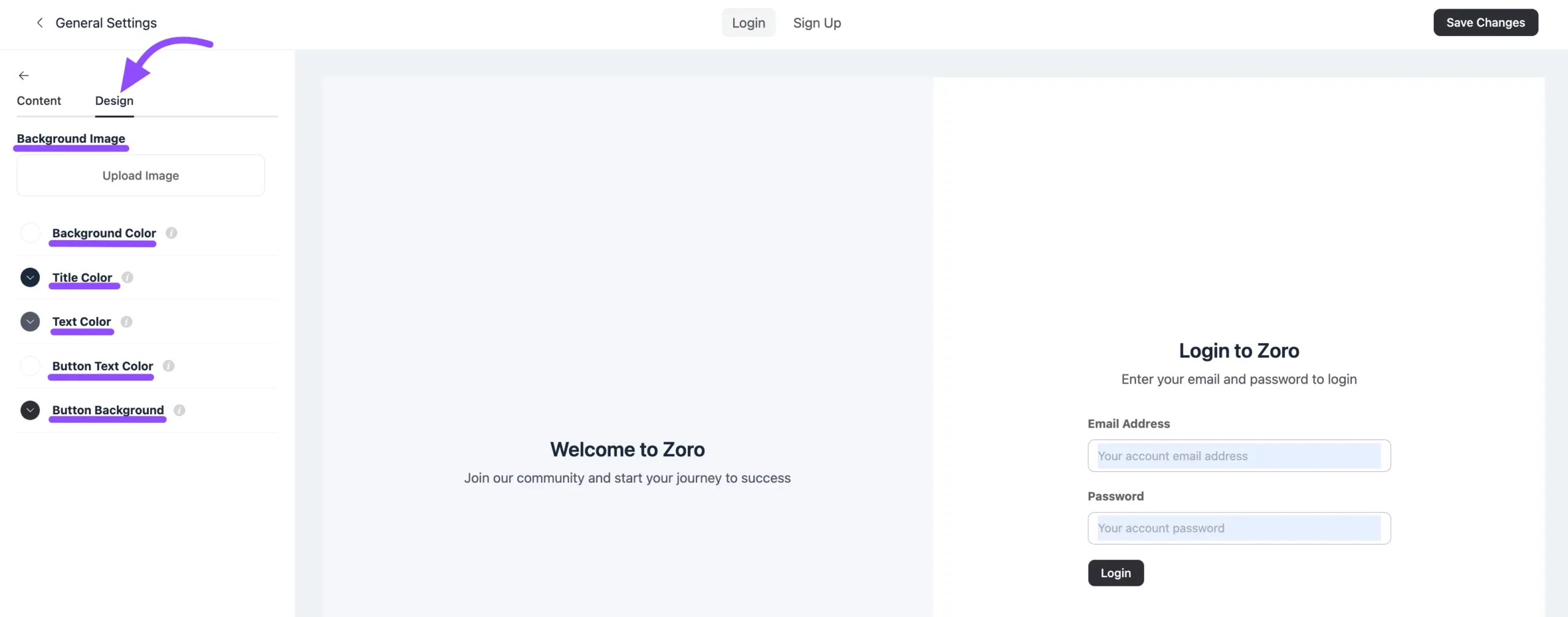
Design
- Background Image: Set a background image by clicking the Upload Image button.
- Background Color: Change the background color of the login form section.
- Title Color: Change the color of the form title.
- Text Color: Change the color of the form text.
- Button Text Color: Change the color of the button text.
- Button Background: Change the background color of the button.
When you're finished, click the Save Changes button to apply your customizations.