Appearance
Using Group Chat (Pro)
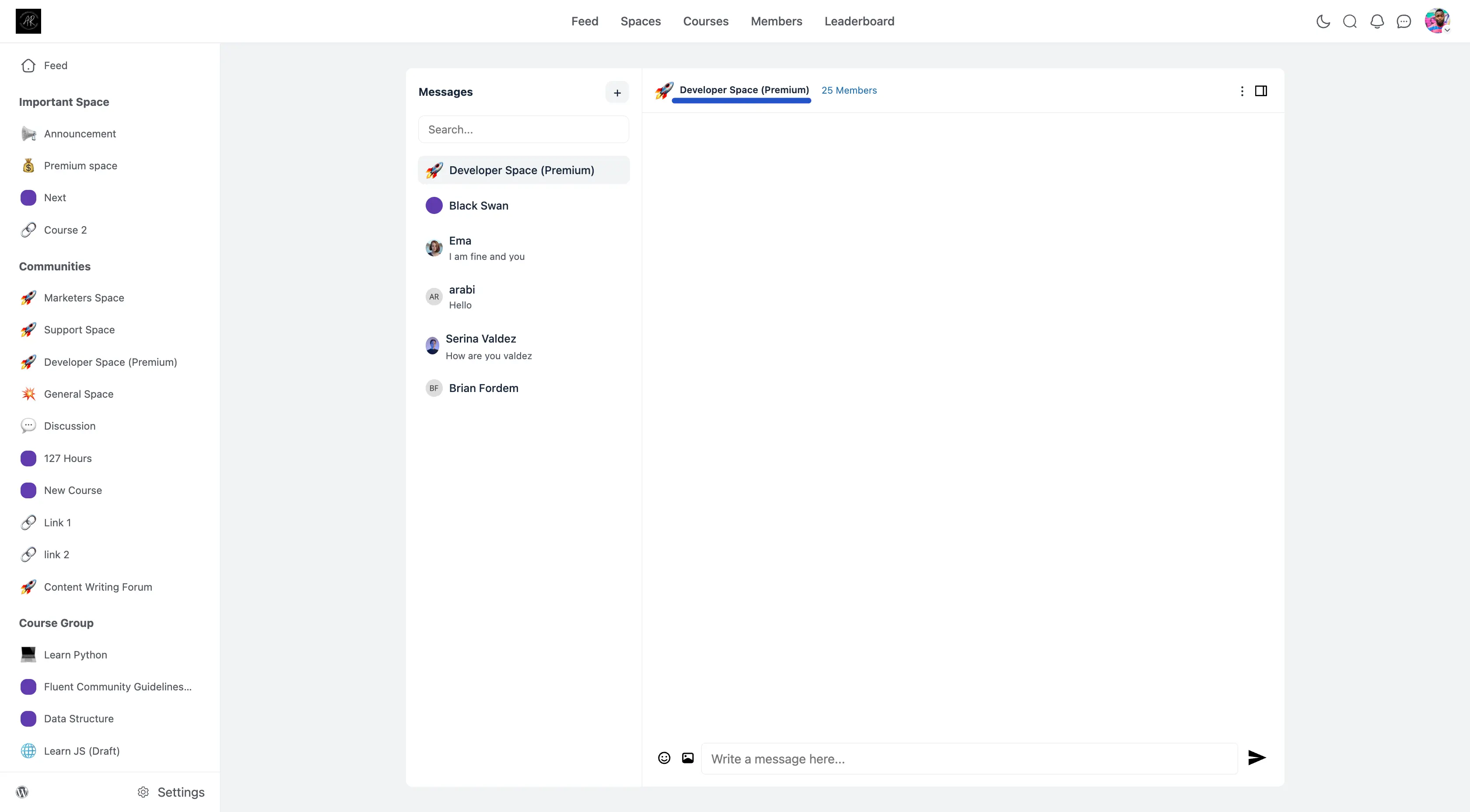
The Group Chat feature allows you to add a real-time chat room directly inside any Space. Unlike standard posts or comments, this is a live messaging channel where members can talk instantly—just like Slack or WhatsApp—but right inside your community.
Use Case: If you are running a live webinar or a virtual event, you can enable Group Chat for that specific Space. This gives attendees a place to discuss the event live with each other while watching, creating a buzz that static posts can't match.
1. Activate the Chat Feature
Before you can add a chat room to a specific Space, you need to make sure the main Chat system is turned on for your whole website. You only need to do this once.
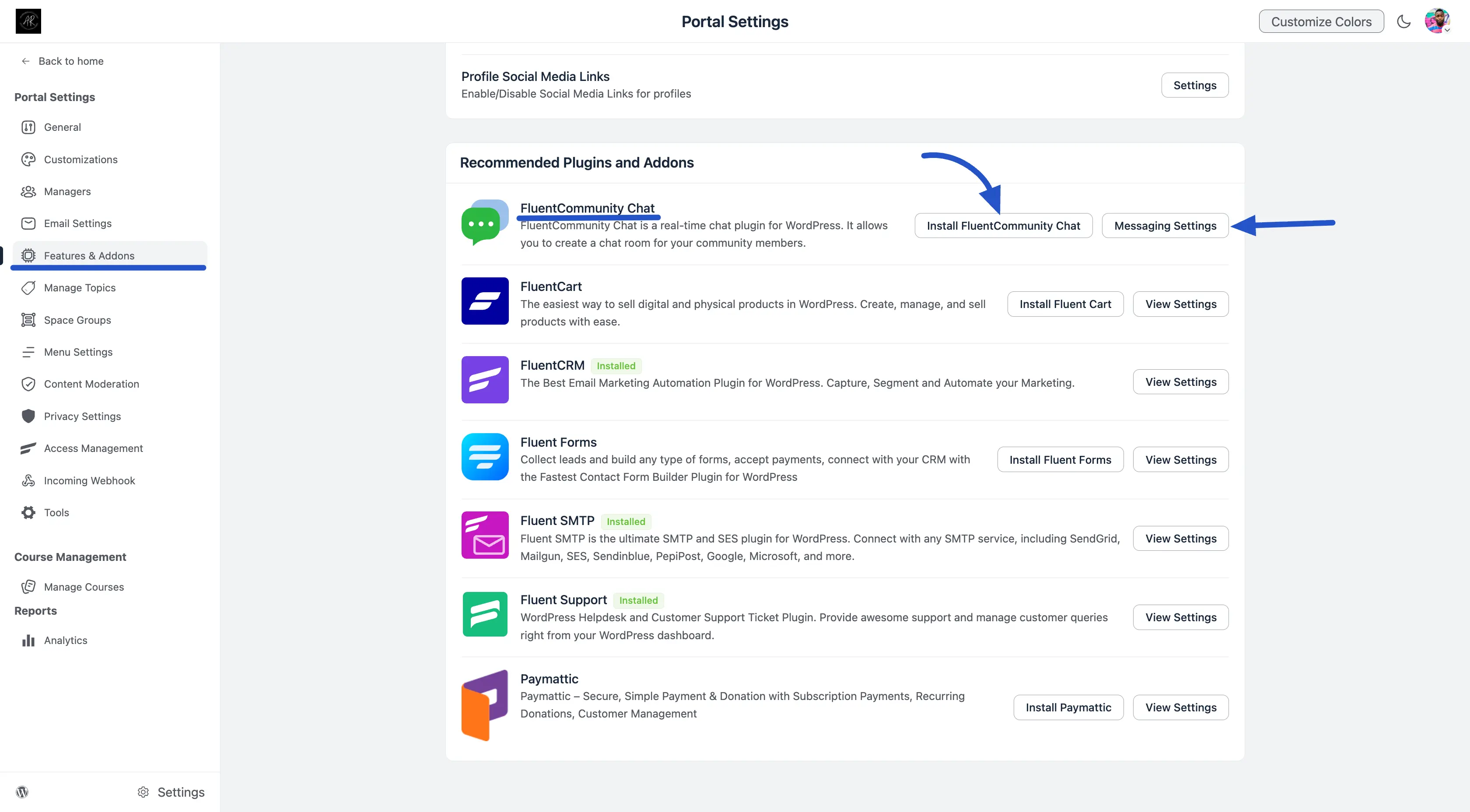
- Go to Portal Settings: From your main dashboard, click on Portal Settings.
- Find Features & Addons: On the left sidebar menu, click on Features & Addons.
- Install/Enable the Plugin: Look for FluentCommunity Chat in the list.
- If you see a button that says Install FluentCommunity Chat, click it to install the feature.
- If it is already installed, you can click Messaging Settings to configure things like email notifications for unread messages.
2. Enabling Group Chat for a Space
Now that the chat system is active, you can choose exactly which Spaces should have a chat room.
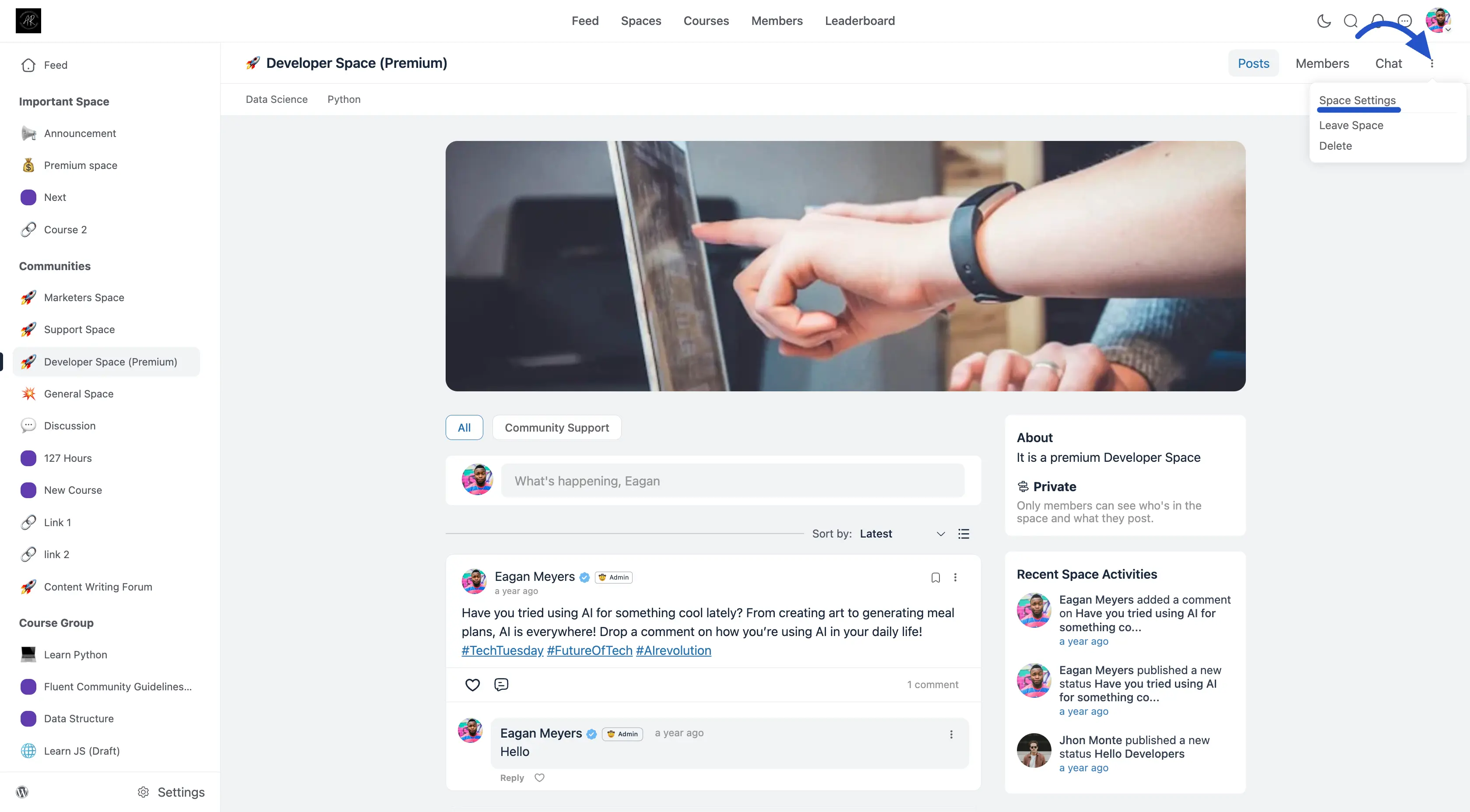
- Navigate to the Space: Go to the specific Space (e.g., "Developer Space") where you want to add the chat.
- Open Space Settings: Look for the three-dot menu (⋮) in the top-right corner of the Space header (next to the "Members" or "Chat" tabs). Click it and select Space Settings from the dropdown.
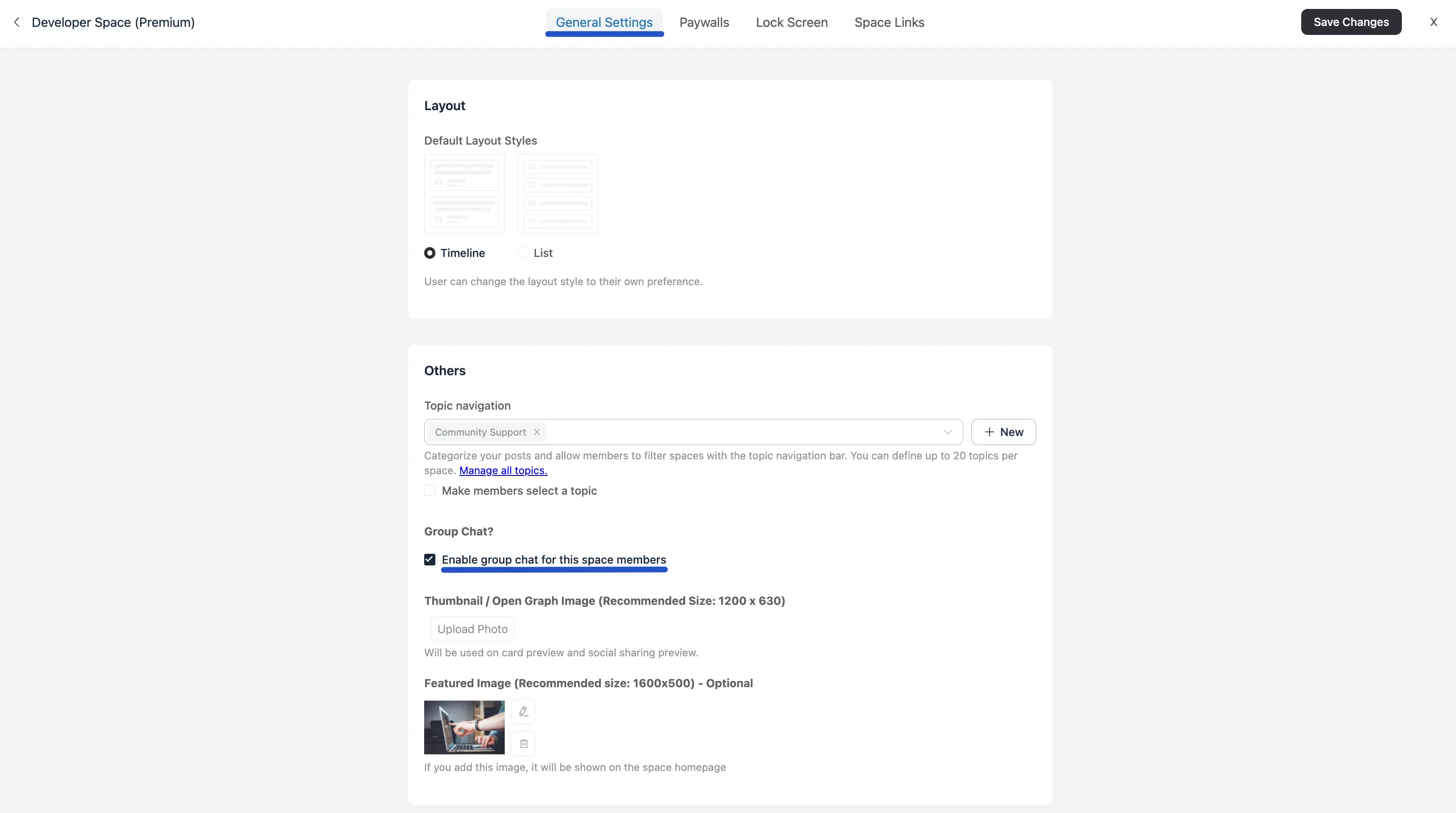
- Find the Toggle:
- Ensure you are on the General Settings tab.
- Scroll down to the bottom section labeled Others.
- Look for the Group Chat? heading.
- Turn it On: Check the box that says "Enable group chat for this space members".
- Save: Click the Save Changes button at the top right to apply the setting.
3. The Member Experience
Once you save the changes, the chat room is instantly available to your members.
- Where to find it: Members will see a new Chat link appear in the top-right navigation menu of that Space, right next to Posts and Members.
- How it works: When a member clicks that link, it opens the full messaging interface. They will see the specific Space listed under their Messages sidebar, allowing them to jump into the conversation, send emojis, and chat in real-time with everyone in that group.