Appearance
Managing Access with FluentCRM Tags
FluentCommunity can automatically enroll members and students into your Spaces and Courses based on FluentCRM tags. Map a tag to a Space or Course, and anyone who receives that tag joins automatically — remove the tag, and they're removed too.
Use Case: You sell a membership through FluentCRM and want buyers tagged "Premium" to instantly gain access to your private "Premium Members" Space, without you adding them by hand.
✨ Note: Before you start, make sure you've installed and activated the FluentCommunity Pro plugin and the FluentCRM plugin on your WordPress site to use this feature.
How to Enable Access Management
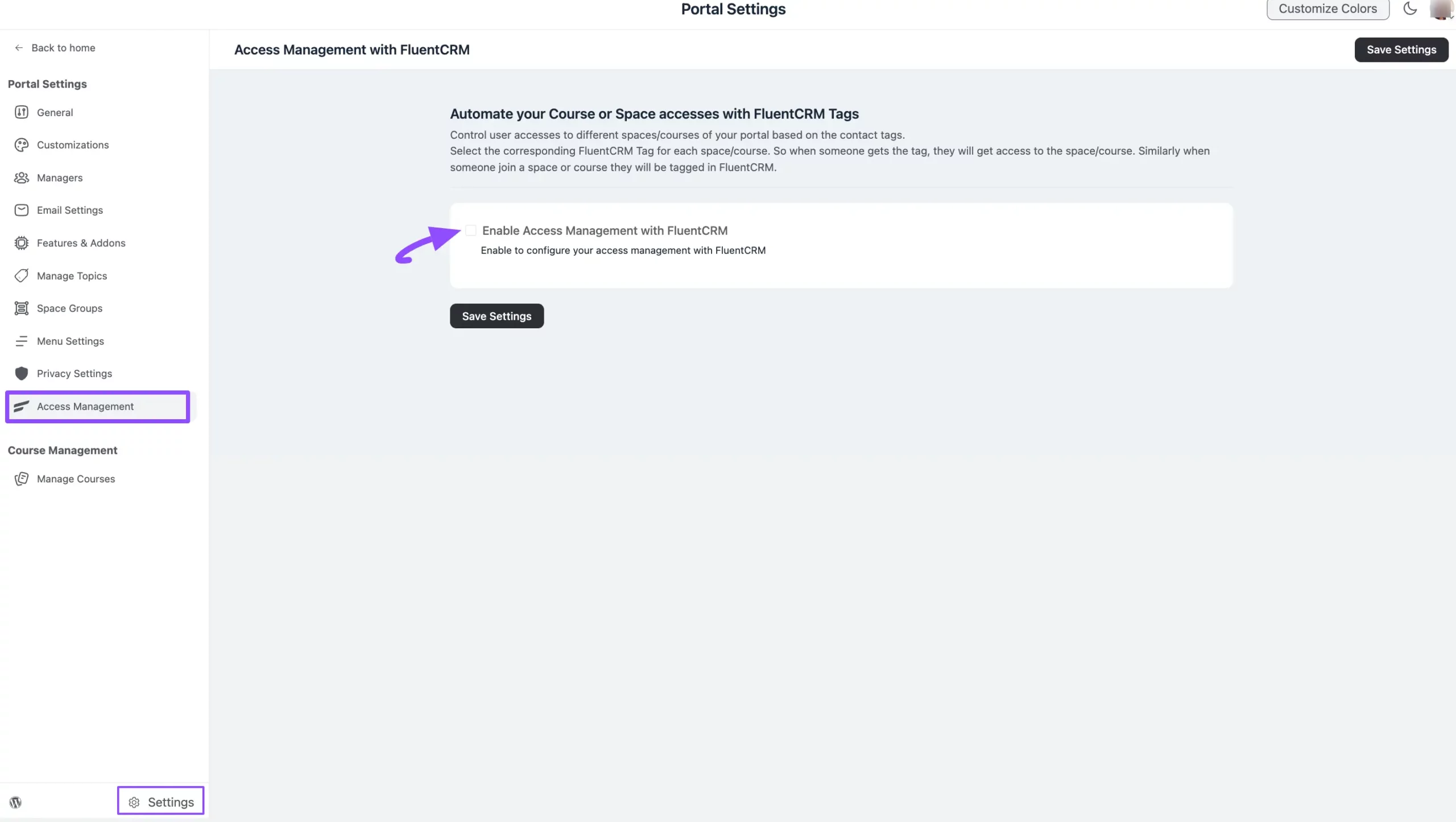
Go to the Settings of FluentCommunity from the bottom-left corner and open the Access Management tab in the left-side menu.
Check the Enable Access Management with FluentCRM box to turn on the feature.
Configure Tags with Spaces and Courses
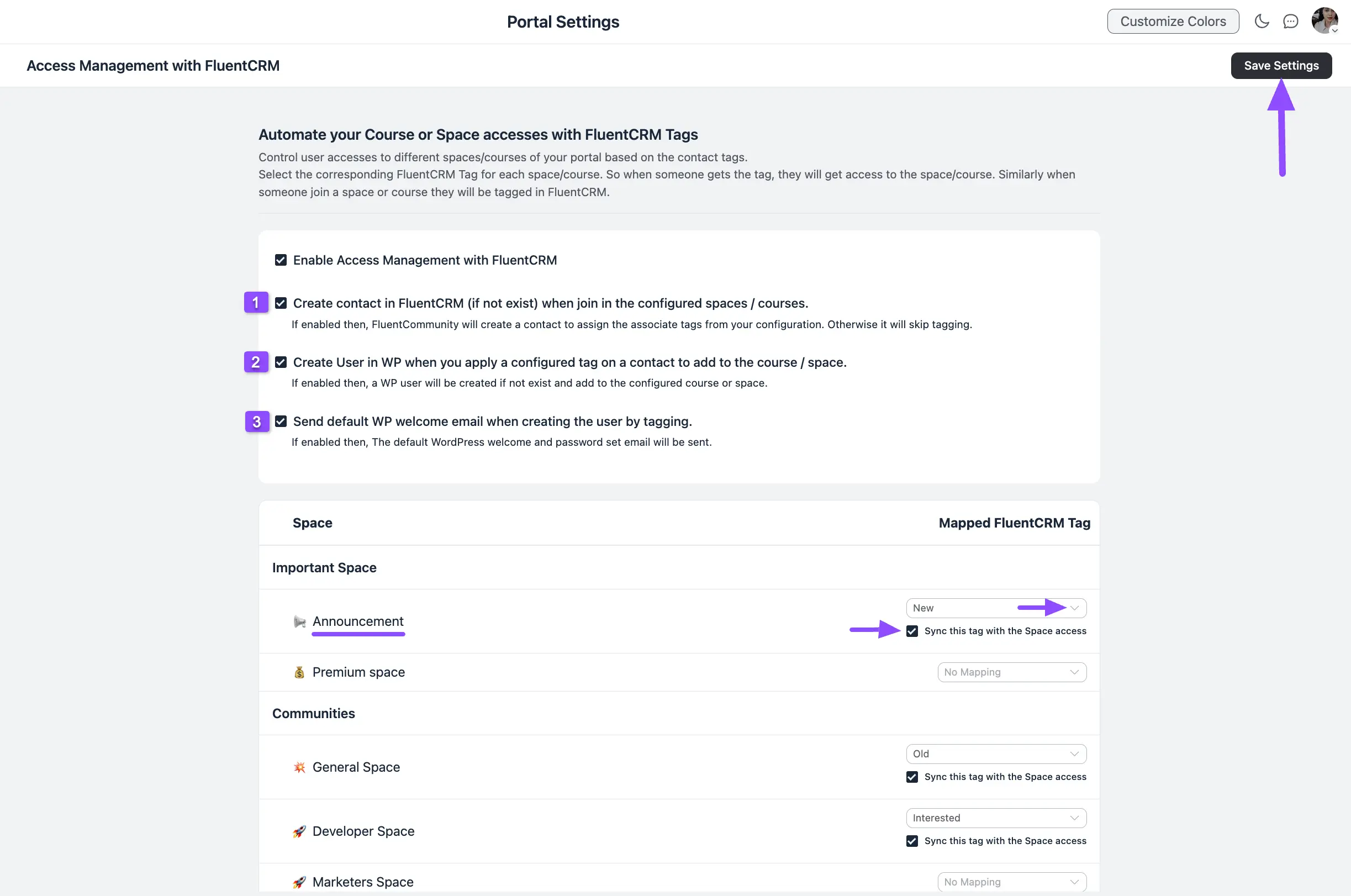
Once you enable Access Management, three more checkboxes appear:
- Create Contact in FluentCRM: Creates a new contact in FluentCRM when a member who isn't yet in your CRM contacts joins a configured Space or Course.
- Create User in WordPress: Creates a new WordPress user when a configured tag is applied to a CRM contact to add them to a Space or Course.
- Send default welcome email: Sends the default WordPress welcome and password-set email to users created through tagging.
Next, map your FluentCRM tags to their corresponding Spaces or Courses by clicking the Arrow Icon. Don't forget to check the Sync this tag with Space/Course access box so CRM contacts are added to the Spaces or Courses based on the selected tags.
✨ Note: For example, set "New" as the CRM tag for the "Announcement" Space. Now any CRM contact with the "New" tag automatically becomes a member of the Announcement Space.
When you're done, click the Save Settings button to save all your changes.
Workaround for Existing Contacts
Access Management only takes effect after a tag is set within it. If a contact already had the tag before you configured it in Access Management, they won't be added automatically — they'll only join the Space or Course once the tag is set through Access Management.
Here's how to add those existing contacts using the same tag. This workaround also lets you perform various other FluentCommunity actions.
Go to FluentCRM and select Contacts from the navigation bar. Filter your contacts by Tags and find the tag you set in FluentCommunity Access Management, then select it. In this example, we've selected the "New" tag.
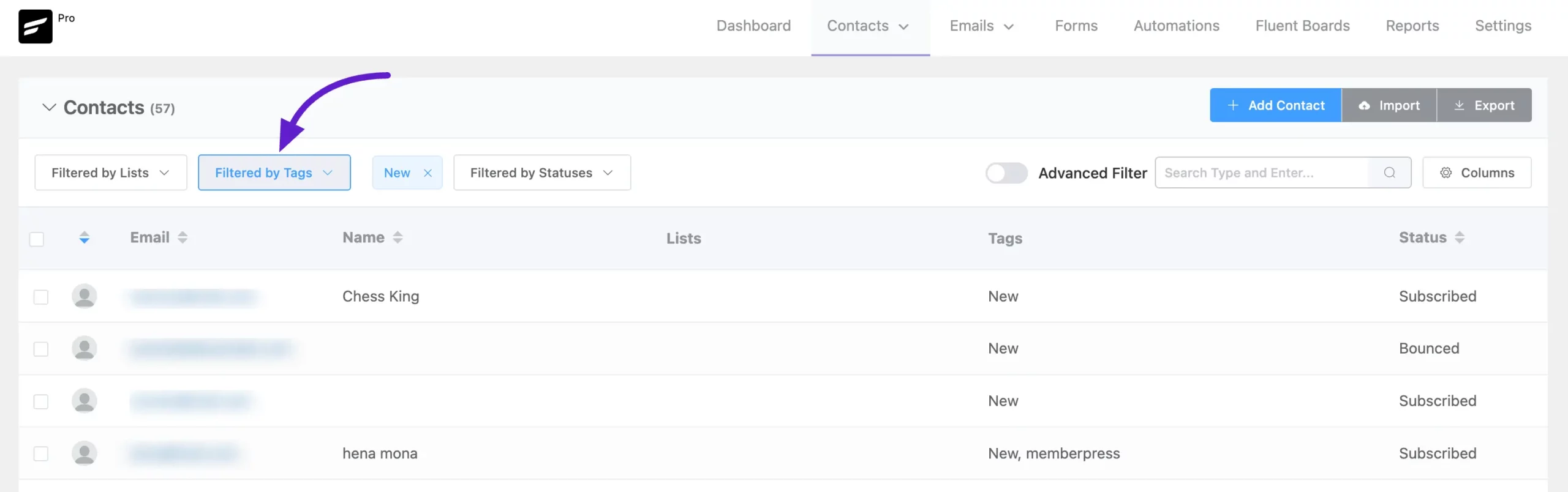
Alternatively, use FluentCRM's Advanced Filter option to find contacts more precisely, add them to another tag, or perform other actions as needed.
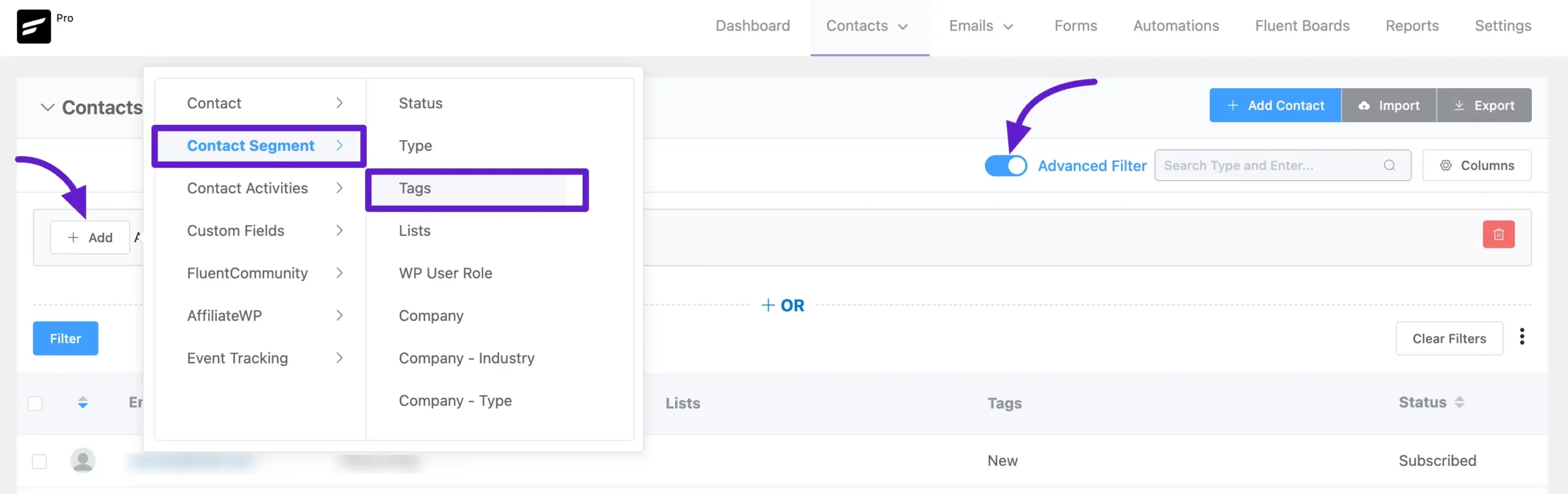
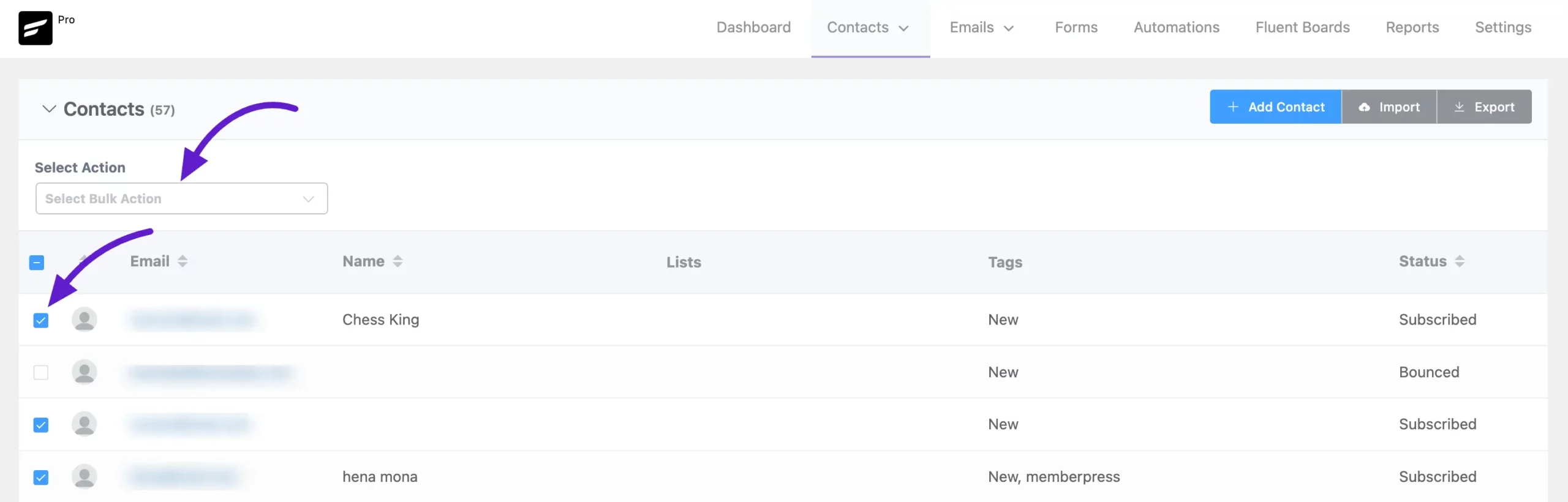
You'll now see the contacts filtered by the "New" tag. Select all of them, or choose specific existing contacts based on your preference.
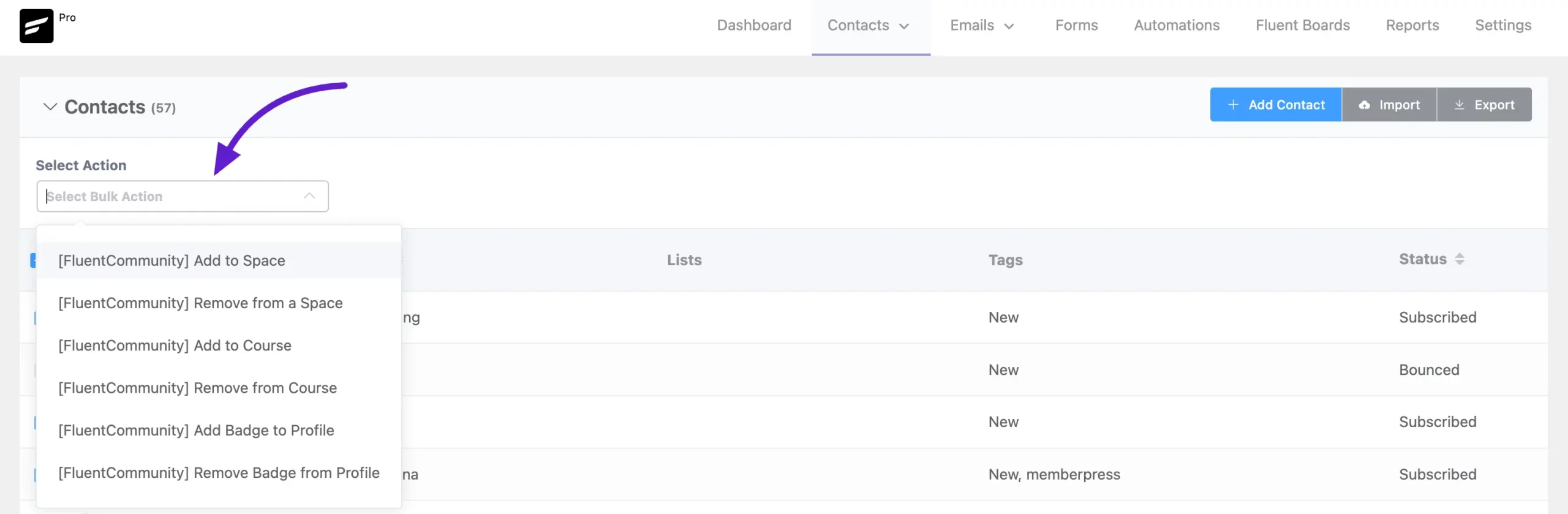
Next, open the Select Action option, which provides bulk actions for your contacts.
In the dropdown, you'll find several FluentCommunity actions, including:
- Add to Space
- Remove from Space
- Add to Course
- Remove from Course
- Add Badge to Profile
- Remove Badge from Profile
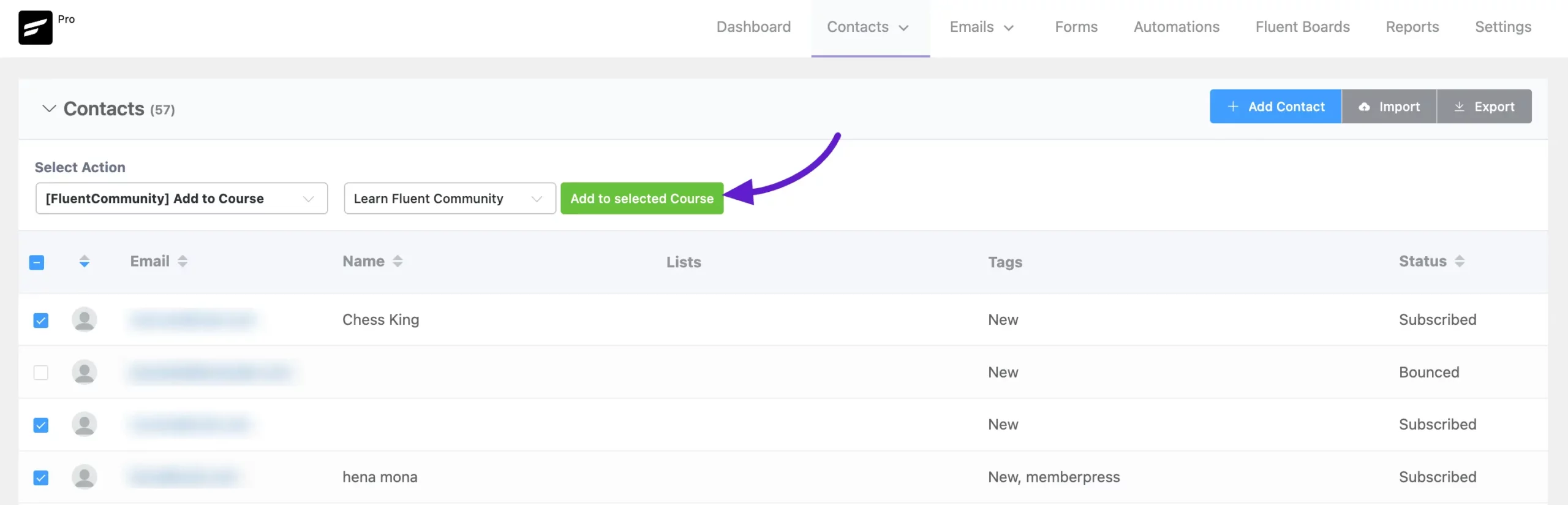
Select the action you want to apply. In this example, we're choosing Add to Course. After selecting it, another dropdown appears where you can choose the specific course to add your contacts to.
Finally, click the Add to Selected Course button, and all selected contacts are added to the course you chose.
Preview of Added Contacts
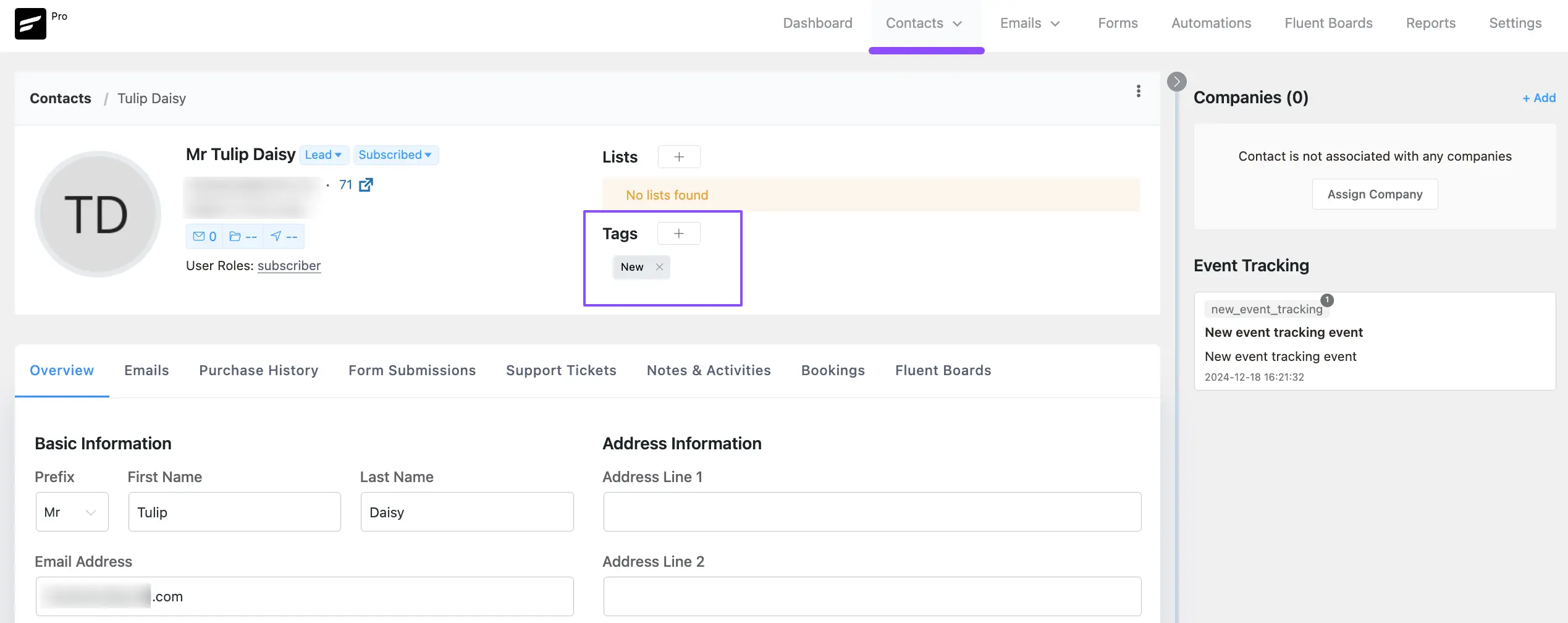
Here you can see the "New" tag applied to a CRM contact named "Tulip Daisy."
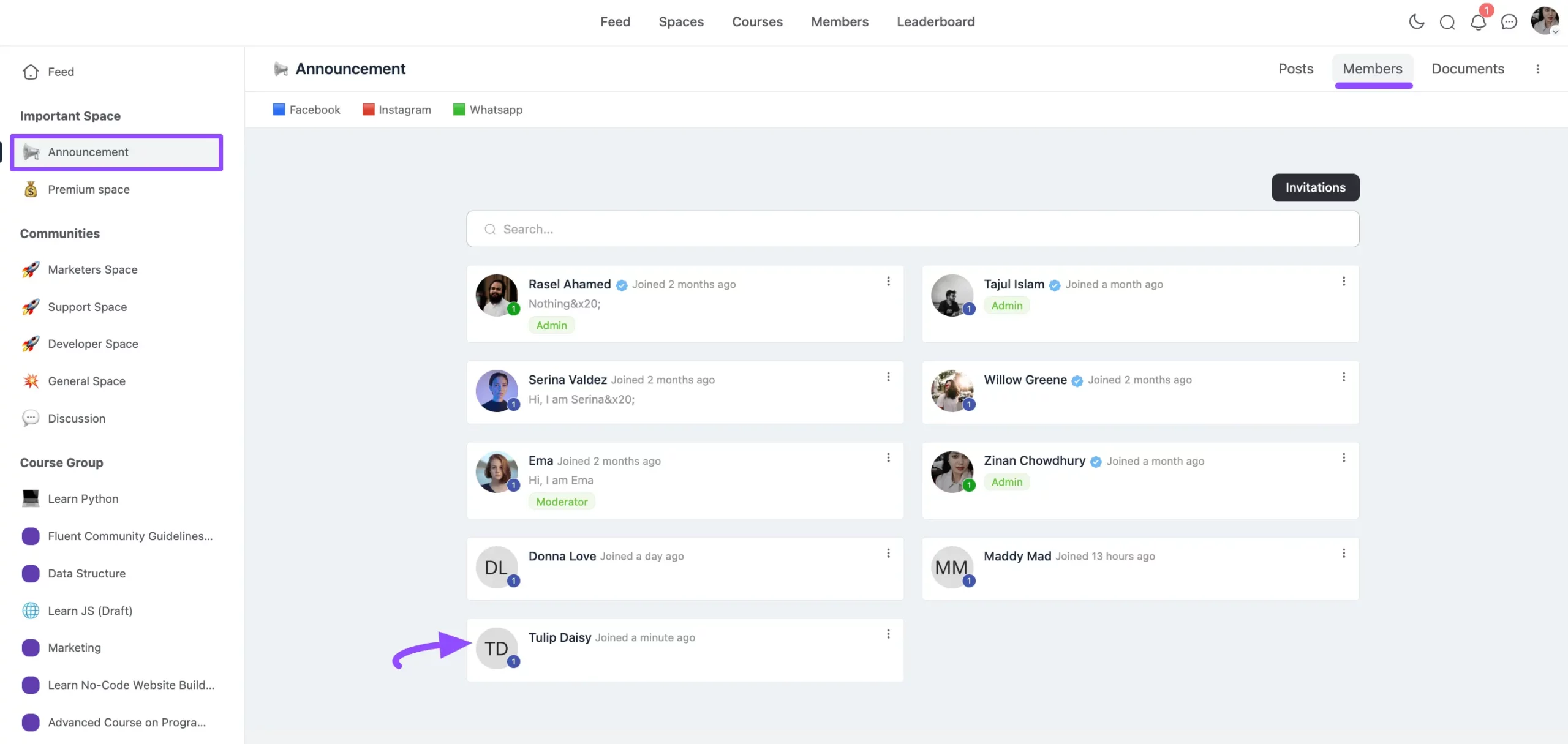
And you can see that the "Tulip Daisy" contact has been added directly to the "Announcement" Space.
Removing Tags from Contacts
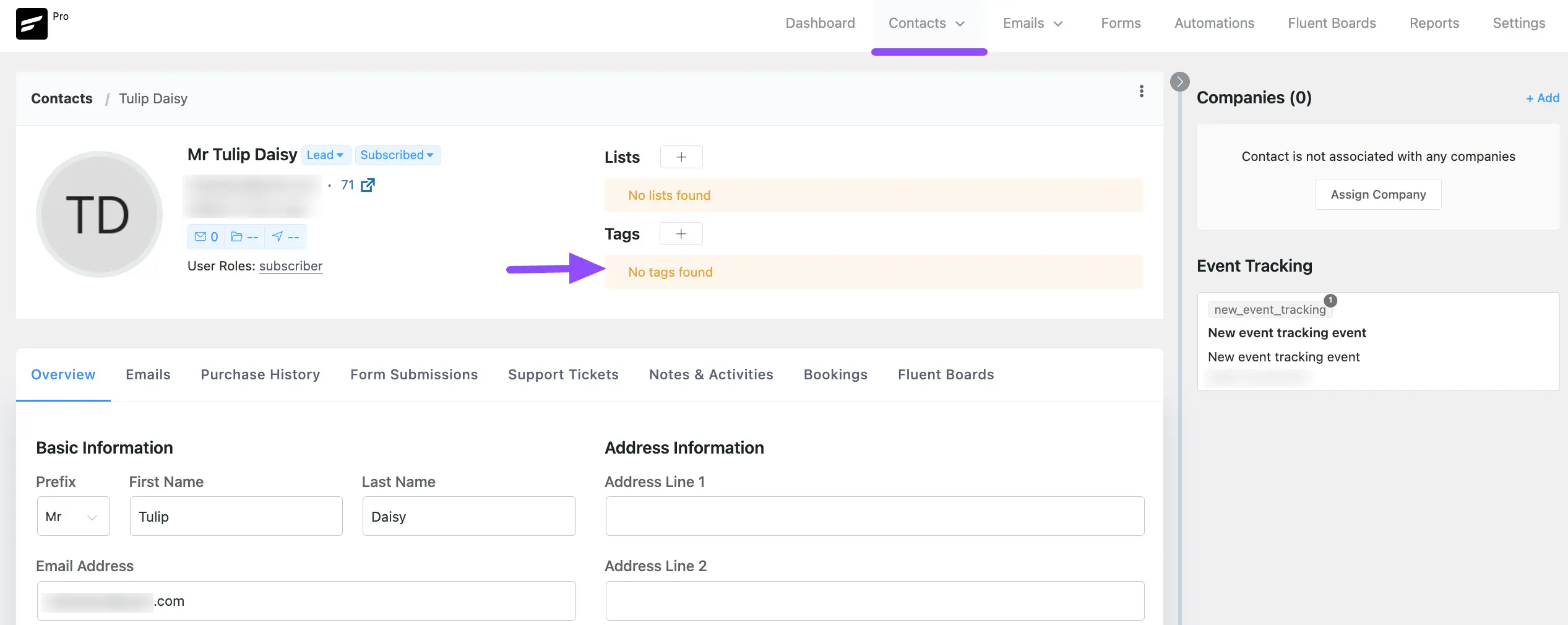
If you remove the configured tag from a CRM contact, as shown below:
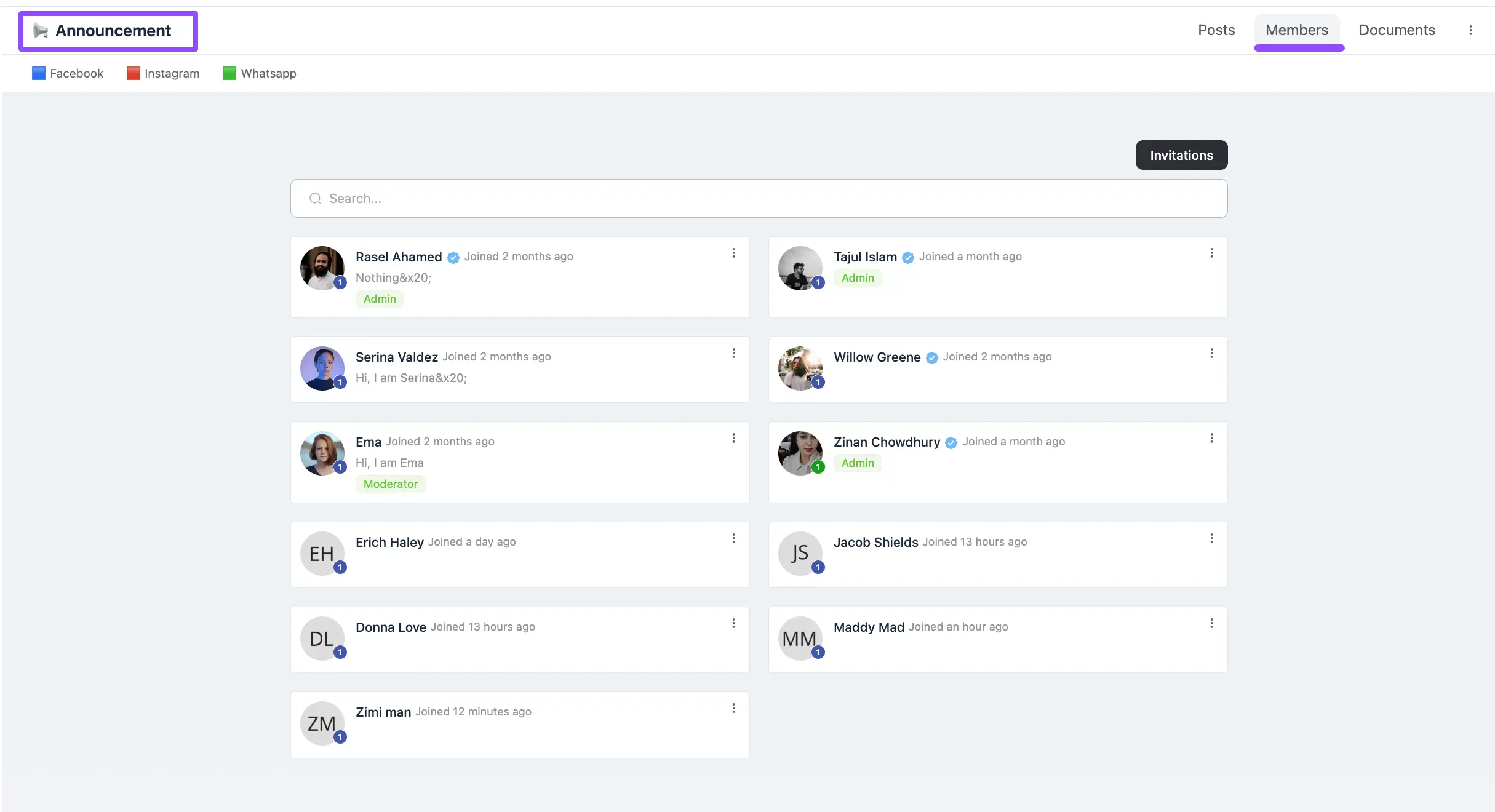
The contact is automatically removed from the configured Space.
Viewing Added Contacts from a User Profile
You can also review added contacts from the Members section in the top navbar. Open a specific user profile to see their applied tags and CRM profile activities in the right-hand box.
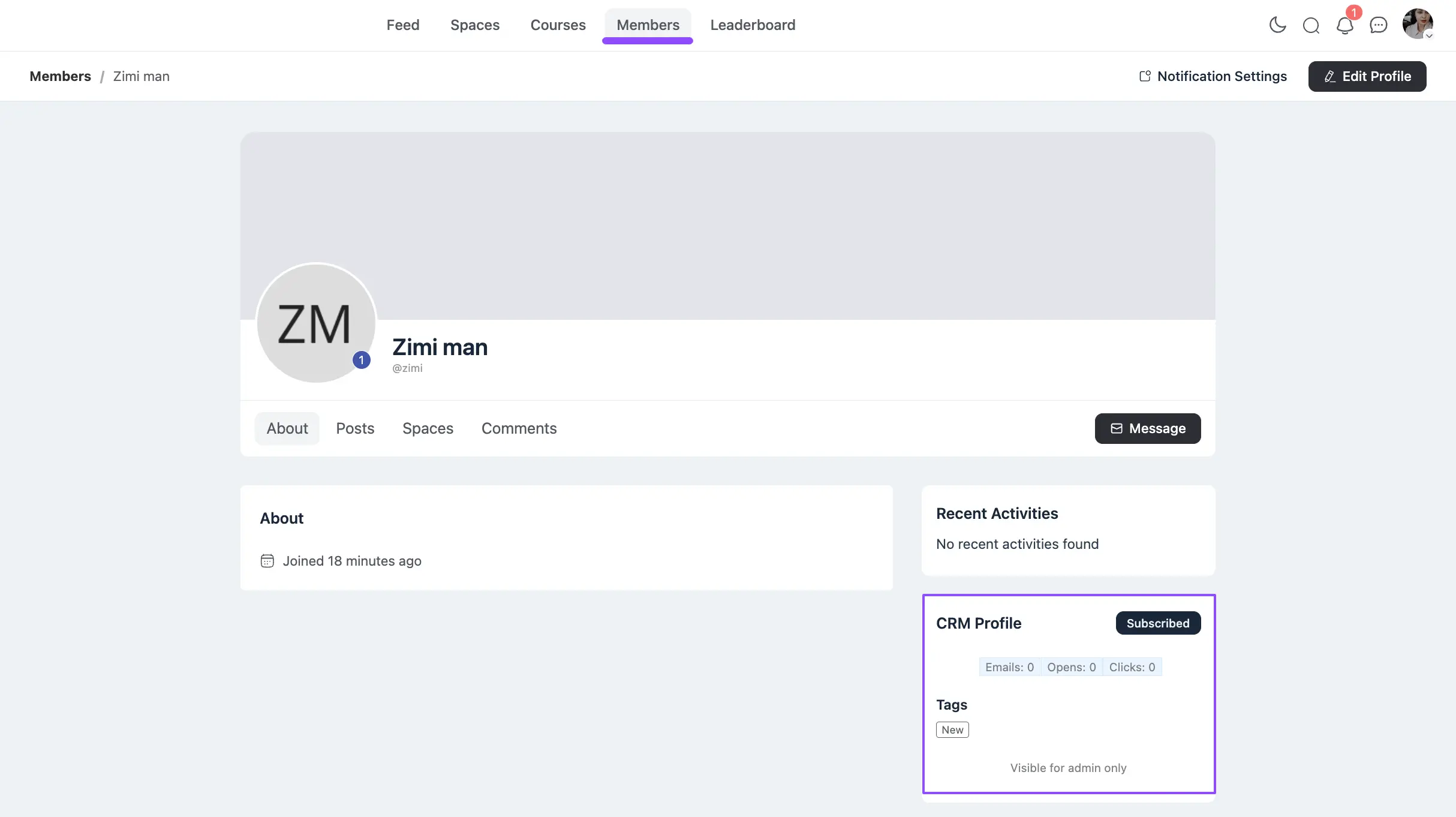
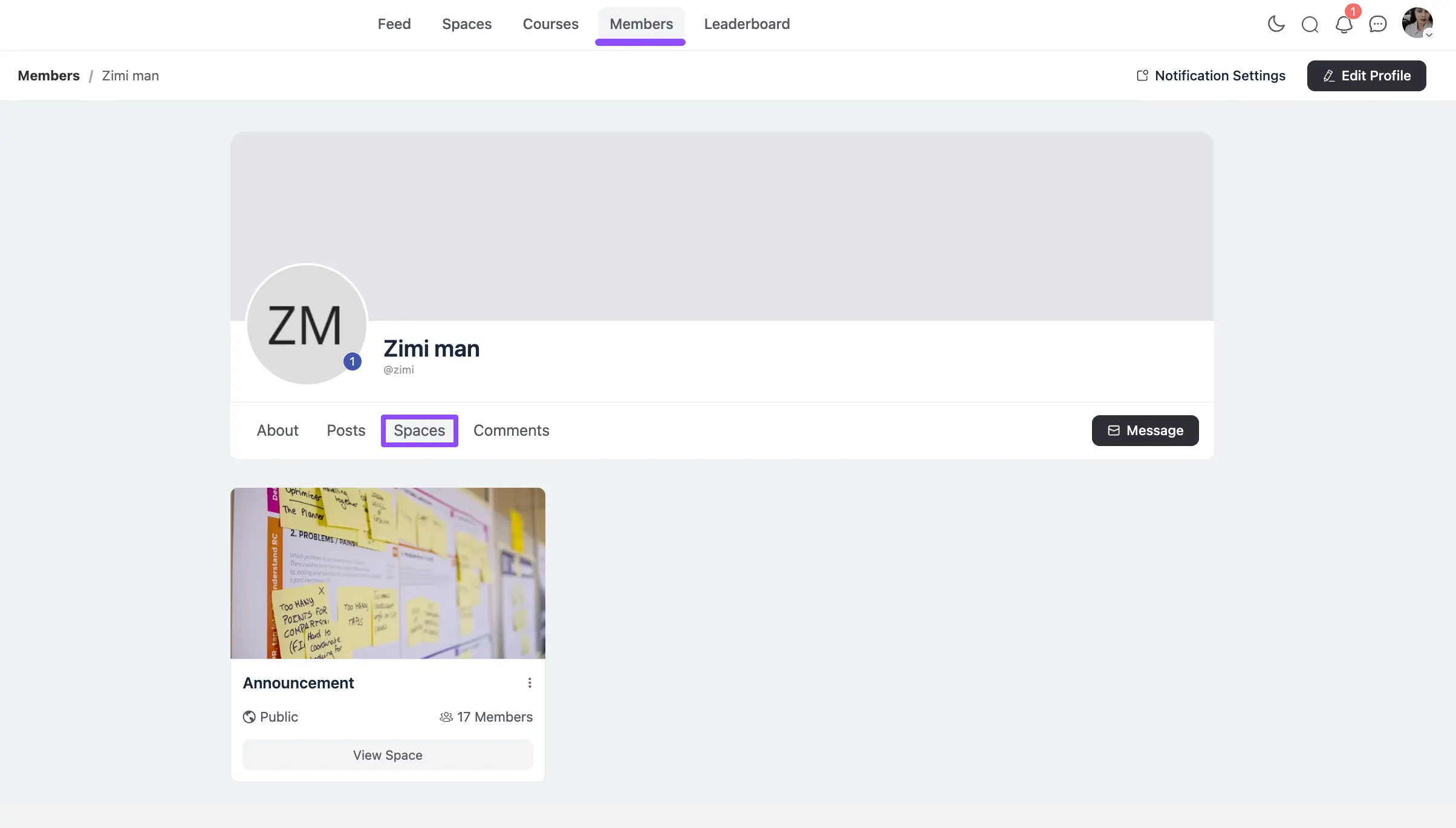
From this user profile, you can also view every Space or Course the member joined through FluentCRM tags.