

Appearance
Insights Reporting
Most community owners can tell you how many members they have. Far fewer can tell you how many of them ever posted, which spaces are carrying the place, or who is waiting on a reply. Insights is the reporting section that answers those questions.
Insights replaces the old Reports screen. It is organized into seven pages, Overview, Engagement, Members, Spaces, Content, Courses, and Moderation, and every page uses the same date range, comparison, and space filters.
Use Case: You ran a welcome campaign last month and want to know if it worked. Set the range to 30 days, check New members and Active members on the Overview page, then open Engagement to see whether newcomers moved from reading to posting.
How to Open Insights
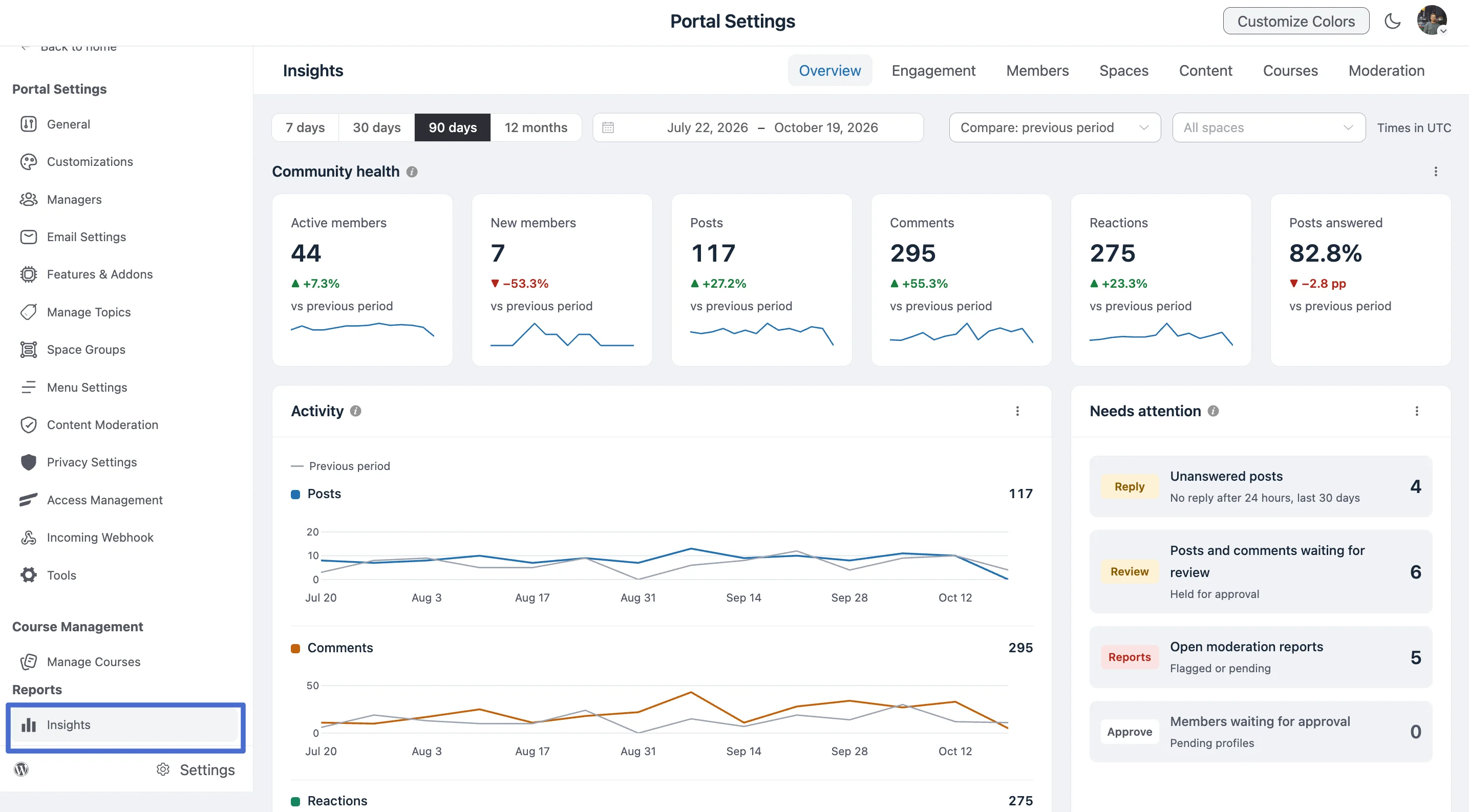
- Open your community portal and click Settings at the bottom of the left sidebar.
- In Portal Settings, scroll down to the Reports section.
- Click Insights.
The page opens on the Overview tab. The tabs along the top switch between pages.
NOTE
Overview and Courses are available in the free plugin. Engagement, Members, Spaces, Content, and Moderation need FluentCommunity Pro. Without Pro, those pages still appear and show what each card would tell you, so you can see what you are missing before you upgrade.
Filters That Work on Every Page
The same controls sit at the top of every Insights page. Set them once and every card below recalculates.
| Control | What it does |
|---|---|
| 7 days / 30 days / 90 days / 12 months | Quick presets for the reporting period. |
| Date range | A calendar picker for an exact start and end date. |
| Compare: previous period | Compares every number with the previous period of the same length. A 30-day range is compared with the 30 days before it. |
| All spaces | Narrows the whole page to a single space. On the Courses page this becomes All courses. |
| Times in UTC | Shows the timezone used to group the data. It follows your site's timezone setting. |
Weeks follow your WordPress Week Starts On setting, so a week means what it means to you.
Tip: Each number carries a change badge next to it, such as
+27.2%or−2.8 pp. A green arrow marks a change in the right direction, and a red arrow marks one in the wrong direction.ppmeans percentage points, which is used for rates.
Exporting a Card
Every card has a three-dot menu in its top-right corner. Use it to export the card's table as a CSV file.
NOTE
Past posts, comments, and reactions are backfilled when Insights is installed. Member visits were never stored before, so visit-based numbers start from the day tracking began and become more useful the longer Insights runs.
Overview
The Overview page is your community's health at a glance. It is free for every FluentCommunity site.
Community Health
The row of cards at the top compares the selected period with the previous one.
| Card | What it counts |
|---|---|
| Active members | Distinct members who posted, commented, reacted, completed a lesson, or sent a message. |
| New members | Members who joined during the period. |
| Posts | Posts created during the period. |
| Comments | Comments written during the period. |
| Reactions | Reactions given during the period. |
| Posts answered | The share of posts that received a reply from someone other than the author. |
Each card also shows a small trend line, so you can see the shape of the period and not just its total.
Activity and Needs Attention
Below the cards, two panels sit side by side.
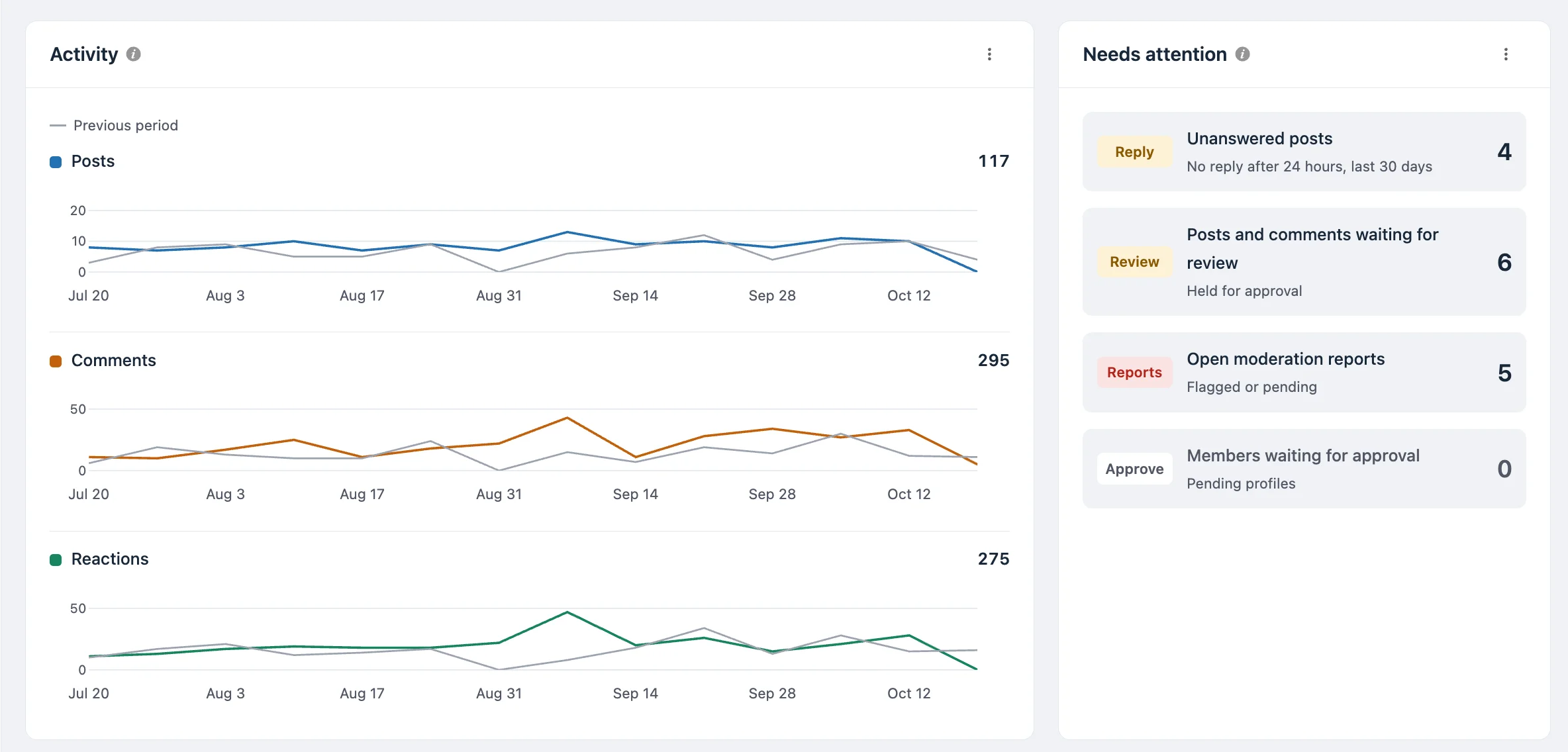
Activity. Three stacked line charts show Posts, Comments, and Reactions per period. Each chart has its own scale, so a quiet metric is not flattened by a busy one. The grey line is the previous period.
Needs attention. A live list of work waiting on you. Each row has a count and a label that tells you what to do.
| Row | Label | What it means |
|---|---|---|
| Unanswered posts | Reply | Posts from the last 30 days that still have no reply after 24 hours. |
| Posts and comments waiting for review | Review | Content held for approval. |
| Open moderation reports | Reports | Reports that are flagged or pending. |
| Members waiting for approval | Approve | Pending member profiles. |
Click a row to jump to the posts or reports that need action.
Active Members, New Members, and Top Spaces
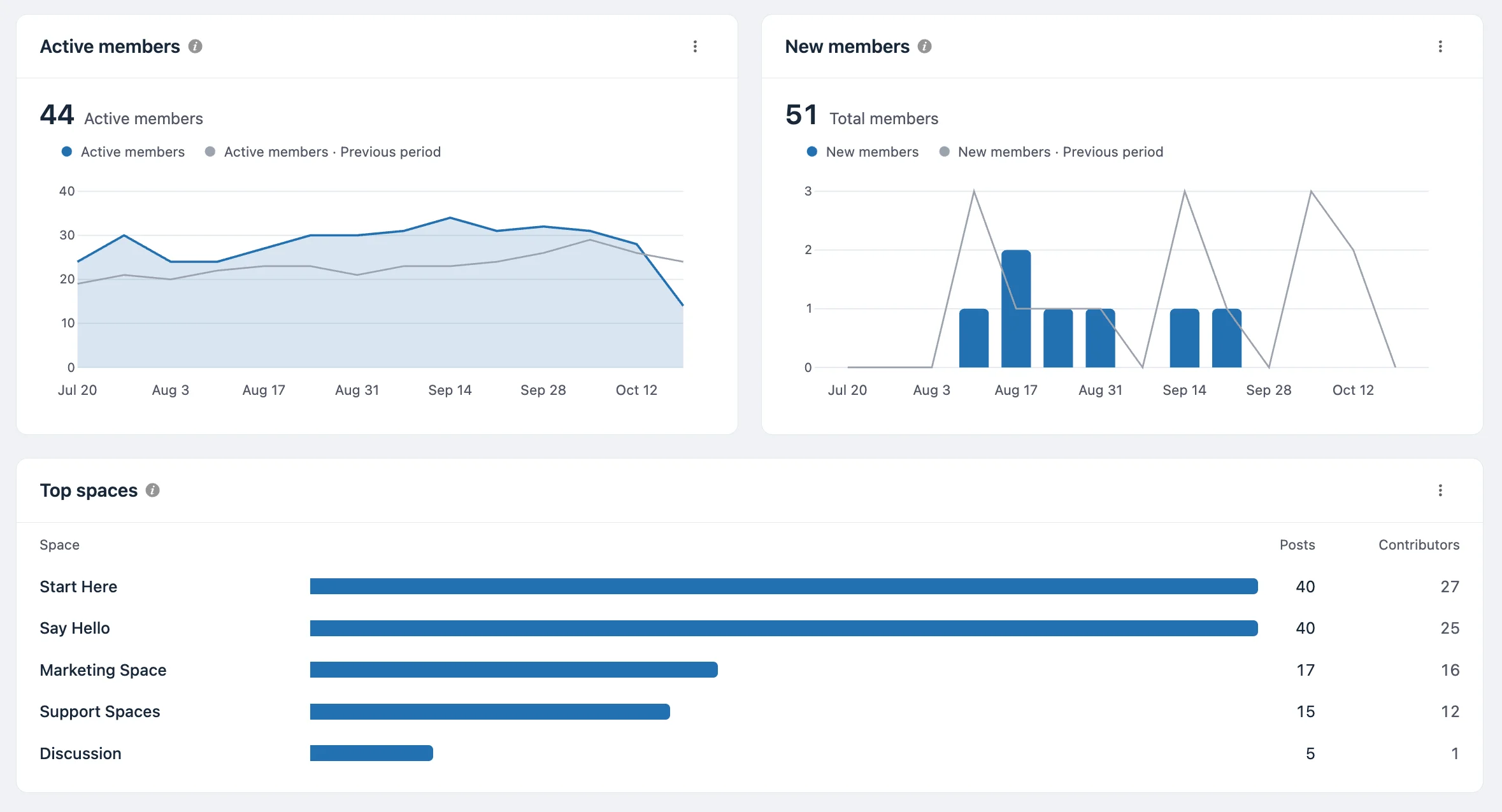
Active members. An area chart of the members who were active in each period. The headline number counts each member once across the whole range.
New members. Bars show how many members joined in each period, and the headline shows the total member count at the end of the range. The grey line is the previous period.
Top spaces. The five spaces with the most posts in the range, with the number of members who took part in each. Contributors counts members who posted, commented, or reacted.
Tip: A space with many posts but only one or two contributors depends on a single person. Encourage others to join in, or ask that person to invite more members.
Engagement (Pro)
Engagement shows how your members behave, not just how many there are.
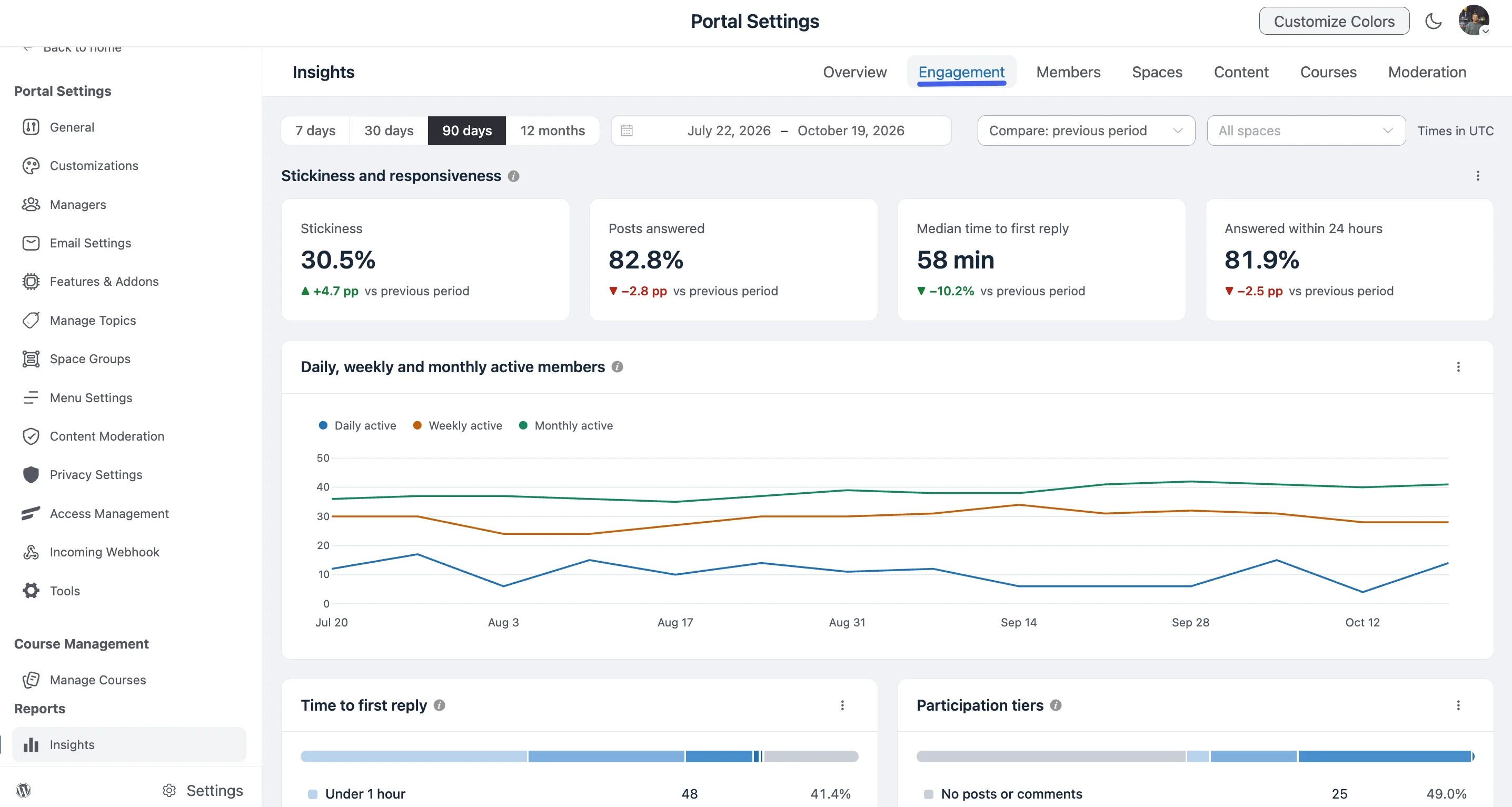
Stickiness and Responsiveness
| Card | What it tells you |
|---|---|
| Stickiness | Average daily active members divided by monthly active members. Between 10% and 25% is typical, and higher means members come back more often. |
| Posts answered | The share of posts that got a reply from someone other than the author. Posts younger than 24 hours are not judged yet. |
| Median time to first reply | The middle value of how long it takes for a post to get its first reply. |
| Answered within 24 hours | The share of posts that got a first reply inside a day. |
Daily, weekly and monthly active members. A line chart with three lines. Daily active counts members active on each day, Weekly active counts the 7 days ending on each date, and Monthly active counts the 30 days ending on each date. These are rolling windows, not calendar weeks.
Time to First Reply and Participation Tiers
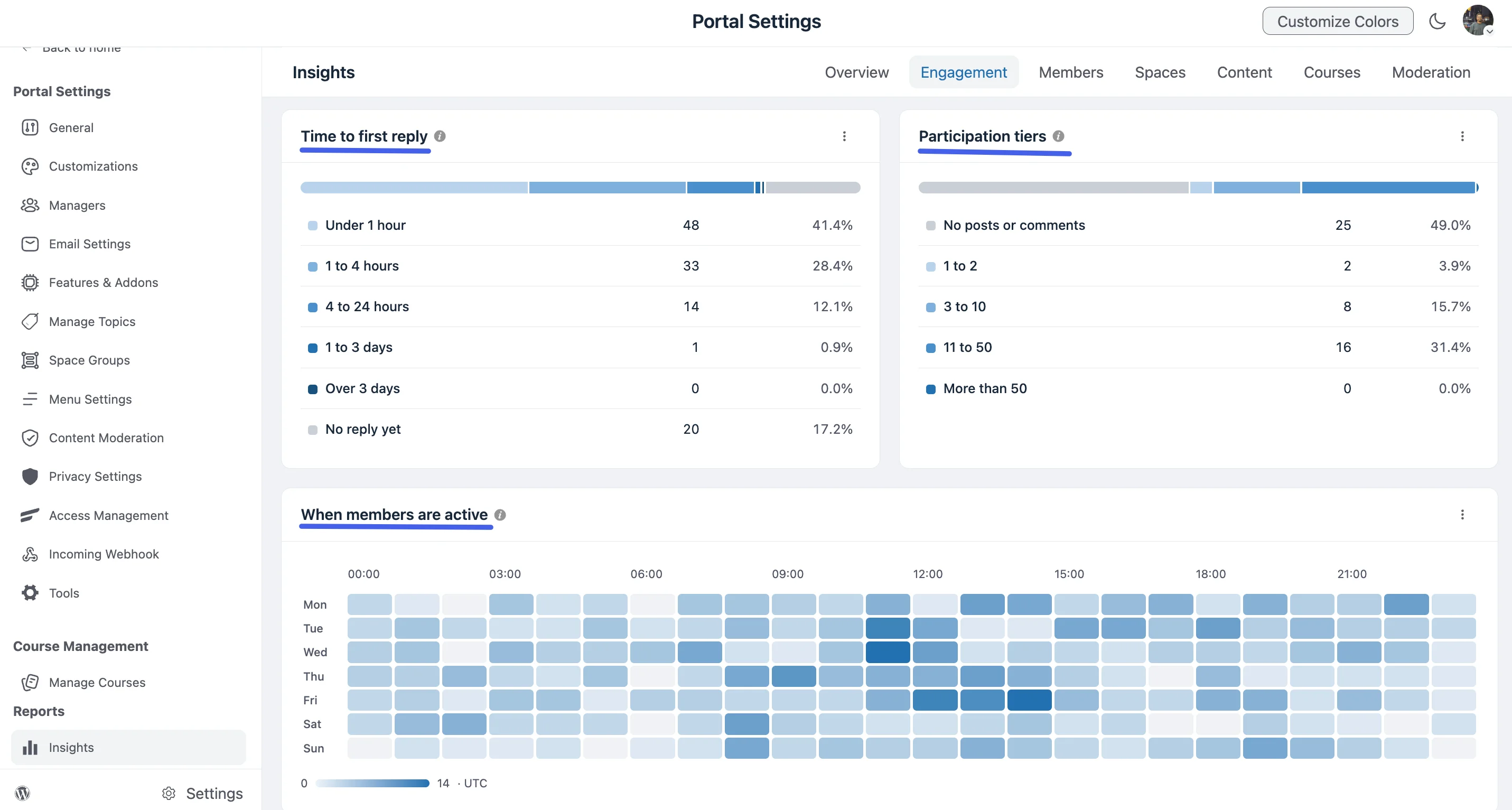
Time to first reply. Splits posts by how long they waited for a reply from someone else: Under 1 hour, 1 to 4 hours, 4 to 24 hours, 1 to 3 days, Over 3 days, and No reply yet. Each row shows the number of posts and the share of all posts.
Participation tiers. Groups members by how many posts and comments they wrote in the period: No posts or comments, 1 to 2, 3 to 10, 11 to 50, and More than 50.
NOTE
Most communities follow a 90-9-1 shape, where most members read without posting. A large No posts or comments tier is normal. Watch whether the tiers above it grow over time.
When members are active. A heatmap of posts, comments, reactions, and chat messages by weekday and hour, in your site's timezone. Darker cells mean more activity, and the scale below the grid shows the range. Sign-ups and space creation are not counted.
Tip: Schedule announcements and live events for the darkest cells. That is when the most members are online.
Members (Pro)
The Members page is about how new people settle in and who keeps the community going.
Activation and Member Status
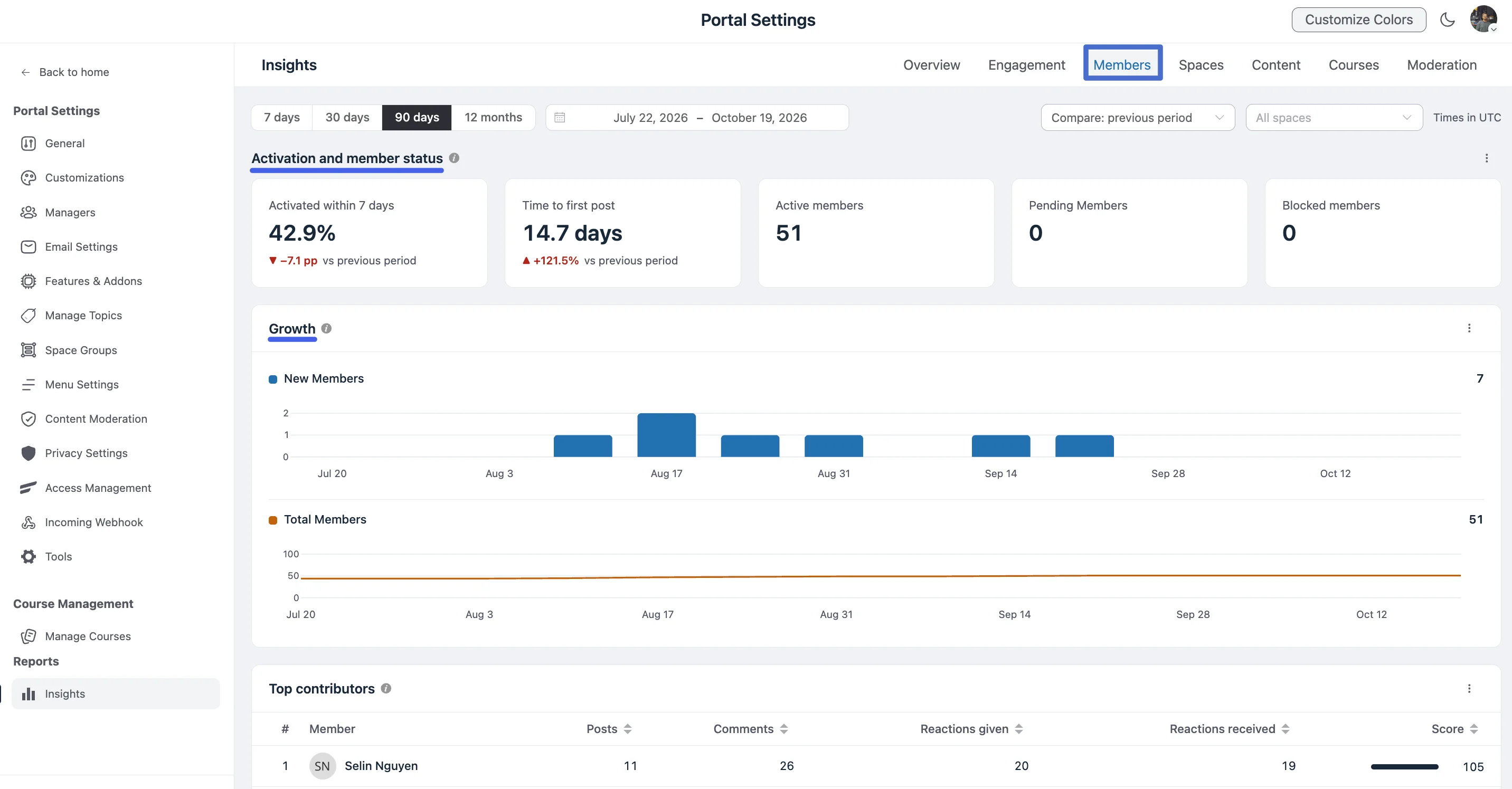
| Card | What it tells you |
|---|---|
| Activated within 7 days | The share of new members who posted, commented, or reacted within 7 days of joining. Members younger than 7 days are not judged yet. |
| Time to first post | The median time from joining to a first post. |
| Active members | Members with an active status right now. |
| Pending Members | Members waiting for approval. |
| Blocked members | Members who are blocked. |
Growth
Two charts show how the member base changes. New Members is a bar chart of joins per period, and Total Members is a line showing the member count at the end of each period. They use separate scales, so a flat total line does not hide a busy sign-up week.
Top Contributors and Retention Cohorts
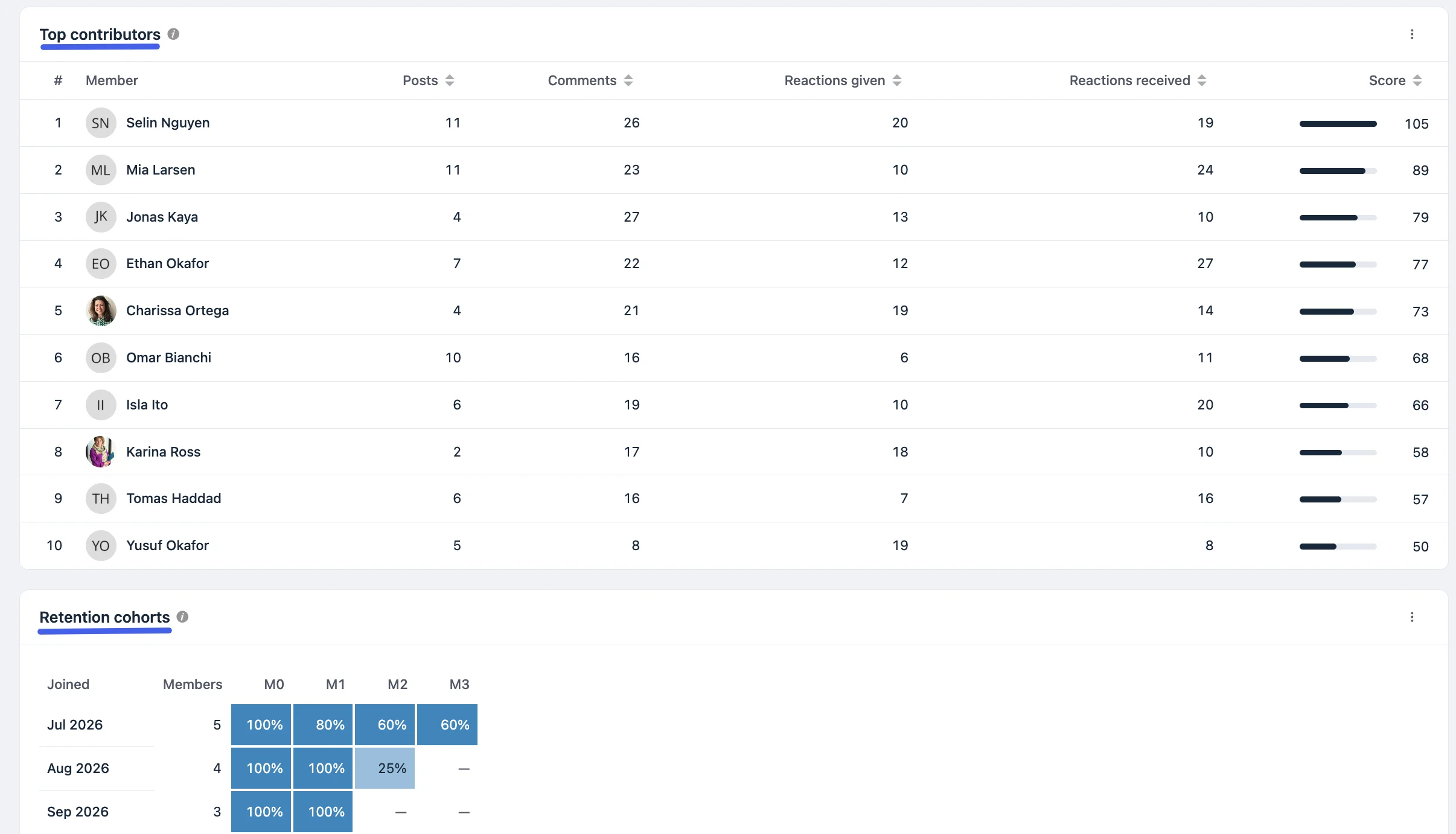
Top contributors. A ranked table of your most active members. Columns show Posts, Comments, Reactions given, and Reactions received. The Score is 3 × posts + 2 × comments + 1 × reactions given, so writing a post counts more than reacting. Click a column heading to re-sort.
Retention cohorts. Members are grouped by the month they joined, and each row shows what share of that group was still active in the months after. M0 is the joining month, so it is always 100%. M1 is the next month, and so on. A dash means that month has not happened yet. A member counts as active if they contributed, or visited once visits are tracked.
Tip: Read cohorts from left to right. A sharp drop between M0 and M1 means newcomers leave soon after joining, so improve your welcome post, onboarding emails, and first space.
At-Risk Members
Below these panels, the page also lists at-risk members: people who were active before but have gone quiet. A member is at risk if they made 5 or more posts and comments in the 60 days before the last 30 days of the range, and nothing at all in those last 30 days. Reach out to them with a message or an invitation to a new discussion.
Spaces (Pro)
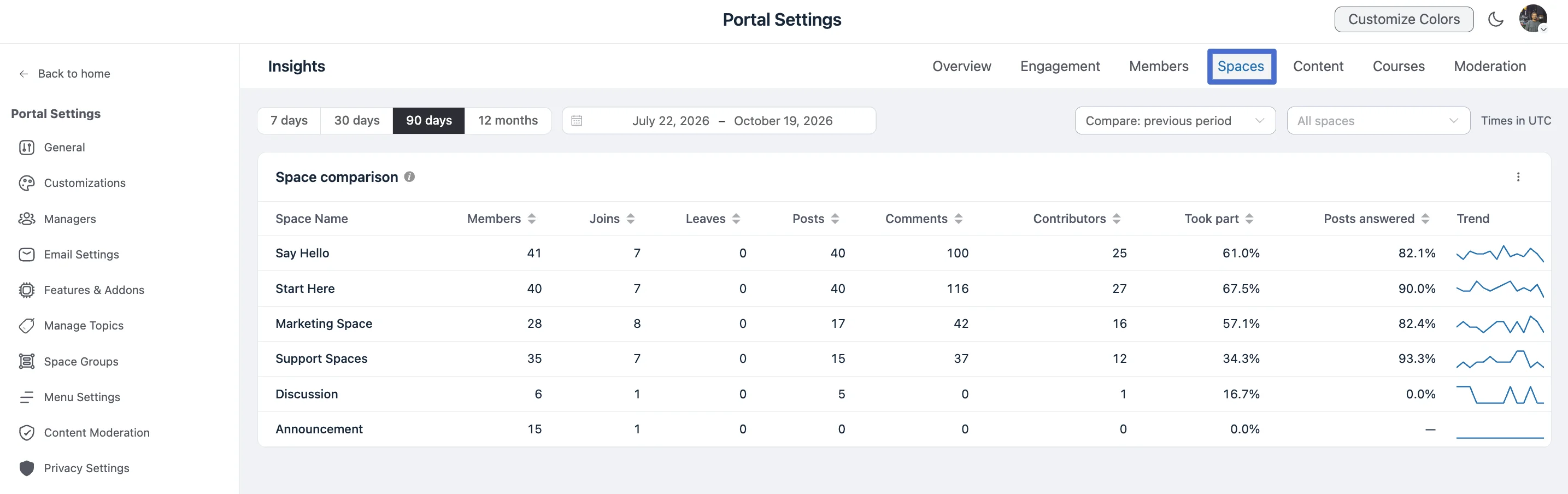
The Space comparison table puts every space side by side.
| Column | What it shows |
|---|---|
| Space Name | The space. |
| Members | Members in the space right now. |
| Joins | Members who joined during the range. |
| Leaves | Members who left during the range. Leaves are known from the day tracking started. |
| Posts | Posts created in the range. |
| Comments | Comments written in the range. |
| Contributors | Members who posted, commented, or reacted. |
| Took part | The share of members who took part. |
| Posts answered | The share of posts that received a reply. |
| Trend | A small line showing the post trend over the range. |
Click a column heading to sort by it.
Tip: A space with plenty of members but a low Took part share is not working yet. It usually needs a prompt, a pinned discussion, or a merge into a busier space. See Space Settings & Privacy for your options.
Content (Pro)
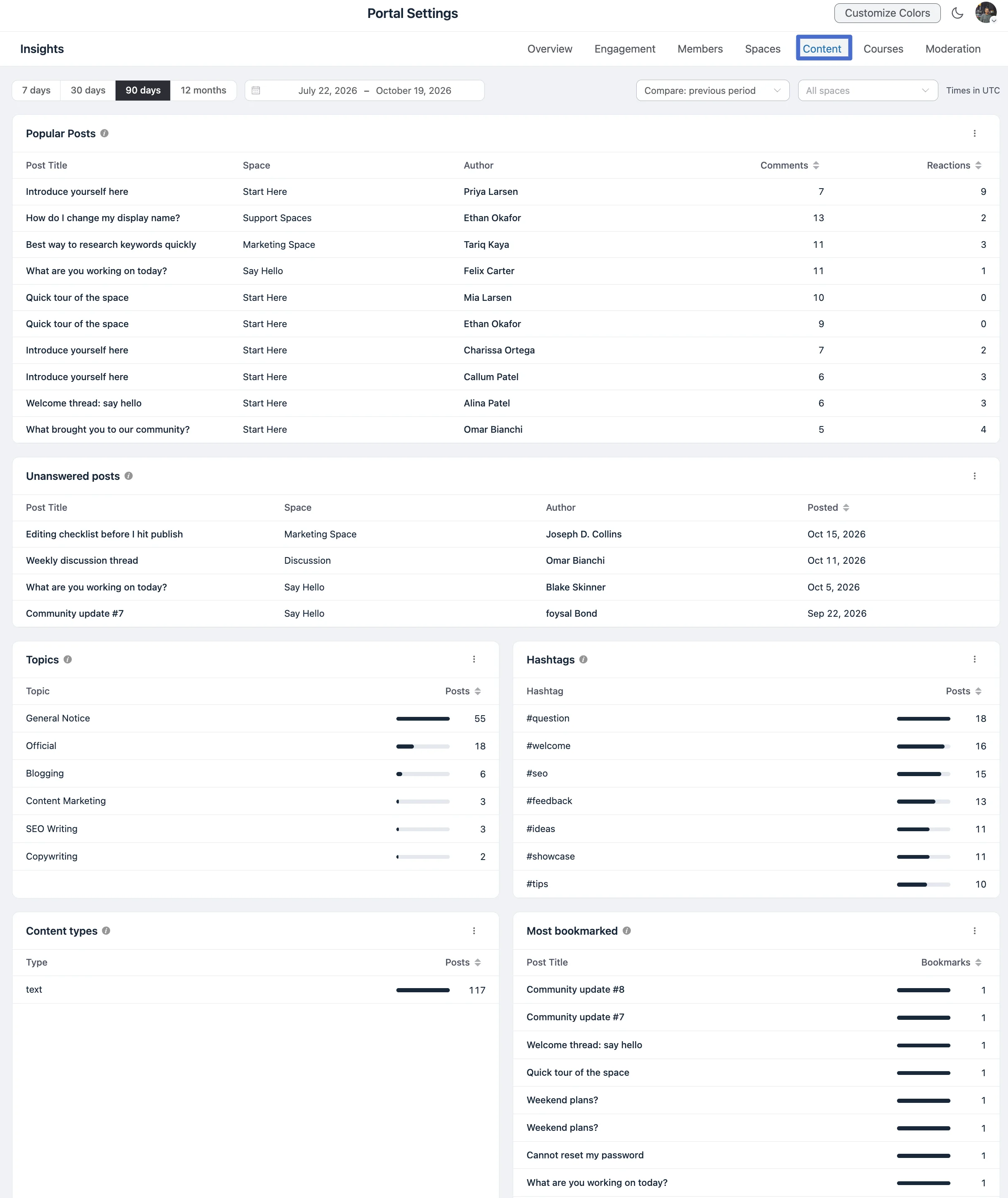
The Content page shows what your members write about and respond to.
| Card | What it shows |
|---|---|
| Popular Posts | Posts created in the range, ranked by the comments and reactions they received in the range. Shows the post title, space, author, comments, and reactions. |
| Unanswered posts | Posts from the last 30 days that nobody but the author has replied to after 24 hours, newest first. This card is not limited by the date range. |
| Topics | Posts per topic. A post with two topics counts once for each. |
| Hashtags | Posts per hashtag. |
| Content types | Posts by kind, such as text, survey, document, or video. |
| Most bookmarked | The posts members bookmarked most often in the range. |
Tip: Use Unanswered posts as a daily to-do list for your moderators and space managers. A quick reply to a first post makes a big difference to whether a new member returns.
Courses
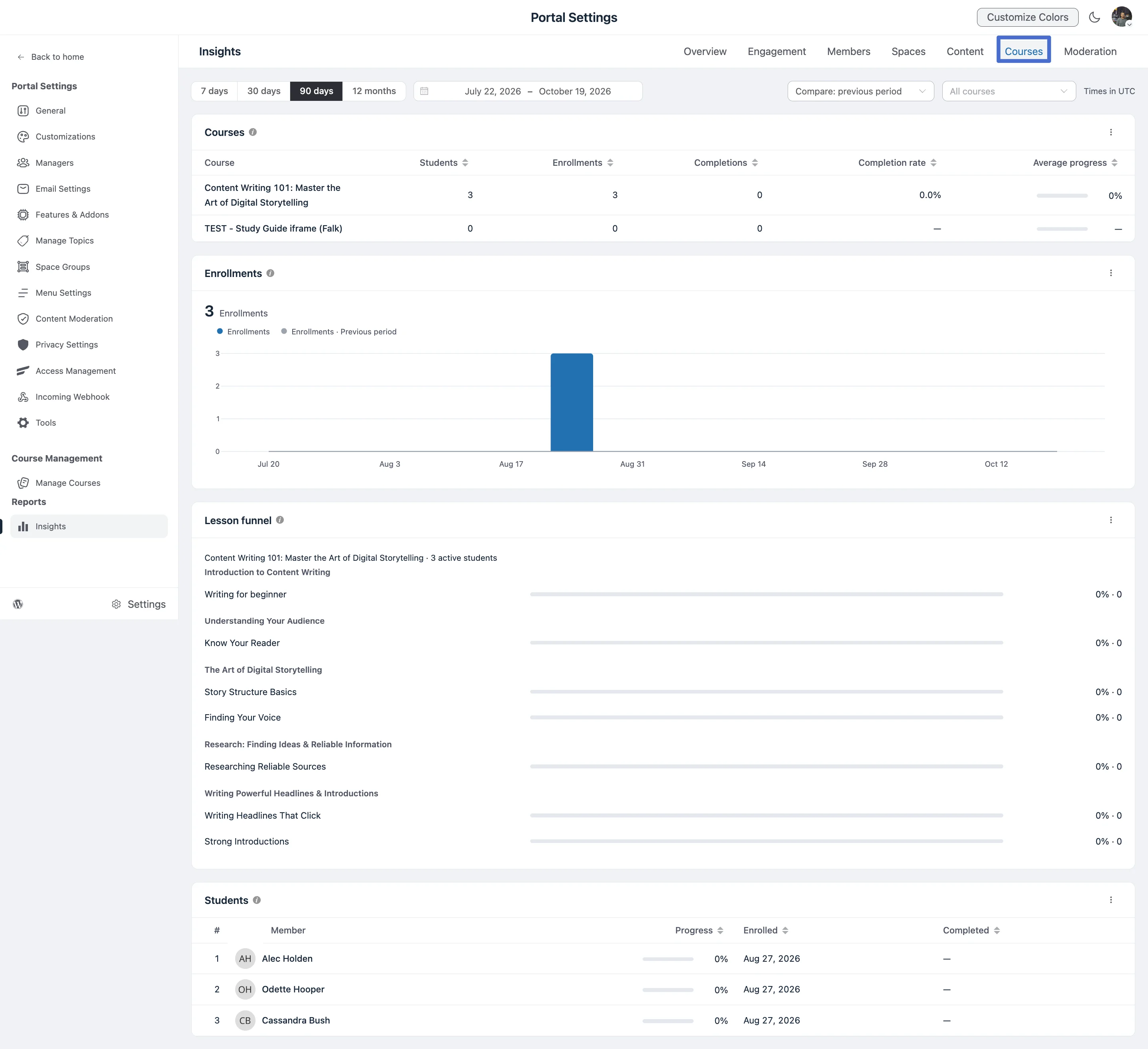
The Courses page is free and appears when the Courses module is enabled. Use the All courses dropdown to focus on one course.
Courses. A table with one row per course and these columns: Students, Enrollments, Completions, Completion rate, and Average progress.
Enrollments. A bar chart of how many students enrolled in each period, compared with the previous period.
Lesson funnel. For the selected course, the share of active students who completed each published lesson, in curriculum order and grouped by section. A bar that drops sharply from one lesson to the next shows where students get stuck.
Students. The 100 most recent enrollments for the selected course, with each student's Progress, Enrolled date, and Completed date.
Tip: If one lesson loses most of your students, look at its length, video quality, or difficulty. See Structuring Lessons & Modules for ways to split it up.
Moderation (Pro)
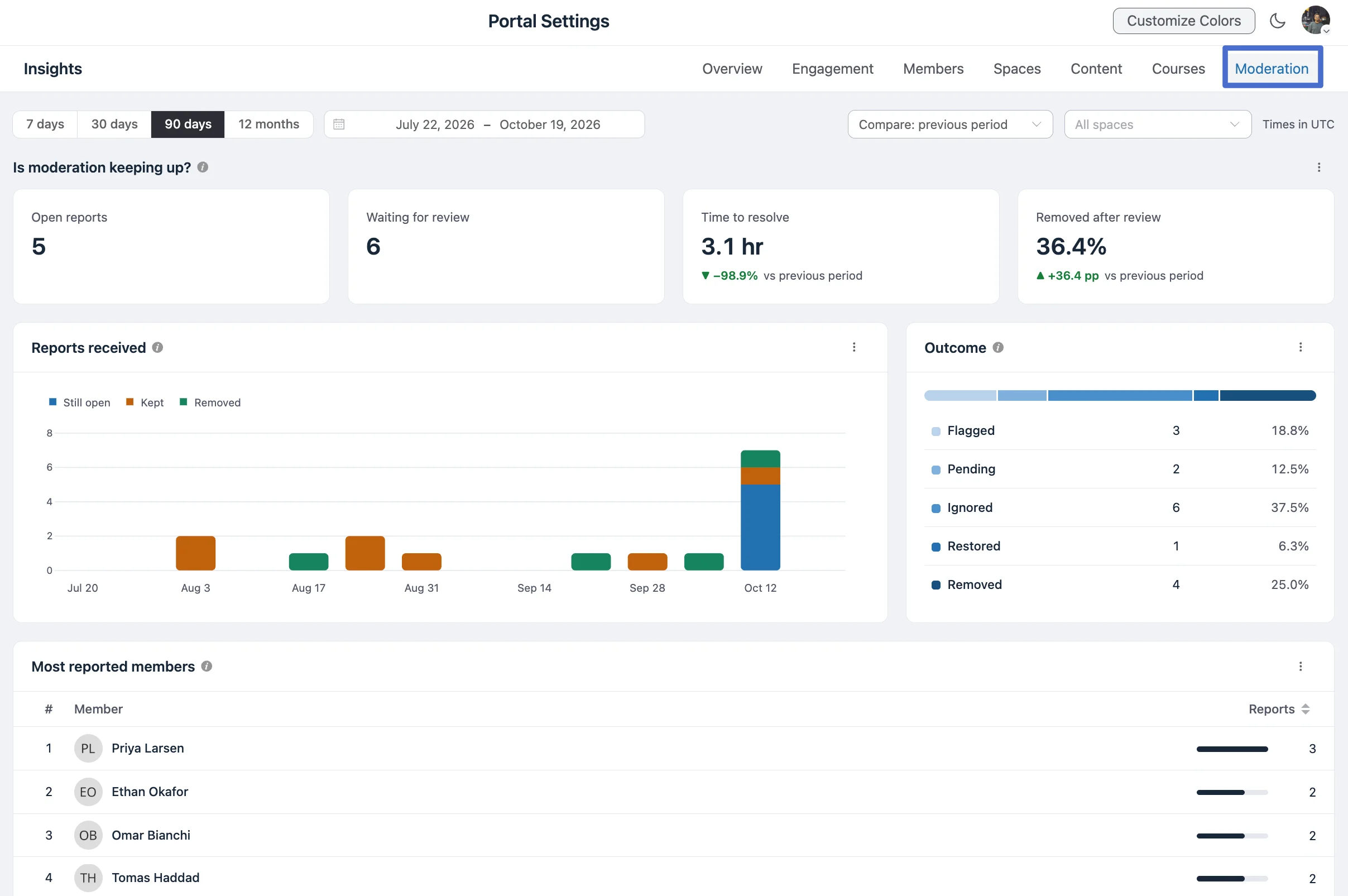
The Moderation page tells you whether reported content is being handled quickly.
Is Moderation Keeping Up?
| Card | What it shows |
|---|---|
| Open reports | Reports still open right now. |
| Waiting for review | Content waiting for review right now. |
| Time to resolve | The median time to the last action on reports made in the range. |
| Removed after review | The share of reports that led to a removal. |
Reports Received, Outcome, and Most Reported Members
Reports received. A stacked bar chart of reports made in each period, split by where they stand now: Still open, Kept after review, or Removed.
Outcome. A breakdown of reports in the range by status: Flagged, Pending, Ignored, Restored, and Removed, with a count and share for each.
Most reported members. The authors whose posts were reported most in the range. A report on a comment counts against the person who wrote the comment.
NOTE
A very high Removed after review share can mean members are reporting content they simply disagree with. A very low one can mean real problems are being ignored. See Content Moderation for how to review reports.
Turning the Numbers Into Action
| What you see | What to try |
|---|---|
| New members rising, Activated within 7 days falling | Improve your welcome post and ask newcomers to introduce themselves. |
| Low Stickiness | Post on a regular schedule and add recurring events or threads. |
| Long Time to first reply or many Unanswered posts | Assign more space managers or moderators. |
| Retention cohorts dropping fast after M1 | Review your onboarding and your first space's content. |
| A space with a low Took part share | Pin a discussion, ask a question, or merge it into a busier space. |
| Lesson funnel with a sharp drop | Shorten or split the lesson before the drop. |
| Rising Open reports | Add moderators or review the queue more often. |
Tip: Check Insights weekly or monthly rather than daily. Community trends are slow, and a longer date range tells you far more than yesterday's numbers.