Appearance
Global Search & Command Palette
Global Search allows you to find anything in your community from one box. You can search posts, comments, people, spaces, courses and lessons together, or jump straight to a page without clicking through menus.
Use Case: A member remembers a helpful reply from last month but not which space it was in. They press Ctrl+K, type a few words, and the matching posts and comments appear in one list.
Open the Search Box
You can open search in two ways:
- Press ⌘K (Mac) or Ctrl+K (Windows and Linux) anywhere in the portal.
- Click the Search... box in the header bar.

Jump to a Page
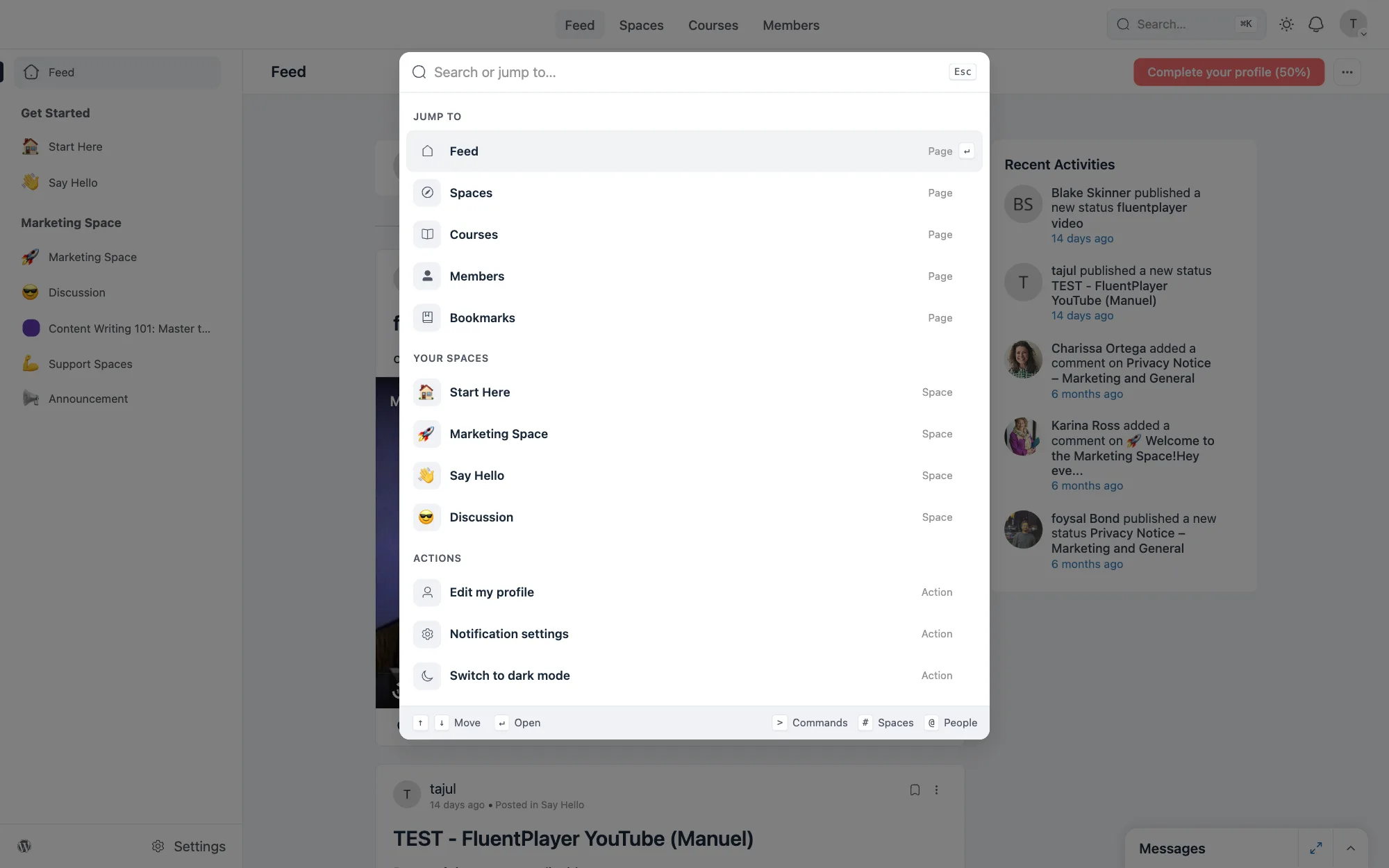
Before you type anything, the box shows quick links grouped under Jump to, Your Spaces and Actions.
- Jump to opens main pages such as Feed, Spaces, Courses, Members and Bookmarks.
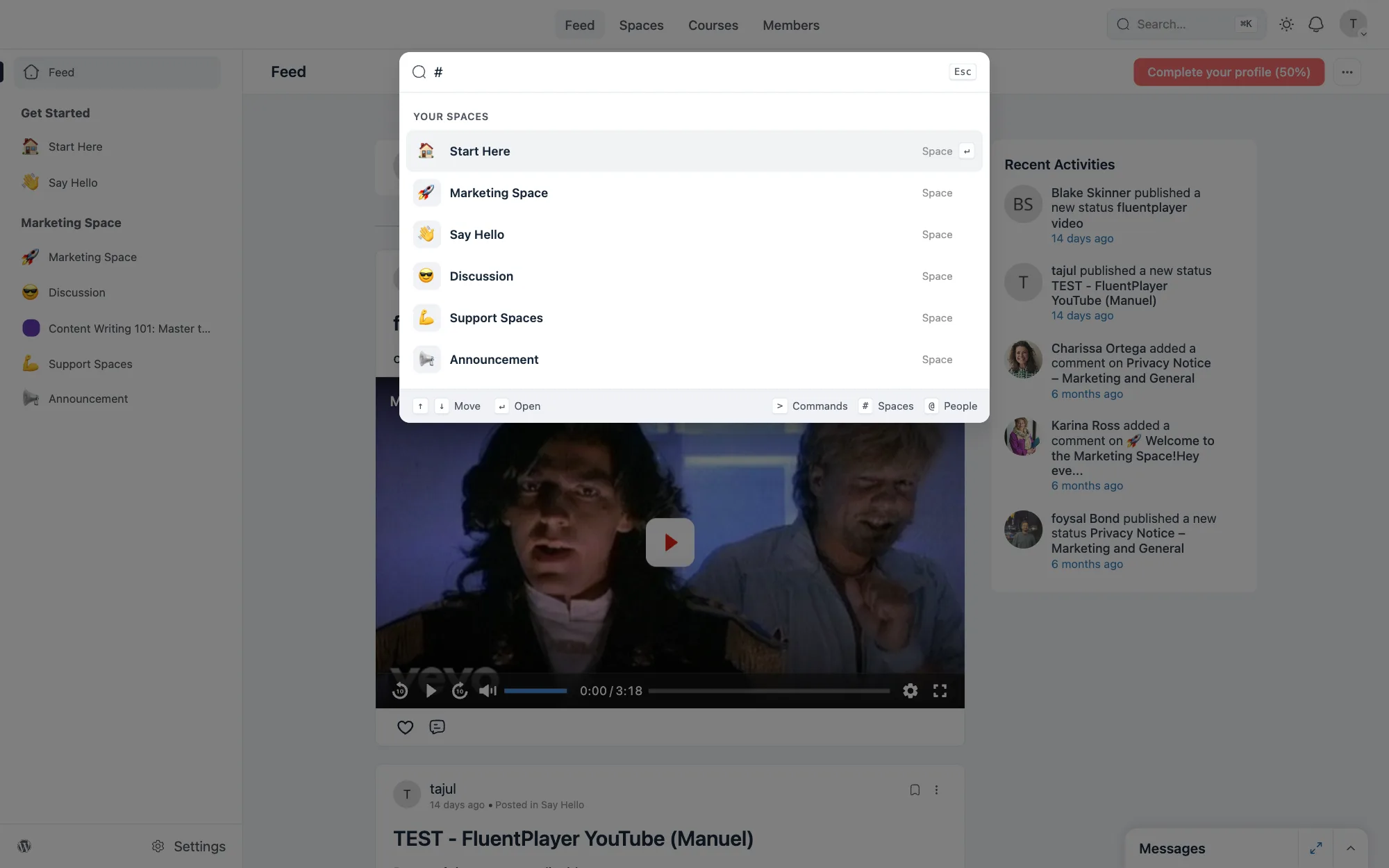
- Your Spaces lists the spaces you have joined.
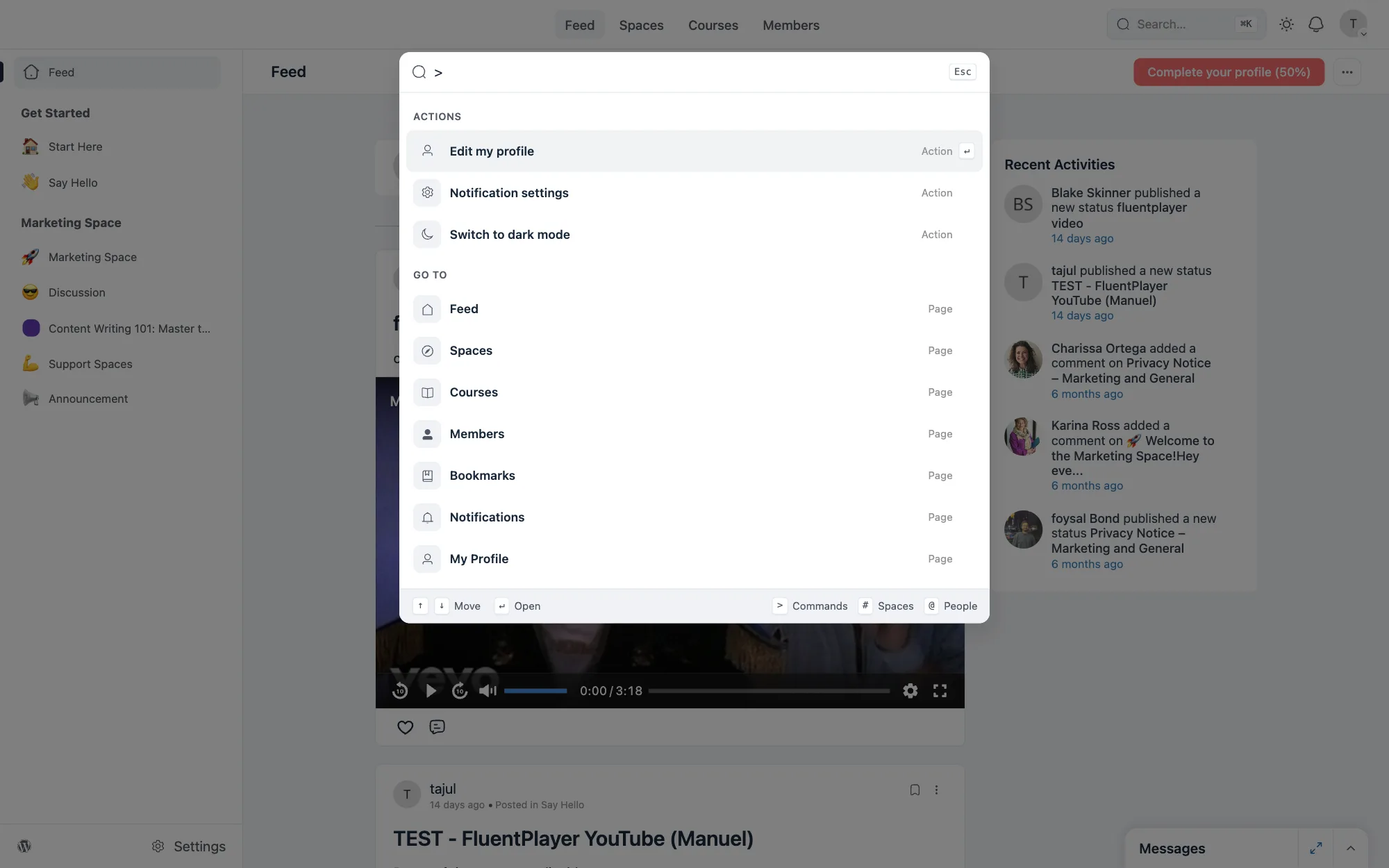
- Actions has shortcuts such as Edit my profile, Notification settings and Switch to dark mode.
Use the Up and Down arrow keys to move through the list, Enter to open the highlighted item, and Esc to close the box.
Search Your Community
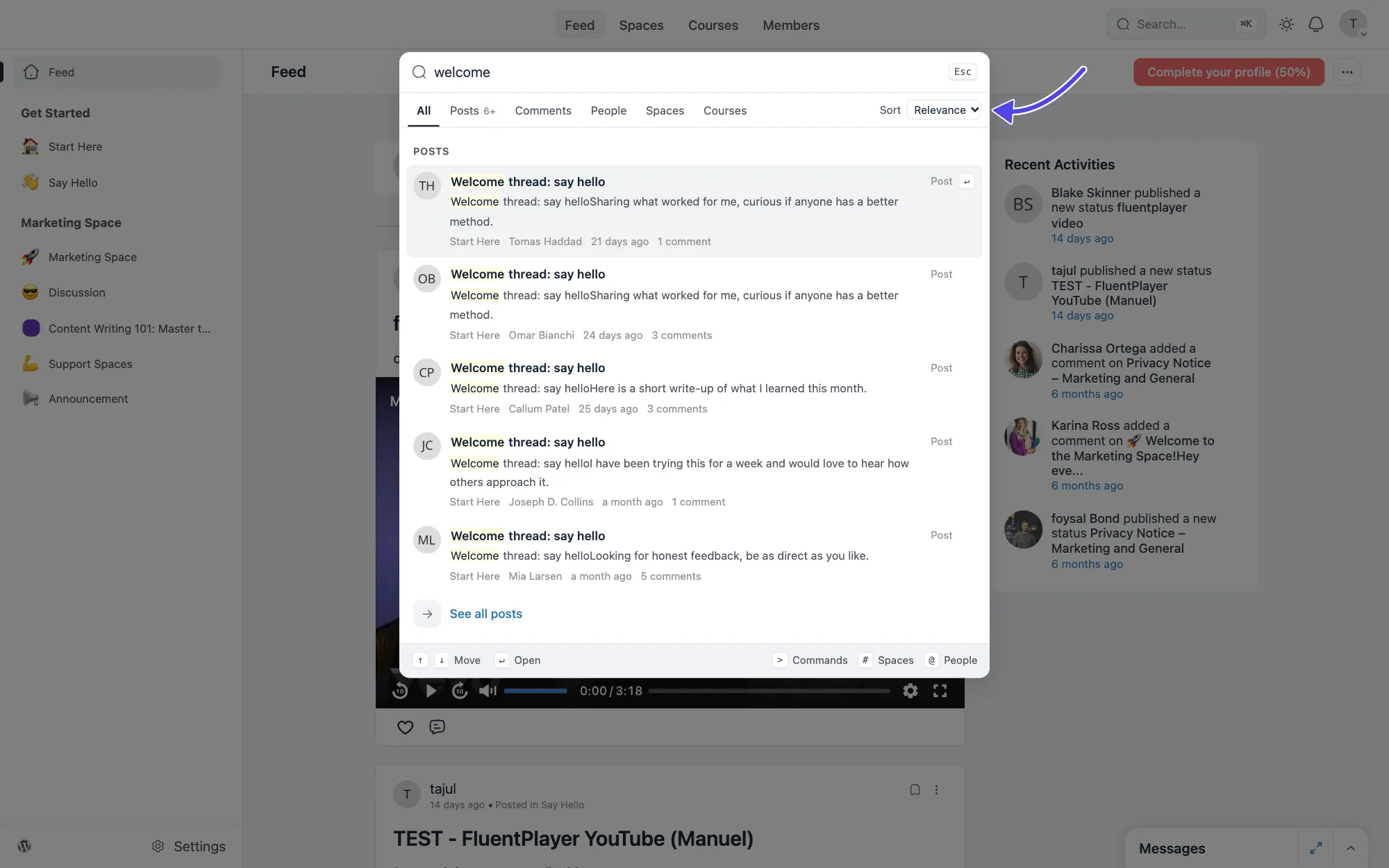
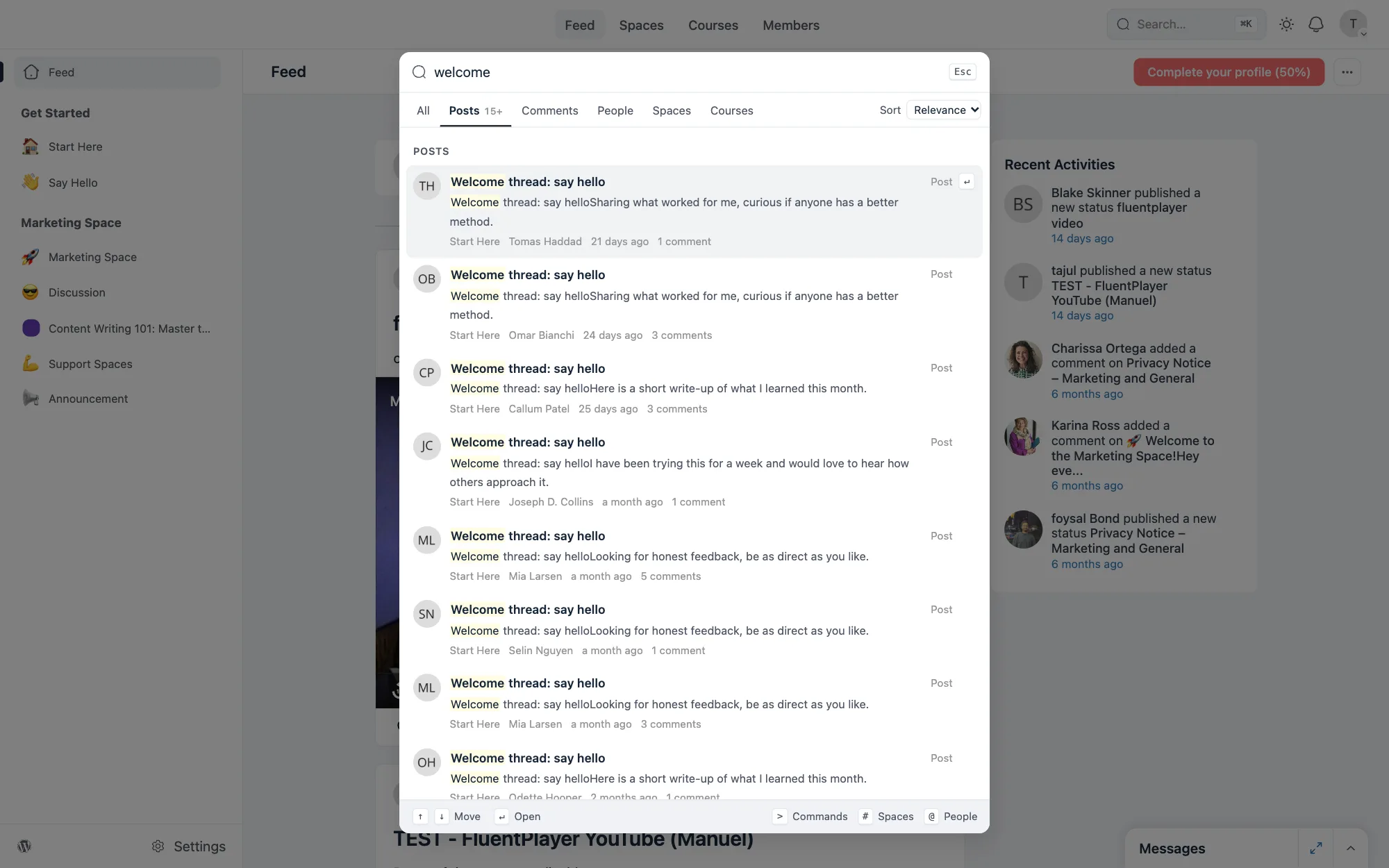
Type a word or phrase to search. Results are grouped by type, and the words you typed are highlighted in each result.
The All tab shows a few results of each type. Posts, comments, people, spaces, courses and individual lessons can all appear. Select See all posts to see more.
Members only see what they can access
Search shows each person only the results they already have access to. Posts from a private space do not appear for someone who has not joined it.
Narrow Down Results
Click a tab to see only one type of result.
- Posts shows matching posts, each with its space, author, time and comment count.
- Comments shows matching comments.
- People, Spaces and Courses show members, spaces and courses.
Use the Sort menu to change the order of post results. Relevance is the default. You can also sort by newest or by most popular.
Use Shortcuts
The bar at the bottom of the box lists three shortcuts. Type the symbol first, then keep typing.
| Type | What it does |
|---|---|
> | Shows Actions and Go to pages, so you can run a command or open a page. |
# | Lists your spaces. Type a name after it to find one. |
@ | Searches for people. Type a name to find a member. |
No results?
If a search finds nothing, the box suggests trying a different search, such as Search in comments.