Appearance
Re-arranging Spaces & Courses
By default, your spaces and courses listings decide their own order. With Re-arrange, admins put them in the order members should meet them, rather than the order they were created.
Use Case: Your onboarding course and the Start Here space are the oldest items on the site, but you want new members to see them first. Drag them to the top, save, and lock the sort so everyone sees your order.
Re-arranging the Order
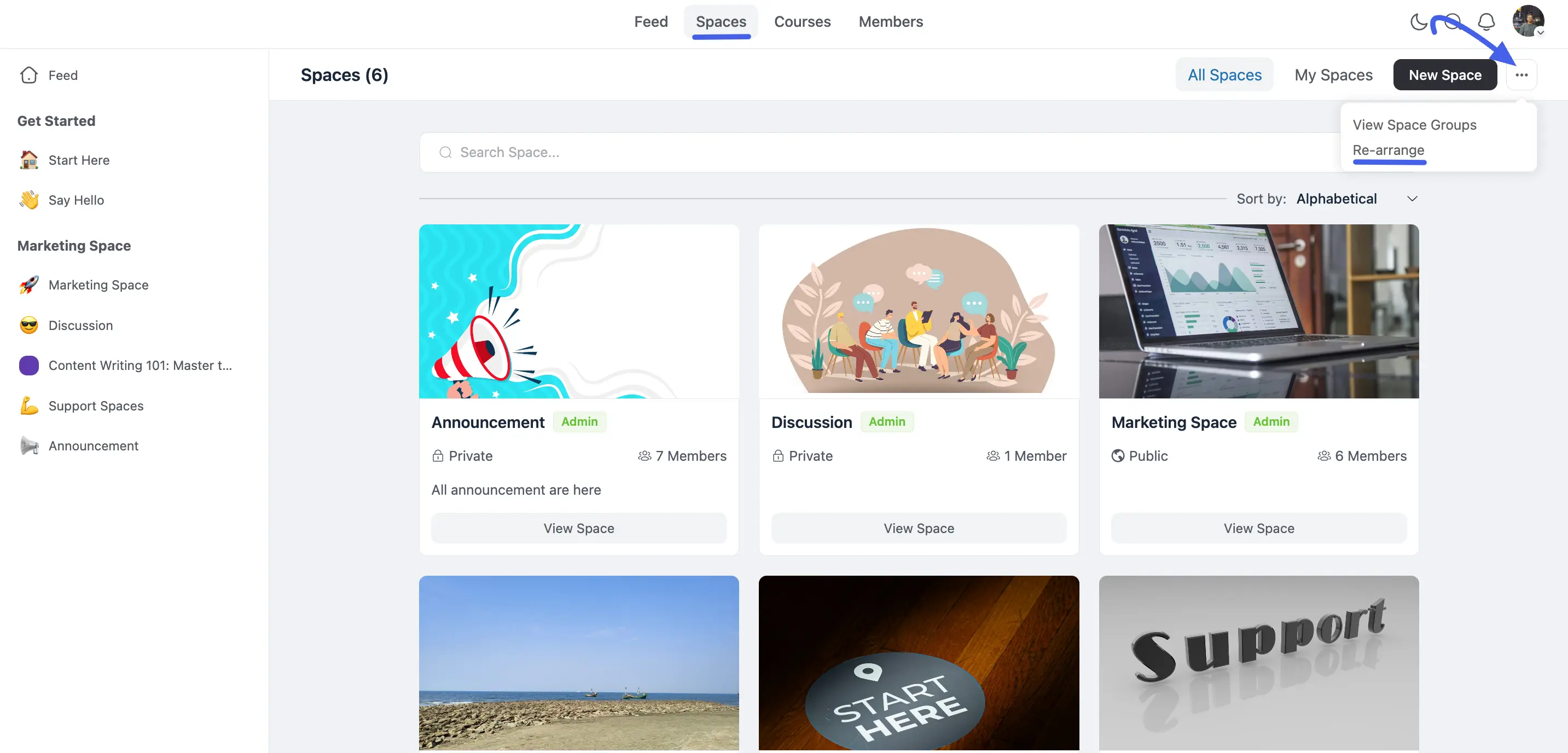
- Open the Spaces (discover) page or the Courses page in your community portal.
- Open the page menu and click Re-arrange.
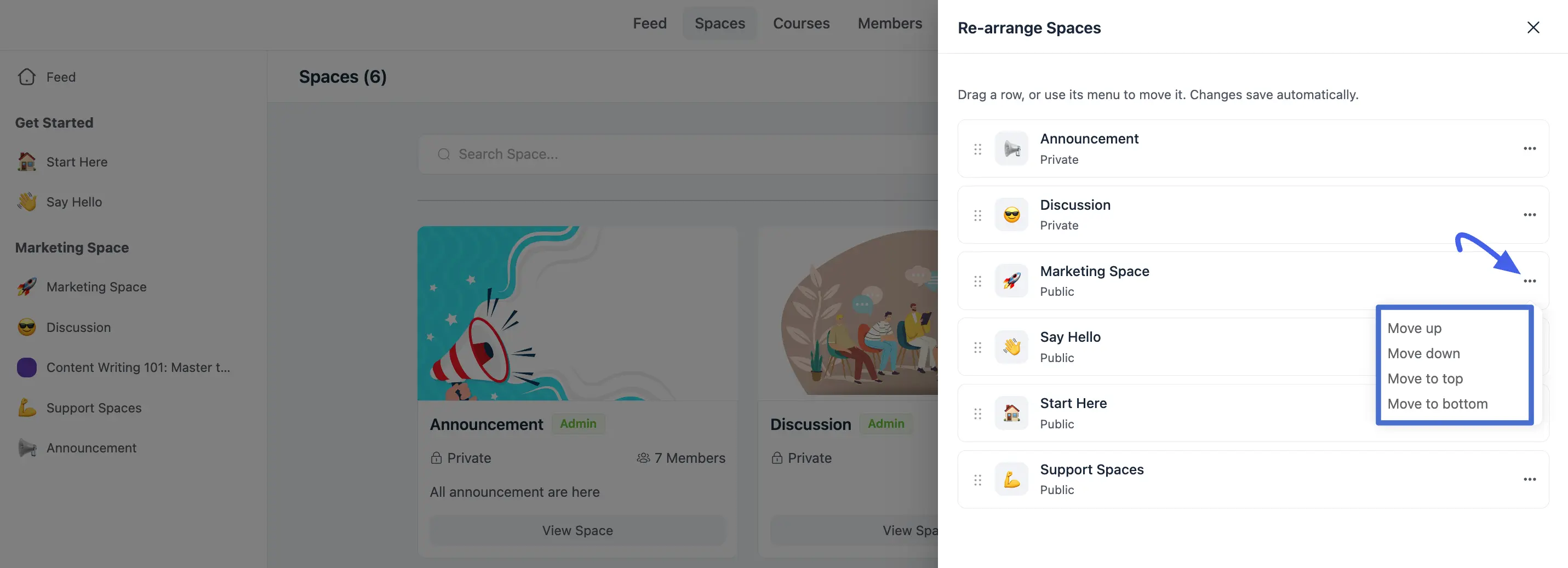
- In the drawer, drag each space or course into the position you want. You stay on the page, so there is no reload.
NOTE
New spaces and courses no longer sink below your custom order. Secret spaces appear in the drawer for the people who are allowed to see them.
Choosing the Default Sort
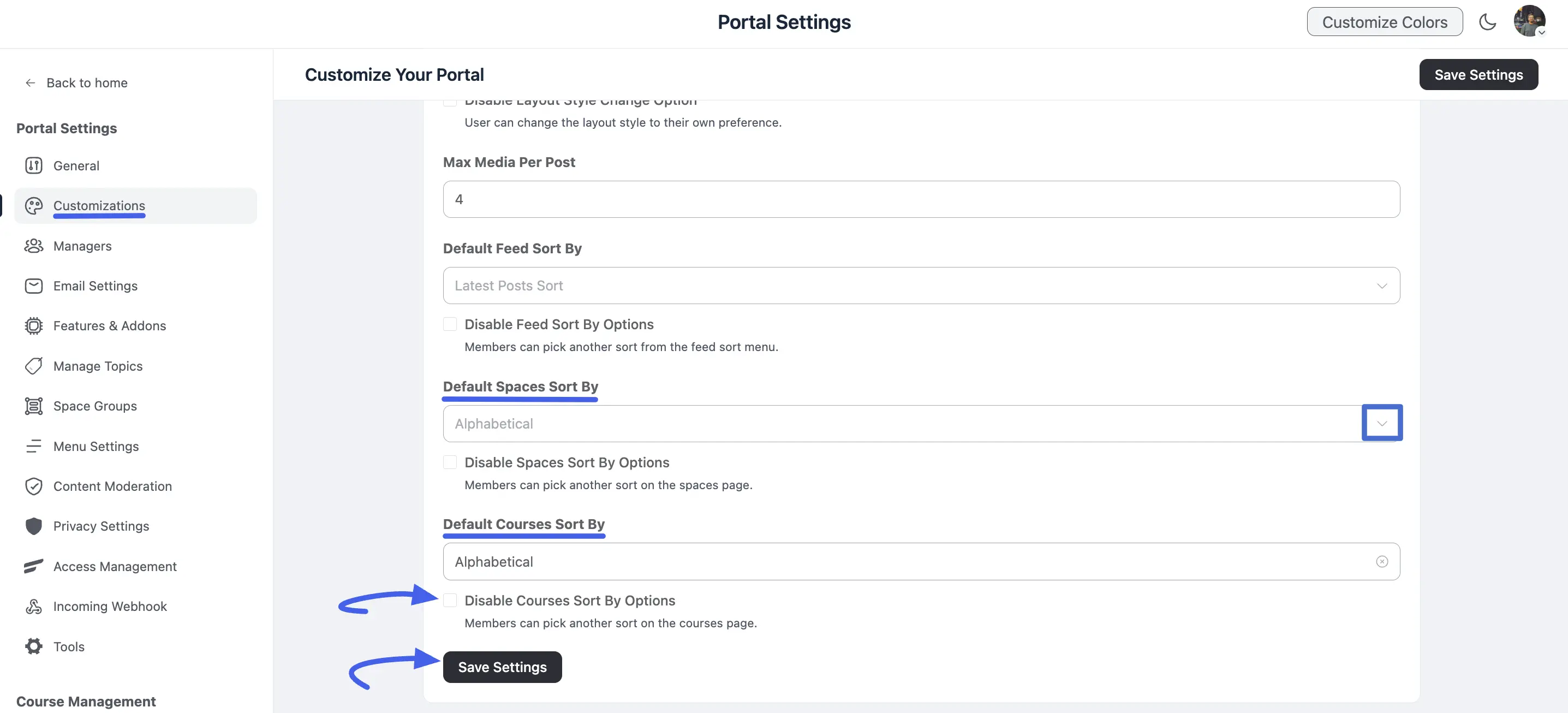
Two settings in Customization Settings control how members see each listing:
- Go to Portal Settings and open Customization.
- Find the sort settings for Spaces and Courses.
- Pick the default sort members see on each listing.
- To show everyone the same thing, turn the sort dropdown off, so your custom order is the only order.
- Click Save Settings.
Tip: To use your drag-and-drop order as the order members see, choose the custom order as the default sort and turn the sort dropdown off.