Appearance
Following & Blocking Members
The Follow & Block module adds a layer of social interaction to your community, letting members connect and personalize their experience much like they would on a social network. When enabled, members can follow users whose content they enjoy to build a curated "Following" feed, and block others for a safer, more controlled environment.
Use Case: A member wants a quieter feed focused on the handful of experts they trust. They follow those users to build a personalized feed and block a disruptive account to stop seeing its posts entirely, all without anyone being notified.
How to Set Up the Module (For Admins)
The module is disabled by default, so you'll activate and configure it first.
Step 1: Open the Follower Module Settings
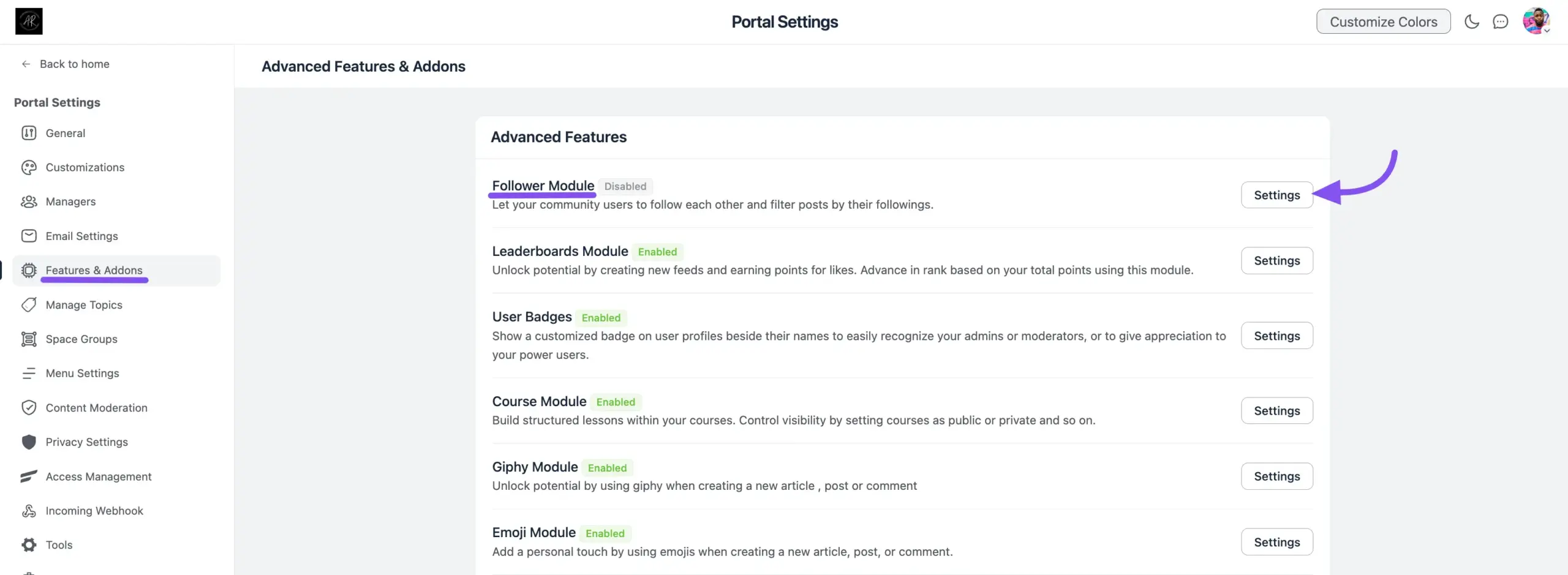
- From your WordPress dashboard, go to FluentCommunity → Portal Settings and click the Features & Addons tab.
- Find the Follower Module in the list of Advanced Features.
- Click the Settings button next to it.
Step 2: Configure and Save
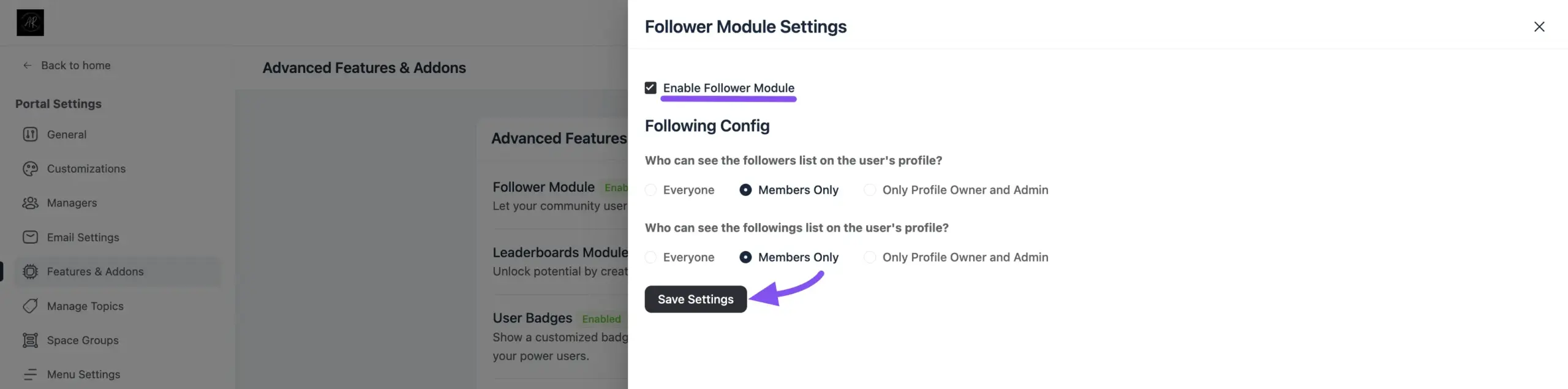
A Follower Module Settings window opens. Configure the following:
- Enable Follower Module: Check this box to turn the entire feature on.
- Who can see the followers list: Choose who can see the list of users who follow a member.
- Who can see the followings list: Choose who can see the list of users a member is following.
For both privacy options, you can choose:
- Everyone: Any visitor to your site.
- Members Only: Only logged-in community members.
- Only Profile Owner and Admin: The list stays private to the user and site administrators.
Click the Save Settings button to finalize your configuration.
How Members Use the Feature
Following and Unfollowing Users
Members can follow others to see their posts and updates more easily.
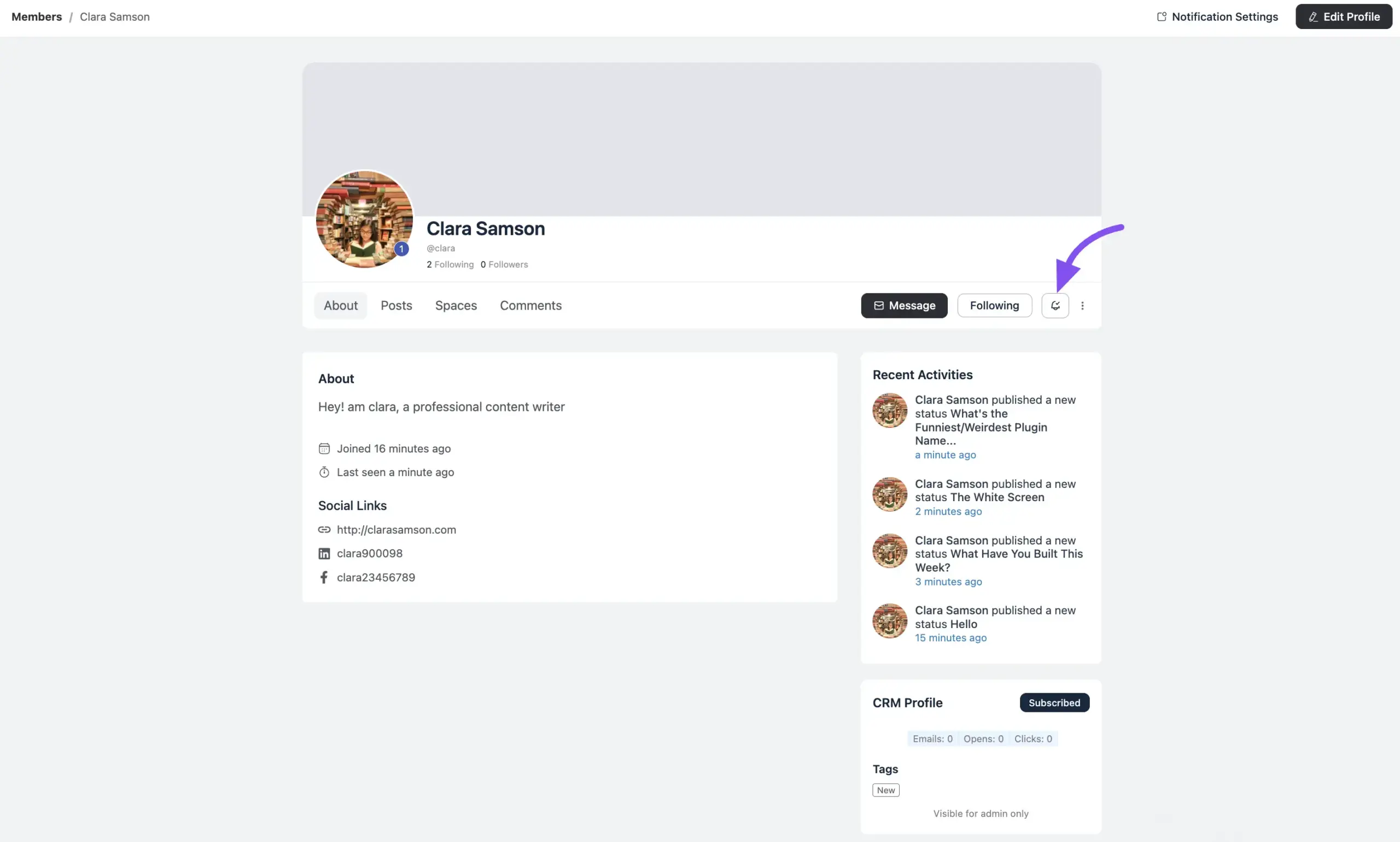
- How to Follow: A Follow button appears on other members' profile pages and on their member cards in the Member Directory. Clicking it makes them a follower.
- Notifications: Use the notification icon to control notifications, so the followed user is alerted about new posts or comments.
- How to Unfollow: Once you follow someone, the button changes to Following. Click it again to unfollow.
Viewing Following & Follower Lists
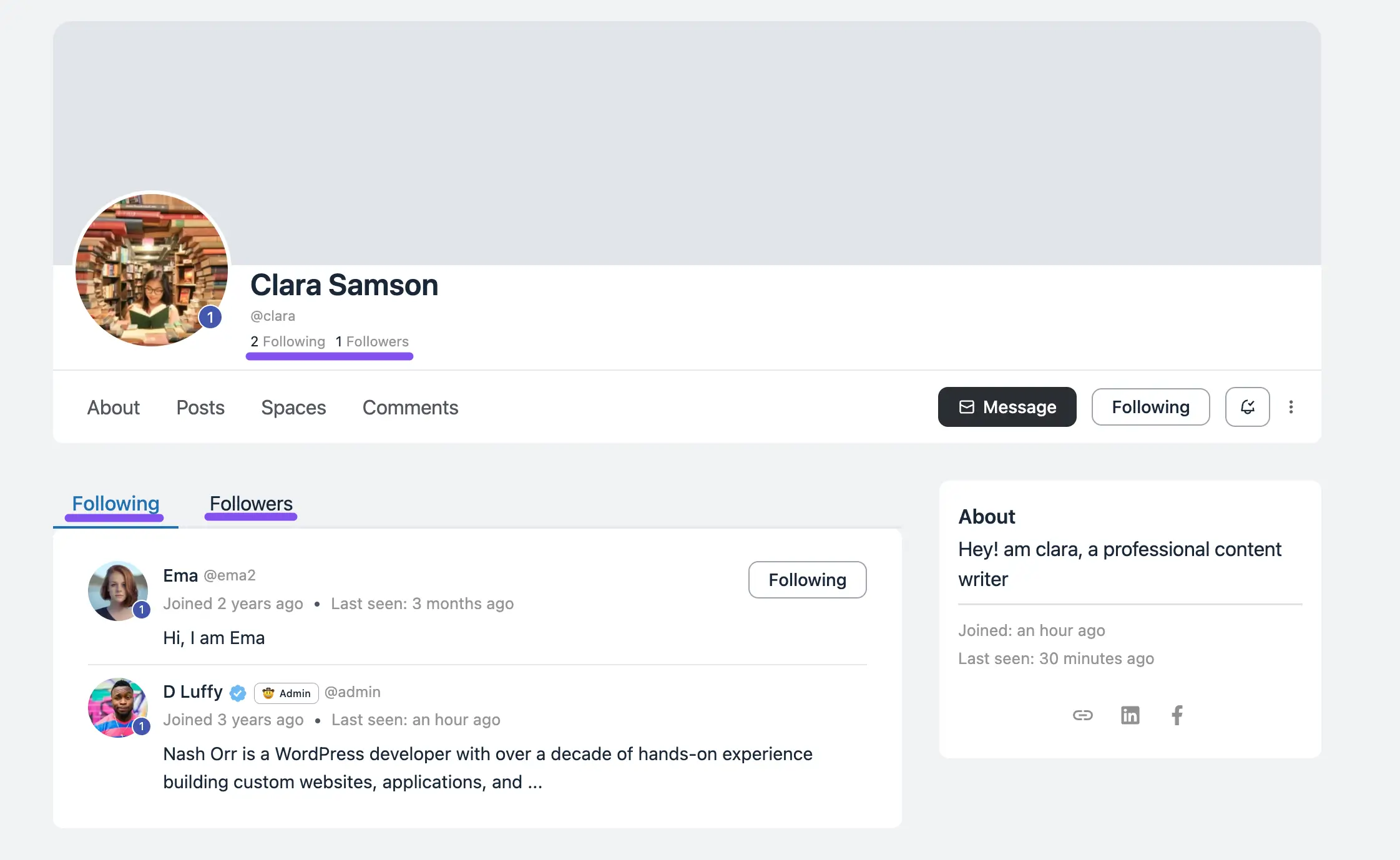
Every member's profile page includes two tabs: Following and Followers. Their visibility to other users depends on the privacy settings you configured when enabling the module.
Filtering Your Feed by "Following"
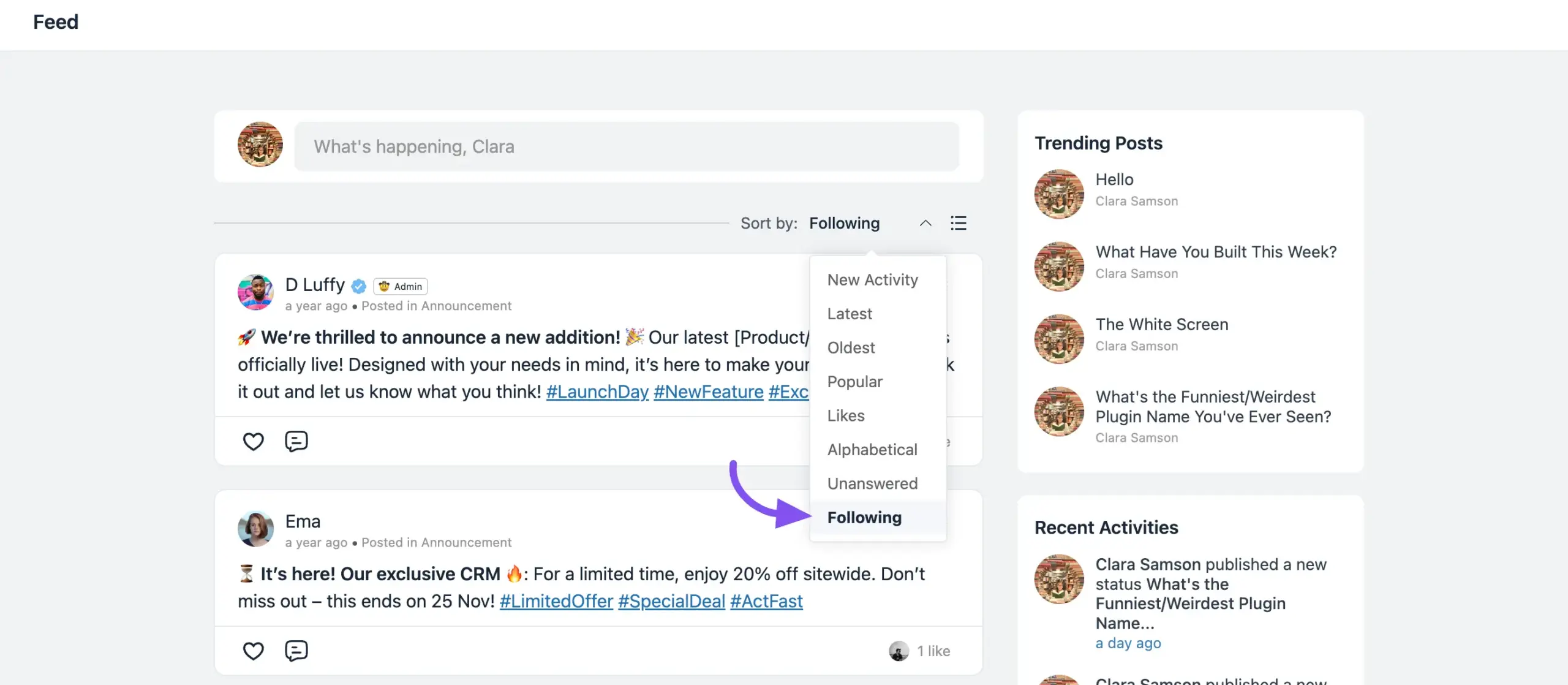
To see a personalized feed with posts only from members you follow:
- Go to the main Feed page.
- Click the Sort by: dropdown above the posts.
- Select Following from the list.
Your feed instantly updates to show your curated view.
Blocking and Unblocking Users
For added privacy and safety, members can block other users. The block is silent — the other person is not notified.
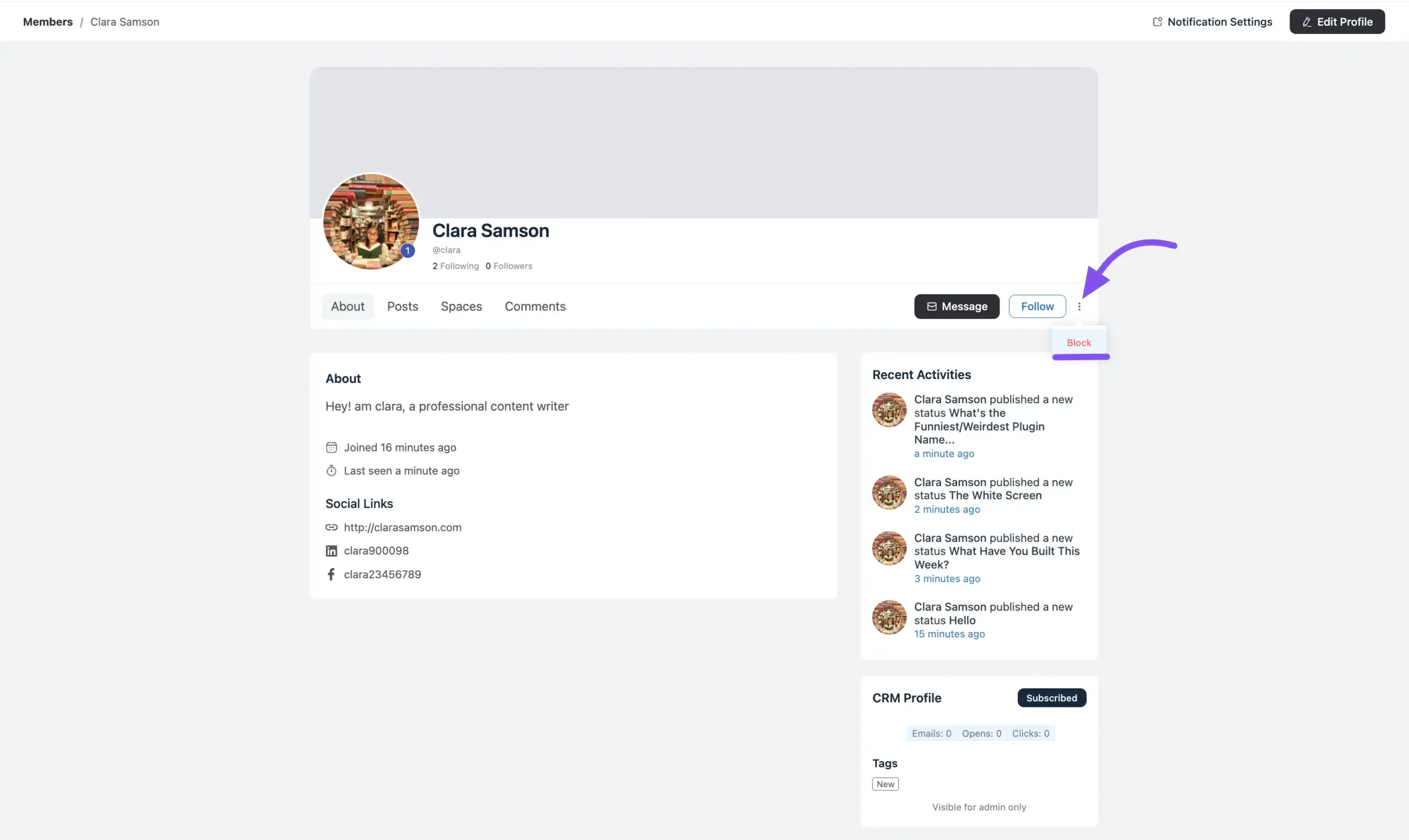
- How to Block: On any member's profile page, click the three-dot menu next to the Follow button, then select Block. Once blocked, you'll no longer see that member's posts.
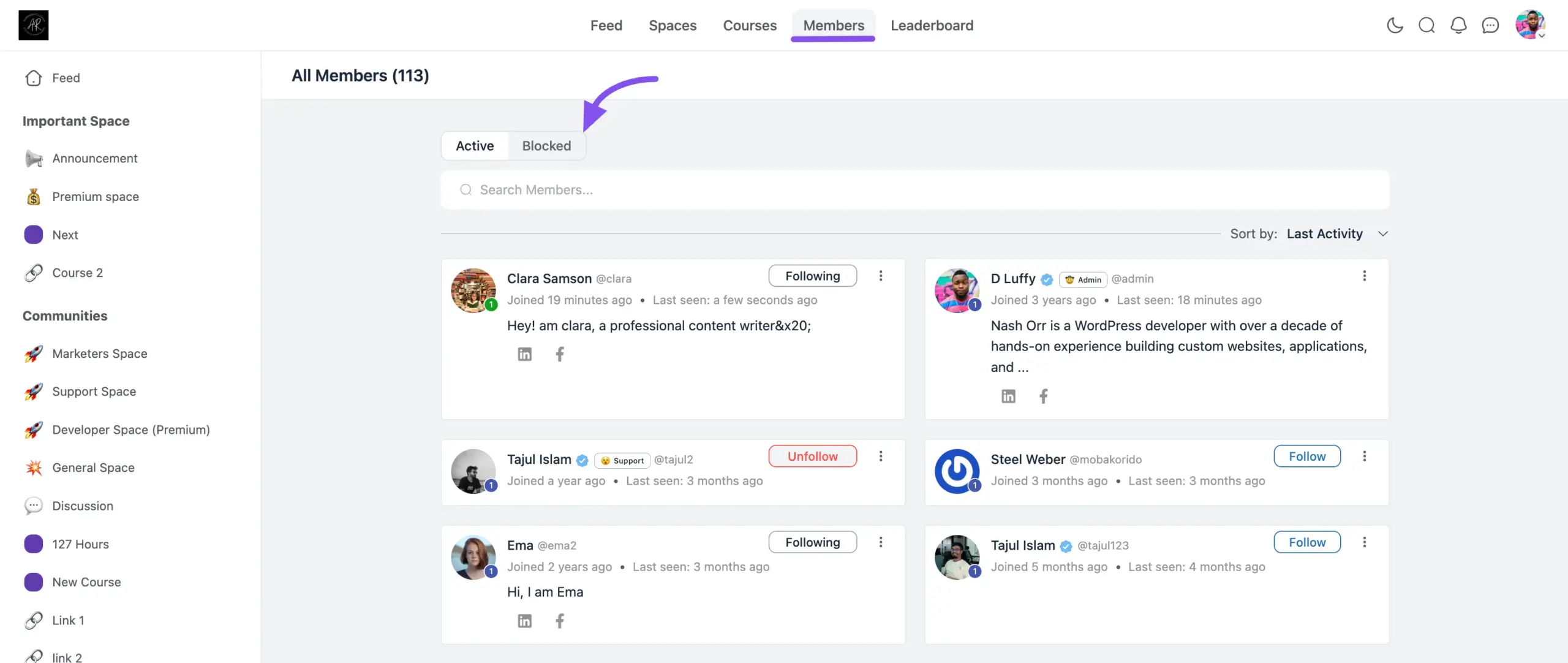
How to Unblock: Members can manage everyone they've blocked from one place.
- Go to the main Members page of the community.
- Click the Blocked tab.
- Review everyone you've blocked and unblock them from here.